
1. Introduction
The KiiBoom Phantom 21 is a compact, hot-swappable numeric keypad designed for efficiency and versatility. It features triple-mode connectivity (Bluetooth 5.0, 2.4GHz wireless, and USB-C wired), programmable keys, a multi-functional control knob, and customizable RGB backlighting. This manual provides detailed instructions for setting up, operating, maintaining, and troubleshooting your Phantom 21 Numpad.
2. What's in the Box
Upon unboxing your KiiBoom Phantom 21 Numpad, please ensure all the following items are present:
- Phantom 21 Numpad
- 1.5m Type-C Cable
- Instructional Manual (this document)
- Packing Cloth
- Switch Puller
- Keycap Puller
- Screwdriver
- Extra Switches
- Extra Nails

Image: The KiiBoom Phantom 21 Numpad and its included accessories, including the USB-C cable, keycap and switch pullers, screwdriver, and extra components.
Video: An unboxing and showcasing of the KiiBoom Phantom 21 Numpad, demonstrating the contents of the package and initial product appearance.
3. Product Overview
The KiiBoom Phantom 21 Numpad is engineered for precision and user experience. Key features include:
- 21 Keys + 1 Knob: Optimized layout for numeric input and versatile control.
- Tri-Mode Connectivity: Seamless switching between Bluetooth 5.0, 2.4GHz wireless, and USB-C wired modes.
- Hot-Swappable: Compatible with most 3/5-pin mechanical switches for easy customization and maintenance.
- Gasket Structure: Provides a softer typing feel and clearer sound profile.
- Acrylic Design: Crystal clear aesthetic with durable construction.
- South-Facing RGB: Customizable backlighting with dynamic patterns and a full spectrum of colors.
- Programmable: Full customization of key remapping, macros, and RGB effects via proprietary software.

Image: The KiiBoom Phantom 21 Numpad showcasing its transparent acrylic case and illuminated keys.

Image: An overview graphic highlighting the main features of the KiiBoom Phantom 21 Numpad, including 19 keys + 1 knob, tri-mode, hot-swappable, gasket structure, plate-mounted, south-facing RGB, acrylic design, and programmability.
4. Setup and Connectivity
The Phantom 21 Numpad offers three connection modes for broad compatibility with various devices.
4.1. Tri-Mode Connection
The Numpad supports Bluetooth, 2.4GHz wireless, and USB-C wired connections. It can connect to up to 5 devices.
- Bluetooth Mode: Press FN + 1/2/3 to switch between three Bluetooth profiles.
- 2.4GHz Mode: Press FN + 4 to activate 2.4GHz wireless mode. Ensure the 2.4GHz dongle is plugged into your device.
- Wired Mode: Connect the Numpad to your device using the provided USB-C cable.

Image: A visual representation of the KiiBoom Phantom 21 Numpad's tri-mode connection options, including Bluetooth, Wired (USB-Type C), and 2.4G Mode, compatible with PC, Laptop, Tablet, Phone, Switch, Xbox, and PlayStation.
5. Operating Instructions
Familiarize yourself with the key combinations and knob functions for optimal use.
5.1. Key Combination Functions
These functions are active only when the Num Lock indicator light is OFF.
- FN + ESC (Hold 3s): Reset the Numpad to factory settings.
- FN + Backspace: Check battery level.
- FN + /: Toggle RGB effects.
- FN + *: Toggle RGB colors.
- FN + .: Change backlight direction (if applicable).
- FN + 0: Turn on/off backlights.
- FN + +: Increase backlight brightness.
- FN + -: Decrease backlight brightness.

Image: A diagram illustrating the key combination functions of the KiiBoom Phantom 21 Numpad, specifically when the Num Lock indicator light is off.
5.2. Multifunction Control Knob
The versatile control knob allows for quick adjustments:
- Rotate: Adjust volume (Volume + / Volume -).
- Press: Mute/Unmute audio.
- Custom Functions: The knob's functions can be customized via the KiiBOOM software.
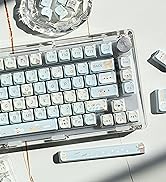
Image: A close-up of the KiiBoom Phantom 21 Numpad's multifunction knob, showing its capabilities for volume control, mute, and custom functions.
5.3. RGB Backlighting
The Phantom 21 features south-facing RGB LEDs for vibrant and customizable backlighting. Use the key combinations mentioned above (FN + /, FN + *, FN + 0, FN + +, FN + -) to control the RGB effects, colors, and brightness.

Image: A visual demonstrating the South-Facing RGB backlights of the KiiBoom Phantom 21 Numpad, highlighting the vibrant illumination.
Video: A demonstration of the customizable RGB backlights on the Phantom 21 Numpad, showing various color options and patterns.
Video: A short clip showcasing different RGB backlight effects available on the KiiBoom Phantom 21 Numpad.
6. Customization
The KiiBoom Phantom 21 Numpad offers extensive customization options through its dedicated software.
6.1. Software Customization
Utilize KiiBOOM's proprietary software to:
- Assign complex macros to individual keys.
- Remap key functions to suit your workflow.
- Create and switch between different user profiles.
- Design custom RGB backlight effects.

Image: A screenshot of the KiiBOOM software interface, demonstrating options for key settings, macro combinations, and RGB backlight DIY customization for the Phantom 21 Numpad.
Video: A comprehensive overview of the KiiBOOM Phantom 21 Transparent Mechanical Numpad, including its features and customization capabilities.
7. Maintenance
The hot-swappable design of the Phantom 21 Numpad allows for easy maintenance and personalization of switches.
7.1. Hot-Swappable Switches
The Numpad features a hot-swappable PCB board, compatible with most 3-pin and 5-pin mechanical switches. This allows you to easily change switches without soldering, enabling you to customize the typing feel and sound.
Image: A visual demonstrating the hot-swappable PCB board of the KiiBoom Phantom 21 Numpad, showing a switch being removed with a switch puller.
7.2. KiiBOOM Crystal Switches
The Phantom 21 Numpad comes equipped with KiiBOOM Crystal Switches, which are linear 5-pin mechanical switches. Their specifications are:
- Total Travel: 3.60 ± 0.2 mm
- Pre Travel: 1.6 ± 0.4 mm
- Actuation Force: 55 ± 15gf
- Bottom Force: 60 ± 15gf
- Stem Material: Nylon
- Housing Material: PC
Image: Detailed specifications and close-up views of the KiiBOOM Crystal Switches, highlighting their transparent design and internal components.
8. Troubleshooting
If you encounter issues with your KiiBoom Phantom 21 Numpad, please refer to the following common solutions:
- Connectivity Issues: Ensure the Numpad is fully charged. For wireless modes, verify the dongle is properly connected (2.4GHz) or Bluetooth is paired correctly. Try switching between modes using FN key combinations.
- Keys Not Responding: Check if the Numpad is powered on and connected. If individual keys are not working, they may need to be reseated or replaced due to the hot-swappable design.
- RGB Lights Not Working: Ensure backlights are turned on (FN + 0). Adjust brightness (FN + + / FN + -) and cycle through effects (FN + /) or colors (FN + *).
- Software Not Detecting Numpad: Ensure the Numpad is connected via USB-C cable when using the software. Restart the software and/or your computer.
- Numpad Not Charging: Verify the USB-C cable is securely connected to both the Numpad and a power source. Try a different USB-C cable or port.
- Resetting the Numpad: If issues persist, perform a factory reset by holding FN + ESC for 3 seconds.
9. Specifications
| Model | Phantom 21 |
| Brand | KiiBoom |
| Connectivity Technology | 2.4GHz Wireless, Bluetooth 5.0, USB-C |
| Keyboard Description | Gaming Numpad |
| Special Features | Backlit, Customizable Display Keys, Hot-Swappable, Rechargeable, Transparent Base |
| Keyboard Backlighting Color Support | RGB (South-Facing LEDs) |
| Material | Acrylic (Case), Metal (Knob) |
| Item Weight | 1.9 pounds |
| Package Dimensions | 7.56 x 7.48 x 3.11 inches |
| Compatible Devices | Laptop, PC, Smartphone, Tablet |
10. Warranty and Support
Specific warranty details are not provided within this manual. For information regarding warranty coverage, technical support, or service inquiries, please refer to the official KiiBoom website or contact KiiBoom customer service directly. You can also visit the KiiBoom Brand Store for additional resources.