
Introduction
This manual provides detailed instructions for the proper setup, operation, and maintenance of your MARVO H8618 Wired Headset. Please read this manual thoroughly before using the product to ensure optimal performance and longevity.

Image: Front-angled view of the MARVO H8618 Wired Headset with its microphone extended. The headset is black with RGB lighting accents on the earcups.
Package Contents
The MARVO H8618 Wired Headset package typically includes:
- 1 x MARVO H8618 Wired Headset
Setup
Follow these steps to set up your MARVO H8618 Wired Headset:
- Connect the Headset: Locate an available USB 2.0 port on your computer or gaming console. Insert the USB connector of the MARVO H8618 headset firmly into the USB port.
- Driver Installation (Automatic): The headset is designed for plug-and-play functionality. Your operating system should automatically detect the device and install the necessary drivers. This process may take a few moments.
- Audio Settings Configuration:
- Windows: Go to Sound Settings (right-click the speaker icon in the taskbar) and ensure "MARVO H8618" is selected as the default output and input device.
- macOS: Go to System Preferences > Sound and select "MARVO H8618" for both output and input.
- Gaming Consoles: Refer to your console's system settings for audio input/output device selection.
- Adjust Fit: Place the headset over your ears and adjust the headband for a comfortable and secure fit. The earcups are designed to cover your ears completely for optimal sound isolation.
- Position Microphone: Adjust the flexible microphone boom to a position near your mouth for clear voice capture.

Image: Front view of the MARVO H8618 Wired Headset, showing the earcups and headband.
Operating Instructions
Once connected, your MARVO H8618 headset is ready for use. Here are key operational aspects:
- Audio Playback: The headset will automatically play audio from your connected device once selected as the default output.
- Microphone Usage: The integrated microphone is active when the headset is connected and selected as the input device. Ensure it is positioned correctly for clear communication.
- Touch Control: The headset features a touch control method. Specific functions (e.g., volume adjustment, microphone mute) may be integrated into the earcups or inline controls on the cable. Refer to the device's physical controls for exact functionality.
- RGB Lighting: The earcups feature RGB lighting. This lighting is typically powered via the USB connection and operates automatically.

Image: Angled view of the MARVO H8618 headset, highlighting the microphone and earcup design.
Maintenance
Proper maintenance ensures the longevity and performance of your headset:
- Cleaning: Use a soft, dry cloth to wipe down the earcups and headband. For stubborn dirt, a slightly damp cloth can be used, but ensure no moisture enters the speaker grilles or microphone. Do not use harsh chemicals or abrasive cleaners.
- Cable Care: The headset features a tangle-free cable. Avoid sharp bends, twists, or excessive pulling on the cable to prevent internal damage. Always grasp the connector, not the cable, when plugging or unplugging.
- Storage: When not in use, store the headset in a clean, dry place away from direct sunlight and extreme temperatures. Avoid placing heavy objects on the headset.
- Microphone Care: Handle the microphone boom gently. Avoid forcing it into extreme positions.
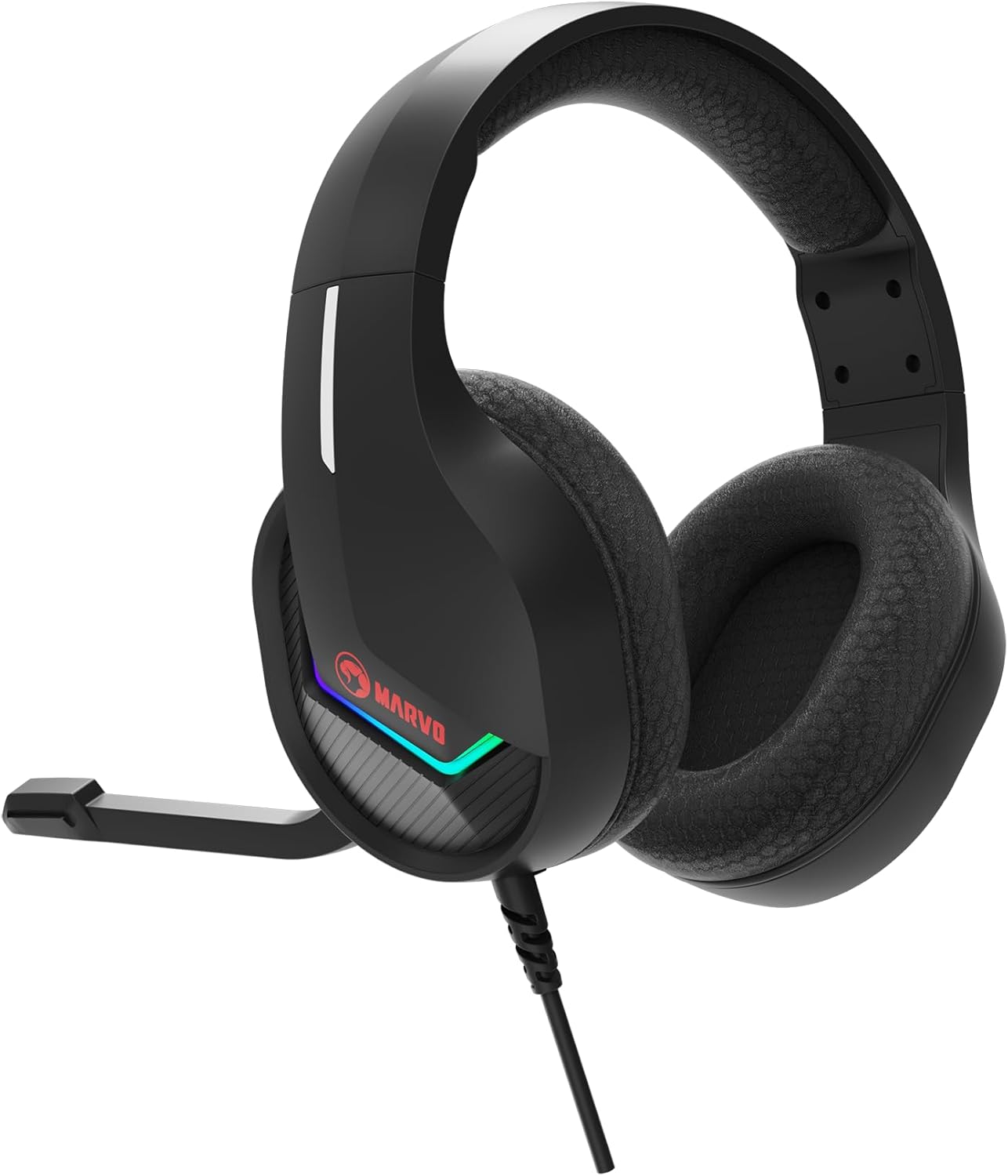
Image: Side view of the MARVO H8618 headset, showing the earcup and headband.
Troubleshooting
If you encounter issues with your MARVO H8618 headset, refer to the following common solutions:
- No Sound:
- Ensure the USB connector is fully inserted into the port.
- Verify that "MARVO H8618" is selected as the default audio output device in your operating system's sound settings.
- Check the volume levels on your computer/console and any inline volume controls on the headset cable (if present).
- Test the headset on a different USB port or another device to rule out port issues.
- Microphone Not Working:
- Ensure "MARVO H8618" is selected as the default input (microphone) device in your operating system's sound settings.
- Check if the microphone is muted via any physical controls on the headset or within your software (e.g., communication app settings).
- Confirm the microphone boom is positioned correctly and not obstructed.
- Test the microphone on another application or device.
- Distorted Audio:
- Lower the volume on your device or headset.
- Ensure the audio source is not distorted.
- Try connecting to a different USB port.
Specifications
Key technical specifications for the MARVO H8618 Wired Headset:
| Feature | Specification |
|---|---|
| Connectivity Technology | Wired (USB 2.0) |
| Speaker Size | 50mm |
| Headset Impedance | 32Ω ±15% |
| Frequency Range | 20Hz - 20KHz |
| Microphone Impedance | 2.2K Ω |
| Form Factor | Over Ear |
| Special Feature | Microphone Included |
| Control Method | Touch |
| Cable Feature | Tangle Free |
| Item Weight | 0.92 Kilograms (2.02 pounds) |
| Package Dimensions | 10.31 x 9.21 x 4.33 inches |
Warranty and Support
For warranty information or technical support, please refer to the documentation provided with your purchase or visit the official MARVO website. Keep your proof of purchase for warranty claims.