
1. Introduction
This manual provides detailed instructions for the installation, operation, and maintenance of your EverBrite 88LED Under Cabinet Lighting. This versatile lighting solution features a motion sensor, remote control, adjustable color temperatures, and dimmable brightness, designed to enhance visibility in various indoor spaces.
2. Package Contents
Please verify that all items listed below are included in your package:
- EverBrite 88LED Under Cabinet Light Bar
- Remote Control
- USB Charging Cable
- Magnetic Mounting Bracket(s)
- Adhesive Pads
- Screws and Wall Anchors
- User Manual

3. Product Features
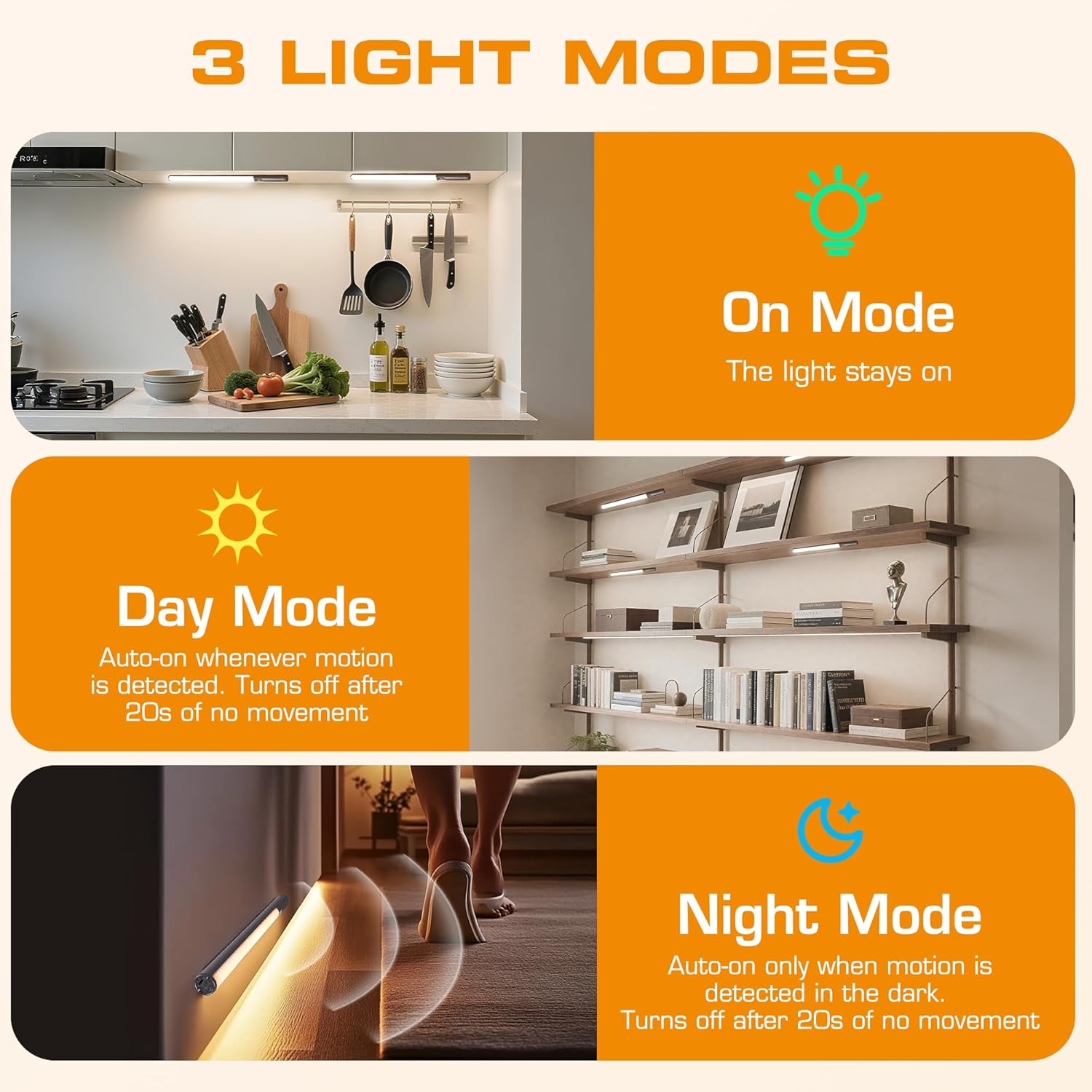
- 3 Lighting Modes: On Mode (light stays on), Day Mode (motion-activated regardless of ambient light), Night Mode (motion-activated only in dark).
- 3 Color Temperatures: Warm Light (3000K), Natural Light (4000K), Cold Light (6500K).
- Dimmable: 10 brightness levels with short press, stepless dimming with long press.
- Dual Control: Operable via remote control or direct touch on the light bar.
- Easy Installation: Multiple mounting options including magnetic, adhesive, and screw-in.
- Rechargeable Battery: 2600mAh capacity for extended use.
- Wide Application: Suitable for kitchens, closets, wardrobes, garages, stairwells, and more.
4. Setup & Installation
The EverBrite Under Cabinet Light offers flexible installation to suit various surfaces and needs.
- Choose Your Mounting Method:
- Magnetic Attachment: For iron surfaces, simply attach the light bar directly. The light has built-in magnets.
- Adhesive Mounting: For non-iron surfaces, peel the backing from the adhesive pads and attach them to the magnetic mounting bracket. Then, adhere the bracket to your desired surface. The light bar can then be magnetically attached to this bracket.
- Screw Mounting: For a more permanent installation, use the provided screws and wall anchors. Determine the mounting location, drill two holes, insert anchors, and fasten the magnetic mounting bracket with screws. Attach the light bar magnetically.
- Positioning: Ensure the motion sensor is facing the area where movement is expected for optimal detection. The light bar can be rotated up to 90 degrees on its magnetic mount to direct illumination.


5. Charging
The EverBrite light is equipped with a 2600mAh rechargeable Lithium-Ion battery.
- Locate the USB-C charging port on the end of the light bar.
- Connect the provided USB charging cable to the light bar and a compatible USB power source (e.g., wall adapter, computer USB port).
- The indicator light will show charging status (refer to product for specific indicator behavior).
- A full charge provides approximately 25 hours of continuous light or up to 25 days in motion sensor mode (based on 1 hour of activation per day).


6. Operating Instructions
Your EverBrite light can be operated using either the manual touch controls on the device or the included remote control.
6.1. Manual Control (On-Device)
The light bar features a switch and a touch sensor on one end for direct control.
- Mode Switch: Slide the switch to select between 'Off', 'Day Mode' (motion sensor always active), 'Night Mode' (motion sensor active only in dark), or 'On Mode' (light stays on continuously).
- Color Temperature: In 'On Mode', short press the touch sensor to cycle through the 3 color temperatures: Warm White (3000K), Natural White (4000K), and Cold White (6500K).
- Brightness Adjustment: In 'On Mode', long press the touch sensor to activate stepless dimming. Release at your desired brightness level.

6.2. Remote Control
The remote control provides convenient access to all light functions from a distance.
- Power On/Off: Press the OFF button to turn the light off. Press the ON button to turn it on.
- Lighting Modes: Use the dedicated buttons for ON (continuous light), DAY (motion sensor always active), or NIGHT (motion sensor active only in dark).
- Color Temperature: Select WW (Warm White), NW (Natural White), or CW (Cold White) to change the light color.
- Brightness Adjustment: Short press the brightness buttons (sun icons) to cycle through 10 preset brightness levels. Long press for stepless dimming.
- Timer Settings: Press 15min, 30min, or 60min to set an automatic shut-off timer. Press the Timer Off button to cancel any active timer.

6.3. Motion Sensor Modes
The integrated motion sensor provides hands-free illumination.
- Day Mode: The light will turn on automatically when motion is detected, regardless of the ambient light level. It will turn off after 20 seconds of no movement.
- Night Mode: The light will turn on automatically only when motion is detected in dark conditions. It will turn off after 20 seconds of no movement.

7. Specifications
| Feature | Specification |
|---|---|
| Brand | EverBrite |
| Model Number | E101115A |
| Power Source | Battery Powered (1 Lithium Ion battery included) |
| Battery Capacity | 2600mAh |
| Light Source Type | LED |
| Color Temperatures | 3000K (Warm Light), 4000K (Natural Light), 6500K (Cold Light) |
| Control Method | Touch, Remote Control |
| Special Feature | Cordless, Motion Sensor, Dimmable |
| Installation Type | Surface Mount (Magnetic, Adhesive, Screws) |
| Material | Aluminum |
| Item Weight | 9.9 ounces |
| Package Dimensions | 16.3 x 1.97 x 1.65 inches |
| Indoor/Outdoor Usage | Indoor |
8. Maintenance
To ensure the longevity and optimal performance of your EverBrite Under Cabinet Light, follow these simple maintenance guidelines:
- Cleaning: Wipe the light bar and remote control with a soft, dry cloth. Avoid using abrasive cleaners or solvents, as these may damage the finish or electronic components.
- Battery Care: Recharge the battery when the light output diminishes. Avoid fully depleting the battery frequently to prolong its lifespan. Store the device in a cool, dry place if not in use for extended periods.
- Sensor Maintenance: Keep the motion sensor lens clean and free from obstructions to ensure accurate detection.
9. Troubleshooting
If you encounter any issues with your EverBrite Under Cabinet Light, please refer to the following common problems and solutions:
- Light does not turn on:
- Ensure the battery is charged.
- Check the mode switch on the light bar; it should be set to 'On', 'Day Mode', or 'Night Mode'.
- If using the remote, ensure the light bar's main switch is in an active mode (not 'Off').
- Motion sensor is not working:
- Verify the light is set to 'Day Mode' or 'Night Mode'.
- In 'Night Mode', ensure the environment is sufficiently dark.
- Check for any obstructions blocking the sensor lens.
- Ensure the motion is within the 9.8ft (3m) detection range and 120-degree angle.
- Remote control is not responding:
- Ensure the light bar's main switch is in an active mode (not 'Off').
- Check the remote control battery.
- Ensure there are no obstructions between the remote and the light bar.
- Light is not charging:
- Ensure the USB cable is securely connected to both the light bar and the power source.
- Try a different USB cable or power adapter.
10. Warranty and Support
For warranty information, technical support, or further assistance, please refer to the manufacturer's official website or contact their customer service directly. Keep your purchase receipt for warranty claims.
