
1. Product Overview
The ASHATA Portable 4G LTE Mobile Hotspot is a versatile device designed to provide high-speed internet access on the go. It functions as a WiFi modem router, allowing you to connect to a 4G network using a SIM card and share the connection with up to 10 users. Additionally, it features a built-in 10000mAh battery, enabling it to serve as a power bank for charging other devices.

Image 1.1: The ASHATA Portable 4G LTE Mobile Hotspot, showcasing its compact design and connectivity capabilities.
2. Package Contents
Please check the package for the following items:
- Portable 4G LTE Mobile Hotspot
- USB Cable

Image 2.1: The mobile hotspot device and its accompanying USB cable.
3. Setup Guide
3.1. Inserting the SIM Card
- Locate the SIM card slot on the device. The router supports a micro SIM card.
- Carefully insert your 3G or 4G micro SIM card into the designated slot until it clicks into place. Ensure the card is oriented correctly according to the diagram on the device.

Image 3.1: Illustration demonstrating the insertion of a micro SIM card into the hotspot device.
3.2. Powering On the Device
Press and hold the power button (usually located on the side or top) for a few seconds until the indicator lights illuminate. The device will begin to search for a network signal.
3.3. Initial Wi-Fi Connection
- Once the device is powered on and has acquired a network signal, it will broadcast a Wi-Fi network.
- On your computer, smartphone, or other Wi-Fi enabled device, search for available Wi-Fi networks.
- Select the network name (SSID) corresponding to your hotspot. The default SSID and password are typically printed on a label inside the device or on the packaging.
- Enter the Wi-Fi password when prompted to connect to the network.
4. Operating Instructions
4.1. Connecting Multiple Devices
The hotspot can connect up to 10 devices simultaneously. Simply follow the initial Wi-Fi connection steps (Section 3.3) on each device you wish to connect.

Image 4.1: The hotspot supports multiple users in diverse environments, such as business offices, travel, and outdoor gatherings.
4.2. Using as a Power Bank
With its 10000mAh battery, the hotspot can also charge other devices. Connect your smartphone, tablet, or other USB-powered device to the hotspot's USB output port using an appropriate charging cable.
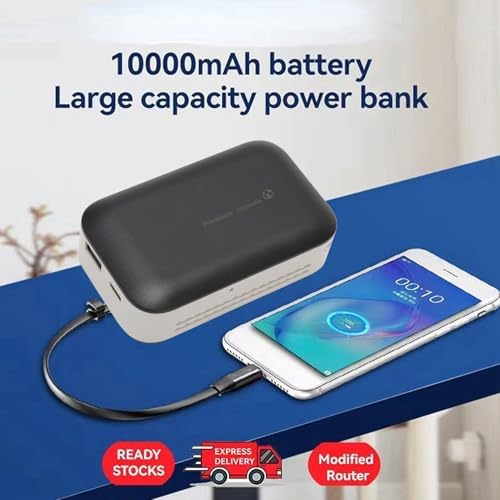
Image 4.2: The mobile hotspot functioning as a power bank, charging a connected smartphone.
4.3. Charging the Hotspot
To charge the hotspot, connect the included USB cable to the device's Type-C port and plug the other end into a USB power source, such as a computer's USB port, a power bank, a car USB charger, or a wall adapter (not included).

Image 4.3: The hotspot connected to a computer via its Type-C port for charging or data access.
5. Maintenance
5.1. Cleaning
Wipe the device with a soft, dry cloth. Avoid using liquid cleaners or abrasive materials, as they may damage the surface or internal components.
5.2. Battery Care
- To prolong battery life, avoid exposing the device to extreme temperatures.
- Charge the device regularly, even if not in use, to prevent deep discharge.
- If storing for an extended period, charge the battery to approximately 50% before storage.
5.3. Storage
Store the device in a cool, dry place away from direct sunlight and moisture when not in use.
6. Troubleshooting
6.1. No Network Connection or Slow Speed
- Check SIM Card: Ensure the SIM card is correctly inserted and activated with a valid data plan.
- Signal Strength: Move to an area with better 3G/4G signal reception. Network speed is highly dependent on signal strength.
- Restart Device: Power off the hotspot, wait a few seconds, and then power it back on.
- Network Protocol: Verify that your SIM card's network bands are compatible with the hotspot's supported bands (FDD LTE 1, 3, 5, 7, 8, 20, 28; TDD LTE 38, 40, 41; WCDMA: 1, 5, 8).
6.2. Unable to Connect to Wi-Fi
- Check Hotspot Status: Ensure the hotspot is powered on and its Wi-Fi indicator light is active.
- Correct Password: Double-check that you are entering the correct Wi-Fi password.
- Device Limit: Confirm that you are not exceeding the maximum number of connected devices (10 users).
- Restart Connected Device: Try restarting the device you are trying to connect.
6.3. Hotspot Not Charging
- Check Cable: Ensure the USB cable is securely connected to both the hotspot and the power source. Try a different USB cable if available.
- Power Source: Verify that the USB power source is functional. Try a different power adapter or USB port.
7. Specifications

Image 7.1: Dimensional diagram of the mobile hotspot, showing its length, width, and height.
| Feature | Detail |
|---|---|
| Model Name | ASHATAewa0iz126o |
| Brand | ASHATA |
| Connectivity Technology | LTE, USB, Wi-Fi |
| Wireless Communication Standard | 802.11b, 802.11g, 802.11n |
| Frequency Band Class | Dual-Band |
| Special Feature | WPS |
| Compatible Devices | Personal Computer |
| Recommended Uses For Product | Business, Home |
| Battery Capacity | 10000mAh |
| Max Wi-Fi Users | Up to 10 |
| Max Transmission Rate | 300Mbps |
| Supported LTE Bands | FDD LTE 1, 3, 5, 7, 8, 20, 28; TDD LTE 38, 40, 41 |
| Supported WCDMA Bands | 1, 5, 8 |
| Item Weight | 8.8 ounces |
| Package Dimensions | 4.72 x 2.76 x 1.57 inches |
| Color | Black |
8. Warranty and Support
For warranty information or technical support, please refer to the documentation provided with your purchase or contact ASHATA customer service directly. Keep your proof of purchase for any warranty claims.


