
Introduction
This manual provides comprehensive instructions for the assembly, operation, and maintenance of your Treocho 47-inch White Computer Desk (Model OD2101-WH-E-LO). Please read this manual thoroughly before assembly and use to ensure proper function and safety.
Product Features
- Integrated Power Hub: Features a built-in socket with two standard power outlets and two USB charging ports for convenient device charging.
- Durable Construction: Crafted from premium MDF material with heavy-duty metal legs for enhanced stability and longevity.
- Modern Aesthetic: Combines a clean white wood top with a sleek metal frame, offering a contemporary and elegant design suitable for various decor styles.
- Ample Workspace: Provides a large surface area suitable for computers, monitors, printers, writing, studying, and other home office activities.
- Storage Solutions: Includes two integrated drawers for organizing office supplies, makeup, or other essentials, helping to maintain a tidy workspace.
- Simplified Assembly: Designed for easy setup with numbered parts, clear illustrated instructions, and all necessary assembly tools included.
Product Dimensions
Refer to the image below for detailed dimensions of the Treocho 47-inch White Computer Desk.

Image: Treocho 47-inch White Computer Desk with detailed dimensions.
Setup and Assembly Instructions
The Treocho Computer Desk is designed for straightforward assembly. Please follow the included illustrated instructions carefully.
- Unpack Components: Carefully remove all parts from the packaging. Verify that all numbered parts and hardware are present according to the parts list in the instruction manual.
- Prepare Workspace: Assemble the desk on a clean, flat, and soft surface to prevent scratches.
- Follow Illustrated Steps: Refer to the detailed, step-by-step illustrated instructions provided in the package. Each step is clearly outlined to guide you through the assembly process.
- Tools Provided: All necessary assembly tools are included in the package.
- Recommended Assembly: It is recommended that two people assemble the desk for ease and safety.
- Secure Connections: Ensure all screws and fasteners are tightened securely before using the desk. Do not overtighten.
For visual guidance, the desk features a hidden compartment for power outlets, as shown in the image below.

Image: Hidden power outlet and USB ports for cable management.
Operating Instructions
Using the Integrated Power Outlets and USB Ports
The desk includes a built-in power strip with two standard AC outlets and two USB ports, located in a hidden compartment at the back of the desktop.
- Accessing the Power Hub: Gently lift the hinged panel at the rear of the desktop to reveal the power outlets and USB ports.
- Connecting Devices: Plug your devices into the available AC outlets or USB ports for charging.
- Cable Management: Utilize the hidden compartment to manage cables and keep your desktop clutter-free. Close the panel once devices are connected and cables are routed.
Utilizing the Drawers
The desk features two smooth-gliding drawers for organized storage.
- Opening/Closing: Gently pull or push the drawers to open and close them. The ball-bearing or roller glide mechanism ensures smooth operation.
- Storage Capacity: Use the drawers to store office supplies, documents, personal items, or makeup, keeping your workspace tidy and efficient.
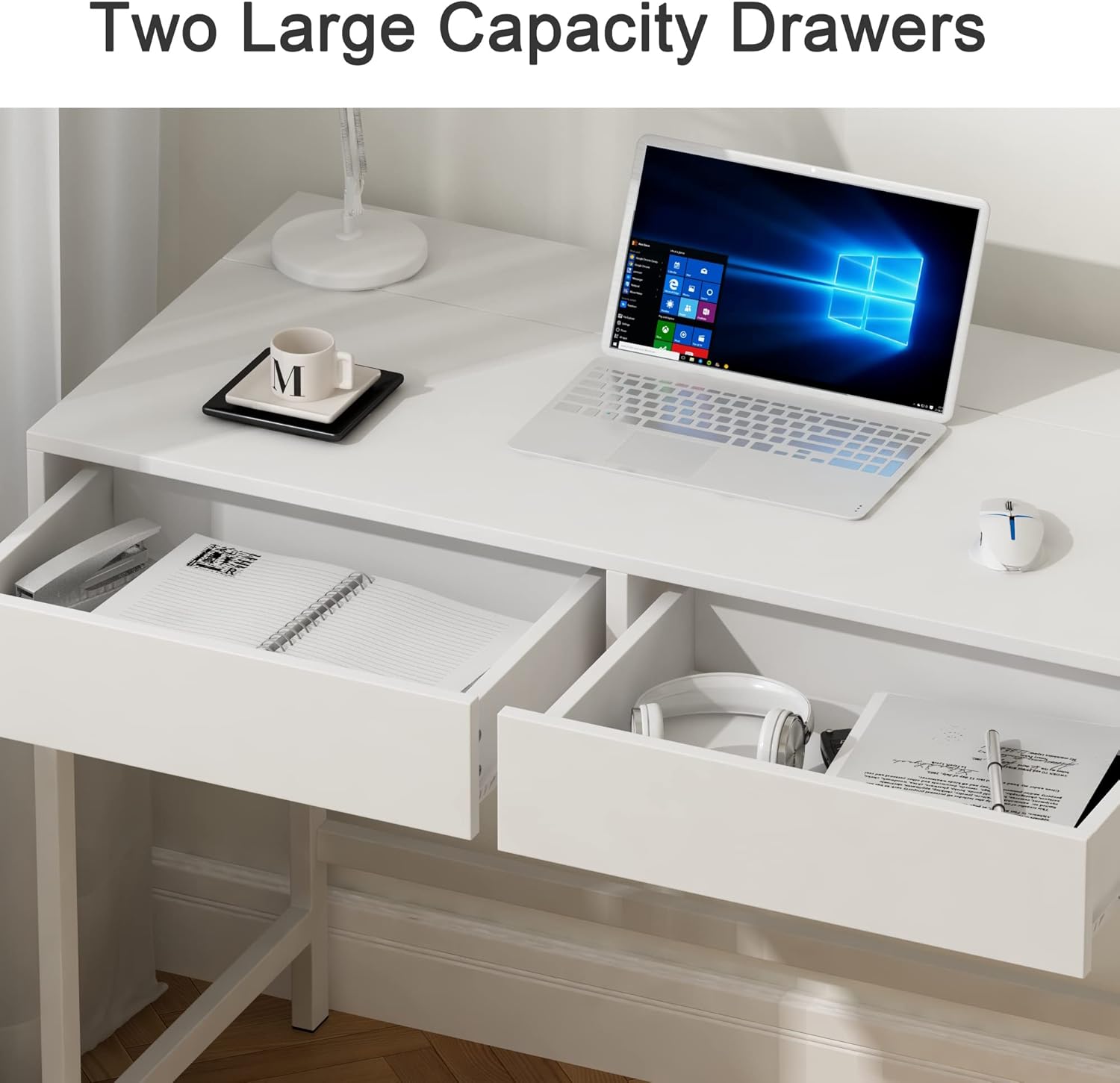
Image: Spacious drawers for organized storage.
Maintenance
- Cleaning: Wipe the desk surfaces with a soft, damp cloth. Avoid using harsh chemicals or abrasive cleaners, which can damage the finish.
- Spill Management: In case of spills, wipe them immediately to prevent staining or damage to the engineered wood.
- Hardware Check: Periodically check all screws and fasteners to ensure they remain tight. Retighten if necessary.
- Electrical Care: Ensure the power outlets and USB ports are kept dry and free from dust. Do not expose them to liquids.
Troubleshooting
This section addresses common issues you might encounter with your Treocho Computer Desk. If you experience problems not listed here, please contact customer support.
- Loose Connections: If the desk feels wobbly, check all assembly points and tighten any loose screws.
- Drawers Not Sliding Smoothly: Ensure the drawer glides are clean and free of obstructions. A small amount of silicone lubricant can be applied to the glides if needed.
- Power Outlets Not Working: Verify that the main power cord is securely plugged into a functional wall outlet. Check if the power strip itself has a reset button or fuse that needs attention.
Specifications
| Brand | Treocho |
| Model Number | OD2101-WH-E-LO |
| Product Dimensions | 18.9"D x 47.2"W x 29.7"H |
| Item Weight | 49.3 Pounds |
| Color | White |
| Top Material Type | Engineered Wood |
| Base Material | Metal |
| Number of Drawers | 2 |
| Electrical Features | 2 AC Outlets, 2 USB Ports |
| Required Assembly | Yes |
| Recommended People for Assembly | 2 |
Safety Information
Please adhere to the following safety guidelines to prevent injury or damage:
- Always assemble the desk according to the provided instructions.
- Ensure the desk is stable and placed on a level surface to prevent tipping.
- Be cautious when using the electrical components. Do not overload the outlets.
- Follow all safety guidelines for electrical appliances connected to the desk's power hub.
- Keep liquids away from electrical outlets and connections.
Warranty and Support
Your Treocho Computer Desk comes with a 30-day easy return policy. For any questions, concerns, or support needs, please contact customer support through your purchase platform.
