
1. Introduction
Welcome to the Dpofirs Portable Bluetooth Thermal Printer user manual. This document provides essential information for setting up, operating, and maintaining your new thermal printer. Designed for portability and convenience, this inkless printer supports various paper sizes and offers seamless connectivity via Bluetooth for mobile devices and USB for laptops.
2. Package Contents
Please verify that all items are present in your package:
- 1 x Dpofirs Portable Thermal Printer
- 1 x Roll of Printing Paper (pre-installed in printer)
- 1 x USB Cable
- 1 x User Manual
3. Product Overview
The Dpofirs Portable Thermal Printer is a compact and efficient device designed for on-the-go printing. It utilizes thermal technology, eliminating the need for ink cartridges, and offers high-definition printing with a resolution of 200dpi.

Figure 3.1: Top view of the Dpofirs Portable Thermal Printer, showcasing its sleek, compact design.
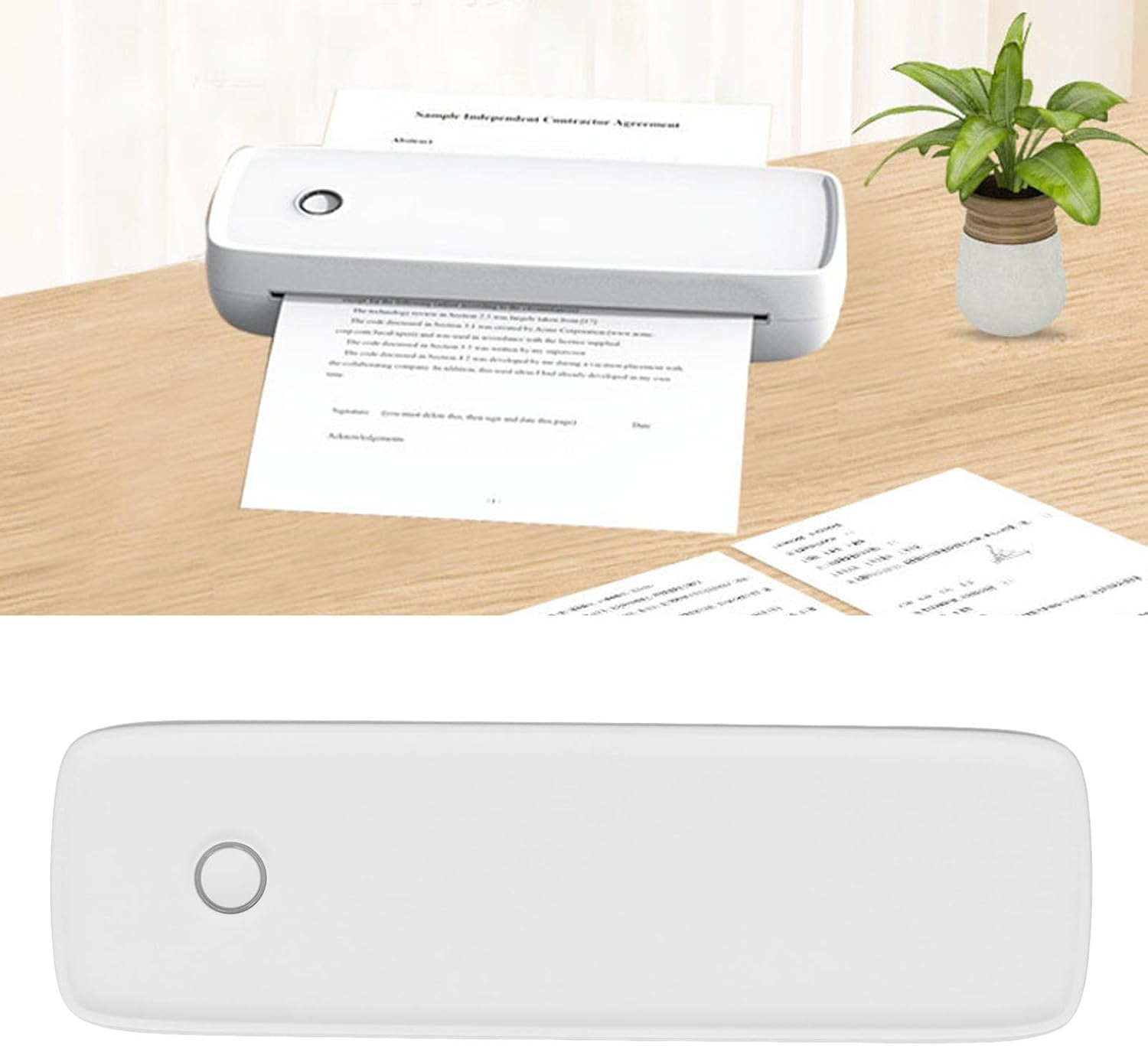
Figure 3.2: The printer actively producing a document, demonstrating its functionality in a typical office setting.

Figure 3.3: A hand interacting with the printer's power button, indicating ease of operation.

Figure 3.4: The printer being held, emphasizing its lightweight and portable design for travel or mobile use.

Figure 3.5: A smartphone displaying a document, wirelessly connected to the printer, illustrating Bluetooth printing capability.

Figure 3.6: The printer in action, highlighting its ability for remote printing and inkless operation.
Video 3.1: A short demonstration of the Dpofirs Portable Thermal Printer in operation, showcasing its portable printing capabilities.
4. Setup
4.1 Charging the Printer
Before initial use, fully charge the printer using the provided USB cable. Connect the USB cable to the printer's USB-C port and a compatible power adapter (not included) or computer USB port. The printer features a 2600mAh battery, capable of printing approximately 400 sheets on a full charge.
4.2 Loading Thermal Paper
The printer supports thermal roll paper and thermal folding paper in various sizes, including US Letter, Legal, A4, A5, and widths of 2, 3, or 4 inches (57mm, 77mm, 107mm, 210mm, 216mm). To load paper:
- Gently open the paper compartment cover.
- Insert the thermal paper roll or stack, ensuring the printable side is facing the print head.
- Close the cover securely. The printer will automatically calibrate the paper.
4.3 Connecting via Bluetooth (Android/iOS)
To connect your printer to an Android or iOS smartphone:
- Download the dedicated printer application from your device's app store. (Refer to the manual included in the box for specific app name).
- Ensure the printer is powered on and Bluetooth is enabled on your smartphone.
- Open the printer application and follow the on-screen instructions to pair with your Dpofirs printer.
4.4 Connecting via USB (Laptops/Computers)
To connect your printer to a laptop or computer:
- Connect the printer to your computer using the provided USB cable.
- Install the necessary printer drivers on your computer. (Refer to the manual included in the box or the manufacturer's website for driver download instructions).
5. Operating Instructions
5.1 Powering On/Off
- To Power On: Press and hold the power button until the indicator light illuminates.
- To Power Off: Press and hold the power button until the indicator light turns off.
5.2 Printing from Mobile Devices
Once connected via Bluetooth:
- Open the document or image you wish to print within the printer application.
- Select the print option within the app.
- Confirm print settings (e.g., paper size, number of copies) and initiate printing.
5.3 Printing from Laptops/Computers
Once connected via USB and drivers are installed:
- Open the document or file you wish to print.
- Select 'Print' from the application's menu (e.g., File > Print).
- Choose the Dpofirs printer from the list of available printers.
- Adjust print preferences as needed and click 'Print'.
5.4 Automatic Shutdown
To conserve battery, you can set an automatic shutdown time for the printer. Refer to the printer application or the full manual for instructions on how to configure this setting.
6. Maintenance
6.1 Cleaning the Printer
To ensure optimal print quality and longevity, periodically clean the printer:
- Power off the printer and disconnect it from any power source.
- Use a soft, lint-free cloth slightly dampened with water or isopropyl alcohol to wipe the exterior.
- For the print head, use a cotton swab lightly moistened with isopropyl alcohol. Gently wipe the print head surface. Allow it to dry completely before use.
6.2 Replacing Thermal Paper
When the paper runs out, simply open the paper compartment, remove any remaining paper, and insert a new roll or stack as described in Section 4.2.
6.3 Battery Care
To maximize battery life:
- Avoid fully discharging the battery frequently.
- Store the printer in a cool, dry place when not in use for extended periods.
- Charge the printer regularly, even if not in frequent use, to maintain battery health.
7. Troubleshooting
If you encounter issues with your Dpofirs Portable Thermal Printer, refer to the following common problems and solutions:
- Printer not powering on: Ensure the battery is charged. Connect the printer to a power source and try again.
- No print output: Check if thermal paper is loaded correctly and the printable side is facing the print head. Ensure the printer is connected to your device (Bluetooth or USB).
- Poor print quality: Clean the print head as described in Section 6.1. Ensure you are using high-quality thermal paper.
- Bluetooth connection issues: Ensure Bluetooth is enabled on both the printer and your mobile device. Try unpairing and re-pairing the devices. Restart both the printer and your mobile device.
- USB connection issues: Verify the USB cable is securely connected. Ensure printer drivers are correctly installed on your computer. Try a different USB port.
- Paper jam: Power off the printer. Carefully open the paper compartment and gently remove any jammed paper. Ensure paper is loaded correctly without creases or tears.
8. Specifications
| Feature | Specification |
|---|---|
| Brand | Dpofirs |
| Model Name | Dpofirsfmdypgzest |
| Printing Technology | Thermal |
| Connectivity Technology | Bluetooth, USB |
| Printer Output | Monochrome |
| Maximum Black and White Print Resolution | 200 dpi |
| Max Input Sheet Capacity | 400 sheets |
| Supported Paper Widths | 57mm to 216mm (2 to 8.5 inches) |
| Supported Paper Sizes | US Letter, Legal, A4, A5 |
| Battery | 7.4V, 2600mAh rechargeable lithium battery |
| Control Method | App |
| Compatible Devices | Android, iOS Phones, Laptops |
| Item Weight | 2.52 pounds |
| Package Dimensions | 12.2 x 5.12 x 3.15 inches |
9. Safety Information
Please observe the following safety precautions:
- When handling the printer, be mindful of any sharp edges to prevent scratches or injury.
- Keep the printer out of reach of children.
- Do not expose the printer to extreme temperatures, direct sunlight, or moisture.
- Use only the specified thermal paper for printing.
10. Warranty and Support
Specific warranty details are not provided in this manual. For warranty information, technical support, or service inquiries, please refer to the documentation included with your purchase or contact Dpofirs customer support directly through their official website or the retailer where the product was purchased.