
KOORUI BKC01
KOORUI Wired Keyboard and Mouse Combo BKC01 User Manual
Introduction
Thank you for choosing the KOORUI BKC01 Wired Keyboard and Mouse Combo. This manual provides essential information for setting up, operating, and maintaining your new peripheral set. This combo is designed for optimal productivity and comfort, offering a reliable wired connection for various computing environments.

Image: The KOORUI BKC01 wired keyboard and mouse combo, highlighting its design.
Package Contents
Please ensure all items are present in your package:
- 1 x KOORUI Full-Size Wired Keyboard
- 1 x KOORUI 1600 DPI Wired Optical Mouse
- 1 x User Manual (this document)
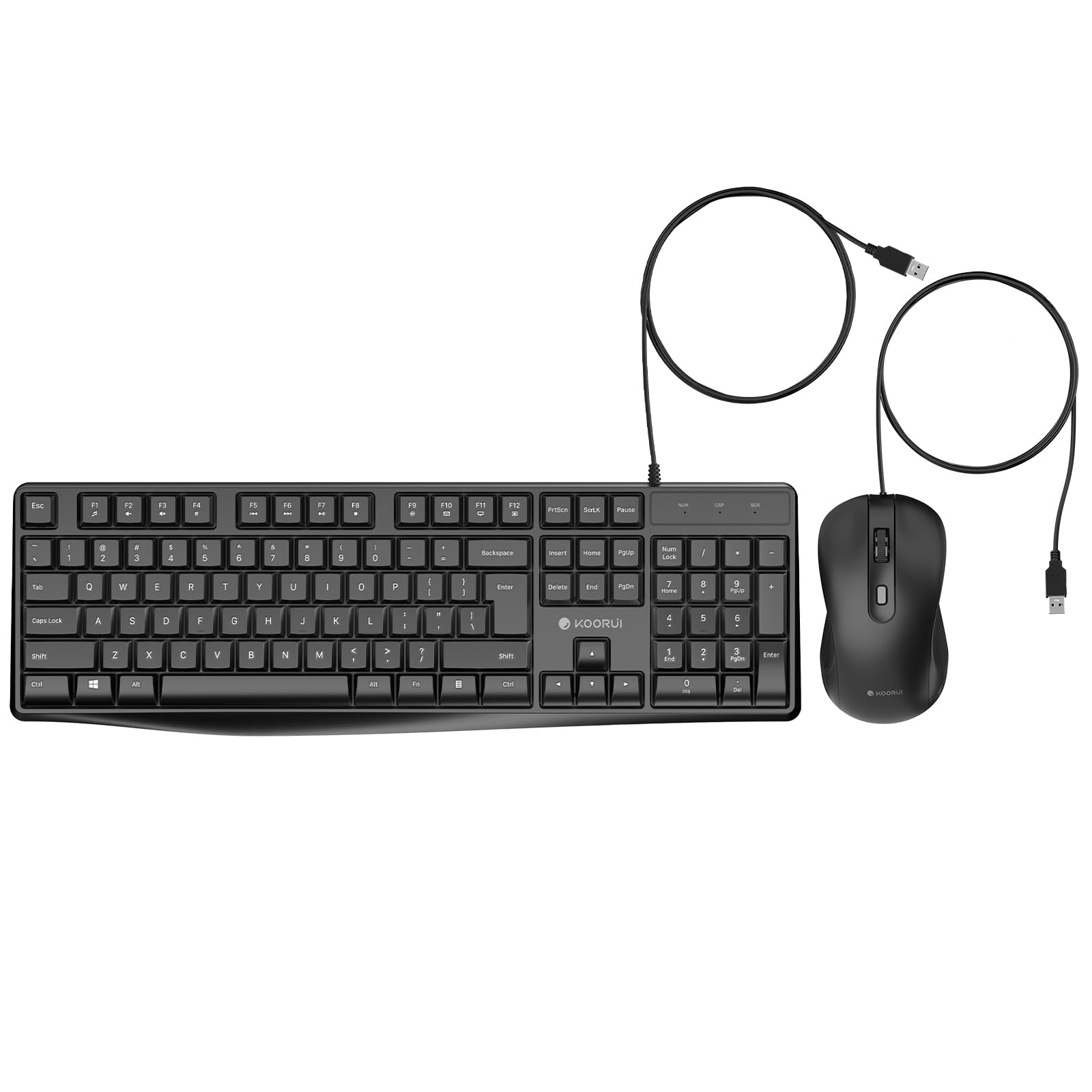
Image: The KOORUI wired keyboard and mouse, showing both components.
Setup Instructions
The KOORUI BKC01 keyboard and mouse combo features a simple plug-and-play design, requiring no additional drivers for most operating systems.
- Connect the Keyboard: Locate an available USB-A port on your computer. Plug the USB-A connector of the keyboard into the USB-A port.
- Connect the Mouse: Locate another available USB-A port on your computer. Plug the USB-A connector of the mouse into the USB-A port.
- System Recognition: Your operating system (Windows, macOS, Linux) should automatically detect and install the necessary generic drivers. This process typically takes a few seconds.
- Begin Use: Once recognized, your keyboard and mouse are ready for immediate use.

Image: The keyboard and mouse cables with USB-A connectors, illustrating the wired connection.

Image: The keyboard and mouse connected and in use on a desk with a computer monitor.
Operating Instructions
Keyboard Features
- Full-Size Layout: Includes a numeric keypad for efficient data entry.
- Low-Profile Chiclet Keys: Designed for quick, accurate, and quiet typing.
- F1-F12 Shortcut Keys: Access 12 common functions with a single key press, enhancing productivity. These functions typically include media control, volume adjustment, and quick access to applications.
- LED Indicators: Illuminated LEDs clearly display the status of Num Lock, Caps Lock, and Scroll Lock.
- Ergonomic Design: Features an 8-degree adjustable tilt for comfortable typing and reduced wrist stress.

Image: The keyboard layout with F1-F12 shortcut keys highlighted, demonstrating their function.

Image: Close-up views of the keyboard, showing the adjustable feet for tilt and the contoured keycaps.
Mouse Features
- 1600 DPI Optical Sensor: Provides fast and precise cursor control.
- Ergonomic Design: Natural contours and shapes offer all-day comfort for your hand.
- Adjustable Sensitivity: The mouse offers adjustable cursor speed and sensitivity to enhance accuracy, typically managed through your operating system's mouse settings.

Image: The KOORUI wired mouse, illustrating its 1600 DPI capability.
Maintenance
Proper maintenance ensures the longevity and optimal performance of your keyboard and mouse.
- Cleaning the Keyboard: The keyboard features a spill-resistant design. In case of accidental water splashes, gently wipe the surface clean with a soft, dry cloth. Avoid submerging the keyboard in liquid. For general cleaning, use a soft, slightly damp cloth.
- Cleaning the Mouse: Use a soft, dry cloth to clean the exterior of the mouse. For the optical sensor, use a cotton swab lightly dampened with rubbing alcohol to gently clean the sensor area if dust or debris affects tracking.
- Avoid Harsh Chemicals: Do not use abrasive cleaners, solvents, or strong detergents, as these can damage the surface and internal components.
- Storage: When not in use for extended periods, store the keyboard and mouse in a clean, dry environment away from extreme temperatures.

Image: The KOORUI keyboard with water droplets, demonstrating its spill-resistant feature.
Troubleshooting
If you encounter issues with your KOORUI keyboard and mouse combo, please refer to the following common solutions:
- Device Not Recognized:
- Ensure the USB-A connectors are fully inserted into the computer's USB ports.
- Try plugging the keyboard and mouse into different USB-A ports on your computer.
- Restart your computer.
- Test the devices on another computer to determine if the issue is with the devices or your computer's USB ports.
- Keys Not Responding / Mouse Not Moving:
- Check the USB connections as described above.
- Ensure no debris is lodged under the keys or obstructing the mouse's optical sensor.
- For the mouse, ensure you are using it on a suitable surface (non-reflective, opaque).
- Incorrect Key Output:
- Verify that the correct keyboard layout is selected in your operating system settings.
Specifications
| Feature | Specification |
|---|---|
| Brand | KOORUI |
| Model Number | BKC01 |
| Hardware Platform | Linux, Mac, PC |
| Operating System Compatibility | Linux, Windows 10 (and other Windows versions), macOS |
| Product Dimensions (Keyboard) | 42.16 x 12.45 x 1.78 cm (16.6 x 4.9 x 0.7 inches) |
| Item Weight (Total) | 599 g (approximately 1.32 lbs) |
| Color | Black |
| Connectivity Technology | Wired (USB-A) |
| Special Feature | Noise-canceling, Spill-resistant |
| Compatible Devices | Laptop, Personal Computer, Tablet (with USB-A port) |
| Keyboard Description | Membrane, Full-size with numeric keypad |
| Mouse Movement Detection | Optical |
| Mouse DPI | 1600 DPI |
| Power Source | Corded Electric (USB powered) |

Image: Detailed diagram showing the dimensions of the KOORUI keyboard and mouse.
Warranty and Support
KOORUI provides a 1-year paid warranty for this product. If you have any questions, require technical assistance, or need to claim warranty service, please contact KOORUI customer support through the retailer's platform or the official KOORUI website. Our support team is available to assist you.
Ask a question about this manual
Ask about setup, troubleshooting, compatibility, parts, safety, or missing instructions. Manuals+ will review the question and use this page’s manual context to help answer it.