
1. Introduction
Thank you for choosing the JvKzaen Slim Pen X1 Pro. This stylus is designed to enhance your digital experience on Microsoft Surface devices, offering precise control, natural writing, and convenient shortcut functions. Please read this manual carefully to ensure optimal performance and longevity of your device.

Image: The JvKzaen Slim Pen X1 Pro, a sleek and ergonomic stylus.
2. Package Contents
Please check the package for the following items:
- 1x JvKzaen Slim Pen X1 Pro
- 1x Graphite Nib (pre-installed or spare)
- 1x Type-C Charging Adapter
- 1x User Manual
3. Compatibility
The JvKzaen Slim Pen X1 Pro is compatible with a wide range of Microsoft Surface devices and other touch-screen computers supporting Microsoft Pen Protocol (MPP).
Compatible Models:
- Surface Pro Series: Surface Pro 12, Surface Pro 11th Edition, Surface Pro 10, Surface Pro 9, Surface Pro 8, Surface Pro 7+, Surface Pro 7, Surface Pro 6, Surface Pro 5, Surface Pro 4, Surface Pro 3
- Surface Laptop Series: Surface Laptop 1, Surface Laptop 2, Surface Laptop 3, Surface Laptop 4, Surface Laptop 5
- Surface Go Series: Surface Go, Surface Go 2, Surface Go 3
- Other Surface Devices: Surface Duo/Duo 2, Surface Pro X, Surface Book/Book 2/Book 3, Surface Studio 1st Gen, Surface Studio 2, Surface Studio 2+, Surface Laptop Studio
- Some touch-screen devices from HP, ASUS, DELL, Acer, SONY, and ViewSonic that support Microsoft Pen Protocol.
Incompatible Models:
- Surface Laptop Go/Laptop Go 2/Laptop Go 3
- Surface Laptop SE/Surface Hub 2s
- Surface Laptop 6/Surface Laptop 7

Image: A visual chart detailing compatible and incompatible Microsoft Surface models for the JvKzaen Slim Pen X1 Pro.
4. Product Overview
The JvKzaen Slim Pen X1 Pro features an aluminum-alloy seamless body with a flat surface for comfortable grip and stability. It incorporates advanced technology for a natural and responsive writing experience.
Key Features:
- 4096 Pressure Sensitivity: Offers fine control and pixel-level writing precision.
- Palm Rejection: Allows you to rest your hand comfortably on the screen without interference.
- Eraser Side Button: Quickly delete mistakes.
- Right-Click Function: Access contextual menus with ease.
- Replaceable Nibs: Includes an innovative graphite nib for a pencil-like feel on both tablet and paper-feel screen protectors (note: graphite nib may leave marks on paper-feel screen protectors).
- Magnetic Adsorption: Attaches firmly to compatible Microsoft Surface tablets.
- Top Button Shortcuts: Customizable shortcuts for quick access to applications like Microsoft Whiteboard, Snip & Sketch, and Sticky Notes, and for PowerPoint remote control.

Image: Close-up of the JvKzaen Slim Pen X1 Pro highlighting the right-click and eraser side buttons.

Image: The JvKzaen Slim Pen X1 Pro demonstrating its replaceable graphite nib, capable of writing on both digital screens and physical paper.

Image: A visual comparison of the JvKzaen Slim Pen X1 Pro with the Microsoft Slim Pen, showcasing similar design and features.
5. Setup
5.1 Charging the Pen
The JvKzaen Slim Pen X1 Pro features a Type-C charging port for quick and convenient power. A full charge takes approximately 1 hour and provides up to 66 hours of continuous use.
- Connect the provided Type-C charging adapter to the pen and a power source.
- The LED indicator on the pen will show charging status.
- Automatically enters "Sleep Mode" if idle for 10 minutes to save power.

Image: The JvKzaen Slim Pen X1 Pro connected via Type-C for charging, illustrating its quick charge capability.
5.2 Pairing with Your Device
The JvKzaen Slim Pen X1 Pro uses MPP protocol for direct connection, allowing instant writing without Bluetooth pairing for basic functions. For advanced features like customizable top button shortcuts, Bluetooth pairing is required.
- Ensure your Surface device's Bluetooth is enabled.
- Press and hold the top button of the pen for 3-5 seconds until the LED indicator blinks, indicating pairing mode.
- On your Surface device, go to Settings > Bluetooth & devices.
- Select "Add device" and choose the JvKzaen Slim Pen X1 Pro from the list.
- Once connected, the LED indicator will turn solid green.
Video: An instructional video demonstrating the pairing process and basic functions of the JvKzaen Slim Pen X1 Pro with a Microsoft Surface device.
6. Operating Instructions
6.1 Basic Writing and Drawing
The pen offers a natural writing experience with 4096 levels of pressure sensitivity and tilt support, allowing for varied line thickness and shading.
- Simply touch the pen tip to the screen to begin writing or drawing.
- Vary pressure to achieve different line weights.
- The pen supports palm rejection, so you can rest your hand on the screen naturally.

Image: A hand using the JvKzaen Slim Pen X1 Pro on a Surface device, demonstrating its 4096 pressure sensitivity for detailed digital art.

Image: A user comfortably resting their palm on the screen while writing with the JvKzaen Slim Pen X1 Pro, showcasing palm rejection technology.
6.2 Side Button Functions
- Eraser: Press the lower side button while writing to erase content.
- Right-Click: Press and hold the upper side button before touching the pen to the screen to activate the right-click function, similar to a mouse.
6.3 Top Button Shortcuts (Bluetooth Required)
Once paired via Bluetooth, the top button provides quick access to various functions:
- Single-Click: Opens Microsoft Whiteboard.
- Double-Click: Opens Snip & Sketch for screen capture.
- Press and Hold: Opens Sticky Notes.
- PowerPoint Remote Control: During a PowerPoint slideshow, single-click to advance to the next slide, and press and hold to return to the previous slide.
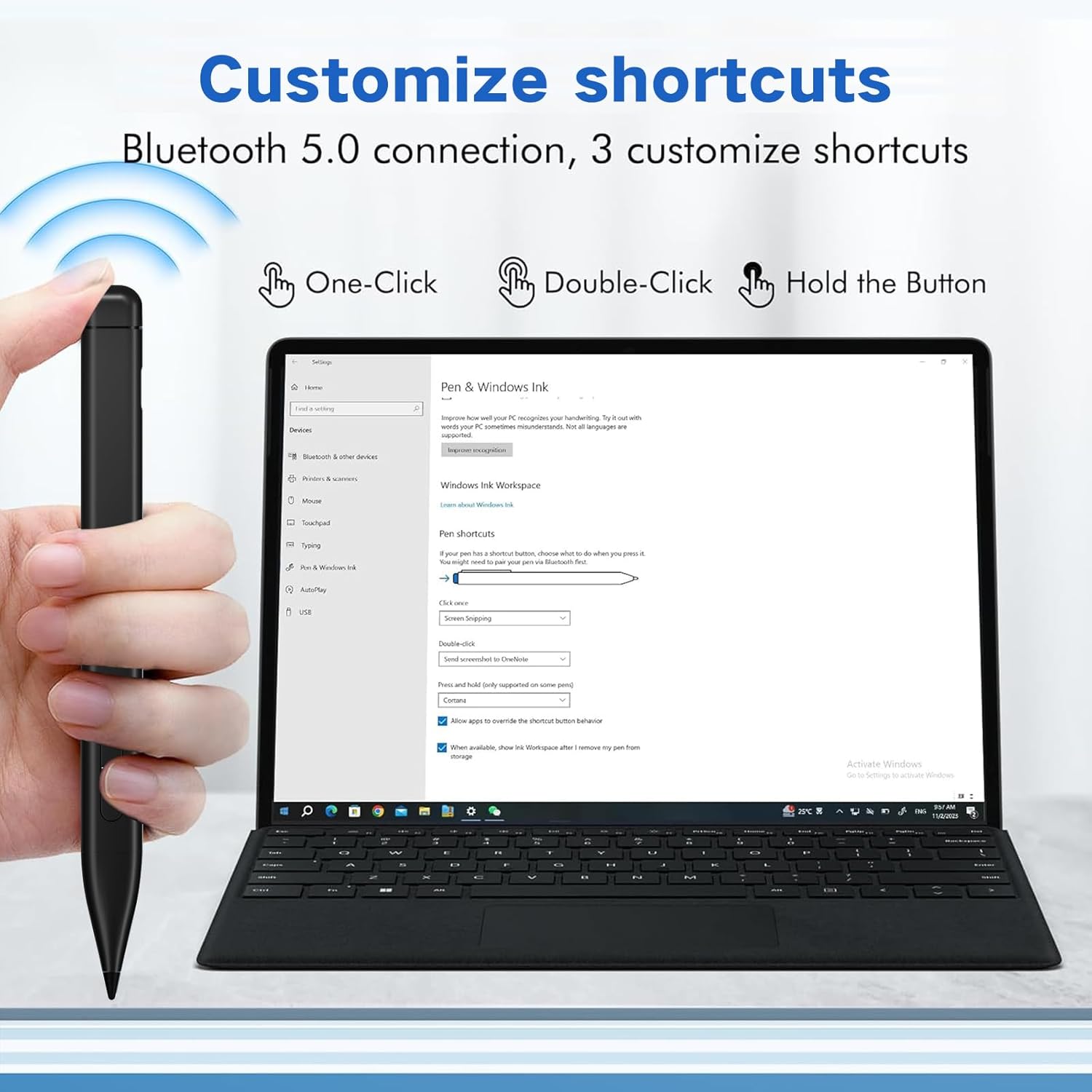
Image: A visual guide to customizing the top button shortcuts of the JvKzaen Slim Pen X1 Pro for various Windows Ink functions.

Image: A professional setting showing the JvKzaen Slim Pen X1 Pro being used as a PowerPoint remote control during a presentation.
Video: A detailed demonstration of the JvKzaen Slim Pen X1 Pro's operational instructions, including writing, erasing, and shortcut functions.
7. Maintenance
- Cleaning: Use a soft, dry cloth to clean the pen body. Avoid harsh chemicals or abrasive materials.
- Nib Care: Inspect the nib regularly for wear. Replace the nib if it becomes worn down or damaged to maintain optimal performance.
- Storage: Store the pen in a safe place when not in use. The magnetic adsorption feature allows it to attach to compatible Surface devices, preventing loss.
- Graphite Nib Note: If your device has a paper-feel screen protector, the graphite nib may leave marks. For such protectors, using a POM nib (not included) is recommended.
8. Troubleshooting
- Pen not responding: Ensure the pen is charged. If the pen has been idle, press any button to wake it from sleep mode.
- Lagging or inconsistent writing: Check if the pen is fully charged. Ensure there are no physical obstructions on the screen or nib. If using a paper-feel screen protector, consider if the graphite nib is causing friction or marks.
- Bluetooth features not working: Confirm the pen is successfully paired via Bluetooth in your device's settings. Re-pair if necessary.
- Pen connects but doesn't work: Verify compatibility with your specific Surface model. Ensure all drivers are up to date. If issues persist, contact customer support.
- Pen stops working after a short period: This could indicate a battery issue or a defect. Ensure proper charging and contact customer support if the problem continues.
9. Specifications
| Feature | Specification |
|---|---|
| Model Number | X1 pro |
| Brand | JvKzaen |
| Color | Back |
| Material | Aluminum |
| Item Weight | 11.3 Grams |
| Number of Batteries | 1 Lithium Polymer (included) |
| Battery Description | Lithium-Ion Polymer |
| Charging Time | 1 Hour |
| Battery Average Life (Use) | 66 Hours |
| Battery Average Life (Standby) | 365 Days |
| Item Dimensions (L x W x H) | 5.4 x 0.46 x 0.46 inches |
| Pressure Sensitivity | 4096 Levels |
10. Warranty and Support
The JvKzaen Slim Pen X1 Pro comes with a worry-free 12-month (1-year) manufacturer's warranty.
For any questions, technical assistance, or warranty claims, please contact JvKzaen customer service. We aim to provide a quick reply within 24 hours.
You can typically find contact information on the product packaging or the official JvKzaen website.