1. Introduction
This manual provides detailed instructions for the setup, operation, maintenance, and troubleshooting of your vretti 410B Thermal Shipping Label Printer. Please read this guide thoroughly to ensure proper use and optimal performance of your device.

The vretti 410B thermal label printer, shown with a shipping label being printed and a USB drive for software.
2. Package Contents
Verify that all items listed below are included in your package. If any items are missing or damaged, please contact customer support.
- 1 x vretti 410B Thermal Label Printer
- 1 x Power Adapter
- 1 x USB Cable
- Label Guides
- 1 x USB Drive (containing drivers, installation videos, and user manual)
- 1 x User Manual (printed)
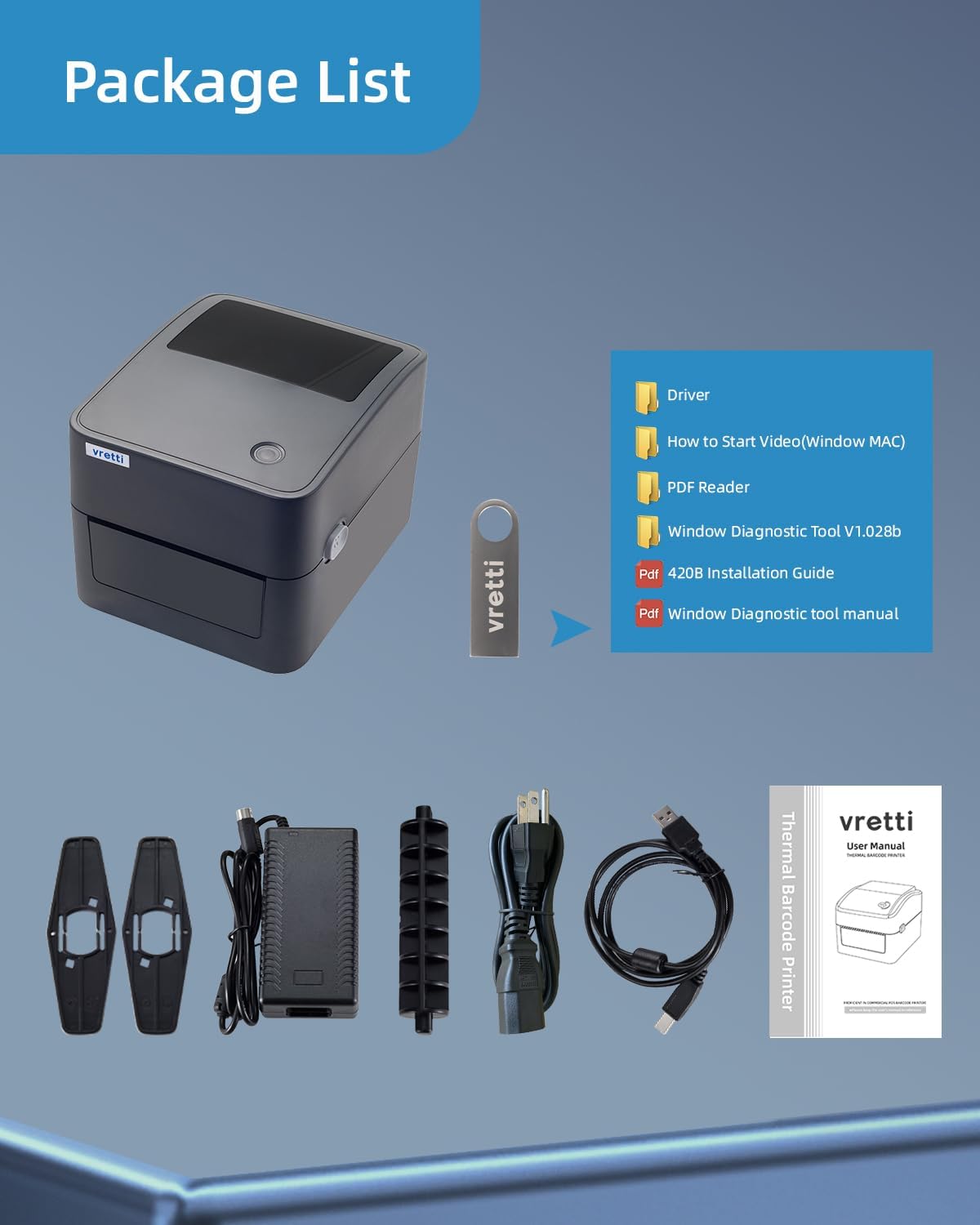
The package includes the vretti 410B thermal label printer, power adapter, USB cable, label guides, a USB drive with drivers and manuals, and a printed user manual.
3. Setup Guide
3.1 Physical Connection
- Place the printer on a stable, flat surface.
- Connect the power adapter to the printer and then plug it into a power outlet.
- Connect the USB cable from the printer to your computer.

The vretti printer supports USB connection across various operating systems, including Mac OS, Windows, Linux, and Chromebook, ensuring broad compatibility.
3.2 Driver Installation
The printer requires drivers to function correctly with your computer. The necessary drivers and installation instructions are provided on the included USB drive.
- Insert the provided USB drive into your computer.
- Locate and run the installer for your operating system (Windows, Mac, Linux, Chrome OS). Follow the on-screen prompts to complete the installation.
- Refer to the installation videos on the USB drive for visual guidance if needed.

The vretti 410B printer is compatible with multiple operating systems, including Windows, Mac OS, Linux, and Chrome OS, via USB connection.
3.3 Loading Labels
The vretti 410B printer supports both roll and fan-fold thermal labels with widths between 1 inch (25.4mm) and 4.5 inches (115mm).
- Open the top cover of the printer.
- Adjust the movable label guides to match the width of your labels.
- For roll labels, place the roll into the built-in label bin. For fan-fold labels, feed them from the rear slot.
- Feed the labels through the printer until the leading edge is slightly past the print head.
- Close the top cover. The printer will automatically detect the label size and calibrate.

The printer features a built-in label bin, eliminating the need for an external label holder and supporting both roll and fan-fold labels.
4. Operating Instructions
4.1 Adjusting Label Width
The printer automatically detects label width. However, you can manually adjust the guides inside the printer to ensure proper alignment for various label sizes, from 1 inch to 4.5 inches wide.

This image illustrates the adjustable label width feature, supporting various label sizes from 0.78 to 4.6 inches, including common shipping labels and smaller product labels.
4.2 Printing Labels
Once the drivers are installed and labels are loaded, you can print from any application that supports printing, such as shipping software or word processors.
- Open the document or label you wish to print on your computer.
- Select 'Print' from the application's menu.
- Choose the 'vretti 410B' printer from the list of available printers.
- Ensure the label size settings in your print dialogue match the physical labels loaded in the printer. The printer supports automatic paper size detection for widths between 0.78 inches (26mm) and 4.25 inches (108mm).
- Click 'Print'.
The vretti 410B printer is compatible with various shipping and sales platforms, including Amazon, eBay, Shopify, Etsy, PayPal, UPS, USPS, and FedEx.

The printer's auto-learning function automatically detects paper size for various label types, from 0.78 inches to 4.25 inches wide, including shipping labels, product labels, and barcode labels.

The printer offers high-speed printing, capable of producing 4320 4x6 inch labels per hour or 21000 2x1 inch labels per hour.

The vretti 410B printer is designed to work with any standard thermal labels, suitable for a wide range of applications including shipping, product labeling, and organization.
5. Maintenance
Regular maintenance ensures the longevity and performance of your printer.
- Cleaning the Print Head: Use an alcohol swab or a specialized print head cleaning pen to gently wipe the print head. Ensure the printer is off and cooled down before cleaning.
- Cleaning the Exterior: Wipe the exterior of the printer with a soft, damp cloth. Avoid using harsh chemicals.
- Dust Removal: Periodically use compressed air to remove dust and debris from inside the printer, especially around the label path.
6. Troubleshooting
This section addresses common issues you might encounter with your vretti 410B printer.
- Printer Not Responding:
Solution: Check all cable connections (power and USB). Ensure the printer is powered on. Restart both the printer and your computer. Verify that the correct printer driver is installed and selected in your print settings. - Poor Print Quality:
Solution: Clean the print head as described in the Maintenance section. Ensure you are using high-quality thermal labels. Adjust print density settings in your printer preferences. - Labels Not Feeding Correctly:
Solution: Ensure labels are loaded correctly and the label guides are adjusted to the label width. Check for any obstructions in the label path. Perform a label calibration (refer to the USB drive manual for specific steps). - Printer Not Detecting Label Size:
Solution: Ensure the labels are properly loaded and the printer cover is closed. Power cycle the printer to initiate automatic calibration. If issues persist, manually set the label size in your printer preferences. - "Lousy software" or configuration issues:
Solution: Ensure you have installed the latest drivers from the provided USB drive or the official vretti website. For specific configuration challenges, especially with non-standard label sizes (e.g., 2-inch round labels), consult the detailed instructions and diagnostic tools on the USB drive or contact vretti technical support.
7. Specifications
| Feature | Detail |
|---|---|
| Model Number | 410B |
| Printing Technology | Thermal |
| Connectivity Technology | USB |
| Compatible Operating Systems | Windows XP/7/8/10/newer, Mac OS, Linux, Chrome OS |
| Maximum Print Width | 4.25 inches (108mm) |
| Adjustable Label Width | 1 inch (25.4mm) to 4.5 inches (115mm) |
| Maximum Print Length | 70 inches |
| Maximum Black and White Print Resolution | 203 dpi |
| Print Speed (Monochrome) | Up to 72 ppm (pages per minute) |
| Power Consumption (On-mode) | 60 Watts |
| Product Dimensions | 8.4"D x 7"W x 5.8"H |
| Item Weight | 2.86 pounds (1.3 Kilograms) |
| Special Feature | Not support Bluetooth and Wi-Fi |
8. Warranty and Support
8.1 Warranty Information
The vretti 410B Thermal Shipping Label Printer comes with a limited warranty. Please refer to the warranty card included in your package or contact vretti customer support for specific terms and conditions.
8.2 Technical Support
For any technical issues, questions, or assistance, vretti provides comprehensive technical support through various channels:
- Email: Contact our support team via email for detailed assistance.
- WhatsApp: For quick queries and real-time support.
- Skype: Available for direct communication and troubleshooting.
- Remote Desktop: For advanced troubleshooting, our technicians can provide remote assistance.
Please have your printer model number (410B) and a description of your issue ready when contacting support.


