
SVANTTO IPDA061
SVANTTO Android Barcode Scanner IPDA061 User Manual
Model: IPDA061
1. Introduction
This manual provides essential instructions for the proper setup, operation, and maintenance of your SVANTTO Android Barcode Scanner IPDA061. Please read this manual thoroughly before using the device to ensure optimal performance and longevity.
2. Package Contents
Verify that all items are present in the package:
- SVANTTO Android Barcode Scanner IPDA061
- USB Charging Cable
- Power Adapter
- Wrist Strap
- User Manual (this document)
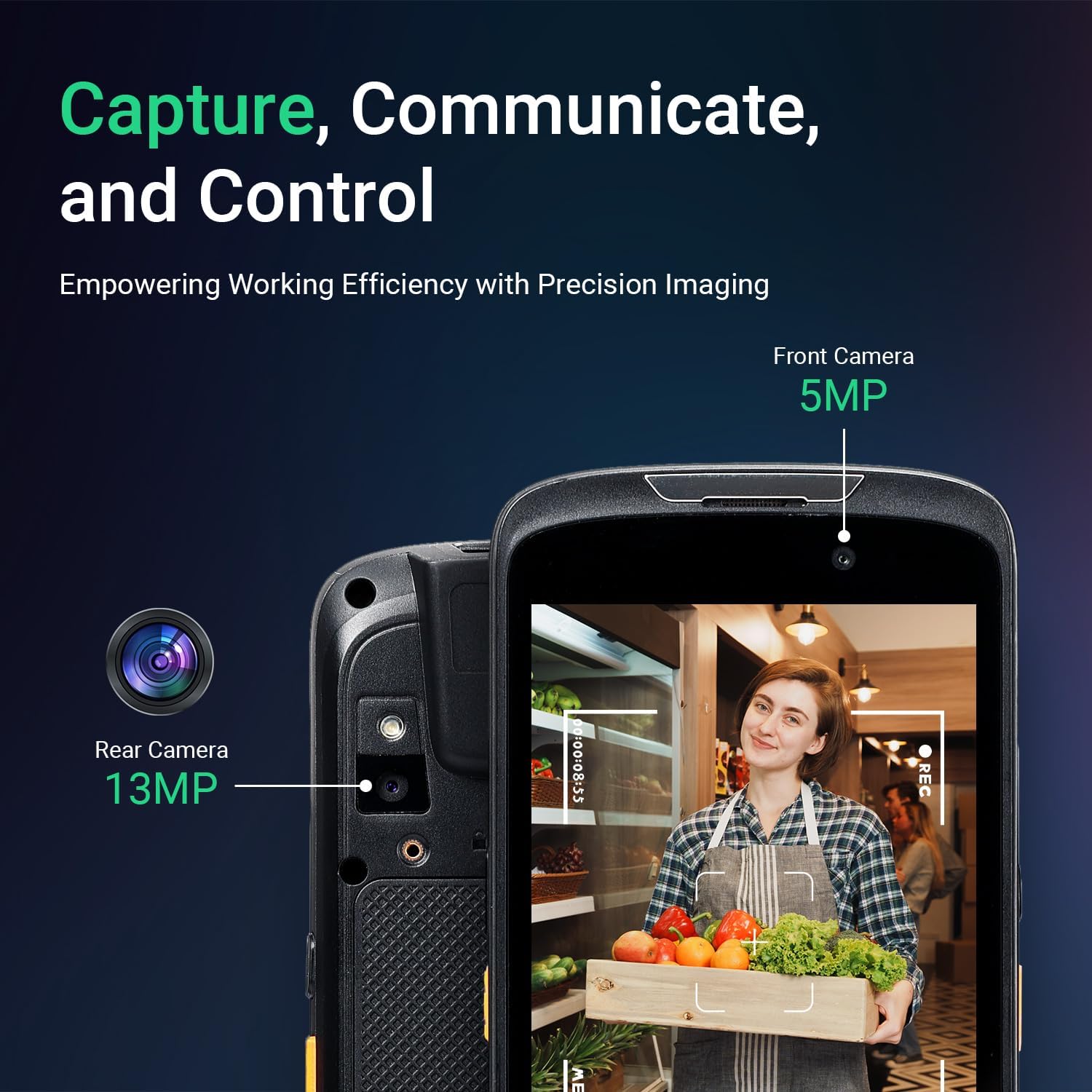
3. Device Overview
The SVANTTO IPDA061 is a robust mobile computer designed for efficient barcode data collection. It features a 5-inch full-screen display, an 8-core CPU, and runs on Android 11 OS.

Key Features:
- Android 11 Operating System
- 8-Core CPU with 4GB RAM and 64GB ROM
- Integrated Zebra SE4710 1D/2D/QR Barcode Scanner
- 5-inch Full-Screen Display
- Connectivity: Bluetooth 5.0, Wi-Fi, 4G LTE, NFC, GPS
- 4000mAh Removable Battery
- 5MP Front Camera, 13MP Rear Camera
- IP65 Rated for Dust and Water Resistance
- Customizable Scan Buttons
4. Setup
4.1 Battery Installation and Charging
- Locate the battery compartment on the rear of the device.
- Insert the 4000mAh Lithium-ion Polymer battery, ensuring proper alignment of the contacts.
- Secure the battery cover.
- Connect the USB charging cable to the device and the power adapter, then plug the adapter into a power outlet. Allow the device to fully charge before first use.

4.2 SIM Card Installation (Optional)
If 4G LTE connectivity is required, insert a compatible SIM card into the designated slot. Refer to the device's internal diagram for precise slot location.
4.3 Initial Power On and Network Configuration
- Press and hold the power button until the device powers on.
- Follow the on-screen prompts to complete the initial Android 11 setup.
- To connect to Wi-Fi, navigate to Settings > Network & internet > Wi-Fi, select your network, and enter the password.
- For Bluetooth connectivity, go to Settings > Connected devices > Connection preferences > Bluetooth and pair with your desired device.

5. Operating Instructions
5.1 Barcode Scanning
The device is equipped with a Zebra SE4710 engine for scanning 1D, 2D, and QR codes.
- Open the scanning application or an application that supports barcode input.
- Point the scanner module at the barcode, ensuring the red laser aimer covers the entire code.
- Press one of the two dedicated scan buttons located on the sides of the device.
- The device will emit a confirmation sound or vibration upon successful scan.
Note: The camera and the scan engine cannot operate simultaneously.


5.2 Camera Functionality
The device includes a 5MP front camera and a 13MP rear camera for image capture.
- Open the camera application.
- Select either the front or rear camera as needed.
- Tap the screen to focus and press the shutter button to capture images or record videos.

5.3 Software Integration
The SVANTTO IPDA061 is compatible with various inventory management software solutions, including Odoo, Zoho Inventory, Ocra Scan, inFlow Inventory, and Finale Inventory. An API/SDK is available for custom software integration.
Note: This device is not compatible with "Correos Express" and "QuickBooks Desktop" software.

6. Maintenance
6.1 Cleaning
To clean the device, use a soft, damp cloth. Avoid using harsh chemicals or abrasive materials that could damage the screen or casing. Ensure the device is powered off and disconnected from charging before cleaning.
6.2 Battery Care
The 4000mAh removable battery provides over 10.5 hours of continuous use. To maximize battery life:
- Charge the battery fully before first use.
- Avoid extreme temperatures during charging and operation.
- If storing the device for an extended period, charge the battery to approximately 50% and remove it from the device.
6.3 Environmental Considerations
The device is designed for rugged environments with an IP65 rating and 1.2m drop resistance. It operates effectively in temperatures ranging from -10 °C to 50 °C and can be stored between -20 °C to 60 °C.

7. Troubleshooting
If you encounter issues with your SVANTTO IPDA061, refer to the following common problems and solutions:
| Problem | Possible Cause | Solution |
|---|---|---|
| Device does not power on | Low or depleted battery | Charge the device for at least 30 minutes. Ensure the battery is correctly installed. |
| Barcode not scanning | Incorrect aiming, dirty scanner window, incompatible barcode type, scanner engine conflict with camera. | Ensure the laser covers the entire barcode. Clean the scanner window. Verify barcode type is 1D, 2D, or QR. Ensure the camera app is not active. |
| Wi-Fi/Bluetooth connectivity issues | Out of range, incorrect password, interference. | Move closer to the access point/device. Re-enter password. Restart Wi-Fi/Bluetooth on the device. |
| Application compatibility issues | Software not supported. | Confirm software compatibility. Note that "Correos Express" and "QuickBooks Desktop" are not supported. |
| Device is slow or unresponsive | Too many applications running, low storage. | Close unnecessary applications. Clear cache or free up storage space. Restart the device. |
8. Specifications
| Feature | Detail |
|---|---|
| Model Number | IPDA061 |
| Operating System | Android 11 |
| CPU | 8-Core Processor |
| Memory (RAM/ROM) | 4GB RAM / 64GB Flash |
| Scanner Engine | Zebra SE4710 (1D/2D/QR) |
| Display | 5-inch Full-Screen |
| Connectivity | Bluetooth 5.0, Wi-Fi, 4G LTE (SIM card support), NFC, GPS |
| Battery | 4000mAh Removable Lithium-ion Polymer |
| Cameras | 5MP Front, 13MP Rear |
| Durability Rating | IP65 |
| Drop Resistance | 1.2m (composite wood floor) |
| Operating Temperature | -10 °C to 50 °C |
| Storage Temperature | -20 °C to 60 °C |
| Product Dimensions | 6.18 x 2.9 x 0.95 inches |
| Item Weight | 1.1 pounds |

9. Warranty and Support
SVANTTO provides comprehensive support for your IPDA061 device:
- 30-Day Return Service: Enjoy a 30-day no-questions-asked return policy.
- 2-Year Warranty: The device is covered by a 2-year warranty service.
- Lifetime Technical Support: Access lifetime online technical support for any operational or technical queries.
For technical assistance or warranty claims, please contact SVANTTO customer support through your purchase platform (e.g., "Contact Buyer" on Amazon).


Ask a question about this manual
Ask about setup, troubleshooting, compatibility, parts, safety, or missing instructions. Manuals+ will review the question and use this page’s manual context to help answer it.