
EMEET E3117
EMEET C960 4K Webcam User Manual
Model: E3117
Introduction
This manual provides comprehensive instructions for the setup, operation, and maintenance of your EMEET C960 4K Webcam. Designed for high-quality video conferencing and content creation, this webcam features a 4K UHD Sony Sensor, PDAF Auto Focus, Dual AI Noise-Cancelling Microphones, and Auto Light Correction. Please read this manual thoroughly to ensure optimal performance and longevity of your device.
Product Overview
The EMEET C960 4K Webcam is engineered to deliver superior video and audio quality for all your communication needs. Key features include:
- True 4K Resolution: Experience ultra-clear video with a genuine 4K CMOS sensor, providing pure 4K quality without false upscaling.
- PDAF Auto Focus: Ensures clear and stable focusing in various scenarios, eliminating blurry interruptions.
- Auto Light Correction: Automatically adjusts to both over-exposed and low-light settings for optimal illumination.
- Dual AI Noise-Cancelling Mics: Built-in microphones with noise-suppressing algorithms for crisp, natural audio.
- 73° FOV: A focused field of view that centers on you, reducing the need for background adjustments.
- USB Plug and Play: Simple setup with a standard USB-A interface, requiring no drivers.
- Physical Privacy Cover: Included for enhanced security and peace of mind.
- Wide Compatibility: Works with Windows (Win7,10,11), macOS (10.14+), Android TV V7.0+, and Linux, supporting popular communication software like Zoom, Teams, and Skype.

Figure 1: EMEET C960 4K Webcam with its privacy cover open, highlighting the lens and dual microphones.
Setup
Package Contents
- EMEET C960 4K Webcam
- Privacy Cover
- User Manual (this document)
Connecting the Webcam
The EMEET C960 4K Webcam is designed for simple plug-and-play operation. No additional drivers are required for basic functionality.
- Ensure your computer or device is powered on.
- Connect the USB-A cable from the webcam to an available USB port on your computer.
- The webcam will be automatically recognized by your operating system.

Figure 2: Simple USB Plug & Play connection for the EMEET C960 4K Webcam.
Mounting the Webcam
The webcam features flexible mounting options for various screen types and tripods.
- On a Monitor/Laptop: Unfold the clip base and rest it on top of your monitor or laptop screen. Adjust the angle to secure the webcam.
- On a Tripod: The webcam includes a 1/4-inch tripod thread on its base, allowing it to be mounted on standard tripods (not included).

Figure 3: The webcam offers 360° horizontal and 15° vertical adjustments for optimal positioning.
Software Installation (Optional)
For advanced settings and personalization, download the EMEETLINK software from the official EMEET website. This software allows you to adjust brightness, saturation, white balance, and other video settings.
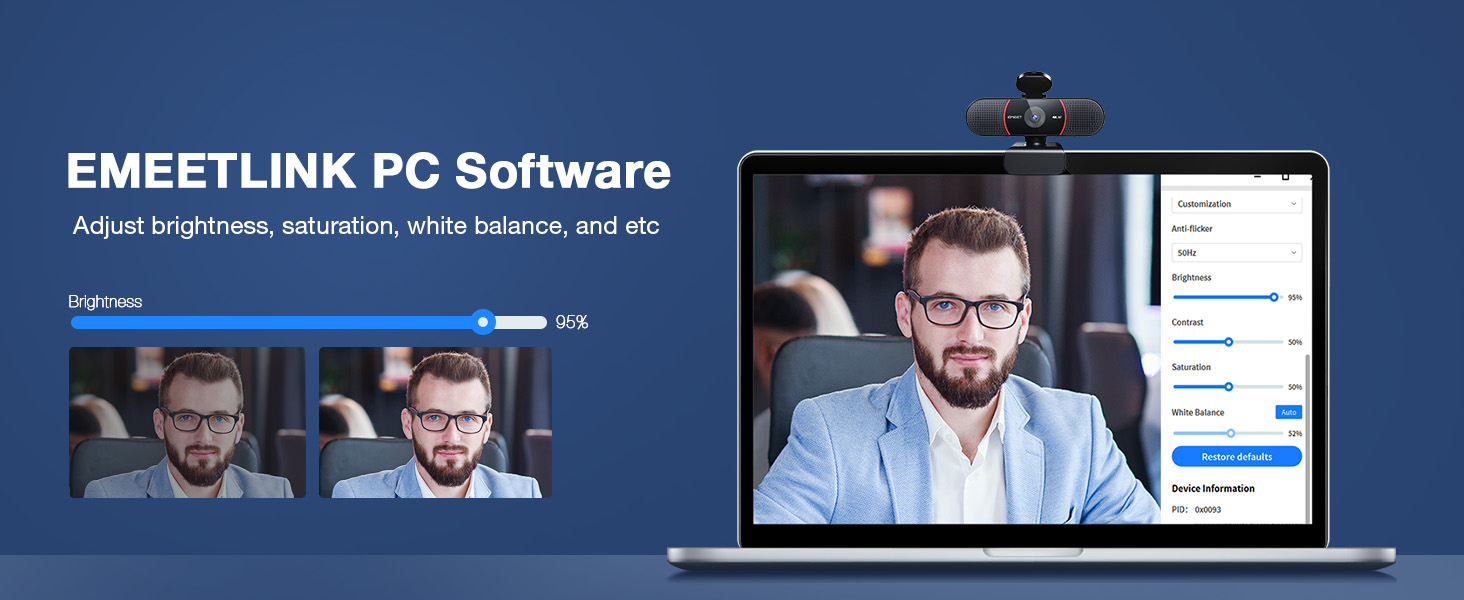
Figure 4: EMEETLINK PC Software for customizing video settings.
Operating Instructions
Using the Webcam
Once connected, the EMEET C960 4K Webcam can be selected as your primary video and audio device in most communication and streaming applications.
- Open your preferred video conferencing software (e.g., Zoom, Microsoft Teams, Skype, Google Meet).
- Navigate to the audio/video settings within the application.
- Select "EMEET C960" or similar for both your camera and microphone input.
- Ensure the physical privacy cover is open when in use.
4K Resolution Usage
The EMEET C960 supports true 4K resolution. Note that video resolution defaults to 1080P in many applications. To utilize 4K, you may need to adjust settings within your operating system or specific applications.
- Windows: Go to Camera settings -> Video settings -> Video quality and select 2160P 16:9 30FPS.
- macOS: The default resolution is typically the highest supported.
- For streaming or advanced use, applications like PotPlayer or OBS Studio allow direct selection of 4K resolution.

Figure 5: Visual comparison of different video resolutions, highlighting the clarity of 4K UHD.

Figure 6: Steps to configure 4K resolution on Windows and macOS.
For the best 4K experience, ensure you are using a USB 3.0 port and a 4K display. While a 4K camera can still deliver better details without a 4K display, a compatible display will maximize the visual quality.

Figure 7: Recommendations for achieving the best 4K experience.
PDAF Auto Focus
The webcam's PDAF (Phase Detection Auto Focus) technology automatically adjusts the focus to keep you clear and sharp, even if you move during a call or presentation.

Figure 8: PDAF Auto Focus ensures clear and stable images.
Auto Light Correction
The EMEET C960 automatically corrects for lighting conditions, ensuring you are well-lit whether in bright or dim environments. This feature helps maintain consistent video quality.

Figure 9: Auto Light Correction for optimal video quality in varying light conditions.
Dual AI Noise-Cancelling Microphones
The built-in dual microphones utilize AI noise-cancelling algorithms to reduce background noise, providing clear and natural audio. For optimal performance, ensure the EMEET C960 is selected as your default microphone device in your system settings and communication applications.

Figure 10: Dual AI Noise-Cancelling Microphones for clear audio.
Maintenance
Cleaning the Webcam
- Gently wipe the lens with a soft, lint-free cloth. Avoid using harsh chemicals or abrasive materials.
- Clean the body of the webcam with a slightly damp cloth if necessary.
Using the Privacy Cover
The included physical privacy cover provides an extra layer of security. Slide the cover over the lens when the webcam is not in use to prevent accidental recording and ensure your privacy.

Figure 11: The physical privacy cover ensures your privacy when the webcam is not in use.
Troubleshooting
| Problem | Possible Cause | Solution |
|---|---|---|
| No video/audio output | Webcam not properly connected or selected. |
|
| Dark or grainy image | Insufficient lighting in the environment. |
|
| Blurry image | Auto-focus issue or dirty lens. |
|
| Background noise in audio | Microphone not utilizing noise cancellation or external noise is too high. |
|
| Cannot achieve 4K resolution | Application or system limitations, or hardware not supporting 4K. |
|
Specifications
| Feature | Detail |
|---|---|
| Model Number | E3117 |
| Product Dimensions | 1.54 x 0.91 x 0.87 inches |
| Item Weight | 4.8 ounces |
| Photo Sensor Technology | CMOS |
| Video Capture Resolution | 4K |
| Maximum Focal Length | 3000 Millimeters |
| Maximum Aperture | 6 f |
| Video Capture Format | MP4 |
| Supported Audio Format | AAC |
| Connectivity Technology | USB |
| Manufacturer | Shenzhen eMeet technology Co.,Ltd. |
Warranty and Support
Warranty Information
EMEET offers a 2-year protection plan and a 3-year protection plan for the C960 4K Webcam. For detailed terms and conditions regarding your warranty or to purchase extended protection, please refer to your purchase documentation or contact EMEET customer support.
Customer Support
For technical assistance, troubleshooting, or any inquiries regarding your EMEET C960 4K Webcam, please visit the official EMEET website or refer to the digital user manual available at https://manuals.plus/m/dbff9e69a504139c94deb977704d46b3a92afb1634e4cd304a461d8a232d2cba.
EMEET is committed to providing lifetime professional technical team support and aims to reply to inquiries within 24 hours.
Related documentsE3117


Ask a question about this manual
Ask about setup, troubleshooting, compatibility, parts, safety, or missing instructions. Manuals+ will review the question and use this page’s manual context to help answer it.