
1. Introduction
Thank you for choosing the CUIUIC 18.5-inch 120Hz Portable Gaming Monitor. This manual provides essential information for setting up, operating, and maintaining your new monitor. Designed for versatility, this Full HD IPS display offers a 120Hz refresh rate, HDR 1080p support, and 100% sRGB color accuracy, making it ideal for gaming, productivity, and entertainment on the go. Its lightweight and portable design, coupled with multiple connectivity options, ensures a seamless experience with various devices.
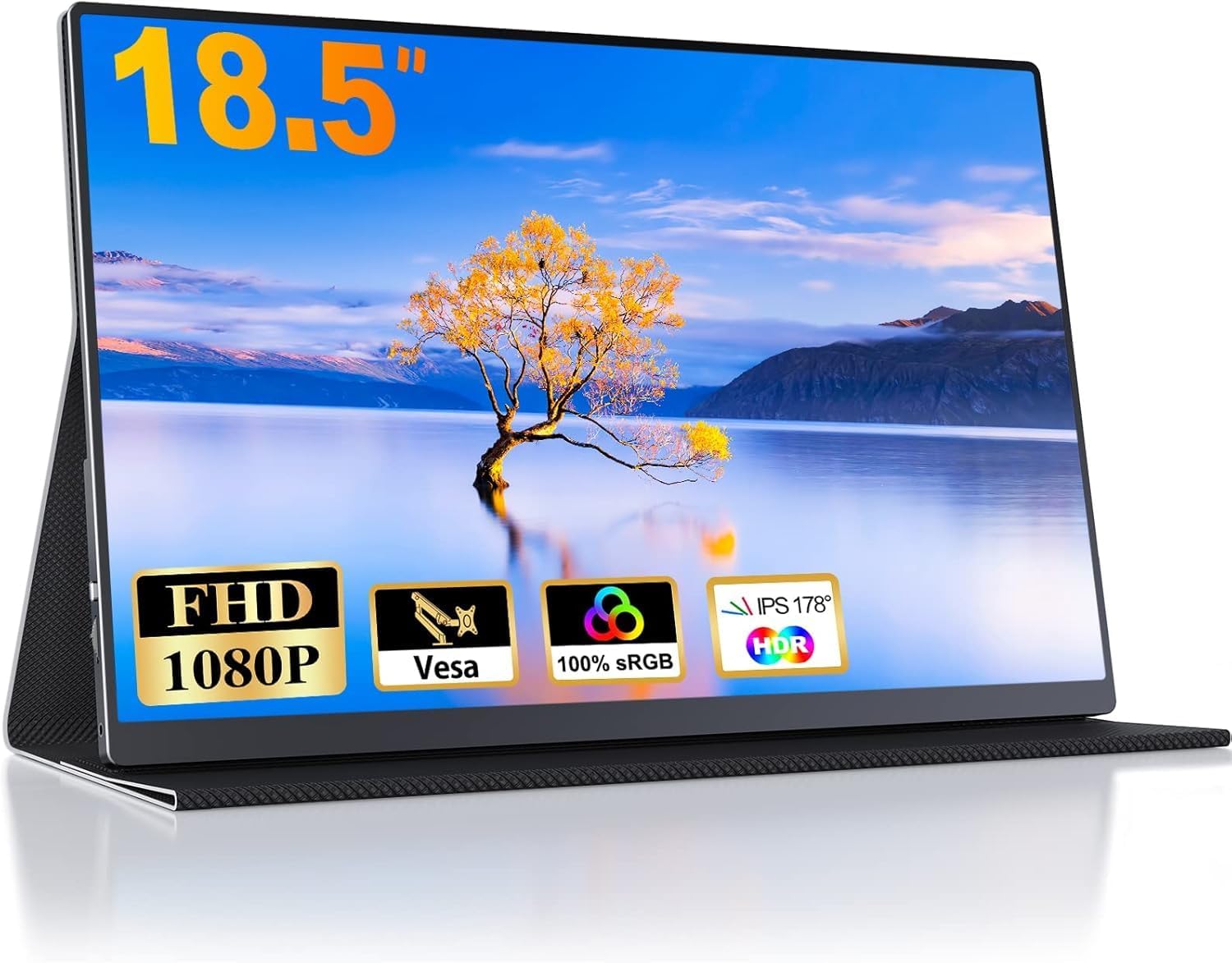
Image 1.1: The CUIUIC 18.5-inch Portable Gaming Monitor with its smart cover.
2. Package Contents
Please check the package contents carefully. If any items are missing or damaged, contact customer support.
- CUIUIC 18.5-inch Portable Gaming Monitor (Model: GS185CM1)
- Smart Leather Cover (doubles as a stand)
- USB-C to USB-C Cable (for power and video/audio signal)
- Mini HDMI to HDMI Cable (for video signal)
- USB-A to USB-C Power Cable (for external power supply)
- Power Adapter (may vary by region)
- User Manual (this document)
3. Product Overview
Familiarize yourself with the monitor's ports and controls.
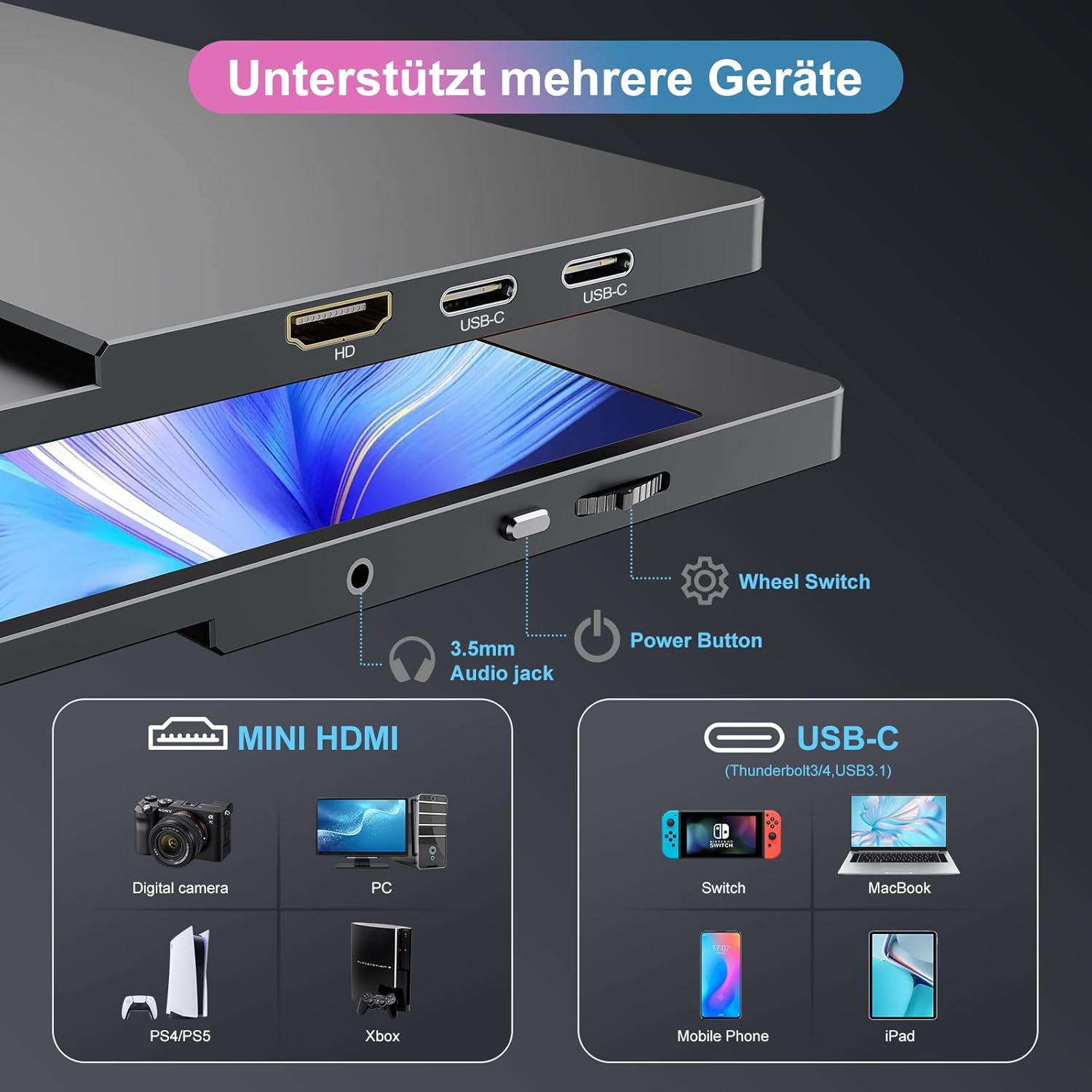
Image 3.1: Monitor Ports and Controls. Features include Mini HDMI port, two USB-C ports, 3.5mm audio jack, power button, and a wheel switch for OSD navigation.
3.1. Ports and Connectors
- Mini HDMI Port: For video input from devices like PCs, game consoles (PS4/PS5, Xbox), and digital cameras.
- USB Type-C Ports (x2): Full-function ports supporting power delivery, video, and audio signal transmission. Compatible with Thunderbolt 3/4 and USB 3.1 DP Alt Mode devices (laptops, smartphones, Nintendo Switch, MacBooks, iPads).
- 3.5mm Audio Jack: For connecting external headphones or speakers.
3.2. Controls
- Power Button: Press to turn the monitor on/off.
- Wheel Switch: Used to navigate the On-Screen Display (OSD) menu, adjust settings like brightness, contrast, and color.
3.3. Design Features
- Smart Leather Cover: The included cover protects the screen and folds into a stand, offering multiple viewing angles. It is scratch-resistant and water-resistant.
- VESA Mount Compatibility: The monitor supports VESA mounting for alternative stand or arm installations.

Image 3.2: The monitor is lightweight at 1.13 kg and thin at 1 cm, enhancing its portability.


Image 3.3: The CUIUIC portable monitor's slim and lightweight design makes it highly portable.

Image 3.4: The smart cover provides robust protection and converts into a stable stand.
4. Setup and Connection
The monitor offers flexible connectivity options. Ensure your device supports the necessary protocols for full functionality.
4.1. USB Type-C Connection (Single Cable Solution)
For devices with a full-function USB-C port (Thunderbolt 3/4 or USB 3.1 DP Alt Mode), a single USB-C to USB-C cable can provide both power and video/audio signals.
- Connect one end of the USB-C to USB-C cable to a USB-C port on the monitor.
- Connect the other end to the full-function USB-C port on your laptop, smartphone, or gaming console (e.g., Nintendo Switch).
- The monitor should automatically detect the signal and power on. If not, press the power button.
Note: Ensure your device's USB-C port supports Thunderbolt 3/4 or USB 3.1 DP Alt Mode for video and audio transmission. If your device's USB-C port only supports power delivery, you will need to use the HDMI connection for video and an external power source for the monitor.

Image 4.1: Illustration of USB-C connection (top) and HDMI connection (bottom) to a laptop. The USB-C connection provides both power and display, while the HDMI connection requires a separate power source.
4.2. HDMI Connection (Requires External Power)
For devices without a full-function USB-C port, use the Mini HDMI port for video and a separate USB-C cable for power.
- Connect one end of the Mini HDMI to HDMI cable to the Mini HDMI port on the monitor.
- Connect the other end to the HDMI port on your PC, laptop, or game console (e.g., PS4/PS5, Xbox).
- Connect the USB-A to USB-C power cable to one of the monitor's USB-C ports and the USB-A end to a power adapter or a powered USB port on your device.
- Ensure the monitor is powered on.
Note: When using HDMI, the monitor requires external power via one of its USB-C ports.
5. Operating Instructions
5.1. On-Screen Display (OSD) Menu
The OSD menu allows you to adjust various display settings.
- Press the Wheel Switch to open the OSD menu.
- Rotate the Wheel Switch up or down to navigate through menu options.
- Press the Wheel Switch to select an option or confirm a setting.
- Rotate the Wheel Switch to adjust values (e.g., brightness, contrast).
- To exit the menu, navigate to the "Exit" option or wait for the menu to time out.
5.2. Display Modes
The monitor supports various display modes to suit your needs:
- Clone Mode: Duplicates your primary screen, ideal for presentations or sharing content.
- Extend Mode: Extends your desktop, providing more screen real estate for increased productivity.
- Second Screen Mode: Uses the portable monitor as the sole display, turning off the primary screen.
These modes can typically be configured through your connected device's display settings (e.g., Windows Display Settings, macOS System Preferences).

Image 5.1: Enhancing productivity with the portable monitor in extend mode.
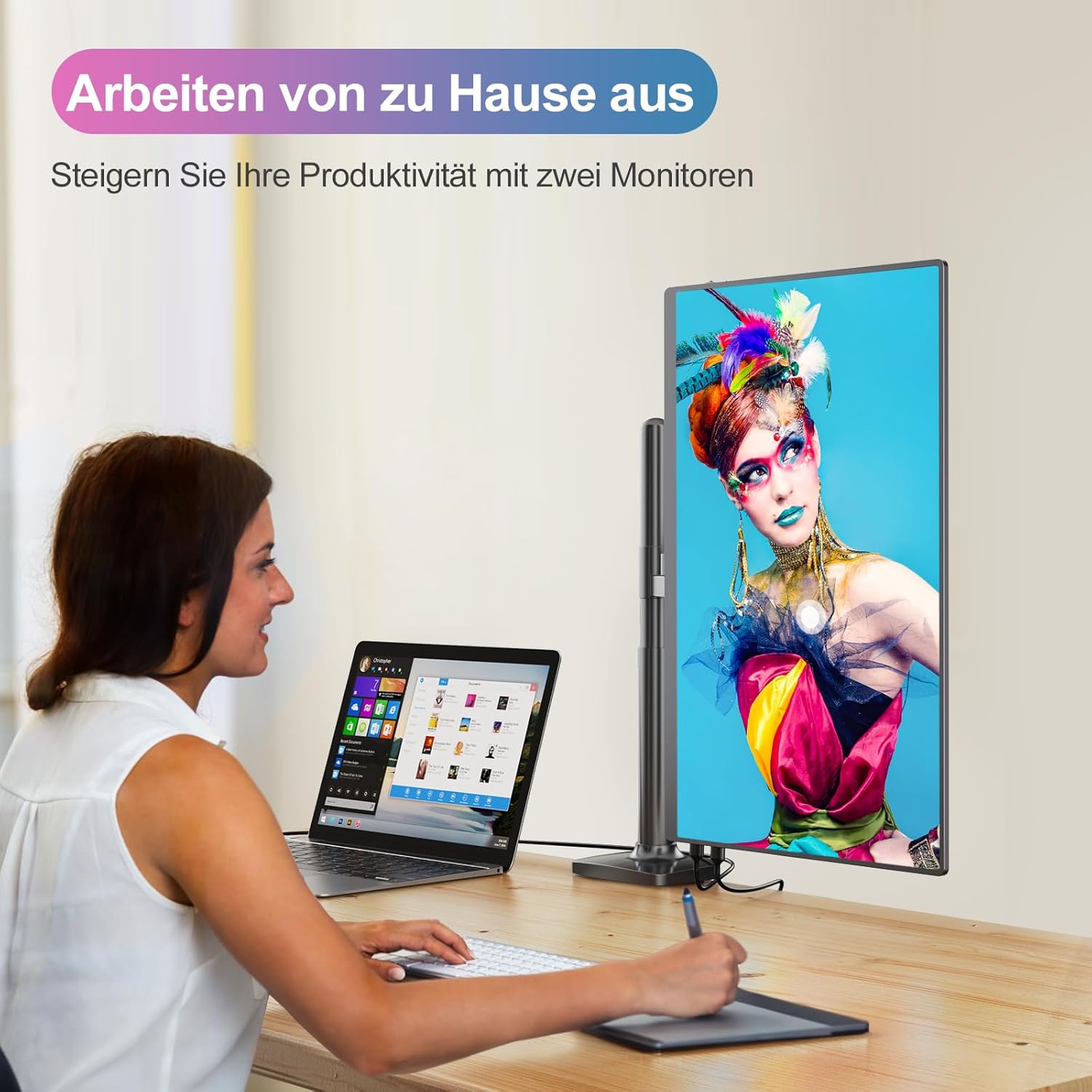
Image 5.2: The monitor can be used in portrait orientation for specific tasks like coding or document review, enhancing workflow.
5.3. HDR Mode
Activate HDR (High Dynamic Range) mode through the OSD menu or your device's display settings for enhanced visual quality in compatible videos and games.

Image 5.3: The monitor supports HDR 16:9 display, offering a 2000:1 contrast ratio, low blue light mode, 400 cd/m² brightness, 1.07 billion display colors, and 100% sRGB color gamut.
6. Maintenance
Proper maintenance ensures the longevity and optimal performance of your monitor.
- Cleaning the Screen: Gently wipe the screen with a soft, lint-free cloth. For stubborn marks, dampen the cloth slightly with water or a screen-cleaning solution. Avoid harsh chemicals or abrasive materials.
- Cleaning the Body: Use a soft, dry cloth to clean the monitor's casing.
- Storage: When not in use, store the monitor in its smart leather cover to protect it from dust and scratches. Avoid exposing it to extreme temperatures or humidity.
- Handling: Always handle the monitor by its edges. Avoid applying pressure directly to the screen.
7. Troubleshooting
If you encounter issues, refer to the following common problems and solutions.
| Problem | Possible Cause / Solution |
|---|---|
| No Signal / Black Screen |
|
| Monitor Not Powering On |
|
| Flickering Screen |
|
| No Audio from Monitor |
|
8. Specifications
| Feature | Detail |
|---|---|
| Model Number | GS185CM1 |
| Screen Size | 18.5 Inches |
| Resolution | FHD 1080p (1920 x 1080) |
| Panel Type | IPS |
| Refresh Rate | 120 Hz |
| Response Time | 3 milliseconds |
| Aspect Ratio | 16:9 |
| Color Gamut | 100% sRGB |
| Contrast Ratio | 2000:1 |
| Brightness | 400 cd/m² |
| Special Features | Portable, Flicker-Free, HDR Support |
| Connectivity | 2x USB Type-C (Full-function), 1x Mini HDMI |
| Audio Output | 3.5mm Audio Jack |
| VESA Mount | Supported |
| Weight | 1.13 KG |
| Thickness | 1 CM |
9. Warranty and Support
CUIUIC provides comprehensive support for your product.
- Warranty: Your monitor comes with a 12-month standard warranty, extendable by an additional 12 months (total 24 months). Please refer to the product registration or contact customer service for details on warranty extension.
- Customer Support: Our dedicated support team is available 24 hours to assist you with any queries or issues.

Image 9.1: CUIUIC offers a 12+12 month warranty and 24-hour customer service.
For further assistance, please visit our official website or contact us via the details provided in your product packaging.
