
1. Introduction
The FiiO BR13 is a versatile HiFi Bluetooth 5.1 music receiver designed to upgrade existing audio systems with high-quality wireless audio streaming capabilities. It features advanced audio codecs, multiple input/output options, and a dedicated app for enhanced control, allowing for a superior listening experience from various sources.
2. Key Features
- Bluetooth 5.1 Connectivity: Ensures stable and efficient wireless audio transmission.
- LDAC Hi-Res Audio Support: Delivers CD-level sound quality wirelessly.
- Advanced Audio Architecture: Incorporates ES9018K2M DAC, Qualcomm QCC5125 Bluetooth chip, and TPA1882 op-amp for high-fidelity sound.
- Multiple Interfaces: Includes USB input, optical input/output, coaxial input/output, and RCA line-out.
- SPDIF Conversion Function: Allows conversion between coaxial and optical signals, and supports BYPASS mode.
- Customizable EQ: Features 7 preset EQ options and 2 customizable parametric EQ settings via the FiiO Control app.
- OLED Display: Provides clear information on codec, EQ, and other settings.
- App Control: Offers comprehensive control and OTA firmware upgrades via the FiiO Control app.
3. Product Overview
3.1 Front Panel
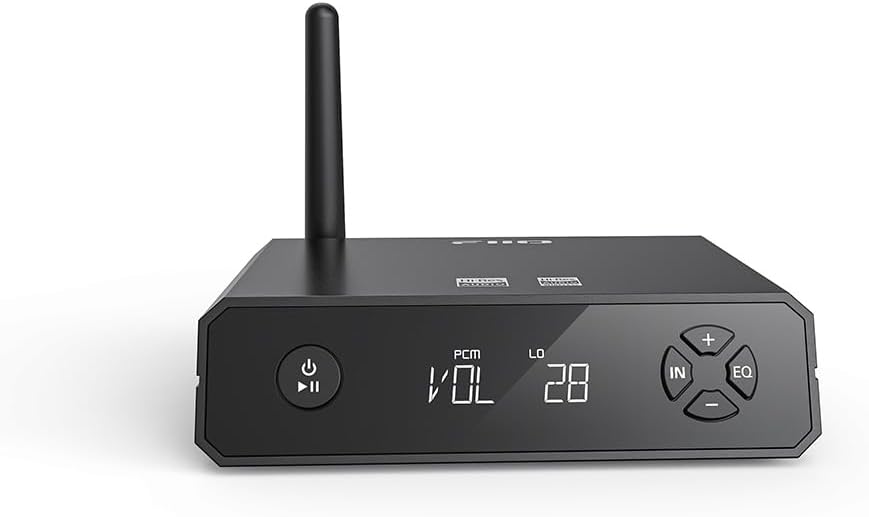
The front panel features an OLED display that shows current volume, input mode, and active codec. Control buttons include power/play/pause, volume up/down, input selection, and EQ settings.
3.2 Rear Panel

The rear panel provides all connectivity options: RCA L/R line-out, Optical In, Coaxial In/Out, Optical Out, and a USB-C port for power and USB DAC functionality. An external antenna is also present for Bluetooth reception.
3.3 Internal Architecture

The BR13 integrates a Qualcomm QCC5125 Bluetooth chip for robust wireless performance, an ES9018K2M DAC for digital-to-analog conversion, and a TPA1882 op-amp for audio amplification, ensuring high-fidelity sound reproduction.
4. Setup Guide
4.1 Power Connection
- Connect the provided USB cable to the USB-C port on the rear of the BR13.
- Plug the other end of the USB cable into a 5V USB power adapter (not included) or a compatible USB port on a computer or power bank.
- Ensure the power adapter provides stable power to the device.
4.2 Audio Output Connection
Choose one of the following methods to connect the BR13 to your audio system:
- RCA Line-Out: Use an RCA cable to connect the BR13's L/R LINE OUT ports to the analog input (e.g., AUX, CD) of your amplifier or active speakers.
- Optical Output: Use an optical fiber cable to connect the BR13's OPT OUT port to the optical input of your DAC, amplifier, or receiver.
- Coaxial Output: Use a coaxial cable to connect the BR13's COAX IN/OUT port (configured as output) to the coaxial input of your DAC, amplifier, or receiver.
5. Operating Instructions
5.1 Power On/Off
- Power On: Press and hold the power button (⑂) on the front panel until the OLED display illuminates.
- Power Off: Press and hold the power button (⑂) until the display turns off.
5.2 Bluetooth Pairing

To connect a Bluetooth device:
- Ensure the BR13 is powered on and in Bluetooth input mode (indicated on the OLED display). If not, press the "IN" button to cycle through inputs until "BT" is displayed.
- On your source device (smartphone, tablet, computer), enable Bluetooth and search for available devices.
- Select "FiiO BR13" from the list of devices to pair.
- Once paired, the OLED display will show the active Bluetooth codec (e.g., LDAC, aptX).
5.3 Input Selection
Press the "IN" button on the front panel to cycle through available input modes:
- BT (Bluetooth): For wireless audio streaming.
- USB: For connecting to a computer, game console, or other USB audio source.
- OPT IN (Optical Input): For connecting optical audio sources.
- COAX IN (Coaxial Input): For connecting coaxial audio sources.

5.4 Volume Control
Use the "+" and "-" buttons on the front panel to adjust the output volume. The volume level will be displayed on the OLED screen.
5.5 Equalizer (EQ) Settings

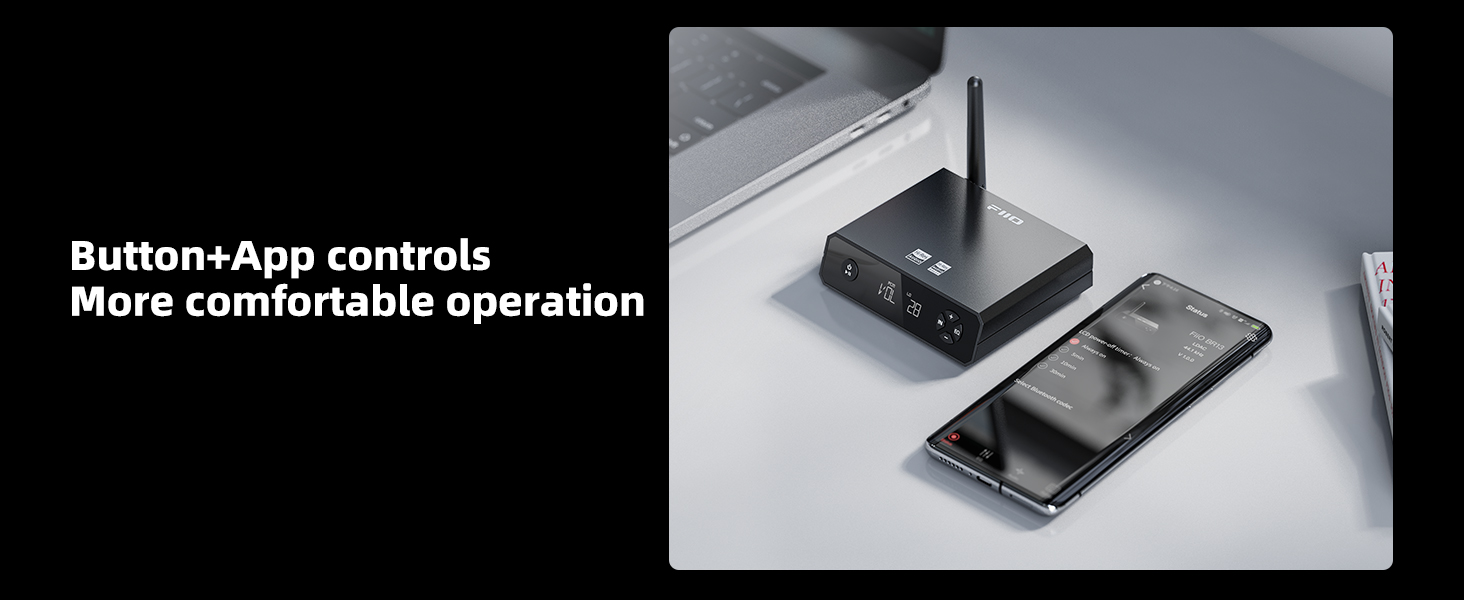
The BR13 offers 7 preset EQ options and 2 customizable parametric EQ settings. These can be accessed and adjusted using the "EQ" button on the front panel or more comprehensively through the FiiO Control app.
- Using the Device: Press the "EQ" button to cycle through preset EQ modes.
- Using the FiiO Control App: Download and install the FiiO Control app on your smartphone. Connect the app to the BR13 via Bluetooth to access detailed EQ adjustments and other settings.
5.6 SPDIF Conversion and Bypass

The BR13 supports conversion between optical and coaxial digital audio signals. It also features a BYPASS mode.
- Conversion: Optical and coaxial input signals can be converted to each other for output. For example, an optical input can be outputted via the coaxial port, and vice-versa.
- Bypass: This mode allows digital signals (optical or coaxial) to pass through the BR13 without processing, directly outputting them to another digital audio device. This can be configured via the FiiO Control app.
6. Specifications
| Feature | Detail |
|---|---|
| Product Dimensions | 3.94 x 3.94 x 1.18 inches |
| Item Weight | 4.8 ounces (135 Grams) |
| Item Model Number | BR13 |
| Brand | FiiO |
| Connectivity Technology | Bluetooth 5.1 |
| Controller Type | Push Button |
| Special Feature | Built-In Bluetooth, OLED Display, App Control |
| Compatible Devices | Personal Computer, Smartphone, Television, iPad, iPhone, Home Stereo Systems |
| Connector Type | Coaxial, Optical, RCA, USB-C |
| Audio Output Mode | Stereo |
| Color | Black |
| Output Power | 160 Watts (Note: This specification likely refers to the compatible amplifier power, not the BR13's own output power.) |
| Supported Bluetooth Codecs | LDAC, aptX Adaptive, aptX, aptX Low Latency, aptX HD, AAC, SBC |
| DAC Chip | ES9018K2M |
| Bluetooth Chip | Qualcomm QCC5125 |
| Op-Amp | TPA1882 |
7. Troubleshooting
- No Sound Output:
- Ensure the BR13 is powered on and the volume is not set to minimum.
- Verify that the correct input mode is selected on the BR13 (BT, USB, OPT IN, COAX IN).
- Check all audio cables (RCA, optical, coaxial) for secure connections to both the BR13 and your audio system.
- Confirm that your amplifier or active speakers are powered on and set to the correct input source.
- If using Bluetooth, ensure the BR13 is successfully paired with your source device and the source device's volume is up.
- Bluetooth Pairing Issues:
- Make sure the BR13 is in Bluetooth input mode.
- Disable and re-enable Bluetooth on your source device.
- Try forgetting "FiiO BR13" from your source device's Bluetooth settings and re-pairing.
- Ensure no other devices are actively connected to the BR13. The BR13 can pair with two devices but only play from one at a time.
- Move the source device closer to the BR13 to rule out range issues.
- Distorted or Poor Sound Quality:
- Check the quality of your audio cables.
- Ensure the source audio file is of good quality.
- If using Bluetooth, verify that a high-quality codec (e.g., LDAC, aptX HD) is active, if supported by your source device.
- Adjust EQ settings in the FiiO Control app or on the device to see if it resolves the issue. Avoid extreme EQ adjustments.
- Ensure the BR13's volume is not too high, causing clipping in your amplifier.
- FiiO Control App Crashing/Not Connecting:
- Ensure the BR13's firmware is up to date. FiiO provides firmware updates on their website, which may require a PC for installation.
- Restart the FiiO Control app and your smartphone.
- Ensure Bluetooth is enabled on your smartphone and the BR13 is discoverable.
- Device Not Turning On/Off Reliably:
- Ensure the USB power connection is stable and the power adapter is functioning correctly.
- If the power button becomes unresponsive, try unplugging and re-plugging the power cable.
- Consider performing a firmware update, as some issues might be resolved through software.
8. Maintenance
- Cleaning: Use a soft, dry cloth to clean the exterior of the device. Avoid using liquid cleaners or solvents.
- Storage: Store the device in a cool, dry place away from direct sunlight and extreme temperatures.
- Power Management: If not in use for extended periods, it is recommended to power off the device.
- Firmware Updates: Regularly check the official FiiO website for firmware updates to ensure optimal performance and access to new features.
9. Warranty and Support
FiiO products typically come with a limited warranty. For specific warranty terms, duration, and support procedures, please refer to the warranty card included with your product or visit the official FiiO website. For technical assistance, troubleshooting beyond this manual, or service requests, please contact FiiO customer support or your authorized dealer.
Official FiiO Website: www.fiio.com