
BONSEN S3110
BONSEN 120-Sheet Auto-Feed Paper Shredder User Manual
Model: S3110 | Brand: BONSEN
1. Introduction
Thank you for choosing the BONSEN 120-Sheet Auto-Feed Paper Shredder. This manual provides essential information for the safe and efficient operation of your new shredder. Please read it thoroughly before use and keep it for future reference.
2. Important Safety Instructions
To reduce the risk of injury or damage, please observe the following safety precautions:
- Keep hands, hair, and loose clothing away from the paper entry slot.
- Do not insert fingers or other body parts into the shredder opening.
- Keep children and pets away from the shredder.
- Unplug the shredder when not in use or before moving, cleaning, or emptying the waste bin.
- Do not use aerosol products near the shredder.
- Do not shred wet or adhesive materials.
- Ensure the shredder is placed on a stable, level surface.
- Only shred materials specified in this manual.
3. Product Overview
Familiarize yourself with the components of your BONSEN paper shredder.

Figure 3.1: Overall view of the BONSEN 120-Sheet Auto-Feed Paper Shredder.

Figure 3.2: Close-up of the multi-function control panel with LED indicators.
Key Components:
- Automatic Feeding Inlet: For shredding up to 120 sheets of paper automatically.
- Manual Feeding Inlet: For shredding up to 12 sheets, credit cards, staples, and small paper clips.
- Control Panel: Buttons for Reverse (REV), Auto/On/Off (AUTO), and Forward (FWD) with LED indicators.
- Waste Bin: Collects shredded material, with a 6-gallon capacity.
- Casters: For easy mobility of the shredder.
4. Setup
- Unpack: Carefully remove the shredder from its packaging. Retain packaging for future transport or storage.
- Position: Place the shredder on a flat, stable surface. Ensure there is adequate space around the unit for ventilation and access to the power outlet.
- Connect Power: Plug the power cord into a standard electrical outlet.
- Prepare Waste Bin: Ensure the waste bin is properly seated in the shredder body. The shredder will not operate if the bin is not correctly in place.
5. Operating Instructions
Control Panel Functions:
- AUTO (On/Off/Overloading/Overheating indicator): Press to turn the shredder ON (Auto mode). The shredder will automatically start when paper is detected. This button also indicates overloading or overheating conditions via LED.
- REV (Reverse): Press and hold to reverse the shredding action. Useful for clearing paper jams.
- FWD (Forward): Press and hold to force the shredder to operate continuously in forward mode.
Automatic Feeding:
The auto-feed feature allows for hands-free shredding of multiple sheets.

Figure 5.1: Using the automatic feeding inlet for up to 120 sheets.
- Ensure the shredder is plugged in and the AUTO button is pressed.
- Open the auto-feed tray cover.
- Stack up to 120 sheets of paper neatly into the auto-feed inlet. Ensure the paper is flat and free of wrinkles.
- The shredder will automatically pull the paper through and shred it.
- Close the auto-feed tray cover when finished.
Note: The automatic feeding inlet is designed for paper only. Do not insert credit cards, staples, or clips into this slot.
Manual Feeding:
For smaller quantities or different materials, use the manual feed slot.
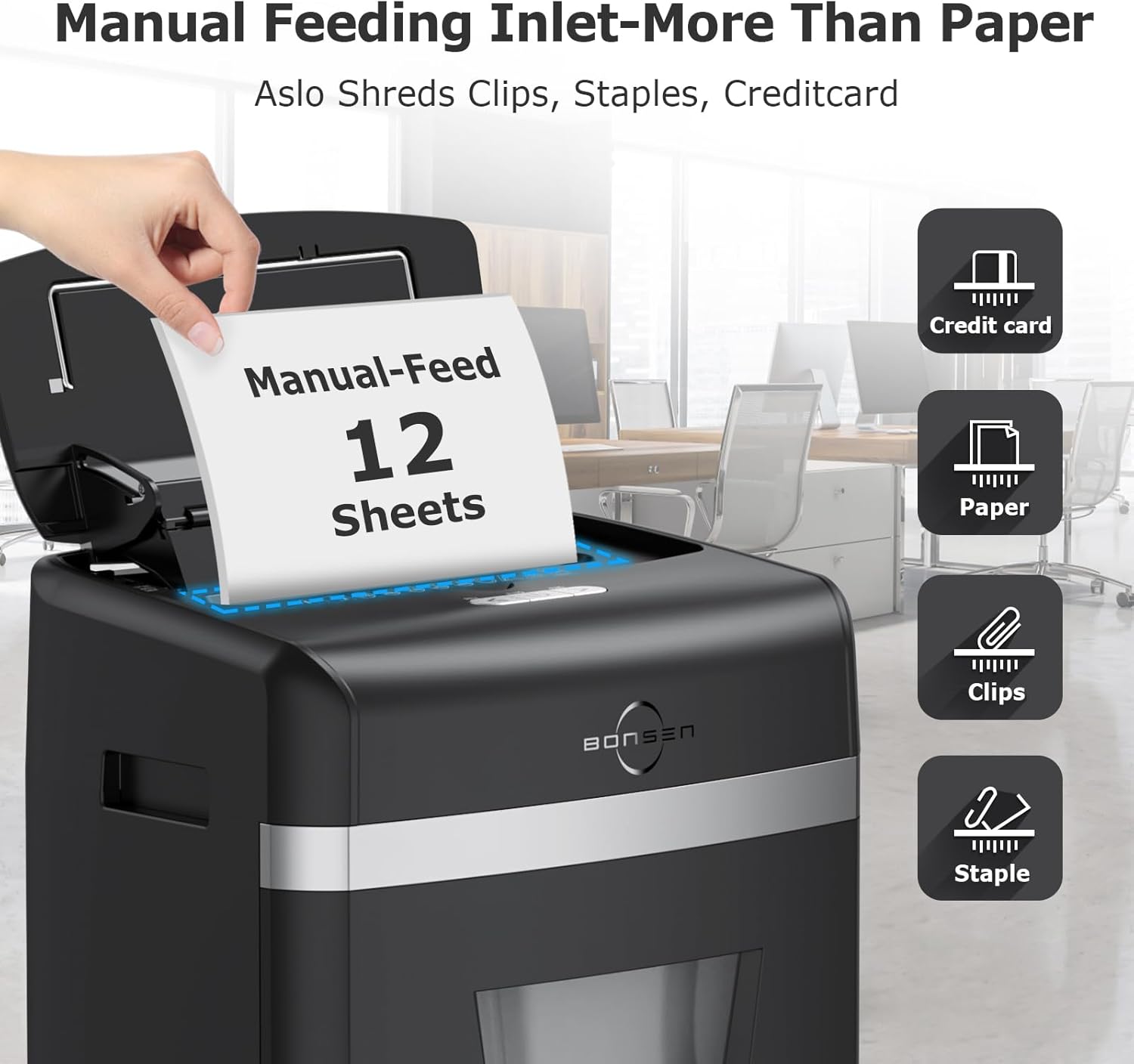
Figure 5.2: Using the manual feeding inlet for various items.
- Ensure the shredder is plugged in and the AUTO button is pressed.
- Insert up to 12 sheets of paper, one credit card, or a few stapled/clipped sheets into the manual feed slot.
- The shredder will detect the material and begin shredding.
6. Maintenance
Emptying the Waste Bin:
When the waste bin is full, the shredder will stop operating. Pull out the waste bin, empty the shredded material, and reinsert it firmly until it clicks into place.
Cleaning:
- Always unplug the shredder before cleaning.
- Wipe the exterior of the shredder with a soft, dry cloth. Do not use abrasive cleaners or solvents.
- Do not spray water or cleaning solutions directly onto the shredder.
Oiling the Shredder:
Regular oiling helps maintain the shredder's performance and extends its lifespan. Use shredder oil sheets or liquid shredder oil specifically designed for paper shredders.
- Apply shredder oil across the paper entry slot or feed an oil sheet.
- Press the FWD button for 2-3 seconds to distribute the oil.
- Press the REV button for 2-3 seconds.
- Repeat steps 2 and 3 a few times.
- Shred a few sheets of paper to remove excess oil.
7. Troubleshooting
If you encounter issues with your shredder, refer to the following common problems and solutions:
| Problem | Possible Cause | Solution |
|---|---|---|
| Shredder does not turn on. | Not plugged in; Waste bin not properly seated; Overheat protection activated. | Ensure power cord is securely plugged in; Re-seat the waste bin; Allow shredder to cool down for 30-60 minutes. |
| Paper jam. | Too much paper inserted; Paper not inserted straight. | Press and hold REV button to clear; Reduce paper quantity; Ensure paper is inserted straight. If severe, unplug and carefully remove paper. |
| Shredder stops during operation. | Waste bin full; Overheat protection activated; Overload protection activated. | Empty waste bin; Allow shredder to cool down; Reduce paper quantity. |
| Shredder is noisy. | Blades need oiling. | Oil the shredder blades as per maintenance instructions. |
8. Specifications
Technical details of the BONSEN 120-Sheet Auto-Feed Paper Shredder:
| Feature | Detail |
|---|---|
| Brand | BONSEN |
| Model Number | S3110 |
| Color | Black and Silver |
| Shred Type | Micro-Cut |
| Shred Size | 4mm x 12mm (5/32 x 15/32 inches) |
| Auto-Feed Sheet Capacity | 120 Sheets (A4, 70g/m²) |
| Manual Feed Sheet Capacity | 12 Sheets (A4, 70g/m²) |
| Shreds | Paper, Credit Cards, Staples, Small Paper Clips |
| Waste Bin Capacity | 6 Gallons |
| Operation Mode | Automatic |
| Weight | 8.95 Kilograms |
| Special Feature | Portable (with casters) |

Figure 8.1: Illustration of the micro-cut shred size (4mm x 12mm).

Figure 8.2: Shredder dimensions (10.35" x 14.45" x 19.92") and 6-gallon bin capacity.
9. Warranty and Support
BONSEN products are manufactured to high-quality standards. For information regarding warranty coverage, technical support, or replacement parts, please refer to the warranty card included with your purchase or visit the official BONSEN website. Please have your model number (S3110) and purchase date ready when contacting support.
Related documentsS3110


Ask a question about this manual
Ask about setup, troubleshooting, compatibility, parts, safety, or missing instructions. Manuals+ will review the question and use this page’s manual context to help answer it.