
1. Introduction
The DAYTECH Tuya WiFi Smart Emergency Call Button is an innovative device designed to provide security and rapid assistance for seniors and individuals requiring immediate help. This smart button connects to your home WiFi network and sends instant notifications to pre-selected contacts via the Tuya Smart application when pressed. It ensures 24/7 safety and support in various emergency situations.
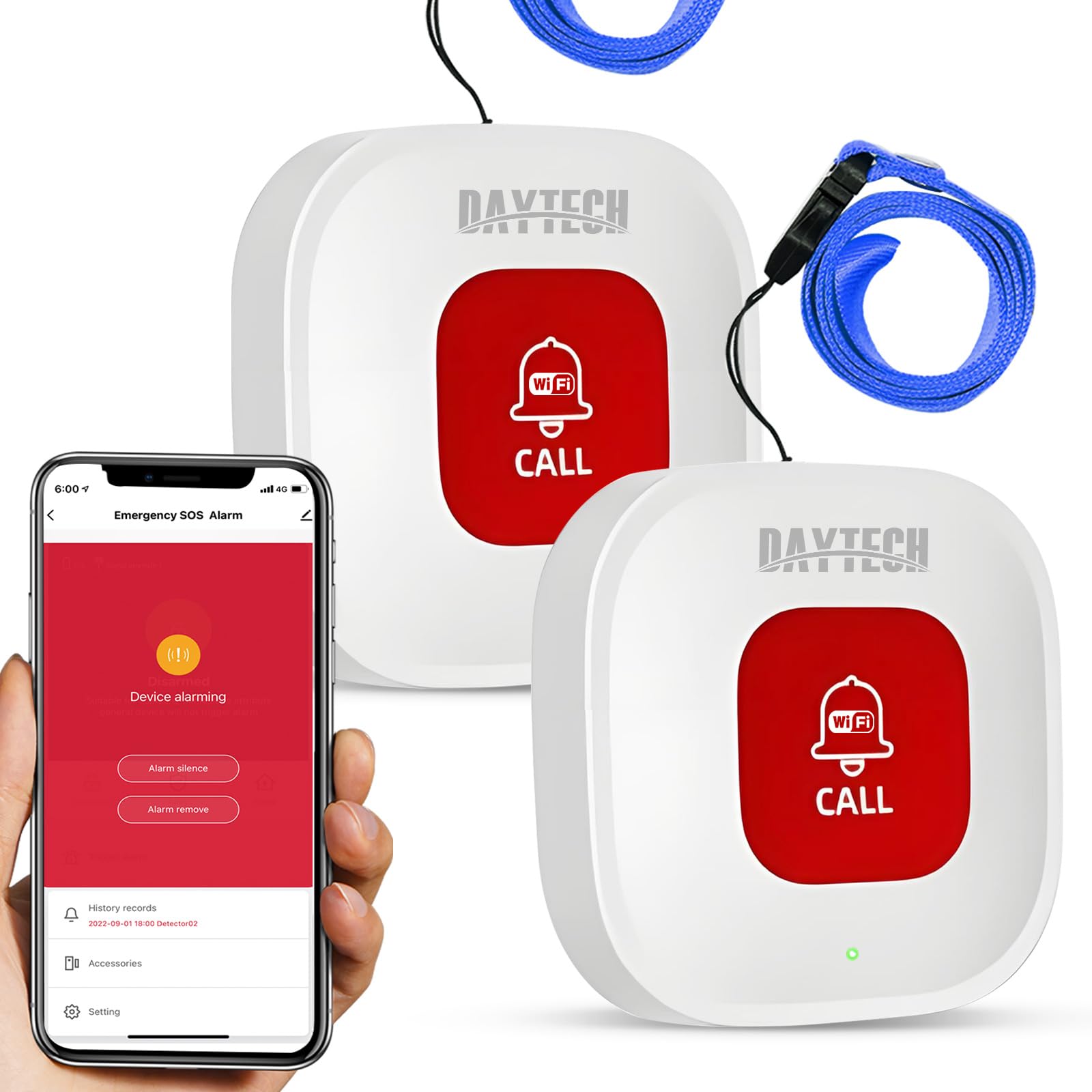
The DAYTECH Tuya WiFi Smart Emergency Call Button. Features include USB Charging, WiFi-6 connectivity, APP Remote Monitoring, and Shared Device functionality.
2. Package Contents
- 1 x DAYTECH Tuya WiFi Smart Emergency Call Button (Model TY-BT010)
- 1 x USB Charging Cable
- 1 x User Manual
3. Setup Instructions
3.1 Initial Charging
Before first use, ensure the device is fully charged using the provided USB cable. The device features USB fast charging and does not require separate batteries for operation, ensuring long standby times after a single charge.

The device supports USB fast charging. No separate batteries are required, offering long standby time after one charge.
3.2 Connecting to Tuya Smart App
- Download the Tuya Smart or Smart Life app from your smartphone's app store (iOS or Android).
- Register or log in to your Tuya account.
- Ensure your smartphone is connected to a 2.4 GHz WiFi network. Note: The device only supports 2.4 GHz WiFi.
- Open the Tuya Smart app and tap the '+' icon to add a new device.
- Follow the in-app instructions to connect the emergency call button to your home WiFi network. The distance between the call button and the WiFi router should not exceed 15 meters for optimal connection.

The WiFi Home Emergency Call system uses wireless transmission. Please note that only 2.4 GHz WiFi is supported.
3.3 Setting Up Emergency Contacts
Within the Tuya Smart app, navigate to the device settings for the emergency call button. You can configure the app's sharing function to ensure that when the panic button is pressed, all designated contacts receive the alarm message. This allows family members, caregivers, or medical personnel to be notified instantly.
4. Operating Instructions
4.1 Initiating an Emergency Call
To request immediate assistance, simply press the large, clearly visible button on the device. A single press will trigger the emergency alert system.

You can call for help anytime, anywhere, and receive it promptly. The image shows a senior on the floor and a person receiving a notification on their phone.
4.2 Notification System
Upon activation, the button automatically sends notifications to the selected contacts configured in the Tuya Smart app. This real-time message exchange ensures timely help.

The device facilitates real-time message exchange for timely help, as shown by individuals receiving emergency alerts on their smartphones.
4.3 Device Placement and Portability
The emergency button is designed for versatile use. It can be:
- Hung on a wall for easy access.
- Worn around the neck for personal portability.
- Installed in a bathroom or other critical areas.
- Kept within reach for individuals in wheelchairs.

The device is easy to use and install, offering various placement options: on a wall, around the neck, in a bathroom, or for use in a wheelchair.
4.4 Expanding the System
The system supports expansion, allowing you to add more hubs or call buttons to meet the needs of different usage scenarios. This is ideal for larger homes, nursing homes, hospitals, or clinics.
5. Maintenance
5.1 Battery Level Monitoring
After connecting the device to your smartphone via the Tuya Smart app, you can monitor the battery level of the transmitter within the application. This feature helps remind you when the button needs to be charged, preventing unexpected power loss during critical moments.
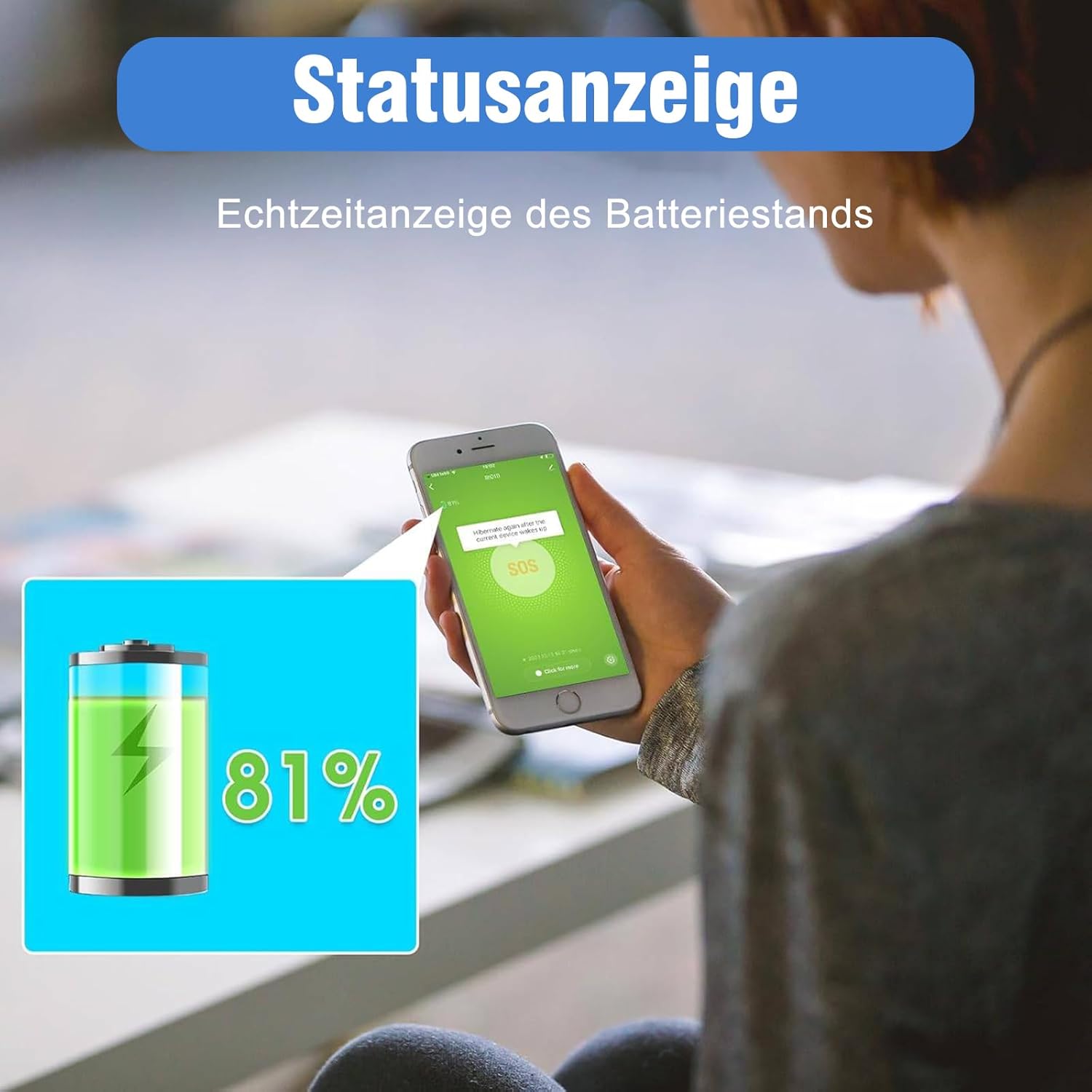
The status display provides a real-time indication of the battery level, shown here at 81%.
5.2 Cleaning
Wipe the device with a soft, dry cloth. Do not use abrasive cleaners or immerse the device in water.
6. Troubleshooting
6.1 Device Not Connecting to WiFi
- Ensure your WiFi network is 2.4 GHz. The device does not support 5 GHz networks.
- Verify that the device is within 15 meters of your WiFi router.
- Check your WiFi password and ensure it is entered correctly in the Tuya Smart app.
- Restart your WiFi router and the emergency button, then attempt the connection process again.
6.2 Notifications Not Received
- Confirm that the emergency contacts are correctly set up and enabled in the Tuya Smart app's sharing function.
- Check your smartphone's notification settings to ensure the Tuya Smart app has permission to send notifications.
- Ensure your smartphone has an active internet connection (WiFi or mobile data).
- Verify the emergency button's battery level is sufficient.
6.3 Button Unresponsive
- Check the battery level in the Tuya Smart app. If low, charge the device.
- If the device is fully charged but still unresponsive, try resetting it (refer to the app or manufacturer's support for specific reset procedures).
7. Specifications
| Feature | Specification |
|---|---|
| Model Number | TY-BT010 |
| Dimensions (L x W x H) | 3.5 x 2 x 6 cm (1.38 x 0.79 x 2.36 inches) |
| Weight | 140 grams |
| Power Source | Battery Powered (1 AAA Lithium battery included) |
| Voltage | 1.5 Volts (DC) |
| Control Method | Application (Tuya Smart / Smart Life) |
| Mounting Type | Portable |
| Maximum Range (WiFi) | 15 Meters |
| Sensor Technology | Push Button Sensor |
| Material | ABS Plastic |
| Usage | Emergency Call |
8. Warranty and Support
Information regarding specific warranty terms and customer support contact details is not provided in the product description. Please refer to the product packaging or the manufacturer's official website for the most up-to-date warranty information and support options.