
Introduction
This manual provides comprehensive instructions for the NOVOO 12-in-1 USB C Triple Display Docking Station, Model NHM12S-639A-VC. It covers product features, setup procedures, operating guidelines, maintenance tips, and troubleshooting information to ensure optimal performance and user experience. Please read this manual thoroughly before using the device.
Product Overview
The NOVOO 12-in-1 USB C Docking Station expands your laptop's connectivity, offering multiple ports for displays, peripherals, network, and power delivery.

Image: Front and back view of the NOVOO 12-in-1 USB C Docking Station, highlighting its 12 ports including PD, SD/TF, HDMI, 3.5mm Audio, VGA, Ethernet, USB 3.0, and USB 2.0.
Key Features and Ports:
- 2 x HDMI Ports: Supports up to 4K@30Hz for external displays.
- 1 x VGA Port: Supports up to 1080P@60Hz for external displays.
- 1 x USB C Power Delivery (PD) Port: Up to 100W pass-through charging for your laptop.
- 2 x USB 3.0 Ports: Data transfer speeds up to 5Gbps for peripherals like flash drives, external hard drives, keyboards, and mice.
- 2 x USB 2.0 Ports: Data transfer speeds up to 480Mbps, suitable for keyboards, mice, and other low-bandwidth devices.
- 1 x RJ45 Ethernet Port: Provides a stable Gigabit Ethernet connection (10/100/1000Mbps).
- 1 x SD Card Reader: Supports SD, SDHC, SDXC cards with speeds up to 104Mbps.
- 1 x TF (Micro SD) Card Reader: Supports Micro SD, Micro SDHC, Micro SD XC cards with speeds up to 104Mbps.
- 1 x 3.5mm Audio Jack: Supports both audio output and microphone input.
- Integrated USB-C Cable: Connects the docking station to your host laptop.

Image: The NOVOO docking station displayed with common accessories such as USB drives, HDMI cables, and SD/TF cards, illustrating its versatile connectivity.
Setup Instructions
- Check Laptop Compatibility: Ensure your laptop's USB-C port supports Data Transfer, Video Output (DisplayPort Alt Mode), and Power Delivery. Not all USB-C ports have full functionality.
- Connect to Laptop: Plug the integrated USB-C cable of the docking station into your laptop's compatible USB-C port.
- Connect Power Adapter (Optional but Recommended): For stable operation and laptop charging, connect your laptop's original USB-C power adapter to the docking station's PD (Power Delivery) USB-C port. The docking station supports up to 100W pass-through charging.
- Connect External Displays:
- Connect HDMI monitors to the HDMI ports.
- Connect a VGA monitor to the VGA port.
- Note: When the VGA port is connected, each monitor's resolution will be limited to a maximum of 1080P@60Hz.
- Connect Peripherals: Plug in your USB devices (keyboard, mouse, external drives) into the USB 3.0 or USB 2.0 ports.
- Connect Ethernet Cable: For a wired network connection, plug an Ethernet cable into the RJ45 port.
- Insert SD/TF Cards: If needed, insert your SD or Micro SD cards into the respective slots.
- Connect Audio Devices: Plug headphones or speakers into the 3.5mm audio jack.
- Verify Connection: The LED indicator on the hub will turn green when the adapter is functioning correctly.

Image: A diagram illustrating various USB-C port types and their capabilities (Full Function, Data Video Output, Data+DisplayPort Alt, Data+Charging+DisplayPort Alt, Data Only, Charging Only, Data+Charging Only), with checkmarks indicating compatible types for the docking station.

Image: An illustration demonstrating the 100W Power Delivery feature, showing a laptop being charged via the docking station, which receives 100W input and provides 85W output to the laptop.

Image: An illustration highlighting the stable 10/100/1000Mbps Ethernet connection provided by the docking station.
Operating Instructions
Display Modes
The docking station supports various display configurations depending on your operating system.
For Windows Systems:
- Extend Mode (ABC): Your laptop display (A) and two external monitors (B and C) show different content.
- Extend Mode (ABB): Your laptop display (A) shows one content, and two external monitors (B and B) mirror each other with different content from A.
- Extend Mode (ABCD): Your laptop display (A) and three external monitors (B, C, and D) show different content.
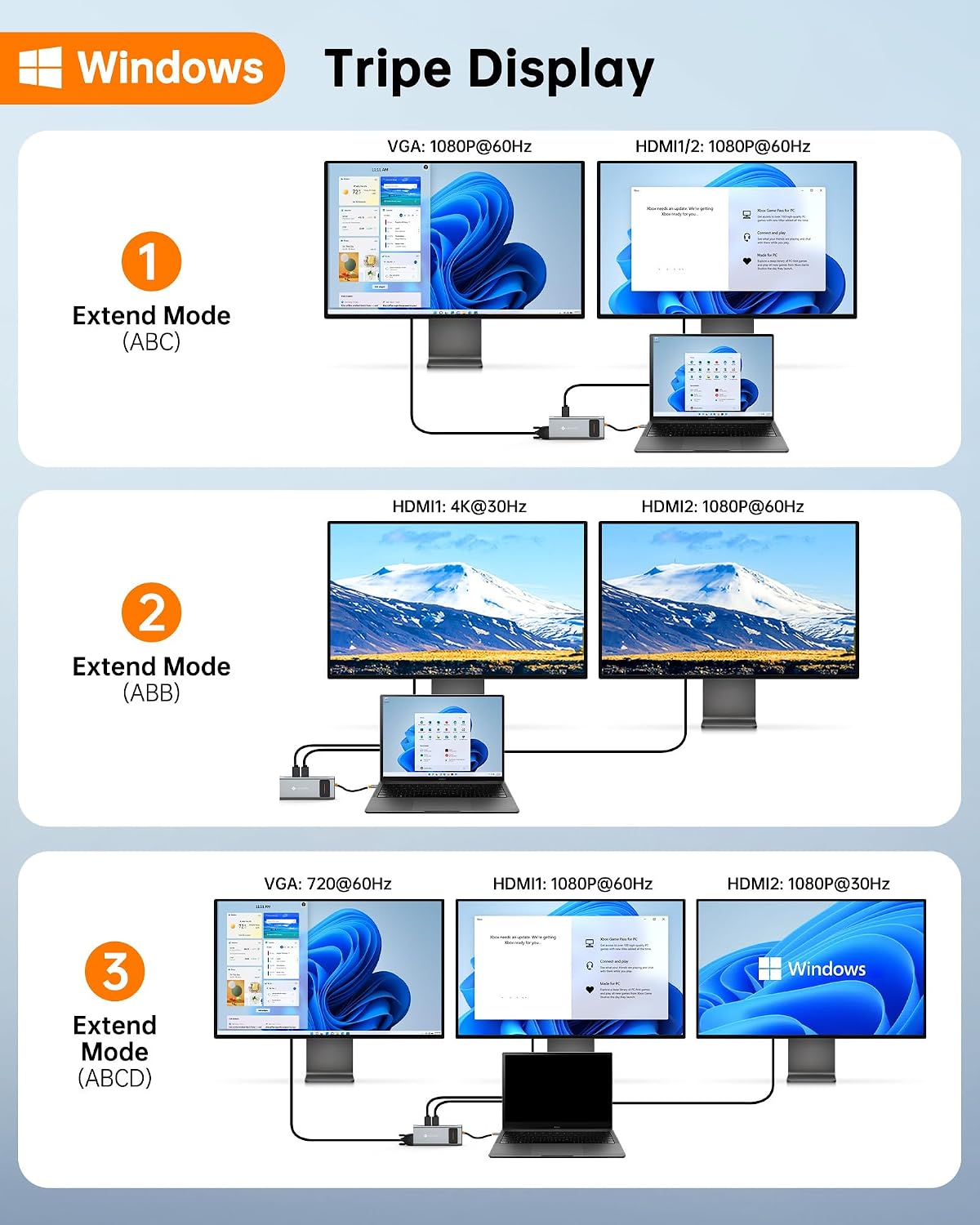
Image: A visual guide demonstrating three different triple display modes for Windows operating systems: Extend Mode (ABC), Extend Mode (ABB), and Extend Mode (ABCD), showing how content is distributed across the laptop screen and up to three external monitors.
For macOS Systems:
- Mirror Mode (AAAA): All connected displays (laptop and external monitors) show the same content.
- Extend Mode (ABBB): Your laptop display (A) shows one content, and all external monitors (B, B, B) mirror each other with different content from A.
- Extend Mode (ABB): Your laptop display (A) shows one content, and two external monitors (B, B) mirror each other with different content from A. (Two variations shown for different port combinations).

Image: A visual guide demonstrating four different display modes for macOS systems: Mirror Mode (AAAA), Extend Mode (ABBB), and two variations of Extend Mode (ABB), illustrating how content is displayed across the laptop screen and external monitors.
Note: Display configurations and resolutions may vary based on your laptop's graphics card capabilities and operating system settings. Adjust display settings in your OS for desired arrangement.
Other Functions
- USB Data Transfer: Use USB 3.0 ports for high-speed devices (up to 5Gbps) and USB 2.0 ports for standard peripherals (up to 480Mbps).
- SD/TF Card Access: Insert memory cards to access files at speeds up to 104Mbps.
- Audio Connectivity: The 3.5mm jack supports simultaneous audio output and microphone input, suitable for online meetings or media consumption.
- Network Connection: The Gigabit Ethernet port provides a reliable and fast wired internet connection, ideal for stable online activities.

Image: An illustration showing the USB ports of the docking station connected to various devices like a keyboard, smartphone, external hard drive, and printer, emphasizing fast and multiple data transmission capabilities.
Maintenance
- Cleaning: Use a soft, dry cloth to clean the docking station. Avoid liquid cleaners or abrasive materials.
- Storage: Store the device in a cool, dry place away from direct sunlight and extreme temperatures.
- Handling: Avoid dropping or subjecting the device to strong impacts. Do not attempt to disassemble the unit.
- Cable Management: Ensure cables are not excessively bent or strained to prevent damage.
Troubleshooting
- No Display Output:
- Ensure your laptop's USB-C port supports DisplayPort Alt Mode.
- Check all cable connections (USB-C from hub to laptop, HDMI/VGA from hub to monitor).
- Verify that external monitors are powered on and set to the correct input source.
- Try connecting one monitor at a time to isolate the issue.
- Restart your laptop.
- Laptop Not Charging:
- Ensure your laptop's USB-C port supports Power Delivery.
- Verify that your laptop's original power adapter is connected to the docking station's PD port.
- Check if the power adapter and USB-C cable are functioning correctly.
- USB Devices Not Recognized:
- Ensure the docking station is properly connected to your laptop.
- Try connecting the USB device to a different USB port on the hub or directly to your laptop.
- For high-power devices, ensure the docking station is receiving sufficient power via the PD port.
- Ethernet Connection Issues:
- Check the Ethernet cable connection to both the hub and your router/modem.
- Verify that your network settings on the laptop are configured correctly.
- Ensure the LED indicator on the RJ45 port is active.
- Intermittent Connections:
- Ensure all cables are securely connected.
- If using multiple high-power devices, ensure the docking station is receiving sufficient power via the PD port.
- Update your laptop's USB-C drivers or graphics drivers.
- LED Indicator: The green LED indicates the docking station is powered and active. If it's off, check the USB-C connection to your laptop and power source.
Specifications
| Brand | NOVOO |
| Model Number | NHM12S-639A-VC |
| Color | Black |
| Ports | 2x HDMI, 1x VGA, 1x USB C PD, 2x USB 3.0, 2x USB 2.0, 1x RJ45 Ethernet, 1x SD Card, 1x TF Card, 1x 3.5mm Audio |
| HDMI Resolution | Up to 4K@30Hz |
| VGA Resolution | Up to 1080P@60Hz (when VGA is connected, all monitors max 1080P@60Hz) |
| USB C PD Input | Up to 100W |
| USB 3.0 Data Transfer | Up to 5Gbps |
| USB 2.0 Data Transfer | Up to 480Mbps |
| Ethernet Speed | 10/100/1000Mbps |
| SD/TF Card Speed | Up to 104Mbps |
| Compatible OS | Windows 10+, macOS 10.12+, iPadOS, Chrome OS, Android |
| Special Feature | Triple Display |
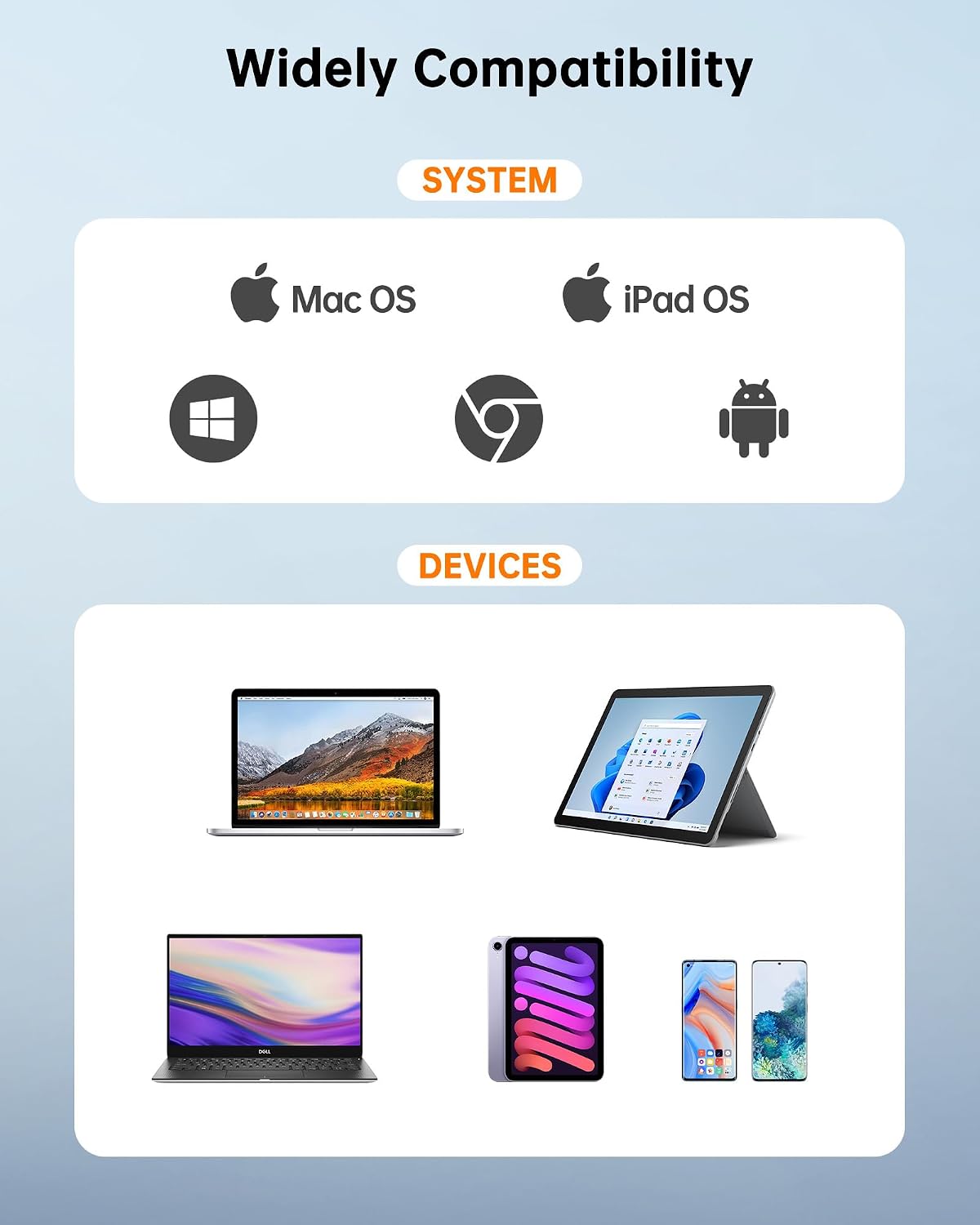
Image: A diagram illustrating the wide compatibility of the docking station with various operating systems (Mac OS, iPad OS, Windows, Chrome OS, Android) and devices (MacBook, Surface, Dell laptops, iPad Mini, smartphones).
Warranty and Support
The NOVOO 12-in-1 USB C Triple Display Docking Station comes with a 24-month warranty from the date of purchase, covering manufacturing defects. This warranty ensures repair or replacement of the product under normal use conditions.
For technical support, warranty claims, or any inquiries regarding the product, please contact NOVOO customer service through the retailer's platform or the official NOVOO website. Please have your purchase receipt and product model number (NHM12S-639A-VC) ready when contacting support.


