
1. Introduction
This manual provides detailed instructions for the proper setup, operation, and maintenance of your HP K500F Backlit Membrane Wired Gaming Keyboard. Please read this manual thoroughly before using the product to ensure optimal performance and longevity. Keep this manual for future reference.
2. Safety Information
- Do not expose the keyboard to liquids or excessive moisture.
- Avoid extreme temperatures.
- Do not attempt to disassemble or repair the keyboard yourself. Refer all servicing to qualified personnel.
- Keep out of reach of children.
- Use only with compatible devices.
3. Package Contents
Verify that all items are present in your package:
- HP K500F Backlit Membrane Wired Gaming Keyboard
- User Manual (this document)
4. Product Overview
The HP K500F is a wired gaming keyboard featuring a metal panel, mixed color backlighting, and 26 anti-ghosting keys. It is designed for durability and responsive performance.

Figure 4.1: HP K500F Gaming Keyboard, showing the full layout and mixed color backlighting.
Key Features:
- Wired USB Connection: Ensures stable and reliable connectivity.
- 1.6m Cable Length: Provides ample reach for various setups.
- Integrated Metal Panel: Enhances durability and stability.
- LED Backlight: Offers monochromatic and mixed light options for visual customization.
- Membrane Switches: Provide a comfortable typing experience.
- 26 Anti-Ghosting Keys: Ensures accurate input during intense gaming sessions.
- Compatibility: Seamlessly compatible with Windows 7, 8, and 10.

Figure 4.2: Diagram highlighting key features such as the integrated metal panel, 1.6m wired USB, LED backlight, and mechanical switches.
5. Setup Instructions
5.1 Connecting the Keyboard
- Locate an available USB port on your computer.
- Plug the USB connector of the HP K500F keyboard into the USB port.
- Your operating system (Windows 7, 8, or 10) will automatically detect and install the necessary drivers. This process may take a few moments.
- Once the drivers are installed, the keyboard's backlight will illuminate, indicating it is ready for use.

Figure 5.1: The keyboard connects via a standard wired USB, featuring a 1.6-meter cable for flexible placement.
5.2 System Compatibility
The HP K500F keyboard is designed for plug-and-play functionality with the following operating systems:
- Windows 7
- Windows 8
- Windows 10

Figure 5.2: The keyboard is compatible with Windows 7, 8, and 10, allowing for seamless integration across different devices.
6. Operating Instructions
6.1 Backlight Control
The HP K500F features an LED backlight with mixed color options. Specific key combinations may be available to cycle through lighting modes or adjust brightness. Refer to the keyboard's function keys (Fn) in combination with other keys (e.g., Fn + Scroll Lock, Fn + Page Up/Down) for backlight adjustments. Exact combinations may vary; experiment or consult on-screen prompts if available.

Figure 6.1: The keyboard's LED backlight offers various monochromatic and mixed light options, enhancing the visual experience.
6.2 Anti-Ghosting Keys
The keyboard is equipped with 26 anti-ghosting keys. This feature ensures that multiple key presses are registered simultaneously and accurately, which is crucial for fast-paced gaming. You do not need to configure this feature; it is active by default.
7. Maintenance
7.1 Cleaning the Keyboard
- Disconnect the keyboard from your computer before cleaning.
- Use a soft, lint-free cloth slightly dampened with water or a mild cleaning solution to wipe the surface of the keyboard.
- For dust and debris between keys, use compressed air or a soft brush.
- Do not spray cleaning solutions directly onto the keyboard.
- Ensure the keyboard is completely dry before reconnecting it.
7.2 Storage
Store the keyboard in a cool, dry place away from direct sunlight and extreme temperatures when not in use for extended periods.
8. Troubleshooting
| Problem | Possible Cause | Solution |
|---|---|---|
| Keyboard not responding | Loose USB connection, faulty USB port, driver issue. |
|
| Backlight not working | Backlight turned off, software glitch. |
|
| Keys not registering or ghosting | Debris under keys, hardware malfunction. |
|
9. Specifications
| Feature | Detail |
|---|---|
| Brand | HP |
| Model Number | K500F |
| Connectivity | Wired USB |
| Cable Length | 1.6 meters |
| Keyboard Type | Membrane Gaming Keyboard |
| Backlight | Mixed Color LED |
| Anti-Ghosting | 26 Keys |
| Material | Metal Panel |
| Dimensions (L x W x H) | 440 mm x 135 mm x 35.17 mm (approx. 17.32 x 5.31 x 1.38 inches) |
| Weight | Approx. 1.5 pounds (0.68 kg) |
| Compatible OS | Windows 7, Windows 8, Windows 10 |

Figure 9.1: Keyboard dimensions showing a width of 13.5 cm, length of 44 cm, and height of 3.5 cm.
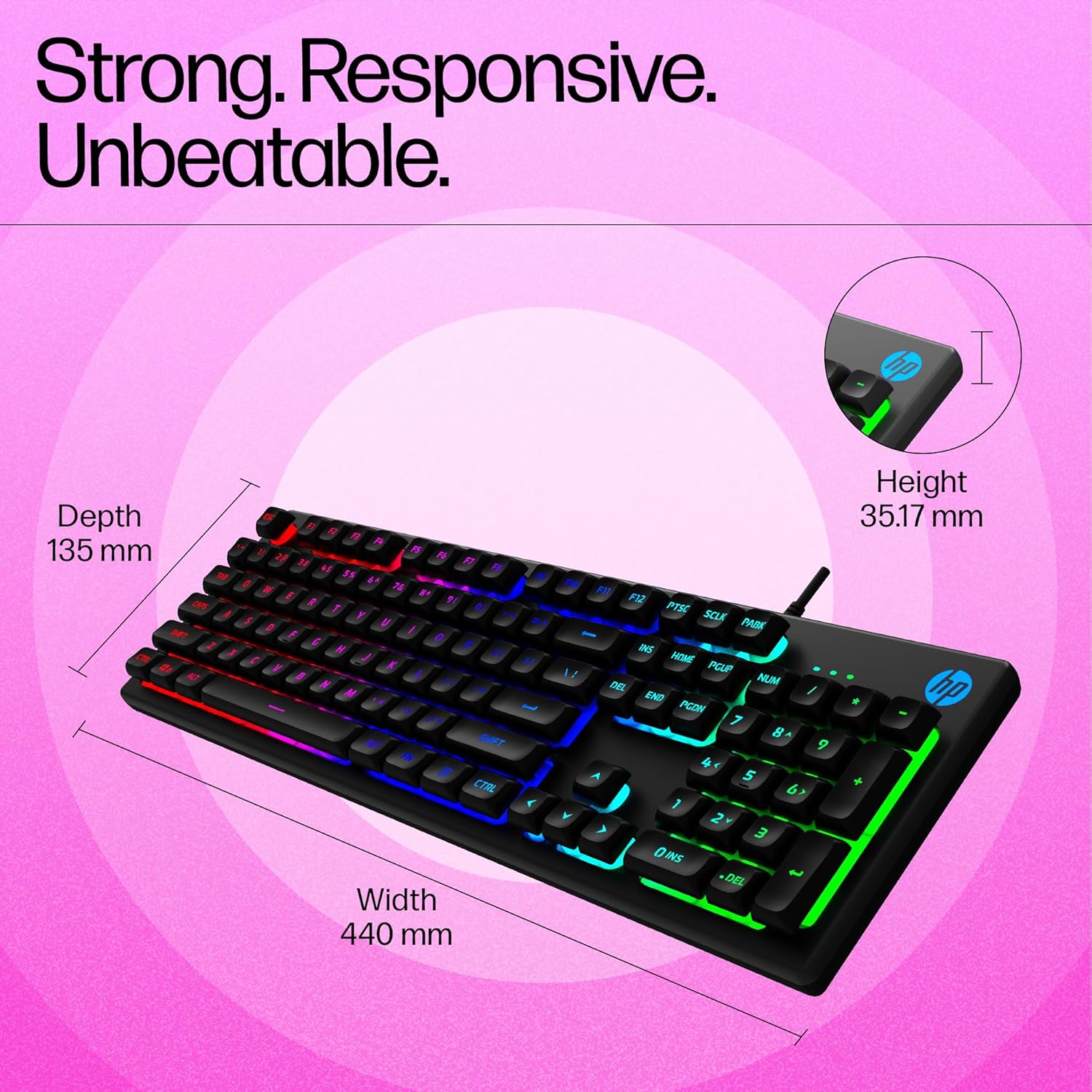
Figure 9.2: Detailed dimensions of the keyboard, indicating a depth of 135 mm, width of 440 mm, and height of 35.17 mm.
10. Warranty and Support
10.1 Warranty Information
HP products are covered by a limited warranty. The specific terms and duration of your warranty may vary depending on your region and the point of purchase. Please retain your proof of purchase for warranty claims.
For detailed warranty information, please visit the official HP support website or refer to the warranty card included with your product, if applicable.
10.2 Customer Support
If you encounter any issues not covered in the troubleshooting section or require further assistance, please contact HP customer support. You can find contact information on the official HP website:
- HP Official Support Website: www.hp.com/support
When contacting support, please have your product model number (K500F) and proof of purchase readily available.


