
VEEZOOM Q26
VEEZOOM Q26 Indoor Security Camera User Manual
Model: Q26
1. Introduction
This manual provides comprehensive instructions for the installation, operation, and maintenance of your VEEZOOM Q26 Indoor Security Camera. Please read this manual thoroughly before using the product to ensure proper function and safety. Keep this manual for future reference.
The VEEZOOM Q26 is a 3MP indoor IP camera designed for home security and monitoring. It features person, motion, and sound detection, full-color night vision, two-way audio, and flexible storage options. The camera connects via 2.4 GHz Wi-Fi.
2. Product Overview
2.1 Key Features
- High Definition 3MP Camera: Captures clear and detailed video footage.
- 90° Viewing Angle: Provides a wide field of view for comprehensive monitoring.
- Advanced Detection: Includes person, motion, and sound detection with real-time alerts.
- Full-Color Night Vision: Equipped with 2 IR LEDs for clear full-color images up to 5 meters (16 ft) in low light conditions.
- Two-Way Audio: Built-in microphone and speaker allow for remote communication.
- Flexible Storage: Supports local storage via Micro-SD card (up to 128GB, not included) and optional cloud storage.
- 2.4 GHz Wi-Fi Connectivity: Connects wirelessly to your home network (5 GHz Wi-Fi is not supported).
2.2 Package Contents
- VEEZOOM Q26 Indoor Security Camera
- Power Adapter (Charger)
- Mounting Bracket
- User Manual (this document)
2.3 Camera Components
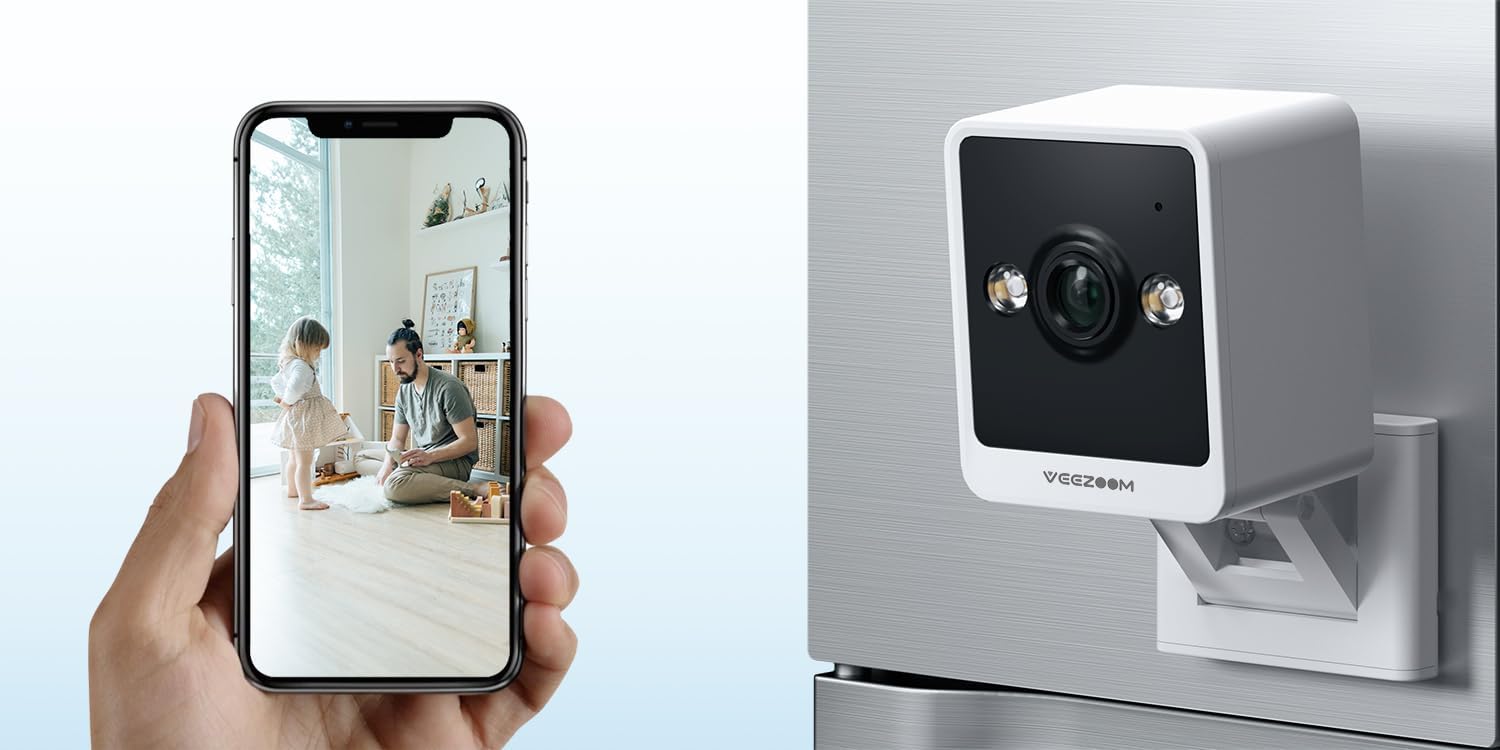
Image 2.3.1: VEEZOOM Q26 Camera and Live View on Smartphone. This image illustrates the compact design of the VEEZOOM Q26 camera and its capability to provide a live video feed directly to a smartphone application.

Image 2.3.2: Overview of VEEZOOM Q26 Key Features. This graphic highlights the main functionalities of the camera, including instant alerts, 2.4GHz WiFi support, color night vision, flexible storage options, 24/7 live view, and two-way audio communication.
3. Setup
3.1 Before You Begin
- Ensure your Wi-Fi network is 2.4 GHz. The camera does not support 5 GHz Wi-Fi.
- Have your Wi-Fi network name (SSID) and password ready.
- Download the recommended mobile application (refer to the packaging or quick start guide for the specific app name).
- If using local storage, insert a Micro-SD card (up to 128GB, not included) into the camera's SD card slot.
3.2 Installation Steps
- Power On: Connect the camera to a power source using the provided power adapter. The camera will power on and indicate its status (e.g., flashing LED).
- App Installation: Download and install the designated mobile application on your smartphone.
- Account Registration: Open the app and register a new account or log in if you already have one.
- Add Device: Follow the in-app instructions to add your VEEZOOM Q26 camera. This typically involves scanning a QR code on the camera or selecting the device type manually.
- Wi-Fi Connection: Input your 2.4 GHz Wi-Fi network details when prompted by the app. Ensure your phone is connected to the same 2.4 GHz network during setup.
- Mounting:
- The camera features a magnetic base for easy attachment to metallic surfaces.
- Alternatively, use the included bracket for wall mounting. Position the camera in a location that provides the desired viewing angle and is within range of your Wi-Fi signal.

Image 3.2.1: Magnetic Mounting Feature. This image demonstrates the VEEZOOM Q26's magnetic base, allowing for easy, drill-free installation on suitable surfaces, contrasting it with traditional security cameras that require drilling.

Image 3.2.2: Versatile Mounting Options. This image displays various ways to mount the VEEZOOM Q26 camera, including using its bracket for shelf placement or wall mounting, and its magnetic capability for attachment to metal surfaces.
4. Operating Instructions
4.1 Live View
Once the camera is successfully connected, open the mobile application and select your camera from the device list to access the live video feed. You can view real-time footage from anywhere with an internet connection.

Image 4.1.1: Live Monitoring via Smartphone. This image demonstrates the ability to view live footage from the VEEZOOM Q26 camera on a smartphone, allowing users to monitor their environment, such as a sleeping baby, at any time.
4.2 Motion and Sound Detection
The camera is equipped with advanced detection capabilities. When motion, a person, or sound is detected, the camera will record video and send real-time alerts to your smartphone via the app. You can customize detection sensitivity and alert settings within the application.
4.3 Two-Way Audio
To use the two-way audio feature, access the live view in the app. Locate the microphone icon to speak through the camera's speaker and the speaker icon to listen to audio from the camera's environment. This allows for communication with individuals near the camera.
4.4 Night Vision
The VEEZOOM Q26 automatically switches to night vision mode in low-light conditions. With its 2 IR LEDs, it provides clear full-color images up to 5 meters (16 ft) in complete darkness, ensuring continuous monitoring.
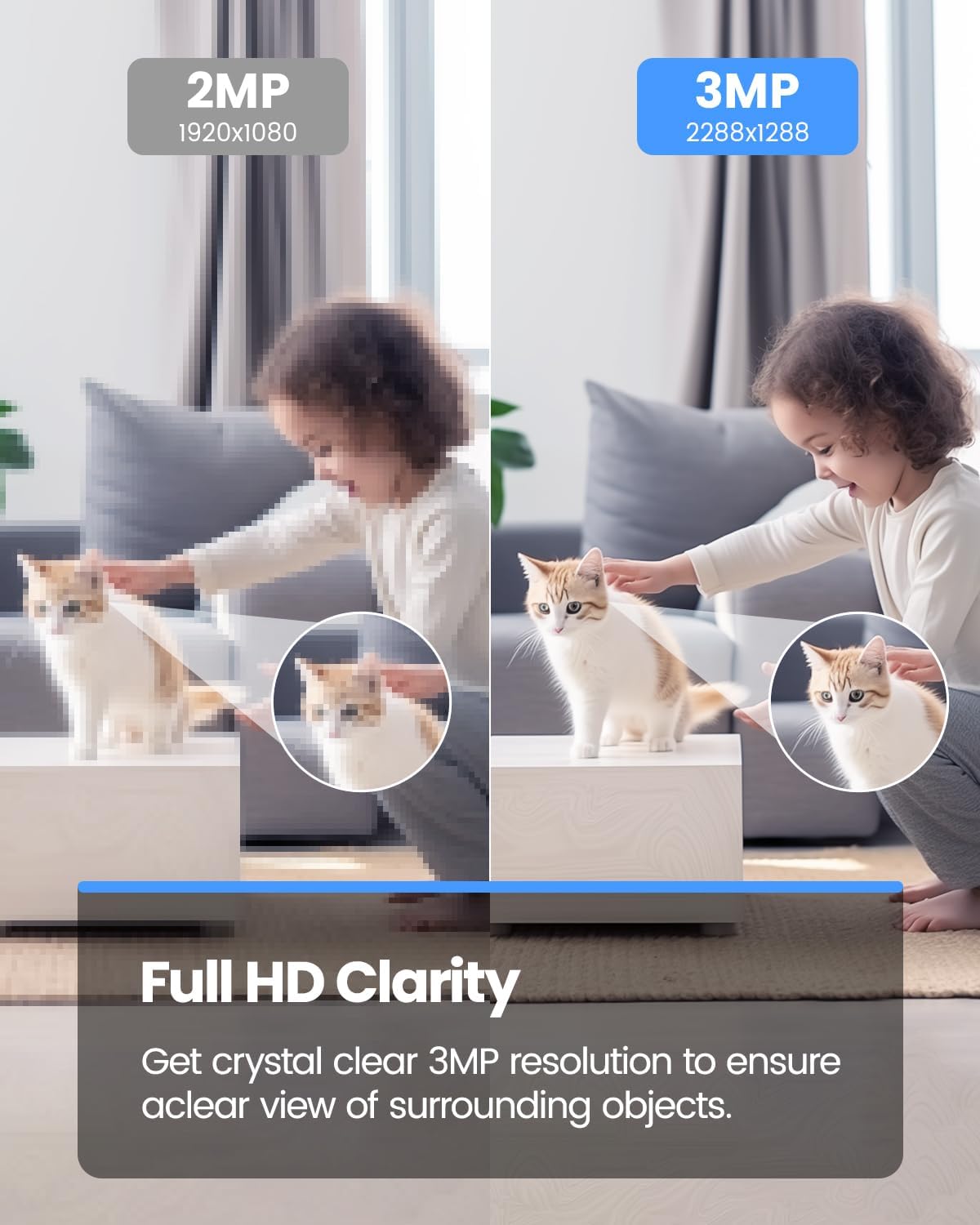
Image 4.4.1: 3MP Resolution Clarity. This image visually compares the clarity of a 3MP resolution image (VEEZOOM Q26) against a 2MP resolution image, demonstrating the enhanced detail and sharpness provided by the 3MP sensor.
4.5 Storage Options
- Micro-SD Card: Insert a Micro-SD card (up to 128GB, not included) into the designated slot for local video recording. The camera will automatically record events or continuous footage based on your settings.
- Cloud Storage: The camera supports optional cloud storage services. Refer to the mobile application for details on subscription plans and activation.
5. Maintenance
- Cleaning: Gently wipe the camera lens and body with a soft, dry cloth. Do not use liquid cleaners or abrasive materials.
- Firmware Updates: Regularly check the mobile application for available firmware updates. Keeping your camera's firmware updated ensures optimal performance and security.
- SD Card Management: If using a Micro-SD card, periodically review and manage recorded footage. Format the SD card through the app if performance issues arise.
- Power Cycle: If the camera becomes unresponsive, disconnect it from the power source for 10 seconds, then reconnect it.
6. Troubleshooting
| Problem | Possible Cause | Solution |
|---|---|---|
| Camera fails to connect to Wi-Fi. | Incorrect Wi-Fi password; 5 GHz Wi-Fi network used; camera too far from router; weak Wi-Fi signal. |
|
| No live view or offline status in app. | No internet connection; camera powered off; app issue. |
|
| Motion/sound alerts not received. | App notifications disabled; detection sensitivity too low; incorrect detection zone settings. |
|
| Poor image quality. | Dirty lens; insufficient lighting; network bandwidth issues. |
|
7. Specifications
| Feature | Detail |
|---|---|
| Model | Q26 |
| Brand | VEEZOOM |
| Resolution | 3 MP |
| Viewing Angle | 90 Degrees |
| Night Vision | Full-color, up to 5m (16 ft) with 2 IR LEDs |
| Connectivity | Wireless (Wi-Fi 2.4 GHz only) |
| Audio | Two-way audio (built-in microphone and speaker) |
| Detection | Person, Motion, Sound detection |
| Storage | Micro-SD card (up to 128GB, not included), Cloud Storage (optional) |
| Power Source | Electric with cord (5 Volt) |
| Installation Type | Magnetic, Wall Mount (with bracket) |
| Usage Environment | Indoor |
| Included Components | Charger |
| Dimensions (Package) | 10.2 x 8.5 x 6.9 cm; 215 g |
8. Warranty Information
Warranty information for the VEEZOOM Q26 Indoor Security Camera is not explicitly specified in the provided product details. Please refer to the product packaging or contact VEEZOOM customer support for warranty terms and conditions.
9. Support
For technical support, troubleshooting assistance, or further inquiries regarding your VEEZOOM Q26 camera, please refer to the official VEEZOOM website or contact their customer service department. Contact details are typically available on the product packaging or within the mobile application's 'About' or 'Help' section.
Ask a question about this manual
Ask about setup, troubleshooting, compatibility, parts, safety, or missing instructions. Manuals+ will review the question and use this page’s manual context to help answer it.