1. Introduction
Thank you for choosing the Allimity Universal Replacement IR Remote Control. This remote is designed to provide seamless control for a wide range of Toshiba, Insignia, Hisense, and Pioneer 4K TV Editions. This manual will guide you through the setup, operation, and maintenance of your new remote control.
2. Product Features
- Universal Replacement IR Remote Control compatible with various TV brands including Toshiba, Insignia, Hisense, and Pioneer TV Editions.
- Connective Technology: Infrared (IR).
- Features 6 popular shortcut channel apps: Prime Video, Netflix, HBO, Vue, IMDb TV, Hulu.

Image: Allimity Universal Remote Control highlighting the 6 shortcut app buttons: Prime Video, Netflix, HBO, Vue, IMDb TV, Hulu. These buttons provide instant access to your favorite streaming services.
3. Compatibility
This universal IR remote control is compatible with a wide range of Smart TV Editions from various brands. Below are some of the known compatible models:
- For Insignia TV Editions: NS-RCFNA-19, NS-RCFNA-21
- For Toshiba TV Editions: CT-RC1US-19, CT-RC1US-21, CT-95018
- For Pioneer TV Editions: CP-RC1NA-22
- Also compatible with many Toshiba 4K Smart TV Editions, Insignia 4K Smart TV Editions, Pioneer 4K Smart TV Editions, and Hisense 4K Smart TV models.
If your specific model is not listed, please refer to the product packaging or contact customer support for further assistance.
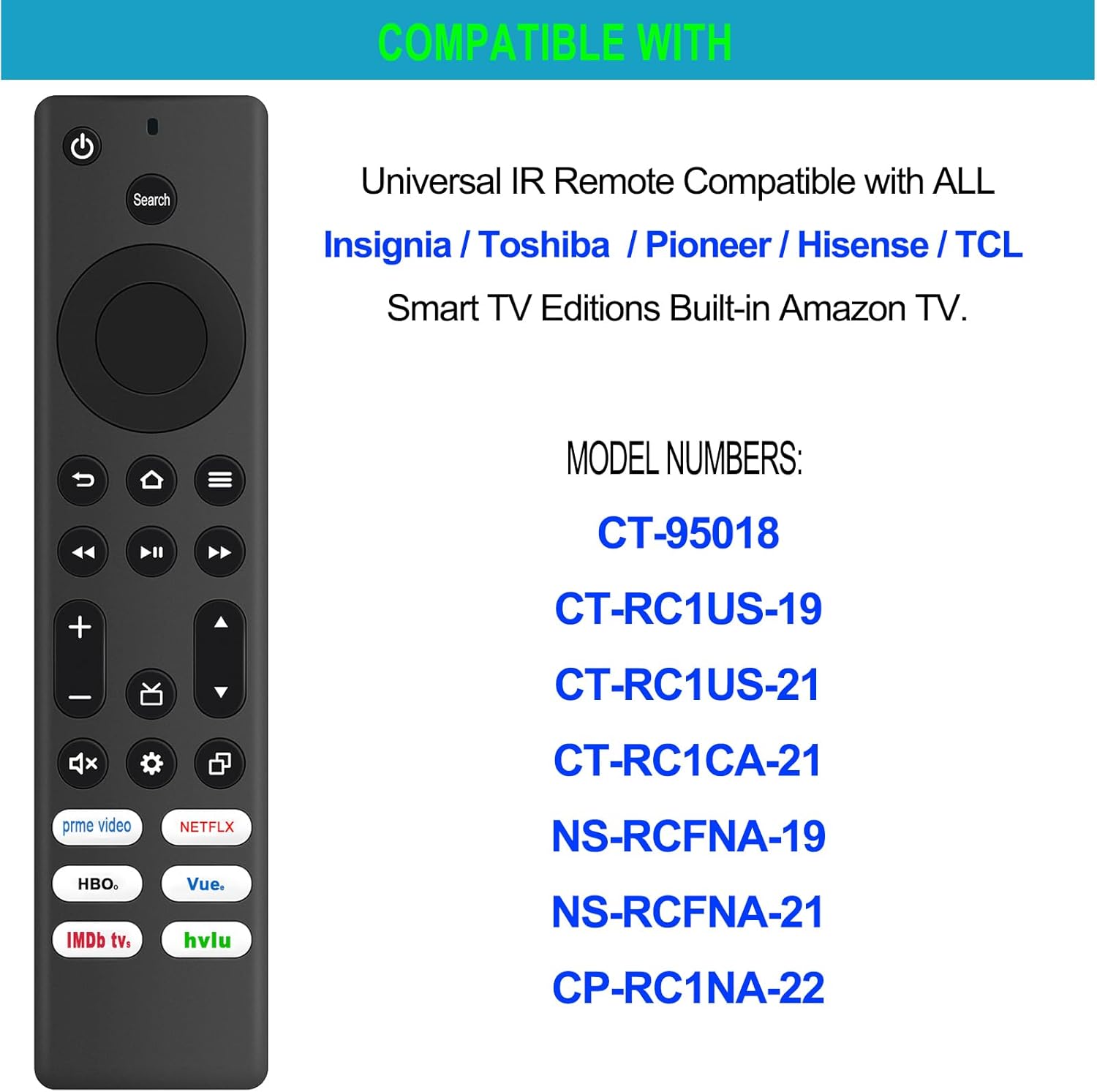
Image: Allimity Universal Remote Control with a list of compatible model numbers for Insignia, Toshiba, and Pioneer TVs. This image visually confirms the broad compatibility of the remote.
4. Power Supply and Battery Installation
The remote control requires 2 AAA batteries for operation. Batteries are not included with the product.
- Locate the battery compartment on the back of the remote control.
- Slide open the battery compartment cover.
- Insert two AAA batteries, ensuring the correct polarity (+ and -) as indicated inside the compartment.
- Close the battery compartment cover securely.

Image: Allimity Universal Remote Control showing the battery compartment for 2 AAA batteries. This illustrates where to insert the batteries for proper function.
5. Setup and Pairing Instructions
This is an Infrared (IR) remote control and generally requires no pairing or programming for most compatible TVs. Simply insert the batteries, and it should function immediately.
Important Note: If your TV has been reset to factory settings or is a new TV, you may need an original voice remote to complete the initial pairing steps for your TV before this IR remote can fully function. This IR remote does not have a voice function.
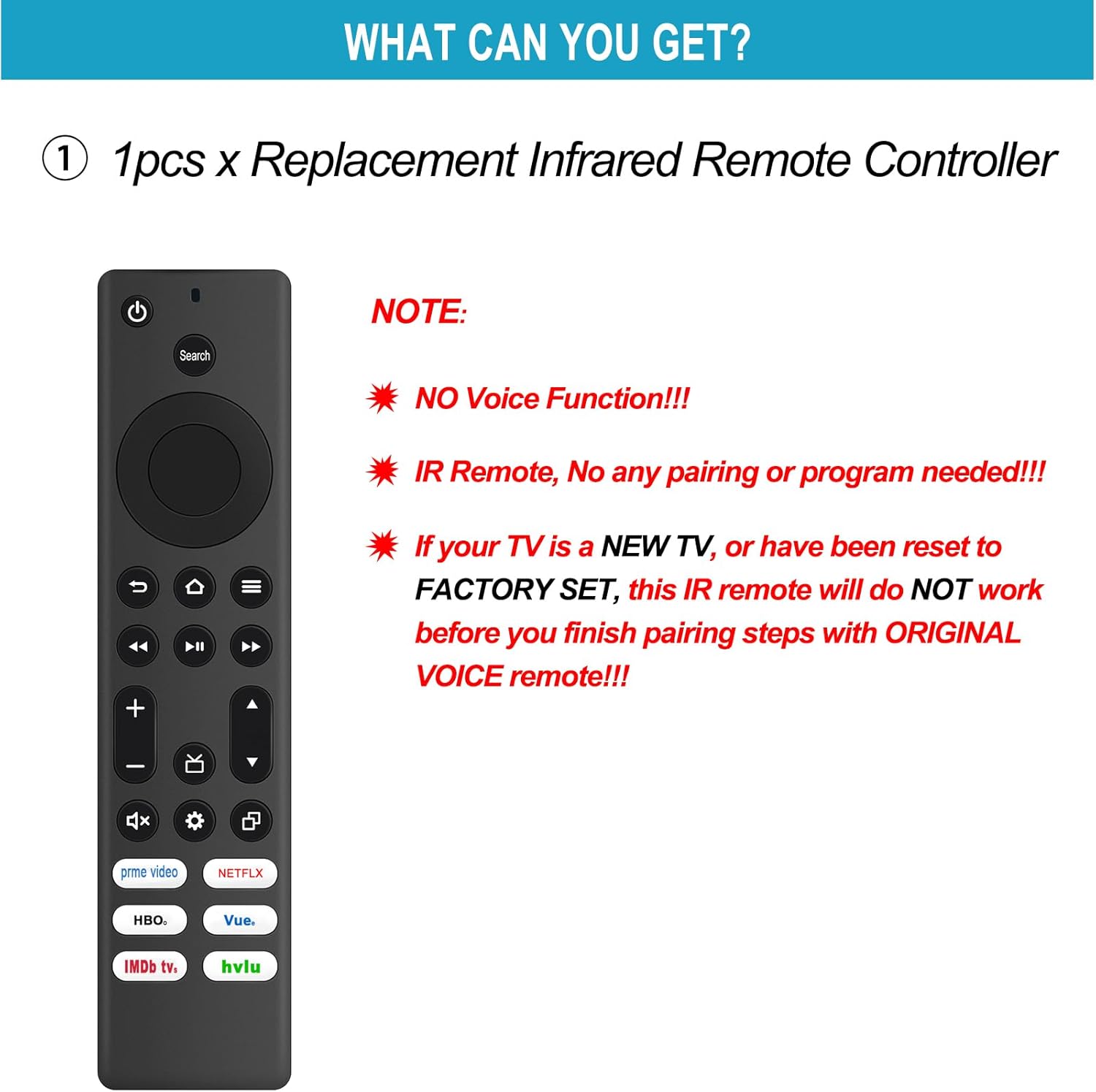
Image: Allimity Universal Remote Control with a note about no voice function and the requirement of an original voice remote for initial TV pairing after factory reset. This clarifies the setup process and limitations.
6. Operating Instructions (Button Functions)
Familiarize yourself with the buttons on your Allimity Universal Remote Control:
- Power On/Off: Turns the TV on or off.
- Indicator Light: Provides feedback on remote activity.
- Search Button: Initiates search function on your TV.
- Navigation (Up, Down, Left, Right): Moves cursor or selection on screen.
- Select (OK): Confirms selection.
- Back: Returns to the previous screen or menu.
- Home: Navigates to the TV's home screen.
- Menu: Opens the TV's menu options.
- Play/Pause: Controls media playback.
- Fast Forward: Skips forward in media.
- Rewind: Skips backward in media.
- Channel +/-: Changes TV channels.
- Volume +/-: Adjusts TV volume.
- Mute: Mutes or unmutes TV audio.
- Guide: Accesses the TV program guide.
- Setting: Opens TV settings.
- Recent: Displays recently used apps or content.
- Preset App Buttons (Prime Video, Netflix, HBO, Vue, IMDb TV, Hulu): Direct access to these streaming applications.
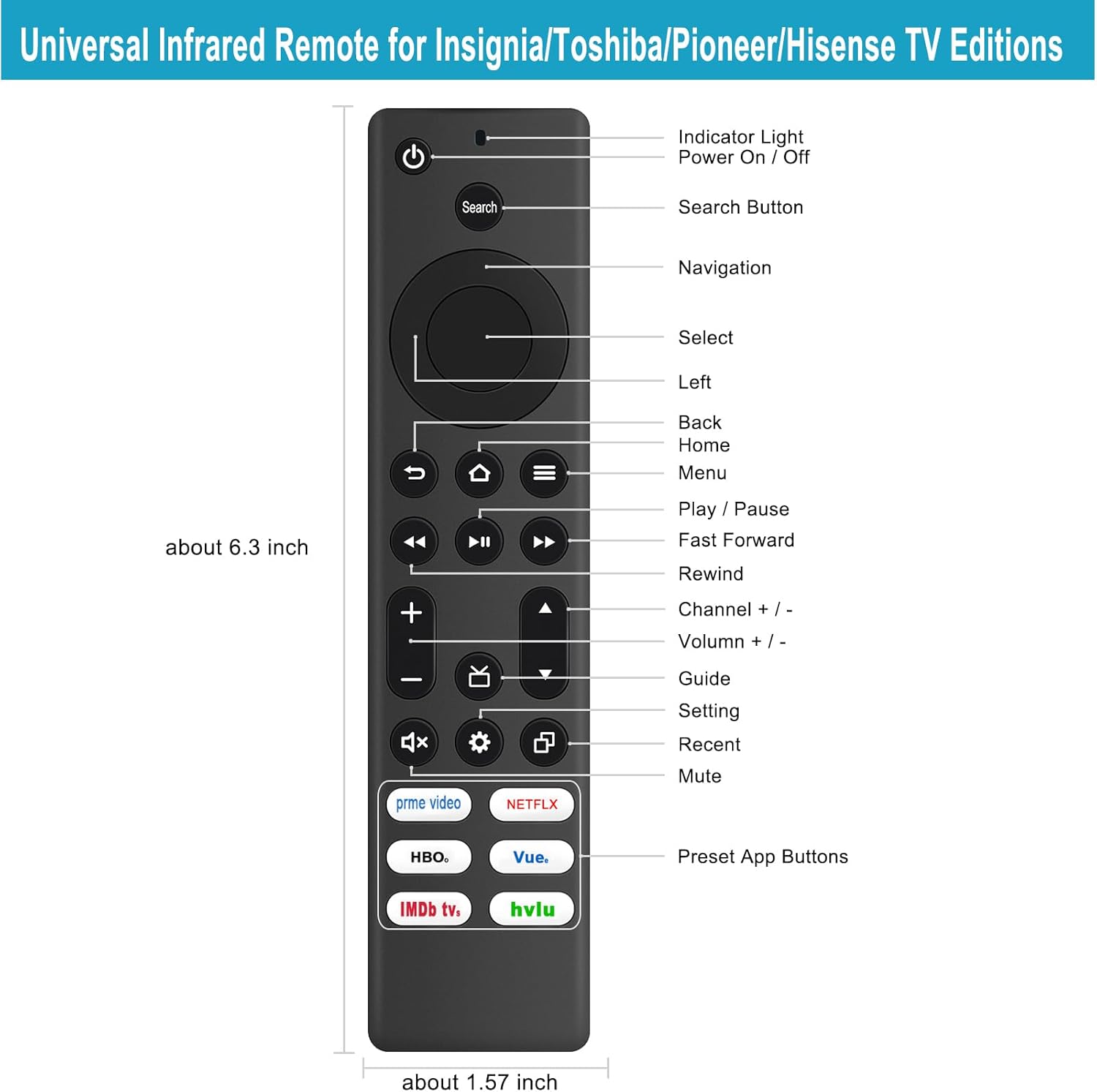
Image: Allimity Universal Remote Control with labels for each button function. This diagram provides a clear overview of all available controls.
7. Troubleshooting
- Remote not responding: Ensure batteries are correctly inserted and have sufficient charge. Replace batteries if necessary.
- Lagging or delayed response: This remote operates via Infrared (IR). Ensure there are no obstructions between the remote and your TV's IR receiver.
- Remote not working after TV factory reset: As noted in the setup section, if your TV has been reset to factory settings, you might need to use an original voice remote to complete the initial TV pairing process before this IR remote can function.
- No voice control: This remote is an IR remote and does not support voice commands.
8. Specifications
| Feature | Detail |
|---|---|
| Product Dimensions | 5 x 1 x 0.6 inches |
| Item Weight | 1.76 ounces |
| ASIN | B0CJ9K711B |
| Item Model Number | AMT-AMZFIRE-TV-WN-IR |
| Brand | ALLIMITY |
| Special Feature | Ergonomic |
| Color | Black |
| Max Number of Supported Devices | 1 |
| Compatible Devices | Television |
9. Warranty and Support
For any questions regarding product compatibility, troubleshooting, or general inquiries, please contact ALLIMITY customer support. Refer to your product packaging or the retailer's website for specific contact information.
We are committed to ensuring your satisfaction with our products.


