
Introduction
Welcome to the user manual for your new Altice F2 GSM Mobile Phone. This guide provides comprehensive instructions to help you set up, operate, maintain, and troubleshoot your device. Please read this manual carefully to ensure proper use and to maximize the performance of your phone.
Product Overview
The Altice F2 is a practical and user-friendly mobile phone designed for essential communication. It features dual SIM capability, a compact design, and a long-lasting battery.
Key Features:
- Dual SIM functionality for convenient usage.
- 0.08 MP rear camera for basic photography.
- Bluetooth 3.0 for wireless document and music sharing.
- Integrated FM Radio.
- Built-in flashlight.
- Micro-SD card slot, expandable up to 32 GB (memory card not included).
- 1000 mAh Lithium-ion battery providing up to 10 days standby or 10 hours talk time.
- Supported languages: French, English, Spanish, Portuguese.
Package Contents:
Upon unboxing, please verify that all items listed below are present:
- 1x Altice F2 Mobile Phone
- 1x Battery
- 1x Pair of Earphones
- 1x Charger
- 1x User Guide
- 1x Notice (Additional documentation)

Image 1: Front and back view of the Altice F2 GSM Mobile Phone. The phone is black with a physical keypad and a small display screen. The back shows the camera lens.
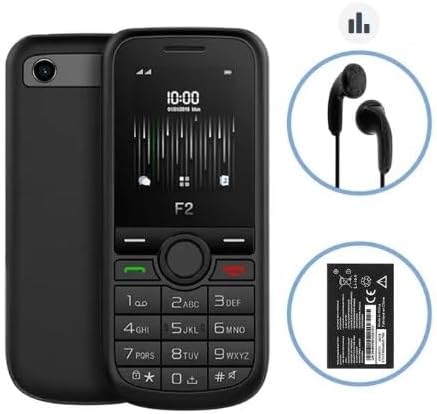
Image 2: The Altice F2 Mobile Phone displayed alongside its included accessories: a pair of black wired earphones and the removable Lithium-ion battery.
Setup
1. Battery Installation:
- Gently remove the back cover of the phone by prying it from the notch usually located at the bottom or side.
- Align the battery contacts with the terminals inside the battery compartment.
- Press the battery down firmly until it is securely in place.
- Replace the back cover, ensuring it clicks into place.
2. SIM Card(s) Installation:
The Altice F2 supports dual SIM cards.
- With the back cover and battery removed, locate the SIM card slots. There are typically two slots labeled SIM1 and SIM2.
- Insert your SIM card(s) into the respective slots with the gold contacts facing down and the cut corner aligned as indicated.
- Ensure the SIM cards are fully inserted.
3. Micro-SD Card Installation (Optional):
To expand storage, you can install a Micro-SD card (up to 32 GB).
- Locate the Micro-SD card slot, usually adjacent to the SIM card slots.
- Insert the Micro-SD card with the gold contacts facing down until it clicks into place.
4. Initial Charging:
Before first use, fully charge the phone's battery.
- Connect the charger to the phone's charging port.
- Plug the charger into a power outlet.
- Allow the phone to charge until the battery indicator shows full. This may take several hours for the first charge.
5. Powering On/Off:
- To Power On: Press and hold the Power/End Call button (usually red or marked with a power symbol) until the screen lights up.
- To Power Off: Press and hold the Power/End Call button until a power-off menu appears, then select "Power Off" or similar option.
Operating Instructions
Making Calls:
- From the home screen, enter the phone number using the keypad.
- Press the Call button (usually green or marked with a phone symbol) to initiate the call.
- To end a call, press the End Call button (usually red).
Sending Messages:
- Navigate to the "Messages" or "SMS" menu from the main menu.
- Select "New Message" or "Create Message".
- Enter the recipient's phone number or select from contacts.
- Type your message using the keypad.
- Press "Send".
Using the Camera:
- Access the "Camera" application from the main menu.
- Frame your shot using the screen as a viewfinder.
- Press the designated camera button or the center navigation key to capture the photo.
FM Radio:
To use the FM Radio, ensure the earphones are plugged into the 3.5mm audio jack, as they act as the antenna.
- Plug in the earphones.
- Go to the "FM Radio" application in the menu.
- Use the navigation keys to scan for stations or tune manually.
Bluetooth Connectivity:
- Navigate to "Settings" > "Bluetooth".
- Turn Bluetooth "On".
- Select "Search for devices" or "Pair new device".
- Choose the desired device from the list and follow the on-screen prompts to pair.
Flashlight:
The flashlight can usually be activated quickly from the home screen or through a dedicated menu option.
- Check your phone's specific shortcut (e.g., long-press a key) or find "Flashlight" in the Tools/Utilities menu.
Maintenance
Cleaning:
- Use a soft, lint-free cloth to clean the phone's screen and body.
- Avoid using harsh chemicals, cleaning sprays, or abrasive materials.
Battery Care:
- Do not expose the battery to extreme temperatures.
- Use only the original or approved charger.
- Avoid completely draining the battery frequently to prolong its lifespan.
Storage:
- Store the phone in a cool, dry place away from direct sunlight and moisture.
- If storing for an extended period, ensure the battery is partially charged (around 50%).
Troubleshooting
If you encounter issues with your Altice F2 phone, refer to the common problems and solutions below:
Phone Does Not Turn On:
- Ensure the battery is correctly installed and fully charged.
- Try connecting the charger and attempting to power on while connected.
- Verify the charger and charging cable are not damaged.
No Network Signal:
- Check if the SIM card is properly inserted.
- Ensure you are in an area with network coverage.
- Restart the phone.
- Verify with your service provider if there are any network issues in your area or with your SIM card.
Battery Drains Quickly:
- Reduce screen brightness.
- Close unused applications.
- Turn off Bluetooth when not in use.
- If the issue persists, the battery may need replacement.
Cannot Connect to Bluetooth Device:
- Ensure Bluetooth is enabled on both devices.
- Make sure both devices are within the effective Bluetooth range (typically 10 meters).
- Try unpairing and re-pairing the devices.
Specifications
| Feature | Detail |
|---|---|
| Model | F2 |
| Dimensions (L x W x H) | 11.00 x 4.80 x 1.40 cm |
| Gross Weight | 77g |
| Screen Size | 1.7 inches (4.5 cm) / 1.77 inches |
| Bluetooth Version | 3.0 |
| Network Type | 2G |
| GSM Frequencies | 900/1800 Mhz |
| Audio Jack | 3.5 mm |
| Battery Type | Lithium-ion |
| Battery Capacity | 1000 mAh |
| Expandable Storage | Micro-SD up to 32 GB (card not included) |
| Manufacturer | SFR / Mobiwire SAS |
| Color | Black |
| Operating System | Android 10.0 |
| Memory Storage Capacity | 32 GB |
| Resolution | 1548 x 862 |
Note: Specifications are subject to change without prior notice.
Warranty and Support
For warranty information, please refer to the warranty card included in your product packaging or visit the manufacturer's official website. Warranty terms and conditions may vary by region and retailer.
For technical support, troubleshooting assistance beyond this manual, or service inquiries, please contact the retailer or the manufacturer's customer service department. Contact details are typically available on the product packaging or the official brand website.
- Manufacturer: SFR / Mobiwire SAS
- Model: Altice F2


