
1. Introduction
Thank you for purchasing the WUYJTIF X20 Handheld Game Console. This manual provides essential information for setting up, operating, and maintaining your device. Please read it thoroughly to ensure proper use and to maximize your gaming experience.
The X20 console features a 5.1-inch high-definition LCD screen, supports external controllers for two-player mode, offers TV HD output, and comes with thousands of built-in classic games. It also functions as a multimedia device for music, video, e-books, and image viewing.
2. Product Overview
The WUYJTIF X20 Handheld Game Console is designed for portable entertainment. Familiarize yourself with its components:
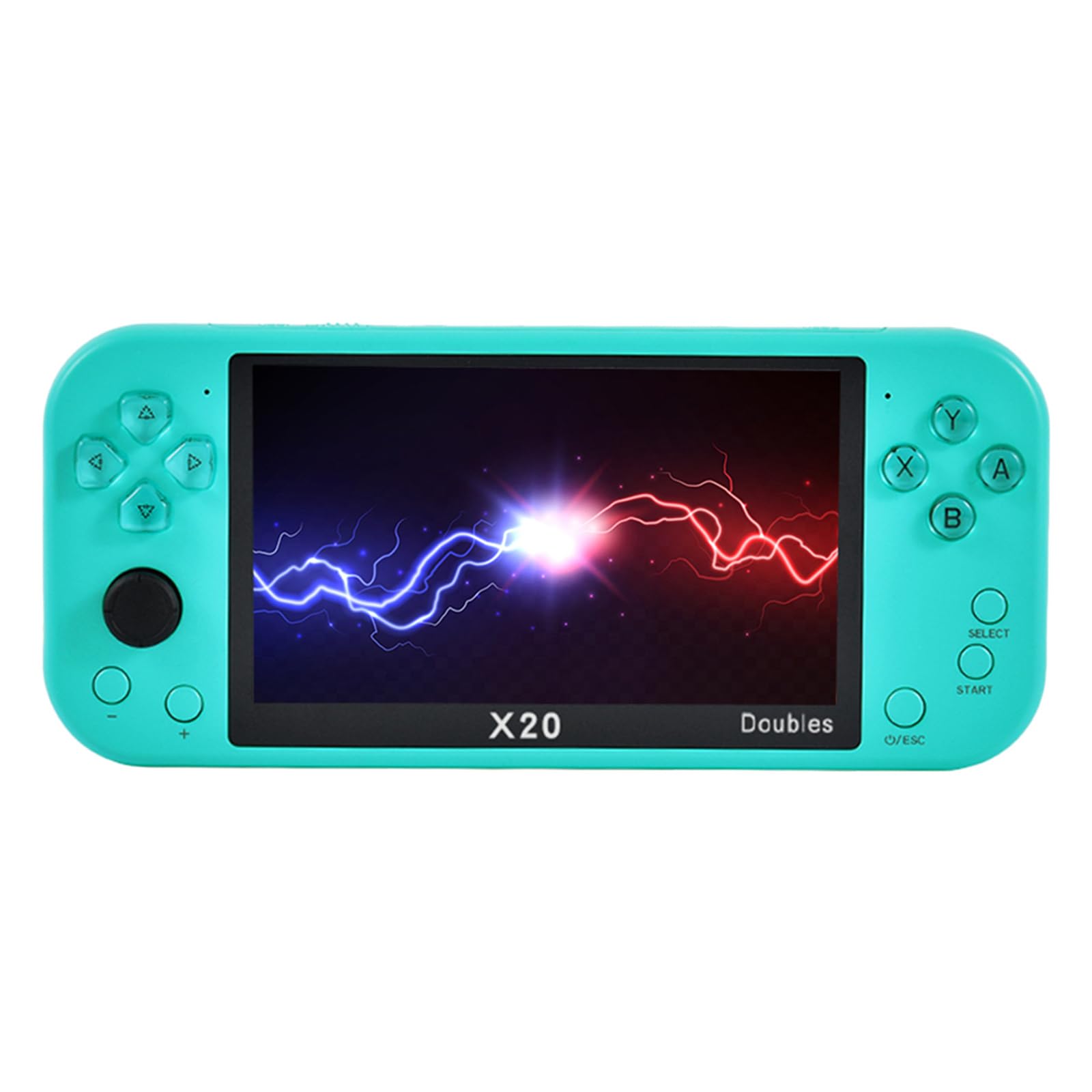
Figure 2.1: Front view of the X20 Handheld Game Console displaying a game.
2.1. Console Layout
- 5.1-inch LCD Screen: High-definition display for games and multimedia.
- Directional Pad (D-Pad): For movement and menu navigation.
- Action Buttons (A, B, X, Y): For in-game actions.
- START/SELECT Buttons: For game control and menu options.
- Analog Stick: For precise movement in supported games.
- Shoulder Buttons (L1, R1, L2, R2): Located on the top edge for additional game controls.
- Power Button: To turn the console on/off.
- Volume Controls: To adjust audio output.
- HDMI Output Port: For connecting to a television.
- USB Charging Port: For charging the device.
- TF Card Slot: For memory expansion.
- Headphone Jack: For private audio listening.

Figure 2.2: Detailed view of the X20 console's controls and interface.
3. Setup
3.1. Initial Charging
Before first use, fully charge the console. Connect the provided USB cable to the console's charging port and a compatible USB power adapter (not included) or a computer's USB port. The charging indicator will show the charging status and turn off when fully charged.
3.2. Powering On/Off
- To power on: Press and hold the Power button until the screen illuminates.
- To power off: Press and hold the Power button until a power-off prompt appears, then confirm.
3.3. Inserting a TF Card (Optional)
The console has 8GB of built-in memory. To expand storage for more games or media, insert a TF (microSD) card (up to 32GB, not included) into the TF card slot. Ensure the console is powered off before inserting or removing the card.
4. Operating Instructions
4.1. Navigating the Menu
Use the Directional Pad or Analog Stick to navigate through the main menu options. Press the 'A' button to select an option and 'B' or 'O/ESC' to go back.
4.2. Playing Games
The console supports various game formats including PS1, MAME, GBA, GBC, GB, NES, SFC, FC, SMD, and MD. To play a game:
- From the main menu, select the "Games" or "Emulator" option.
- Browse through the list of available games.
- Select a game and press 'A' to launch it.
- During gameplay, use the D-Pad, Analog Stick, and action buttons for control.
4.2.1. Saving and Loading Game Progress
The console supports one-click archiving. During gameplay, press the 'SELECT' button to access the in-game menu, which typically includes options to save or load your game state. Follow the on-screen prompts.
4.3. Two-Player Mode
Enhance your gaming experience by connecting external 2.4G wireless or wired handles (not included) for two-player mode. This allows for simultaneous play with a friend or family member.
- Ensure the console is powered on.
- Connect the external handle(s) to the console's USB port (for wired) or follow the handle's instructions for wireless pairing.
- Launch a game that supports two-player mode.
- The console should automatically detect the connected handles. Refer to the specific game's instructions for activating two-player mode.

Figure 4.1: Feature icons, including support for two-person duels.
4.4. TV HD Output
Connect your X20 console to a television for a larger screen gaming experience. The console supports HDMI-Compatible HD TV output.
- Ensure both the console and the TV are powered off.
- Connect one end of an HDMI cable (not included) to the console's HDMI output port.
- Connect the other end of the HDMI cable to an HDMI input port on your television.
- Power on your TV and select the correct HDMI input source using your TV remote.
- Power on the X20 console. The game interface should now be displayed on your TV.
4.5. Multimedia Functions
The X20 console offers several multimedia capabilities:
- Music Playback: Supports MP3, WMA, DGG, AAC, WAV, APE, and FLAC formats. Select the "Music" option from the main menu.
- Video Playback: Supports RM, RMVB, AVI, FLV formats. Select the "Video" option from the main menu.
- E-book Reading: Supports TXT e-books with a unique bookmark function. Select the "E-book" option.
- Image Browsing: Supports JPEG, BMP, GIF, TIF, PNG image formats. Select the "Picture" option.
5. Maintenance
Proper care will extend the life of your X20 console:
- Cleaning: Use a soft, dry cloth to clean the console's exterior. Do not use liquid cleaners or abrasive materials.
- Screen Care: Use a microfiber cloth specifically designed for electronics to clean the screen. Avoid pressing hard on the screen.
- Storage: Store the console in a cool, dry place away from direct sunlight, extreme temperatures, and high humidity.
- Battery: To maintain battery health, avoid fully discharging the battery frequently. If storing for an extended period, charge the battery to about 50% every few months.
- Avoid Drops: The console is made of plastic; avoid dropping it to prevent damage.
6. Troubleshooting
If you encounter issues with your X20 console, refer to the following common problems and solutions:
| Problem | Possible Cause | Solution |
|---|---|---|
| Console does not turn on. | Low battery; device frozen. | Charge the console for at least 30 minutes. If still unresponsive, try pressing and holding the Power button for 10-15 seconds to force a restart. |
| Game freezes or crashes. | Software glitch; corrupted game file. | Restart the console. Try a different game. Ensure your TF card (if used) is not corrupted. |
| No display on TV via HDMI. | Incorrect TV input; faulty cable; console not in TV output mode. | Ensure the TV is set to the correct HDMI input. Check the HDMI cable connection. Restart both the console and TV. |
| External controller not working. | Controller not paired/connected; game does not support external controllers. | Ensure the 2.4G controller is properly connected or paired according to its instructions. Verify the game supports external controllers. |
| Sound issues (no sound/distorted). | Volume too low; headphone issue; software glitch. | Adjust the volume. Test with/without headphones. Restart the console. |
7. Specifications
- Model: X20
- Screen: 5.1-inch High-Definition LCD
- Built-in Memory: 8GB
- Expandable Memory: Supports TF card up to 32GB
- Supported Game Formats: PS1, MAME, GBA, GBC, GB, NES, SFC, FC, SMD, MD
- Video Output: HDMI-Compatible HD TV Output
- Audio Formats: MP3, WMA, DGG, AAC, WAV, APE, FLAC
- Video Formats: RM, RMVB, AVI, FLV
- Image Formats: JPEG, BMP, GIF, TIF, PNG
- E-book Format: TXT
- Power Source: Battery Powered
- Material: Plastic
- Product Dimensions: Approximately 1 x 1 x 1 inches (Note: This dimension seems generic, please refer to product packaging for exact measurements.)
- Manufacturer: WUYJTIF
- Recommended Age: 4 years and up
Figure 7.1: Representation of the console's internal processing chip.
8. Warranty and Support
For warranty information, technical support, or service inquiries, please contact the manufacturer, WUYJTIF, or your retailer. Keep your purchase receipt as proof of purchase.
Manufacturer: WUYJTIF