1. Introduction
This manual provides comprehensive instructions for the setup, operation, and maintenance of your Yealink VCM35 Microphone. Please read this manual thoroughly before using the device to ensure proper functionality and to maximize its lifespan. Keep this manual for future reference.
2. Package Contents
Verify that all items are present in your package. If any item is missing or damaged, please contact your vendor.
- Yealink VCM35 Microphone
- USB Cable (integrated)
- User Manual (this document)
3. Product Overview
The Yealink VCM35 is a high-quality boundary microphone designed for clear audio capture in conference environments. It features a compact design and integrated noise reduction technology to enhance voice clarity.
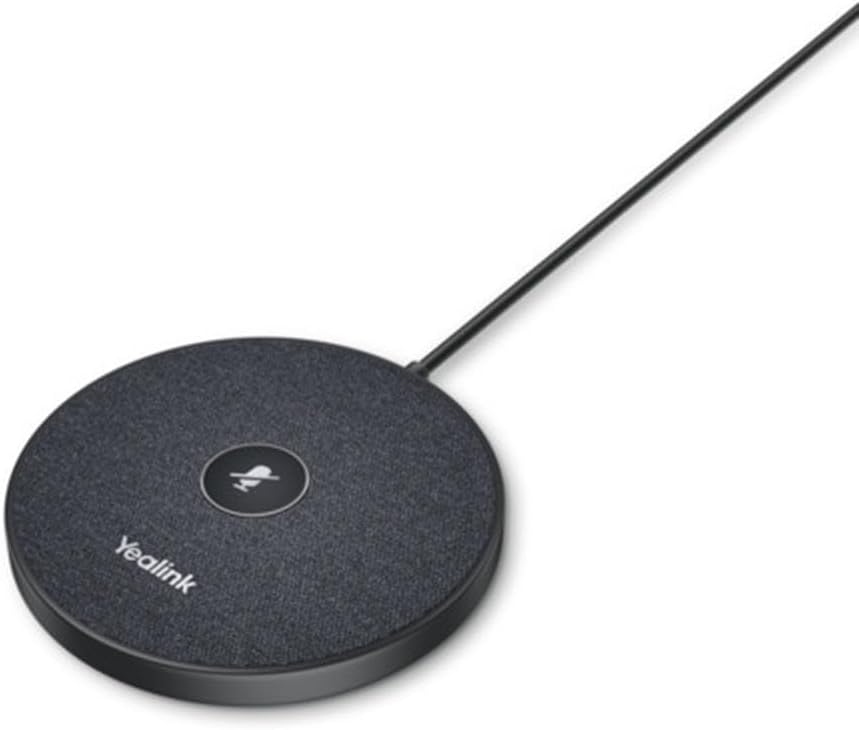
Figure 3.1: Top view of the Yealink VCM35 Microphone. This image displays the circular microphone unit with a central mute button and the 'Yealink' brand name printed on its surface. A cable extends from the unit.

Figure 3.2: Angled view of the Yealink VCM35 Microphone. This image shows the microphone from a slightly elevated side angle, emphasizing its sleek, low-profile design and the integrated USB cable extending from its rear.
4. Setup
- Placement: Position the Yealink VCM35 Microphone on a flat, stable surface in the center of your meeting area for optimal audio capture. Ensure no obstructions are blocking the microphone's pickup area.
- Connection: Connect the integrated USB cable from the VCM35 Microphone to an available USB port on your laptop or personal computer.
- Driver Installation: The microphone is typically plug-and-play. Your operating system should automatically detect and install the necessary drivers. No manual driver installation is usually required.
- Audio Settings: After connecting, verify that the Yealink VCM35 is selected as the default microphone input device in your computer's sound settings or your conferencing software's audio preferences.
5. Operating Instructions
The Yealink VCM35 Microphone is designed for simple operation.
- Mute/Unmute: The microphone features a central button for muting and unmuting. Press the button once to mute the microphone. The LED indicator on the button will change color (e.g., red) to indicate that the microphone is muted. Press the button again to unmute. The LED indicator will return to its active state (e.g., green or off).
- Audio Pickup: The VCM35 is a unidirectional boundary microphone, optimized to pick up sound from a specific direction while minimizing background noise. Ensure participants are within the microphone's effective range for clear communication.
6. Maintenance
Proper maintenance ensures the longevity and performance of your Yealink VCM35 Microphone.
- Cleaning: Use a soft, dry cloth to clean the exterior of the microphone. Do not use liquid cleaners, aerosols, or solvents, as these may damage the device.
- Storage: When not in use, store the microphone in a clean, dry environment away from extreme temperatures and direct sunlight. Avoid coiling the cable too tightly.
- Handling: Handle the microphone with care. Avoid dropping it or subjecting it to strong impacts, which could damage internal components.
7. Troubleshooting
If you encounter issues with your Yealink VCM35 Microphone, refer to the following common problems and solutions:
| Problem | Possible Cause | Solution |
|---|---|---|
| No sound input | Microphone is muted Incorrect input device selected Loose USB connection | Press the mute button to unmute Check computer/software audio settings Reconnect the USB cable |
| Poor sound quality | Microphone too far from speaker High background noise Incorrect placement | Move microphone closer Reduce ambient noise Ensure optimal placement on a flat surface |
| Device not recognized | Faulty USB port Driver issue Operating system conflict | Try a different USB port Restart your computer Check for OS updates |
8. Specifications
Key technical specifications for the Yealink VCM35 Microphone:
| Feature | Detail |
|---|---|
| Model Number | 1303144 |
| Item Weight | 8 ounces (0.5 Pounds) |
| Dimensions (L x W x H) | 3.94 x 3.54 x 0.79 inches |
| Microphone Form Factor | Boundary |
| Power Source | Corded Electric |
| Material | Plastic |
| Signal-to-Noise Ratio | 60 dB |
| Number of Channels | 3 |
| Connectivity Technology | Wired |
| Connector Type | USB |
| Special Feature | Noise Reduction |
| Compatible Devices | Laptop, Personal Computer |
| Polar Pattern | Unidirectional |
| Audio Sensitivity | 54 Decibels |
9. Warranty and Support
The Yealink VCM35 Microphone comes with a standard manufacturer's warranty. For detailed warranty information, please refer to the warranty card included with your product or visit the official Yealink website. For technical support, product inquiries, or service requests, please contact Yealink customer support through their official channels.
Yealink Official Website: www.yealink.com


