1. Introduction
Welcome to the user manual for your Beafon SL270 Basic Mobile Phone. This guide provides essential information to help you set up, operate, maintain, and troubleshoot your device. Please read this manual carefully to ensure proper use and to maximize the phone's features.

Figure 1: Beafon SL270 Basic Mobile Phone in its charging cradle.
The Beafon SL270 is designed for ease of use, featuring a large display and essential functions for reliable communication.
2. Setup
2.1 Package Contents
Before you begin, ensure all items are present in the package:
- Beafon SL270 Mobile Phone
- Battery (1 Lithium-ion)
- Charging Cable
- Charging Cradle (if included)
- User Manual
2.2 Battery Installation
- Remove the back cover of the phone by gently prying it open from the notch.
- Insert the Lithium-ion battery, ensuring the gold contacts align with the phone's terminals.
- Replace the back cover, pressing firmly until it clicks into place.
2.3 SIM Card Installation
The Beafon SL270 uses a standard SIM card. Ensure your SIM card is activated by your network provider.
- With the battery removed, locate the SIM card slot.
- Carefully insert the SIM card into the slot with the gold contacts facing down and the cut corner aligned correctly.
- Reinstall the battery and back cover.
2.4 Initial Charging
Before first use, fully charge the phone's battery.
- Connect the charging cable to the phone or place the phone in the charging cradle.
- Plug the other end of the charging cable into a power outlet.
- The battery indicator on the screen will show charging progress. A full charge may take several hours.
2.5 Powering On/Off
- To Power On: Press and hold the Power/End Call button (red button) until the screen lights up.
- To Power Off: Press and hold the Power/End Call button until the power-off options appear, then select 'Power off'.
3. Operating Instructions
3.1 Navigating the Menu
Use the navigation keys (up, down, left, right) and the central OK/Select button to move through the phone's menu. The left and right soft keys (below the screen) perform functions indicated on the display.

Figure 2: The Beafon SL270 features a large display for enhanced readability and comfort.
3.2 Making and Receiving Calls
- To Make a Call: Enter the phone number using the keypad and press the Call button (green button).
- To Receive a Call: Press the Call button (green button) when the phone rings.
- To End a Call: Press the End Call button (red button).
3.3 Contacts and Photo Contacts
You can save frequently used numbers in your phone's contact list. The Beafon SL270 supports Photo Contacts, allowing you to assign a picture to up to 8 contacts for easy identification.
- Go to the 'Contacts' menu.
- Select 'Add New Contact' or 'Edit Contact'.
- Enter the name and number. For Photo Contacts, select the option to add a photo from your gallery or take a new one.

Figure 3: The Beafon SL270 allows for up to 8 photo contacts, making it easier to identify callers.
3.4 SOS Emergency Button
The Beafon SL270 features a dedicated SOS emergency button on the back of the device. This function allows you to quickly contact pre-set emergency numbers in critical situations.
- Setting up SOS Numbers: Navigate to the 'SOS Settings' in the menu. You can set up to 5 emergency contacts.
- Activating SOS: In an emergency, press and hold the SOS button on the back of the phone. The phone will automatically call and send an SMS to the pre-set numbers in sequence until a connection is made.

Figure 4: The SOS emergency button on the back of the Beafon SL270 allows for quick dialing of pre-selected emergency contacts.
3.5 Messaging (SMS)
To send and receive text messages:
- Go to the 'Messages' menu.
- Select 'Write Message' to compose a new SMS.
- Enter the recipient's number or select from contacts, then type your message.
- Press 'Send'.
3.6 Camera and Light Signal
The phone is equipped with a camera for basic photo capture and a light signal feature.
- Camera: Access the camera from the main menu. Point and shoot to capture images.
- Light Signal: The phone can provide a visual light signal for incoming calls or messages, useful in noisy environments or for users with hearing impairments. This feature can usually be enabled or disabled in the phone's settings under 'Call Settings' or 'Notification Settings'.

Figure 5: The Beafon SL270 provides a light signal for incoming calls or messages.
3.7 Other Features
- Bluetooth: For connecting to wireless headsets or other Bluetooth devices.
- FM Radio: Listen to your favorite radio stations.
- Alarm Clock: Set alarms for reminders.
4. Maintenance
4.1 Cleaning Your Phone
To keep your phone in optimal condition:
- Use a soft, dry cloth to wipe the phone's surface.
- Avoid using harsh chemicals, cleaning solvents, or strong detergents.
- Do not expose the phone to excessive dust, moisture, or extreme temperatures.
4.2 Battery Care
- Avoid fully discharging the battery frequently.
- Do not leave the phone connected to the charger for extended periods after it is fully charged.
- If the phone will not be used for a long time, charge the battery to about 50% before storing it.
4.3 Software Updates
While specific software update information is not available, it is generally recommended to keep your device's software updated to ensure optimal performance and security. Check the manufacturer's website or contact support for any available updates.
5. Troubleshooting
If you encounter issues with your Beafon SL270, try the following solutions:
| Problem | Possible Cause | Solution |
|---|---|---|
| Phone does not power on | Battery is drained or not properly installed. | Charge the battery. Ensure the battery is correctly inserted. |
| No network signal | SIM card issue, out of network coverage. | Check SIM card installation. Move to an area with better network coverage. Contact your service provider. |
| Cannot make/receive calls | No network, incorrect number, call barring. | Check signal strength. Verify the number. Check call barring settings. |
| Sound issues (no sound/low volume) | Volume too low, speaker/earpiece blocked. | Adjust volume. Clean speaker/earpiece openings. |
| Phone freezes/unresponsive | Temporary software glitch. | Remove and reinsert the battery to restart the phone. |
If the problem persists after trying these solutions, please contact Beafon customer support.
6. Specifications
Detailed technical specifications for the Beafon SL270:
| Feature | Detail |
|---|---|
| Brand | Beafon |
| Model Number | B0CJ6KX594 |
| Screen Size | 3.5 Inches |
| Display Type | LCD |
| Resolution | 480 x 320 |
| Connectivity Technology | Bluetooth, Wi-Fi, USB |
| Wireless Network Technology | Wi-Fi |
| Wireless Carrier | All carriers (Unlocked) |
| Rear Camera Resolution | 3 Megapixels |
| Special Features | Wi-Fi, USB, Touchscreen, Camera, Flash, Radio |
| Battery | 1 Lithium-ion (included) |
| Model Year | 2023 |
| Memory | 1 (unit not specified, typically GB or MB for basic phones) |
| Spare Parts Availability | Information unavailable |
| Software Updates Guaranteed Until | Information unavailable |
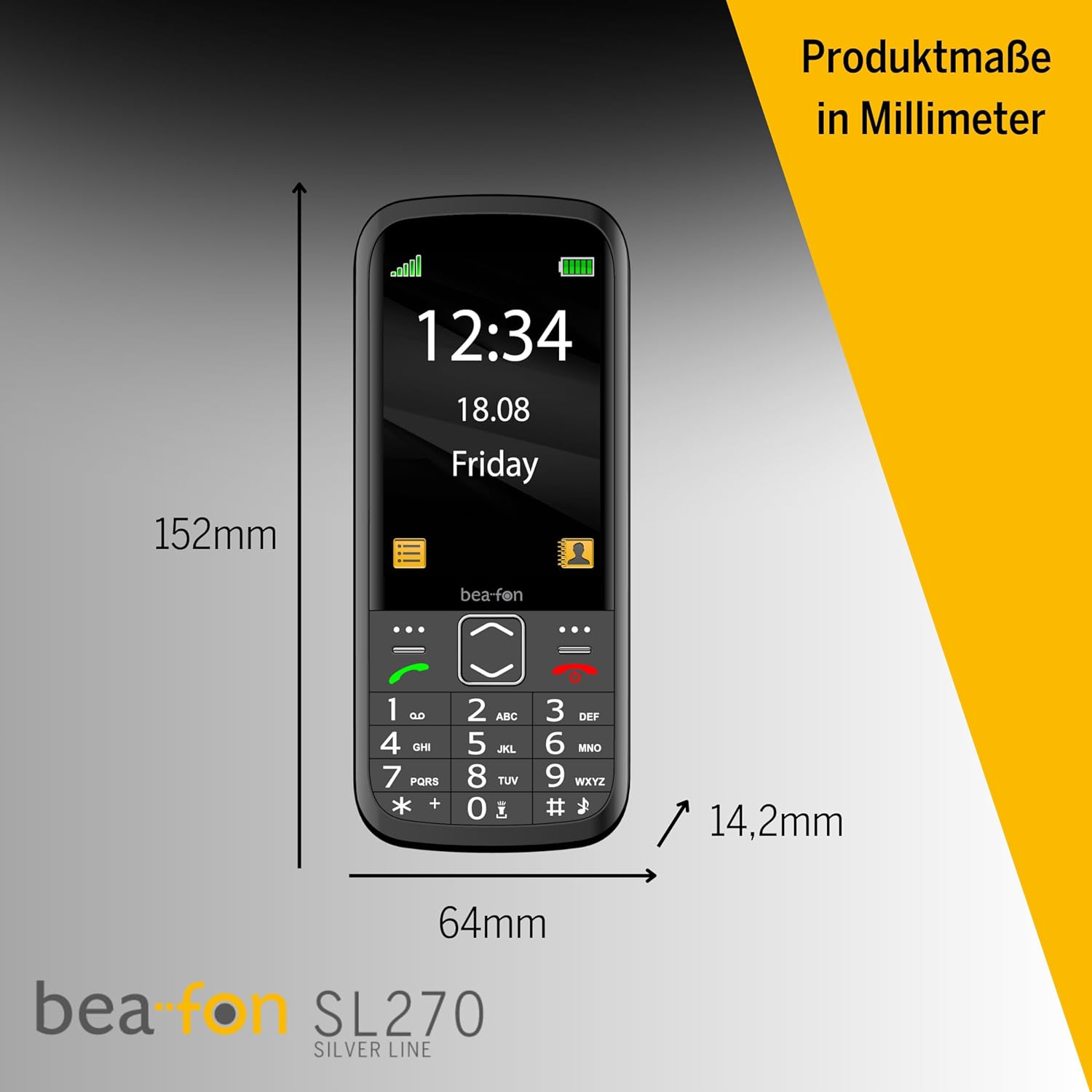
Figure 6: Product dimensions of the Beafon SL270 in millimeters.
7. Warranty and Support
7.1 Warranty Information
For detailed warranty information, please refer to the warranty card included with your product or visit the official Beafon website. The warranty typically covers manufacturing defects for a specified period from the date of purchase.
7.2 Customer Support
If you require further assistance, have questions not covered in this manual, or need technical support, please contact Beafon customer service. Contact details can usually be found on the official Beafon website or on the product packaging.
- Online Support: Visit the official Beafon website for FAQs, support articles, and contact forms.
- Phone Support: Check the Beafon website for regional customer service phone numbers.


