

1. Introduction
Thank you for choosing the T'nB KBWPRO Wireless Bluetooth Keyboard. This ultra-thin, ergonomic keyboard is designed for comfortable and efficient typing across multiple devices. It features a long-lasting rechargeable battery, intuitive multimedia controls, and universal compatibility with Windows and macOS operating systems. This manual provides essential information for setting up, operating, maintaining, and troubleshooting your keyboard.

Image 1.1: The T'nB KBWPRO Wireless Bluetooth Keyboard, showcasing its sleek design and Bluetooth 5.0 connectivity.
2. Product Overview
2.1 What's in the Box
- 1 x T'nB KBWPRO Wireless Bluetooth Keyboard
- 1 x USB-C Charging Cable
2.2 Key Features
- Ultra-thin and Ergonomic Design: Minimizes hand movement for comfortable typing.
- Rechargeable Battery: Integrated 400 mAh battery provides weeks of use on a single charge.
- Universal Compatibility: Works with Windows and macOS, as well as gaming consoles, laptops, PCs, and smartphones.
- Multi-Device Connection: Connects to up to three devices via Bluetooth.
- Intuitive Multimedia Controls: 13 integrated shortcuts for brightness, volume, and other functions.
- Exceptional Typing Comfort: Ultra-thin scissor keys offer precise and pleasant tactile feedback.

Image 2.1: Compact dimensions of the T'nB KBWPRO keyboard, measuring 37 cm in length and 12.5 cm in width.
3. Setup Guide
3.1 Charging the Keyboard
- Locate the USB-C charging port on the side of the keyboard.
- Connect the provided USB-C cable to the keyboard and the other end to a USB power source (e.g., computer, wall adapter).
- The charging indicator light will illuminate. Once fully charged, the light may change color or turn off.
- A full charge provides several weeks of battery life.

Image 3.1: The keyboard's USB-C charging port and ON/OFF switch, highlighting its rechargeable battery.
3.2 Powering On/Off
Locate the ON/OFF switch on the side of the keyboard, next to the charging port. Slide the switch to 'ON' to power on the keyboard and to 'OFF' to power it down.
3.3 Bluetooth Pairing
The KBWPRO keyboard can connect to up to three devices. Follow these steps to pair your keyboard:
- Ensure the keyboard is powered on.
- On the keyboard, press and hold one of the Bluetooth channel keys (BT1, BT2, or BT3) for approximately 3 seconds until the corresponding indicator light starts blinking rapidly. This indicates the keyboard is in pairing mode.
- On your device (computer, tablet, smartphone), go to the Bluetooth settings.
- Search for available Bluetooth devices. You should see "T'nB KBWPRO" or a similar name appear in the list.
- Select the keyboard from the list to initiate the connection. Your device may prompt you to enter a code displayed on the screen using the keyboard, then press Enter.
- Once connected, the indicator light on the keyboard will stop blinking and remain solid for a few seconds before turning off, indicating a successful pairing.
Note: Some older instructions may incorrectly state to use the 'Fn' key during pairing. For this model, simply press and hold the desired Bluetooth channel key (BT1, BT2, or BT3) directly.

Image 3.2: The keyboard's multi-device connectivity, allowing pairing with up to three different devices.
4. Operating Instructions
4.1 Basic Typing
The T'nB KBWPRO keyboard features a standard French AZERTY layout. Simply begin typing after successful pairing. The ultra-thin scissor keys are designed for a precise and comfortable typing experience.
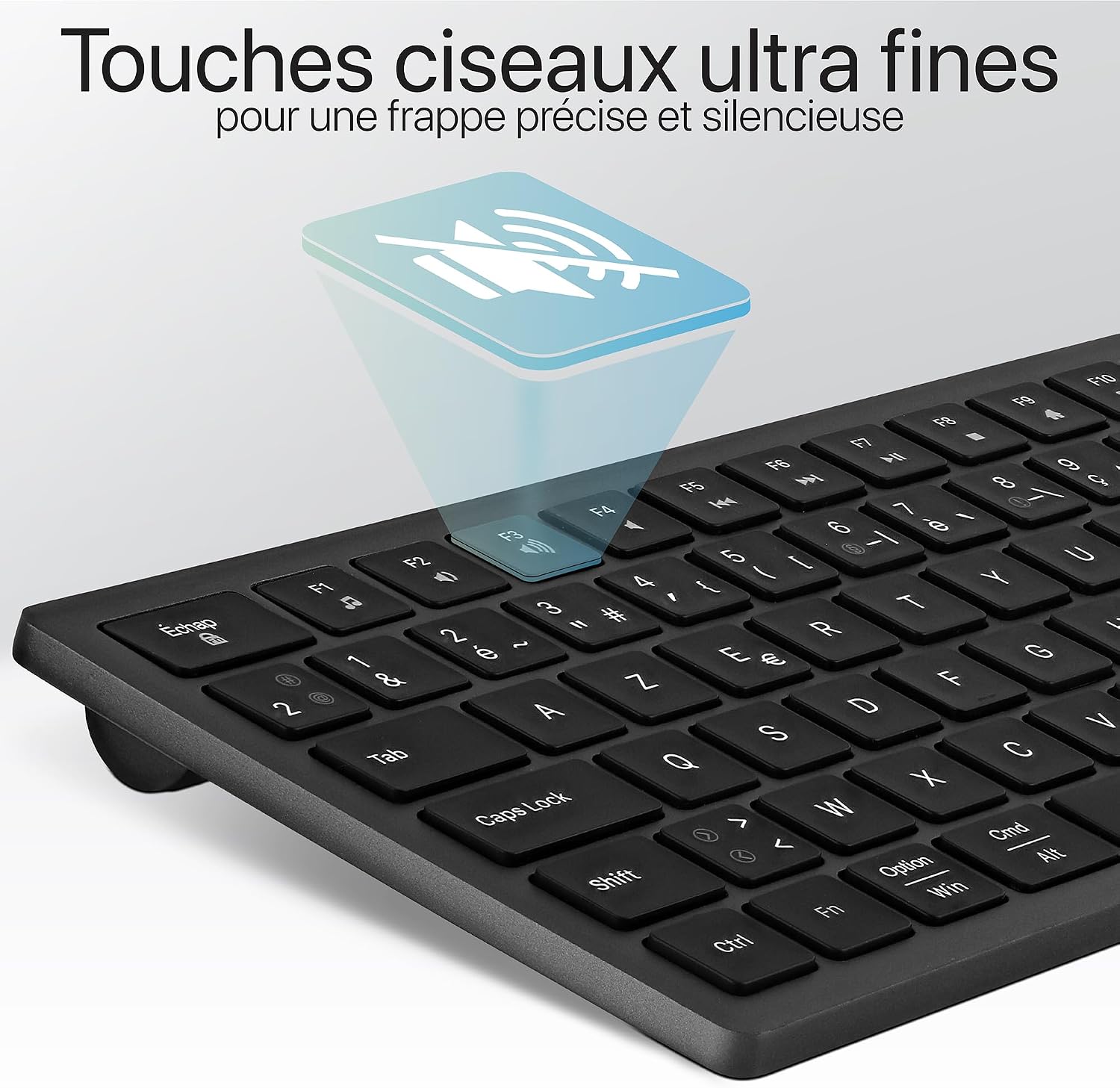
Image 4.1: Close-up view of the ultra-thin scissor keys, designed for quiet and precise typing.
4.2 Using Multimedia Keys
The keyboard includes 13 dedicated multimedia shortcuts located on the function key row (F1-F12, and Del). These keys allow for quick control of various device functions without needing to navigate through software menus.
- F1-F12: Typically control functions like media playback (play/pause, next/previous track), volume (mute, up, down), screen brightness, and other system functions.
- To activate these functions, press the desired multimedia key directly. On some operating systems, you may need to press the Fn key simultaneously with the function key.

Image 4.2: The function key row with integrated multimedia shortcuts for quick access to controls.
4.3 Switching Between Devices
If you have paired the keyboard with multiple devices (up to three), you can switch between them by simply pressing the corresponding Bluetooth channel key (BT1, BT2, or BT3) once. The keyboard will automatically connect to the last paired device on that channel.
4.4 Battery Status and Sleep Mode
- Low Battery Indicator: A red LED will blink to alert you when the battery is low and requires charging.
- Automatic Sleep Mode: To conserve battery, the keyboard will enter sleep mode after a period of inactivity.
- Waking Up the Keyboard: Press any key to wake the keyboard from sleep mode. Note that there may be a slight delay (approximately 1 second) before the keyboard fully reconnects and responds.
5. Maintenance
5.1 Cleaning
To clean your keyboard, gently wipe the surface with a soft, damp, lint-free cloth. Avoid using harsh chemicals, abrasive cleaners, or excessive moisture, as these can damage the keyboard.
5.2 Storage
When not in use for extended periods, store the keyboard in a cool, dry place. Ensure the keyboard is powered off to preserve battery life.
6. Troubleshooting
If you encounter issues with your T'nB KBWPRO keyboard, please refer to the following common problems and solutions:
| Problem | Possible Cause / Solution |
|---|---|
| Keyboard does not pair or connect via Bluetooth. |
|
| Keys are unresponsive or typing is inconsistent (e.g., spacebar issues). |
|
| Incorrect characters appear when typing, or certain keys do not function as expected (e.g., 'Delete' key). |
|
| Keyboard experiences latency or slow response after waking from sleep mode. |
|
| Keyboard does not work when connected via USB cable. |
|
7. Specifications
| Feature | Detail |
|---|---|
| Model Name | KBWPRO |
| Connectivity Technology | Bluetooth 5.0 |
| Keyboard Layout | French AZERTY |
| Battery Capacity | 400 mAh (Rechargeable) |
| Dimensions (L x W x H) | 37 x 12.5 x 2 cm (14.57 x 4.92 x 0.79 inches) |
| Product Weight | 426 Grams (0.94 lbs) |
| Compatible Devices | Windows PCs, macOS computers, Laptops, Smartphones, Gaming Consoles |
| Special Features | Portable, Multimedia Shortcuts, Rechargeable |
| Color | Grey Blue |
| Power Source | Battery Powered |
8. Warranty and Support
8.1 Manufacturer's Warranty
The T'nB KBWPRO Wireless Bluetooth Keyboard comes with a 2-year manufacturer's warranty. This warranty covers defects in materials and workmanship under normal use. Please retain your proof of purchase for warranty claims.
8.2 Customer Support
For any questions, technical assistance, or warranty claims, please contact T'nB customer service. Our support team is based in France and is dedicated to providing solutions for your product needs.
Please visit the official T'nB website for contact information or to submit a support request.


