
1. Product Overview
The Cisco Catalyst 1300-24FP-4X is a fully managed switch designed to provide reliable and secure connectivity for small business networks. This switch offers full Layer 2/3 capabilities, an intuitive web dashboard, advanced networking features, and Power over Ethernet Plus (PoE+) support.
Key Features:
- 24 Gigabit Ethernet Ports: Provides 24 ports for 10/100/1000 Mbps connections.
- 4x 10GE SFP+ Uplink Ports: Offers four 10 Gigabit Ethernet SFP+ ports for high-speed uplinks.
- Full PoE+ Support: Delivers a total Power over Ethernet budget of 375W across its ports, supporting both PoE and PoE+ devices.
- Simplified Management: Features an intuitive Cisco Business mobile app and local web interface, along with the Cisco Business Dashboard for easy setup, management, and monitoring.
- Enhanced Security: Includes IP-MAC port binding to detect and block network attacks, and IPv6 First Hop Security for protection against address spoofing and man-in-the-middle attacks.
- Energy Efficient: Compliant with IEEE 802.3az Energy Efficient Ethernet to optimize power usage and reduce operational costs.

Figure 1: Cisco Catalyst 1300 Series Switches, demonstrating various models and their stackability.
Product Video Overview:
Video 1: An overview video highlighting the key features and benefits of the Cisco Catalyst 1200 and 1300 series switches, focusing on reliable connectivity, security, and simplified management for small businesses.
2. Package Contents
Verify that your package contains the following items:
- Cisco Catalyst 1300-24FP-4X Managed Switch
- Power cord or adapter
- USB Type C cable
- Mounting hardware
3. Physical Description
The Cisco Catalyst 1300-24FP-4X switch features 24 Gigabit Ethernet ports and 4 SFP+ uplink ports. The front panel includes status indicators for power, system activity, and port status.
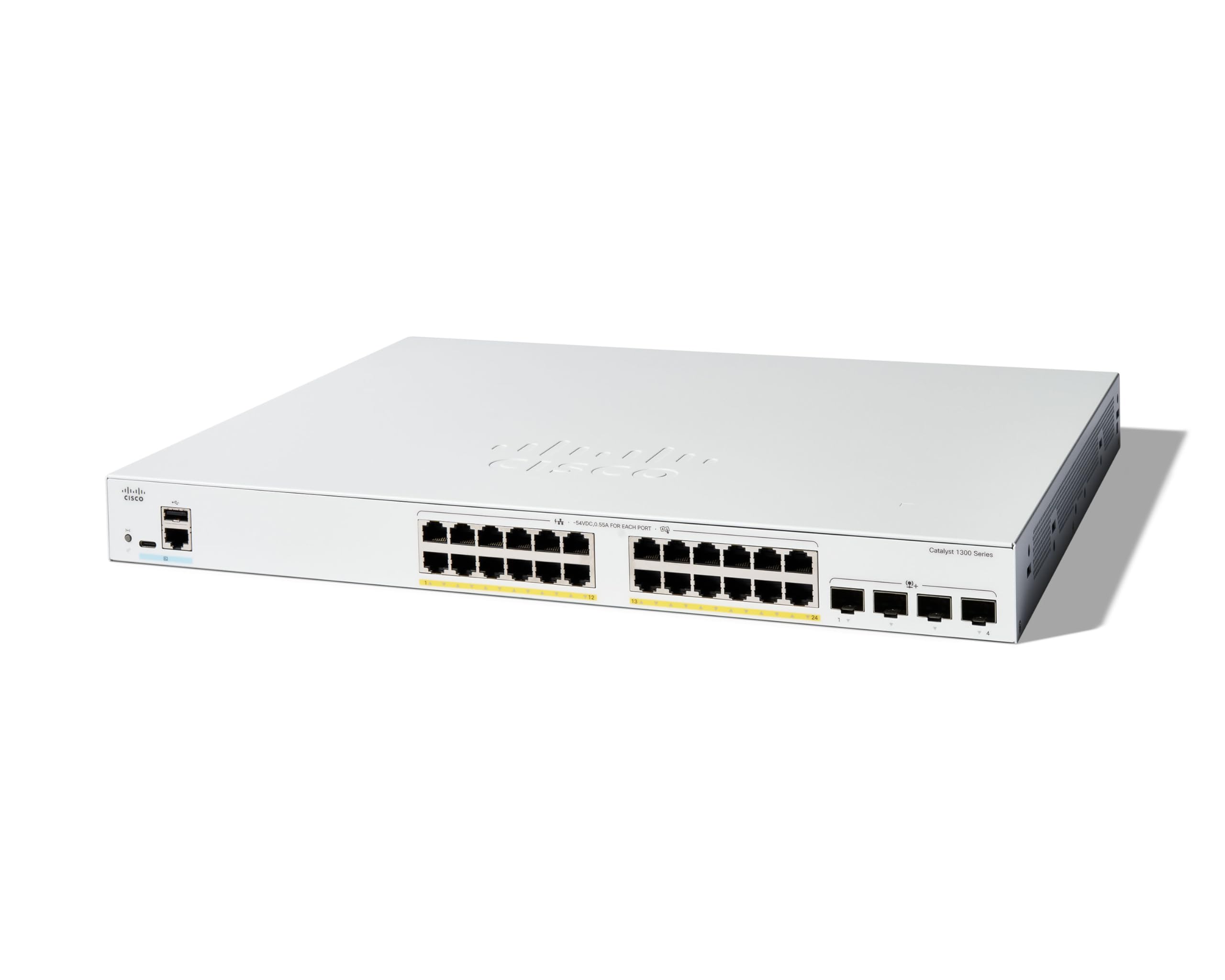
Figure 2: Front panel of the Cisco Catalyst 1300-24FP-4X Switch.

Figure 3: Close-up of switch ports with PoE indicators.
4. Setup and Installation
Follow these steps for initial setup and installation of your Cisco Catalyst 1300-24FP-4X switch.
4.1 Unboxing and Initial Connections:
- Carefully remove the switch and all accessories from the packaging.
- Connect the power cord to the switch and then to a power outlet.
- Connect an Ethernet cable from your router's LAN port to any of the Gigabit Ethernet ports on the switch.
- For devices requiring Power over Ethernet, connect them directly to the switch's PoE+ enabled ports.
4.2 Mobile App Setup:
The Cisco Business mobile app simplifies the setup and management process. Download the app from your device's app store (available for Android and iOS).
- Launch the Cisco Business mobile app.
- Follow the on-screen instructions to create your site and add your switch.
- The app will guide you through configuring basic network settings and adding wired and wireless devices.
Unboxing and Setup Video Guide:
Video 2: This video demonstrates the unboxing and initial setup process for the Cisco Catalyst 1300 series switch, including connecting power and network cables, and using the mobile app for configuration.
5. Operation
Once installed, your Cisco Catalyst 1300-24FP-4X switch provides high-performance network connectivity. You can manage and monitor your network using the Cisco Business mobile app or the web-based Cisco Business Dashboard.
5.1 Mobile App Management:
The Cisco Business mobile app allows you to monitor device status, perform actions like rebooting or backing up configurations, and view connected clients and their usage, all from your smartphone.
5.2 Web UI and Dashboard:
For advanced configuration and detailed network insights, access the local web interface or the Cisco Business Dashboard. These tools offer comprehensive control over Layer 2/3 capabilities, VLAN settings, security policies, and more.

Figure 4: Cisco Business Dashboard web interface for advanced management.
6. Maintenance
Regular maintenance ensures optimal performance and longevity of your switch.
- Firmware Updates: Periodically check for and apply the latest firmware updates to ensure security and access to new features. These can typically be found on the Cisco support website.
- Physical Inspection: Ensure all cables are securely connected and free from damage. Keep the switch in a well-ventilated area to prevent overheating.
- Configuration Backup: Regularly back up your switch configuration using the mobile app or web interface to prevent data loss in case of an unexpected event.
- Cleaning: Keep the device free from dust and debris. Use a soft, dry cloth for cleaning. Do not use liquid cleaners.
7. Troubleshooting
If you encounter issues with your switch, consider the following basic troubleshooting steps:
- No Power: Ensure the power cord is securely connected to both the switch and a working power outlet. Check the power indicator light on the switch.
- No Network Connectivity: Verify that Ethernet cables are properly connected to both the switch and connected devices. Check the link/activity LEDs on the ports. Ensure your router is functioning correctly.
- Device Not Detected by App/Dashboard: Confirm the switch is powered on and connected to the network. Ensure your mobile device or computer is on the same network segment or has proper routing to the switch.
- Slow Performance: Check for excessive network traffic or potential loops. Ensure firmware is up to date.
- Resetting the Switch: If issues persist, a factory reset may be necessary. Refer to the detailed documentation on the Cisco support portal for instructions on performing a factory reset, as this will erase all configurations.
8. Specifications
| Feature | Detail |
|---|---|
| Model Number | C1300-24FP-4X |
| Ports | 24 x 10/100/1000 GE, 4 x 10GE SFP+ Uplinks |
| PoE Power Budget | 375W (PoE, PoE+) |
| Data Transfer Rate | 40000 Megabits Per Second |
| Interface Type | PoE, SFP |
| Voltage | 48 Volts |
| Item Weight | 13.51 pounds (6.14 Kilograms) |
| Product Dimensions (LxWxH) | 17.5 x 13.78 x 1.73 inches |
| Manufacturer | Cisco |
| GTIN | 889728521505 |
9. Warranty and Support
The Cisco Catalyst 1300-24FP-4X Managed Switch comes with a limited lifetime hardware warranty. Additionally, complimentary one-year technical support is provided to assist with any operational queries or issues.
For detailed warranty terms, technical documentation, and support resources, please visit the official Cisco support website or contact Cisco customer service.


