
Introduction
This manual provides detailed instructions for the installation, operation, maintenance, and troubleshooting of the Cisco Catalyst 1300-16P-2G Managed Switch. This device is designed to deliver reliable and secure connectivity for small business networks, offering full Layer 2/3 capabilities, an intuitive web dashboard, advanced networking features, and PoE+ support.
Setup and Installation
Package Contents
Verify that your package contains the following items:
- Cisco Catalyst 1300-16P-2G Managed Switch
- Power cord or adapter
- USB Type C cable
- Mounting hardware (for 24 and 48 port models only, verify for 16-port model if included)
Note: Some users have reported missing mounting hardware. Please check your package contents upon arrival.
Physical Installation
The switch can be placed on a desktop or mounted in a rack. Ensure adequate ventilation, especially for fanless models, to prevent overheating.
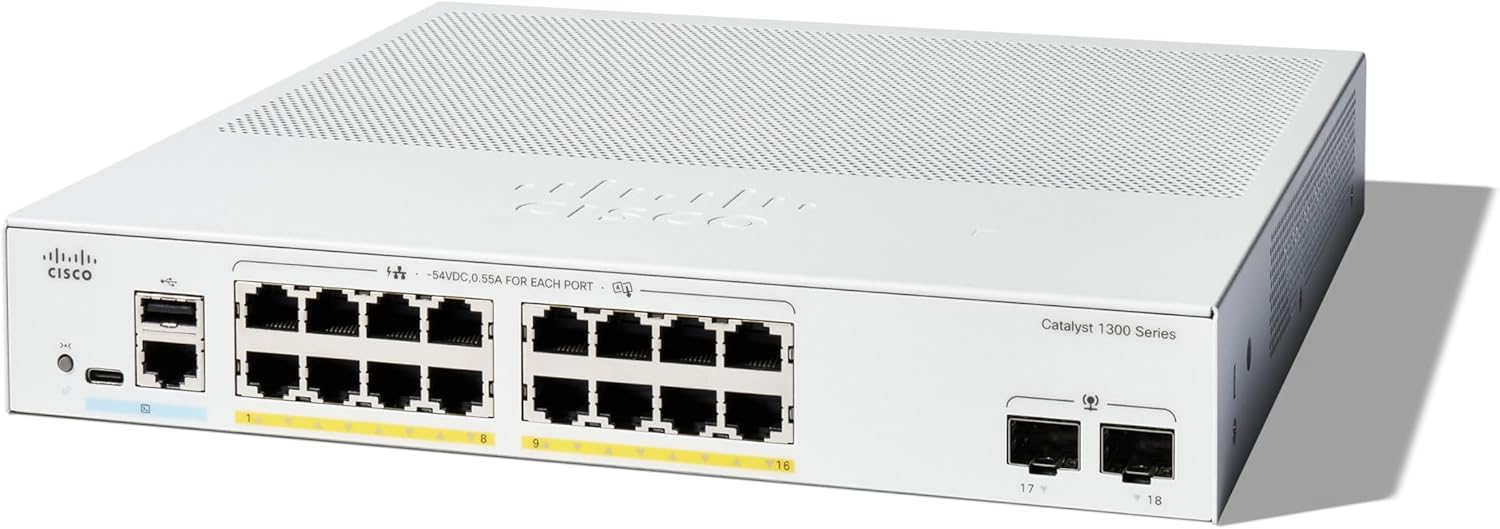
Figure 1: Front view of the Cisco Catalyst 1300-16P-2G Managed Switch. This image displays the compact design and port layout, including 16 Gigabit Ethernet ports and 2 SFP uplink ports.

Figure 2: Detailed front panel of the Cisco Catalyst 1300-16P-2G Switch. This close-up shows the 16 Gigabit Ethernet ports (labeled 1-16), 2 SFP uplink ports (labeled 17-18), a USB-C console port, and status LEDs.

Figure 3: Various models within the Cisco Catalyst 1300 Series Managed Switches. This image illustrates the different port configurations and sizes available in the series.
Power Connection
- Connect the provided power cord to the switch's power input.
- Plug the other end of the power cord into a grounded electrical outlet.
- The switch will power on automatically. Observe the power LED for status.
Network Connection
- Connect your network devices (computers, servers, access points) to the 16 Gigabit Ethernet ports using standard Ethernet cables.
- For uplink connections to other switches or routers, use the 2x1GE SFP ports with compatible SFP transceivers and fiber optic cables, or use standard Ethernet ports if SFP is not required.
Initial Configuration
The Cisco Catalyst 1300 series switches can be configured via an intuitive web interface or the Cisco Business mobile app.
- Web Interface: Connect a computer directly to any Ethernet port on the switch. The switch will typically obtain an IP address via DHCP or use a default IP. Refer to the Quick Start Guide for the default IP address and login credentials.
- Cisco Business Mobile App: Download the Cisco Business mobile app from your device's app store. Follow the in-app instructions to discover and configure your switch.
Operation
Basic Network Functionality
The switch provides 16 Gigabit Ethernet ports for high-speed data transfer. Once connected, devices will automatically establish network connectivity.
Power over Ethernet (PoE+)
The Cisco Catalyst 1300-16P-2G supports PoE+ on its 16 ports, with a total power budget of 120W. This allows you to power compatible devices such as IP phones, wireless access points, and IP cameras directly through the Ethernet cable, simplifying deployment and reducing cabling requirements.
- Ensure connected devices are PoE or PoE+ compatible.
- Monitor PoE power consumption via the web interface to stay within the 120W budget.
Management and Monitoring
The switch offers comprehensive management options:
- Web User Interface (Web UI): Access the switch's full configuration and monitoring capabilities through a web browser. This interface allows for detailed setup of VLANs, QoS, security features, and port management.
- Cisco Business Mobile App: Provides a simplified interface for common tasks and monitoring from your mobile device.
- Cisco Business Dashboard: For managing multiple Cisco Business devices, the Dashboard offers centralized control and monitoring.
- Command Line Interface (CLI): Accessible via SSH or the USB-C console port for advanced configuration.
Enhanced Security Features
The switch incorporates advanced security measures to protect your network:
- IP-MAC Port Binding: Detects and blocks unauthorized network access by binding specific IP and MAC addresses to individual switch ports.
- IPv6 First Hop Security: Provides protection against various IPv6-based attacks, including address spoofing and man-in-the-middle attacks.
- Access Control Lists (ACLs): Configure rules to filter network traffic based on various criteria.
Energy Efficiency
The switch is compliant with IEEE 802.3az Energy Efficient Ethernet, optimizing power usage to reduce operational costs. This model is fanless, contributing to quiet operation and further energy savings.
Maintenance
Firmware Updates
Regularly check the Cisco support website for the latest firmware updates. Updating the firmware ensures optimal performance, security, and access to new features. It is recommended to update the firmware as the factory-installed version may have slower graphical interface performance.
- Download the latest firmware from the official Cisco support portal.
- Follow the instructions provided with the firmware update package for a safe upgrade process.
Cleaning
Keep the switch clean and free from dust. Use a soft, dry cloth for cleaning the exterior. Do not use liquid or aerosol cleaners.
Environmental Considerations
As a fanless device, proper airflow is crucial. Ensure that the switch is installed in an environment with adequate ventilation and that its vent ports are not blocked.
Troubleshooting
Common Issues and Solutions
- No Power:
- Verify the power cord is securely connected to both the switch and a working electrical outlet.
- Check the power LED on the switch.
- No Network Connectivity:
- Ensure Ethernet cables are properly connected to both the switch and the end device.
- Check the link/activity LEDs on the switch ports.
- Verify IP configuration on connected devices.
- Restart the switch and the connected device.
- Slow Web Interface:
- Update the switch firmware to the latest version.
- Clear your web browser's cache.
- Try a different web browser.
- PoE Device Not Powering On:
- Confirm the device is PoE/PoE+ compatible.
- Check the PoE status LED for the specific port.
- Verify the total PoE power budget (120W) is not exceeded.
- Try connecting the device to a different PoE port.
- Missing Mounting Hardware:
- While mounting hardware is typically included with 24 and 48 port models, it may not be standard for 16-port models. If you believe it should be included and is missing, contact Cisco support or your reseller.
For more detailed troubleshooting, consult the official Cisco support documentation or contact technical support.
Specifications
| Feature | Detail |
|---|---|
| Model Number | C1300-16P-2G |
| Switch Ports | 16 x 10/100/1000 Gigabit Ethernet ports |
| Uplink Ports | 2 x 1GE SFP |
| PoE Support | PoE, PoE+ (IEEE 802.3af/at) |
| Total PoE Power Budget | 120W |
| Data Transfer Rate | 36 Gigabits Per Second (Switching Capacity) |
| Interface Type | PoE, SFP |
| Dimensions (LxWxH) | 10.56 x 11.69 x 1.73 inches (26.82 x 29.69 x 4.39 cm) |
| Item Weight | 6.89 pounds (3.13 kg) |
| Energy Efficiency | IEEE 802.3az Energy Efficient Ethernet |
| Cooling | Fanless |
| UPC | 889728521628 |
Warranty and Support
Limited Lifetime Hardware Warranty
The Cisco Catalyst 1300-16P-2G Managed Switch comes with a limited lifetime hardware warranty. This warranty covers defects in materials and workmanship under normal use and service.
Technical Support
Complimentary 1-year technical support is included with your purchase. For technical assistance, product documentation, and software downloads, please visit the official Cisco support website:
You can also find additional resources and community forums on the Cisco website.


