
ORICO 6656C3-C
ORICO 5-Bay USB 3.2 Gen 1 HDD Docking Station
Model: 6656C3-C
Introduction
This user manual provides detailed instructions for the ORICO 5-Bay USB 3.2 Gen 1 HDD Docking Station (Model 6656C3-C). This device is designed to expand your storage capacity and facilitate data management with support for up to five 2.5/3.5-inch SATA SSDs/HDDs, offering both PC connectivity and a convenient offline cloning function. Please read this manual thoroughly before use to ensure proper operation and to maximize the product's capabilities.
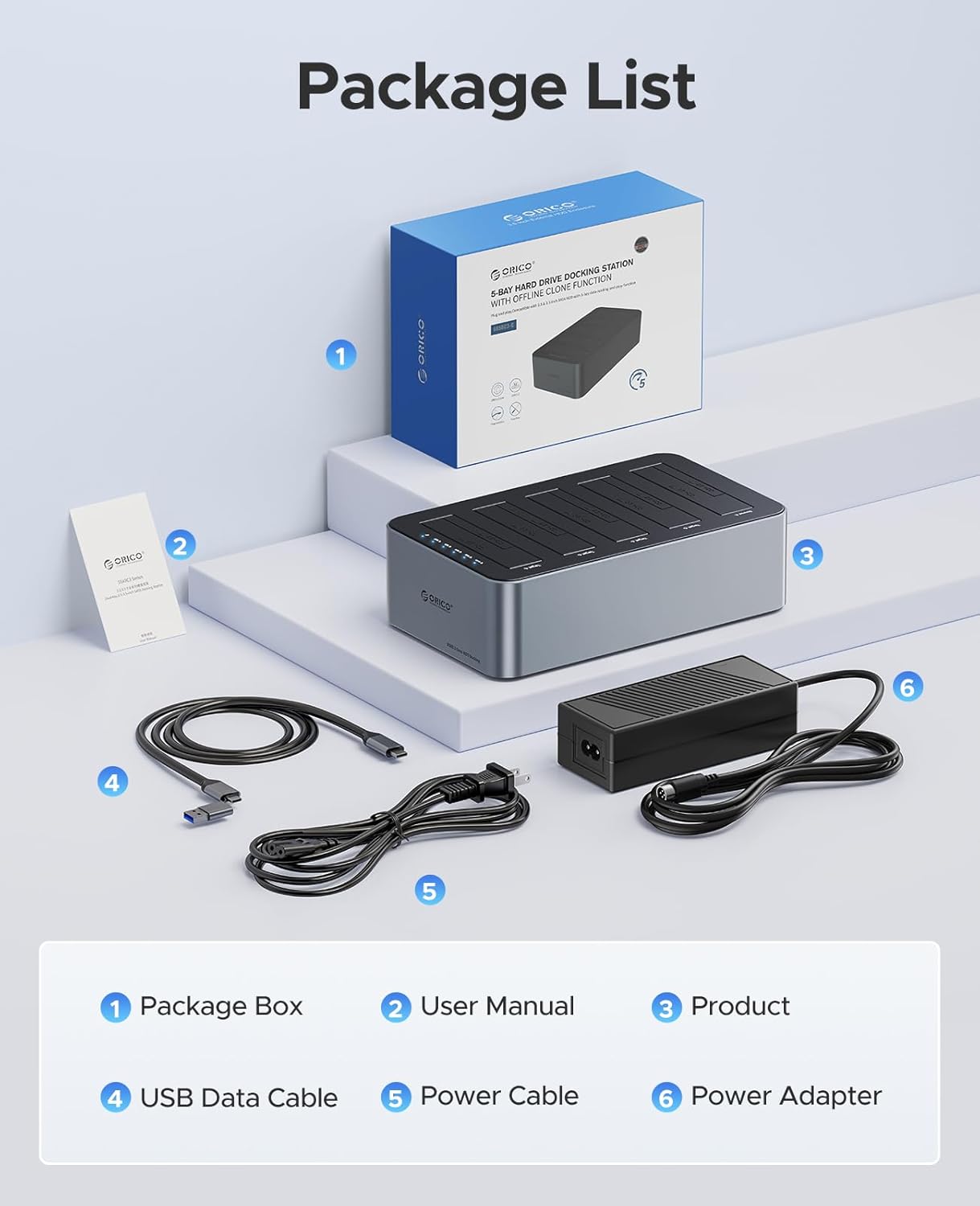
1. Package Contents
Please verify that all items listed below are included in your package:
- ORICO 5-Bay HDD Docking Station (Product)
- User Manual
- USB Data Cable (USB-C to C / USB-C to A)
- Power Cable
- Power Adapter (12V/6.5A)

2. Product Overview
The ORICO 5-Bay HDD Docking Station is constructed from high-quality aluminum alloy, ensuring both durability and efficient heat dissipation. It features five bays for 2.5-inch or 3.5-inch SATA drives, providing extensive storage expansion. The front panel includes LED indicators for drive status, while the rear panel houses the power input, USB data port, and mode switch for PC or clone operations.


3. Setup Guide
3.1 Installing Hard Drives
- Ensure the docking station is powered off and disconnected from any computer.
- Gently slide your 2.5-inch or 3.5-inch SATA SSD/HDD into an available bay until it is securely seated. The connectors should align automatically.
- Repeat for additional drives as needed, up to a maximum of five drives.
3.2 Connecting to Power
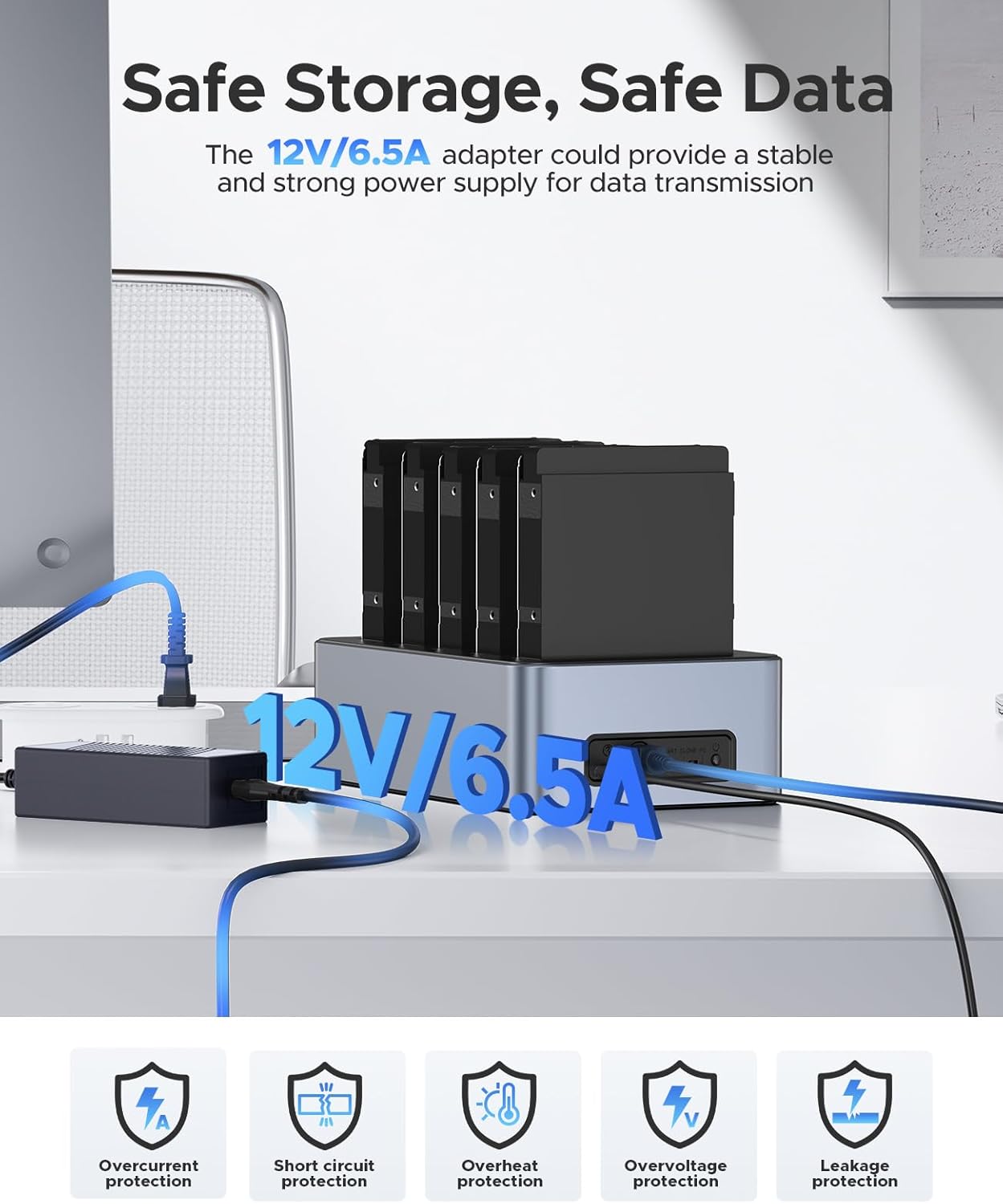
- Connect the provided power cable to the 12V/6.5A power adapter.
- Plug the power adapter into the DC input port on the back of the docking station.
- Connect the power adapter to a wall outlet.
3.3 Connecting to Computer
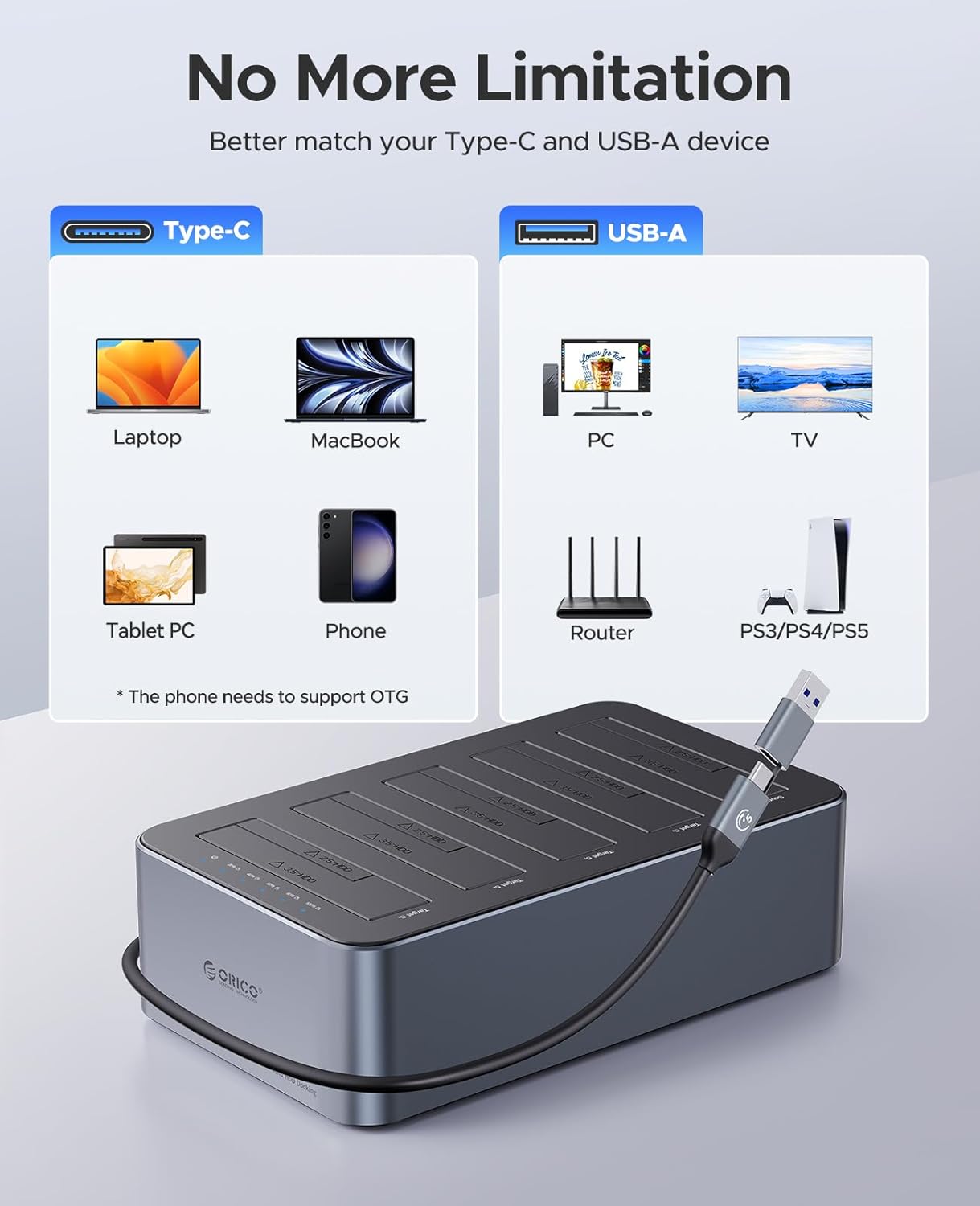
- Use the provided USB-C to C or USB-C to A data cable to connect the docking station to your computer's USB port.
- Turn on the power switch located on the back of the docking station.
- Your computer should automatically detect the connected drives. If not, check your computer's disk management utility.
The docking station is widely compatible with various devices and operating systems, including Windows XP/7/8/10/11, Mac OS 10 or higher, Linux, and Android (for phones, OTG support is required).
4. Operating Modes
4.1 PC Mode (Data Transfer)
In PC mode, the docking station functions as an external multi-bay drive enclosure. You can access and manage files on the installed drives directly from your computer.
- Ensure the mode switch on the back of the unit is set to "PC".
- Connect the docking station to your computer using the USB data cable.
- The drives will appear as removable storage devices on your computer.
- Enjoy high-speed data transfer up to 5Gbps (USB 3.2 Gen 1).

4.2 Offline Clone Mode
The offline clone function allows you to duplicate data from a source disk to up to four target disks without needing a computer connection. This is a 1:4 cloning process.
Important Considerations:
- The target disk(s) must be equal to or larger in capacity than the source disk.
- All data on the target disk(s) will be permanently overwritten during the cloning process. Please back up any important data on target disks before proceeding.
Steps for Offline Cloning:
- Ensure the docking station is powered off and disconnected from any computer.
- Insert the Source Disk into the designated Source Disk slot (usually the last slot, e.g., Slot 5).
- Insert up to four Target Disks into the remaining slots (e.g., Slots 1-4).
- Set the mode switch on the back of the unit to "Clone".
- Press and hold the "Start Clone" button for approximately 3-5 seconds until the cloning process begins. The LED indicators for the target disks will light up and flash to indicate progress.
- Do not disconnect power or drives during the cloning process.
- Once all target disk LEDs are solid, the cloning process is complete. Power off the unit before removing the drives.

5. Maintenance
To ensure the longevity and optimal performance of your ORICO 5-Bay HDD Docking Station, please follow these maintenance guidelines:
- Keep the device in a clean, dry environment, away from direct sunlight, excessive heat, and moisture.
- Avoid dropping or subjecting the device to strong impacts.
- Do not attempt to disassemble or modify the device, as this will void the warranty.
- Clean the exterior with a soft, dry cloth. Do not use liquid cleaners or aerosols.
- Ensure proper ventilation around the unit, especially when multiple drives are in use, to facilitate heat dissipation.
6. Troubleshooting
If you encounter issues with your ORICO 5-Bay HDD Docking Station, please refer to the following common problems and solutions:
| Problem | Possible Cause | Solution |
|---|---|---|
| Device not recognized by computer. |
|
|
| Offline cloning fails or does not start. |
|
|
| Slow data transfer speeds. |
|
|
7. Specifications
| Feature | Detail |
|---|---|
| Model Number | 6656C3-C |
| Brand | ORICO |
| Interface | USB 3.2 Gen 1 Type-C (5Gbps), SATA 3.0 Gb/s |
| Supported Drive Types | 2.5-inch / 3.5-inch SATA SSD/HDD |
| Number of Bays | 5 |
| Max Single Drive Capacity | Up to 20TB per drive |
| Total Max Capacity | Up to 100TB (5 x 20TB) |
| Offline Clone Function | 1:4 Clone (Source to 4 Targets) |
| Material | Aluminum Alloy, ABS |
| Power Supply | 12V/6.5A Power Adapter |
| Compatible Operating Systems | Windows XP/7/8/10/11, Mac OS 10+, Linux, Android |
| Data Transfer Rate | Up to 5Gbps (USB 3.2 Gen 1) |
8. Warranty and Support
ORICO products are designed and manufactured to the highest quality standards. This product comes with a standard manufacturer's warranty. For specific warranty terms and conditions, please refer to the warranty card included in your package or visit the official ORICO website.
If you encounter any issues or have questions regarding the use of your ORICO 5-Bay HDD Docking Station, please contact ORICO customer support through their official channels or the retailer from whom you purchased the product. Please have your model number (6656C3-C) and purchase information ready when seeking support.
Related documents6656C3-C


Ask a question about this manual
Ask about setup, troubleshooting, compatibility, parts, safety, or missing instructions. Manuals+ will review the question and use this page’s manual context to help answer it.