
Introduction
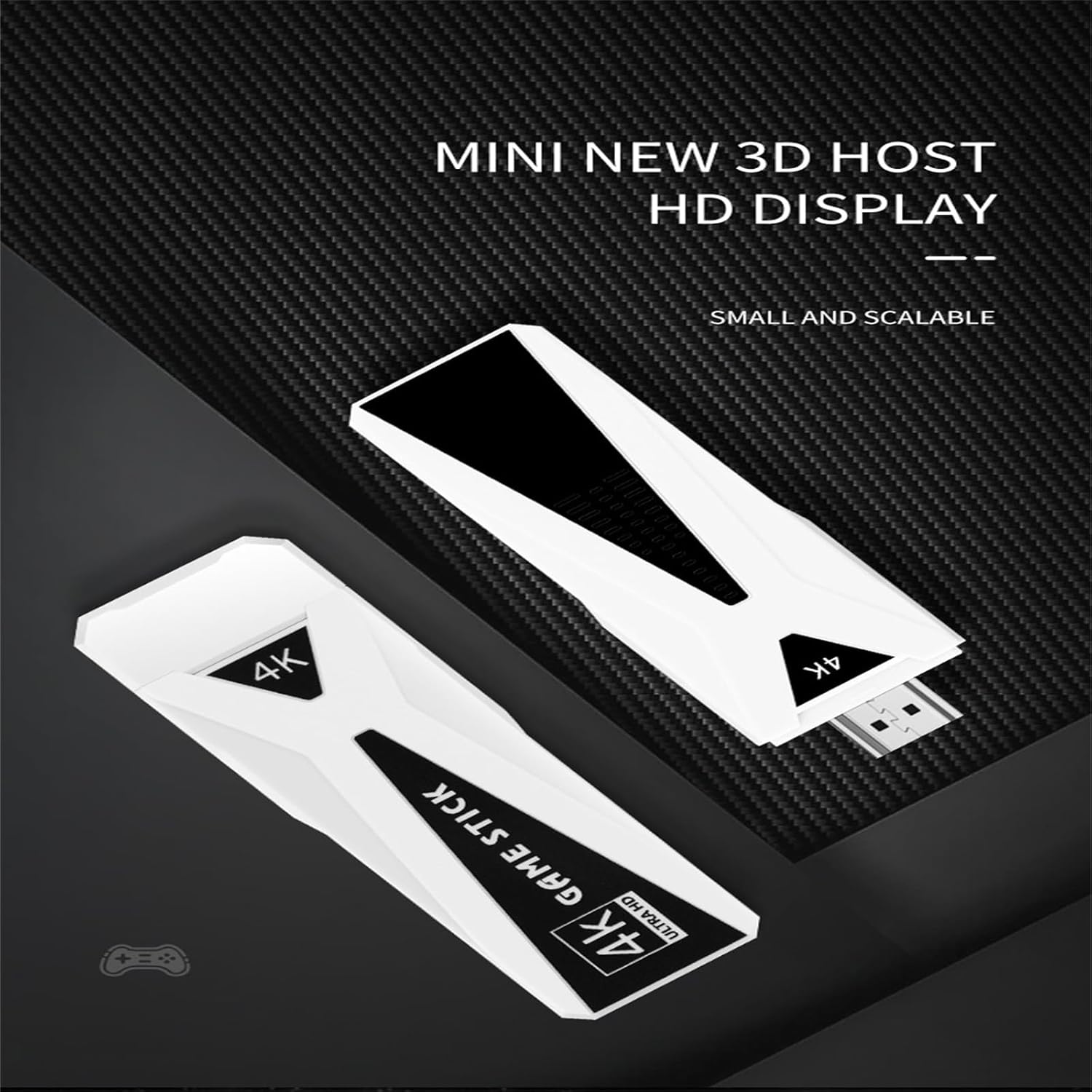
The WUYJTIF GT68 4K HD TV Game Stick is a versatile entertainment device designed to provide both retro gaming and Android TV functionalities. It operates on Android 7.1 and supports multiple languages, including English, Simplified Chinese, Traditional Chinese, Japanese, and Korean. This device offers a vast library of pre-installed games and the flexibility to access various applications through its Android TV mode.
Key features include:
- Integrated Gaming and Android TV: Seamlessly switch between a vast library of retro games and the Android 7.1 operating system for streaming and apps.
- Extensive Game Library: Pre-installed with over 10,000 or 20,000 retro classic games, compatible with emulators such as PSP, PS1, CP1, CP2, Neogeo, MAME, NES, SFC, GB, GBA, GBC, MD, and N64.
- 4K HD Output: Connects to your TV, computer, monitor, or projector via HDMI for 1080P HD image quality, supporting 4K resolution.
- Wireless Connectivity: Features 2.4G wireless controllers and supports Wi-Fi and LAN connections for Android TV functions.
- Enhanced Performance: Equipped with an upgraded CPU chip for smooth gameplay across various emulators.
- Multiplayer Support: Includes two 2.4G wireless controllers, supporting up to 4 players simultaneously for shared gaming experiences.

Setup Instructions
Follow these steps to set up your GT68 4K HD TV Game Stick:
- Connect to TV: Insert the GT68 Game Stick directly into an available HDMI port on your television, monitor, or projector.
- Power Connection: Connect the included USB power cable to the Game Stick and then to a USB power source (e.g., a TV USB port or a USB wall adapter, not included). Ensure the device receives stable power.
- Select Input: Turn on your TV and use your TV remote to select the correct HDMI input source that corresponds to the port where the Game Stick is connected.
- Insert TF Card: Ensure the TF (MicroSD) card, pre-loaded with games, is securely inserted into the Game Stick's TF card slot.
- Install Batteries in Controllers: Open the battery compartment on the back of each wireless controller and insert two AAA batteries (not included), observing the correct polarity.
- Connect Wireless Receiver: Plug the 2.4G wireless receiver (USB dongle) into the USB port on the GT68 Game Stick.
- Pair Controllers: The controllers should automatically pair with the Game Stick once powered on. If not, press the Home button on the controller to initiate pairing.

Operating Instructions
Game Mode
- Navigate Menus: Use the directional pad (D-pad) on your wireless controller to move through the game selection menu.
- Select a Game: Press the 'A' button (or equivalent action button) to select a game.
- Start Game: Once a game is selected, it will load automatically. Follow on-screen prompts to start playing.
- Exit Game: To exit a game and return to the main menu, press the 'SELECT' and 'START' buttons simultaneously on the controller.
- Save/Load Game Progress: Many emulators support in-game saving and loading. Refer to the specific emulator's instructions within the game menu for details.


Android TV Mode
The GT68 Game Stick can also function as an Android TV box:
- Switch to Android TV: From the main game menu, locate and select the option to switch to Android TV mode. This may be labeled as "Android System" or similar.
- Network Connection:
- Wi-Fi: Navigate to the settings menu in Android TV, select "Network & Internet," and connect to your preferred Wi-Fi network.
- LAN: If available, connect an Ethernet cable to the LAN port on the Game Stick for a wired internet connection.
- Install Apps: Access the Google Play Store (or similar app store) to download and install streaming applications like Netflix, YouTube, and other utilities.
- Browse Content: Use the wireless controller or a compatible remote (not included) to navigate the Android TV interface, browse content, and watch videos.

Maintenance
- Cleaning: Use a soft, dry cloth to clean the exterior of the Game Stick and controllers. Do not use liquid cleaners or abrasive materials.
- Storage: Store the device in a cool, dry place away from direct sunlight and extreme temperatures.
- Battery Care: Remove batteries from the wireless controllers if they will not be used for an extended period to prevent leakage.
- Software Updates: Periodically check for system updates in Android TV mode to ensure optimal performance and security.
Troubleshooting
| Problem | Possible Cause | Solution |
|---|---|---|
| No display on TV. | Incorrect HDMI input selected; power issue; loose connection. |
|
| Controllers not responding. | Low batteries; wireless receiver not connected; pairing issue. |
|
| Games not loading or freezing. | TF card issue; software glitch; insufficient power. |
|
| Cannot connect to Wi-Fi in Android TV mode. | Incorrect password; out of range; router issue. |
|
Specifications
- Model Name: Game Console (GT68)
- Brand: WUYJTIF
- Platform: Android 7.1
- Memory Storage Capacity: 64 GB (variant specific, 128GB also available)
- Color: White
- Product Dimensions: Approximately 1 x 1 x 1 inches
- HDMI Output: 4K HD, 1080P
- Wireless Connectivity: 2.4G Wireless (for controllers), Wi-Fi, LAN
- Supported Emulators: PSP, PS1, CP1, CP2, Neogeo, MAME, NES, SFC, GB, GBA, GBC, MD, N64, IGS
- Recommended Age: 4 years and up
Warranty Information
Please refer to the retailer's return policy for details regarding product returns and exchanges. For specific warranty coverage, consult the documentation provided with your purchase or contact the manufacturer directly.
Customer Support
For technical assistance or further inquiries, please contact your point of purchase or refer to the manufacturer's official website for support resources. Keep your purchase receipt and product model information handy when seeking support.