
1. Introduction
This manual provides comprehensive instructions for the setup, operation, and maintenance of your ZTE MF935 4G LTE Mobile Wifi Hotspot. Please read this manual carefully before using the device to ensure proper functionality and to maximize its performance. The ZTE MF935 is designed to provide high-speed mobile internet access, allowing multiple devices to connect simultaneously.
2. Package Contents
Please check the package for the following items:
- ZTE MF935 4G LTE Mobile Wifi Hotspot
- Removable Battery
- Micro USB Charging Cable
- Quick Start Guide (if included)

Image 2.1: ZTE MF935 Mobile Wifi Hotspot in its retail packaging. The image shows the white hotspot device partially visible within a blue and white box, indicating the product and model number.
3. Device Overview
Familiarize yourself with the physical components and indicators of your ZTE MF935 device.
3.1 Front Panel

Image 3.1: Front view of the ZTE MF935 Mobile Wifi Hotspot. The device is white with a smooth finish, featuring three indicator icons (signal, Wi-Fi, battery) and the 'ZTE' logo at the bottom.
The front panel features three LED indicators:
- Network Status Indicator: Displays the mobile network signal strength and connection status.
- WiFi Status Indicator: Shows the Wi-Fi network activity.
- Battery Status Indicator: Indicates the current battery level and charging status.
3.2 Side Panel

Image 3.2: Side view of the ZTE MF935 Mobile Wifi Hotspot. This image highlights the power button and the WPS button located on the side of the device.
The side panel typically includes:
- Power Button: Used to turn the device on or off.
- WPS Button: For quick and secure Wi-Fi Protected Setup connections.
3.3 Rear Panel and Internal Components
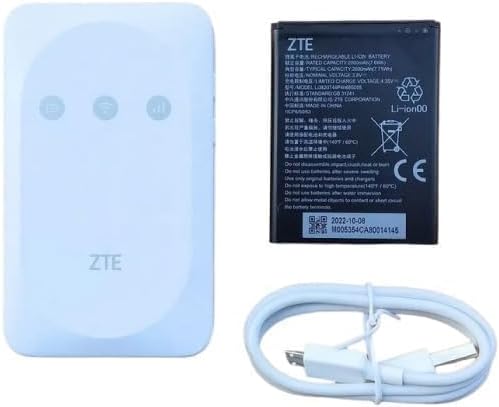
Image 3.3: Internal view of the ZTE MF935 Mobile Wifi Hotspot with the back cover removed. This reveals the 4FF nano SIM card slot, the battery compartment, and a label with important network information such as SSID, Wi-Fi Key, and the device's web interface URL.
Under the removable back cover, you will find:
- 4FF nano SIM Slot: Insert your nano SIM card here.
- Battery Compartment: For the removable 2000mAh battery.
- Micro USB Port: For charging the device and connecting to a computer.
- Device Information Label: Contains default Wi-Fi SSID, Wi-Fi Key, and web management page URL (e.g., 192.168.0.1).
4. Setup
Follow these steps to set up your ZTE MF935 Mobile Wifi Hotspot for the first time.
4.1 Installing the SIM Card and Battery
- Remove the back cover of the device.
- Carefully insert your 4FF nano SIM card into the SIM card slot with the gold contacts facing down and the notched corner aligned correctly.
- Insert the removable 2000mAh battery into its compartment, ensuring the contacts align.
- Replace the back cover until it clicks securely into place.
4.2 Charging the Device
Before initial use, it is recommended to fully charge the device.
- Connect the Micro USB charging cable to the device's Micro USB port.
- Connect the other end of the cable to a USB power adapter (not included) or a computer's USB port.
- The battery indicator LED will show charging status. A full charge typically takes a few hours.
4.3 Powering On and Initial Connection
- Press and hold the Power button until the indicators light up.
- Wait for the Network Status indicator to show a stable connection (e.g., solid blue or green, depending on the network type).
- On your Wi-Fi enabled device (smartphone, tablet, laptop), search for available Wi-Fi networks.
- Select the network name (SSID) found on the device information label (e.g., "WIFI SSID: MTN_4G_116114").
- Enter the Wi-Fi Key (password) also found on the label (e.g., "WIFI Key: 5Z25625AZ4").
- Once connected, you should have internet access.
5. Operating Instructions
This section details how to use your ZTE MF935 Mobile Wifi Hotspot.
5.1 Power On/Off
- To Power On: Press and hold the Power button for approximately 3 seconds until the indicators light up.
- To Power Off: Press and hold the Power button for approximately 3 seconds until the indicators turn off.
5.2 Connecting Devices via Wi-Fi
The ZTE MF935 supports up to 8 simultaneous Wi-Fi users.
- Ensure the hotspot is powered on and has an active mobile network connection.
- On your client device, enable Wi-Fi and scan for networks.
- Select your hotspot's SSID and enter the Wi-Fi Key.
5.3 Using WPS (Wi-Fi Protected Setup)
WPS allows for a quick and secure connection without manually entering the Wi-Fi password.
- Press the WPS button on the side of the ZTE MF935. The Wi-Fi indicator may flash.
- Within two minutes, activate WPS on your client device (e.g., by pressing its WPS button or selecting the WPS option in its Wi-Fi settings).
- The devices will automatically connect.
5.4 Accessing the Web Management Interface
The web management interface allows you to configure advanced settings, monitor usage, and manage SMS messages.
- Connect your device to the ZTE MF935 via Wi-Fi.
- Open a web browser and enter the URL found on the device label (e.g., http://192.168.0.1).
- Enter the default username and password (usually 'admin' for both, as indicated on the label).
- From here, you can manage settings such as Wi-Fi security, DHCP, port forwarding, IP filter, DMZ, UPnP, Wi-Fi control, SMS, and USSD.
6. Maintenance
Proper maintenance ensures the longevity and optimal performance of your device.
- Battery Care: Avoid exposing the battery to extreme temperatures. Do not puncture or disassemble the battery. If the device will not be used for an extended period, store it with a partial charge.
- Cleaning: Use a soft, dry cloth to clean the device. Avoid using liquid cleaners or aerosols.
- Software Updates: Periodically check the web management interface for available firmware updates to ensure your device has the latest features and security enhancements.
- Storage: Store the device in a cool, dry place away from direct sunlight and moisture.
7. Troubleshooting
This section addresses common issues you might encounter with your ZTE MF935.
7.1 No Network Signal
- Check SIM Card: Ensure the SIM card is correctly inserted and activated.
- Location: Move to an area with better mobile network coverage.
- Network Status Indicator: Observe the Network Status LED. If it's off or red, there might be a network issue or no SIM.
7.2 No Internet Access
- Data Plan: Verify your SIM card has an active data plan.
- APN Settings: Check the APN settings in the web management interface. These are usually configured automatically but may need manual adjustment for some carriers.
- Reboot: Try restarting the hotspot and your connected device.
7.3 Unable to Connect to Wi-Fi
- Wi-Fi Enabled: Ensure Wi-Fi is enabled on both the hotspot and your client device.
- Password: Double-check the Wi-Fi Key (password). It is case-sensitive.
- Distance: Ensure your device is within the Wi-Fi range of the hotspot.
- Max Users: The device supports up to 8 users. If more devices are connected, some may be unable to join.
7.4 Device Not Responding
- Reboot: If the device is unresponsive, remove the battery, wait a few seconds, and then reinsert it and power on.
- Factory Reset: If issues persist, you may perform a factory reset via the web management interface. Note: This will erase all custom settings and restore default values.
8. Specifications
Key technical specifications for the ZTE MF935 4G LTE Mobile Wifi Hotspot:
| Feature | Description |
|---|---|
| Model Name | MF935 |
| Network Type | 4G LTE |
| LTE Bands | FDD-LTE bands B1/3/7/8/20/28, TDD-LTE bands B38/40/41 |
| LTE Peak Speed | DL 150Mbps, UL 50Mbps |
| Wi-Fi Standard | 802.11b/g/n, 2.4GHz |
| Max Wi-Fi Users | Up to 8 simultaneous users |
| Battery | Removable 2000mAh, up to 8 hours battery life |
| Interfaces | 4FF nano SIM slot, Micro USB |
| LED Indicators | Network Status, WiFi Status, Battery Status |
| Special Features | WPS, WiFi security, DHCP, Port forwarding, IP filter, DMZ, UPnP, WiFi Control, SMS, USSD |
| Compatible Devices | Smartphone, Tablet, Notebooks, various WiFi devices |
| Dimensions (Package) | 11.3 x 7.5 x 4.3 cm |
| Weight (Package) | 170 g |
9. Warranty and Support
For warranty information and technical support, please refer to the warranty card included with your product or contact the seller/manufacturer directly. Keep your purchase receipt as proof of purchase for warranty claims.