
Introduction
This manual provides detailed instructions for the setup, operation, and maintenance of your CIDOO ABM066 Alice-Layout Mechanical Keyboard. The ABM066 is a versatile keyboard featuring VIA-programmability, hot-swappable switches, triple connectivity modes (wired, 2.4GHz, Bluetooth), a TFT-LCD screen, a rotary knob, and customizable RGB backlighting. Please read this manual thoroughly to ensure optimal use and longevity of your device.
Setup
Package Contents
Before proceeding, please verify that all items are present in the package:
- CIDOO ABM066 Mechanical Keyboard
- USB Cable (Type-C)
- Keycap Puller
- Switch Puller
- 2.4GHz USB Receiver (typically stored in the keyboard's housing)

Image: The CIDOO ABM066 keyboard shown with its included USB cable, keycap puller, and switch puller, alongside its packaging.
Initial Connection
The CIDOO ABM066 supports three connectivity modes: wired, 2.4GHz wireless, and Bluetooth 5.0.

Image: Visual representation of the keyboard's triple connectivity modes: Wired (USB-Type C), Bluetooth 5.0 (FN+Q/W/E), and 2.4G Wireless (FN+R).
Wired Mode (USB-Type C)
- Connect the provided USB-C cable to the keyboard's port.
- Connect the other end of the cable to an available USB port on your computer.
- The keyboard will be automatically recognized and ready for use.
2.4GHz Wireless Mode
- Locate the 2.4GHz USB receiver, typically stored in a dedicated slot on the keyboard.
- Plug the USB receiver into an available USB port on your computer.
- On the keyboard, press Fn + R to switch to 2.4GHz mode. The TFT-LCD screen will indicate the connection status.
Bluetooth 5.0 Mode
The keyboard supports up to three Bluetooth devices.
- On the keyboard, press Fn + Q, Fn + W, or Fn + E to select a Bluetooth channel. The corresponding key will flash, indicating pairing mode.
- On your device (computer, tablet, smartphone), enable Bluetooth and search for new devices.
- Select "CIDOO ABM066" from the list of available devices to pair.
- Once paired, the key will stop flashing, and the TFT-LCD screen will show the Bluetooth connection.
- To switch between paired Bluetooth devices, press Fn + Q/W/E for the desired channel.
Charging the Battery
The CIDOO ABM066 is equipped with a 3000mAh battery. Connect the keyboard to a USB power source using the provided USB-C cable to charge. The TFT-LCD screen will display the battery status.
Operating Instructions
TFT-LCD Screen Operation
The integrated TFT-LCD screen provides real-time information about the keyboard's status.

Image: The custom TFT-LCD screen on the ABM066, showing home screen information (connection mode, battery life, date, time) and DIY GIF image display capabilities.
- Home Screen: Displays connection mode (wired, 2.4G, BT), battery life, date, and time.
- DIY Screen: Supports GIF image display for personalization.
Screen Shortcuts:
- Press Fn + ENTER to switch between the Home Screen and DIY Screen.
- Press Fn + X to turn the screen on or off.
Rotary Knob Functions
The rotary knob located on the top right of the keyboard provides convenient control over multimedia and other functions.

Image: The multifunction knob on the CIDOO ABM066, illustrating its capabilities for volume control, play/pause, and custom functions.
- Rotate Clockwise: Increase Volume
- Rotate Counter-clockwise: Decrease Volume
- Press Down: Play/Pause media
- Custom Functions: The knob's functions can be customized via VIA software.
VIA Programming
The CIDOO ABM066 is VIA-programmable, allowing for extensive customization of key remapping, macro creation, and RGB lighting effects without requiring complex coding.
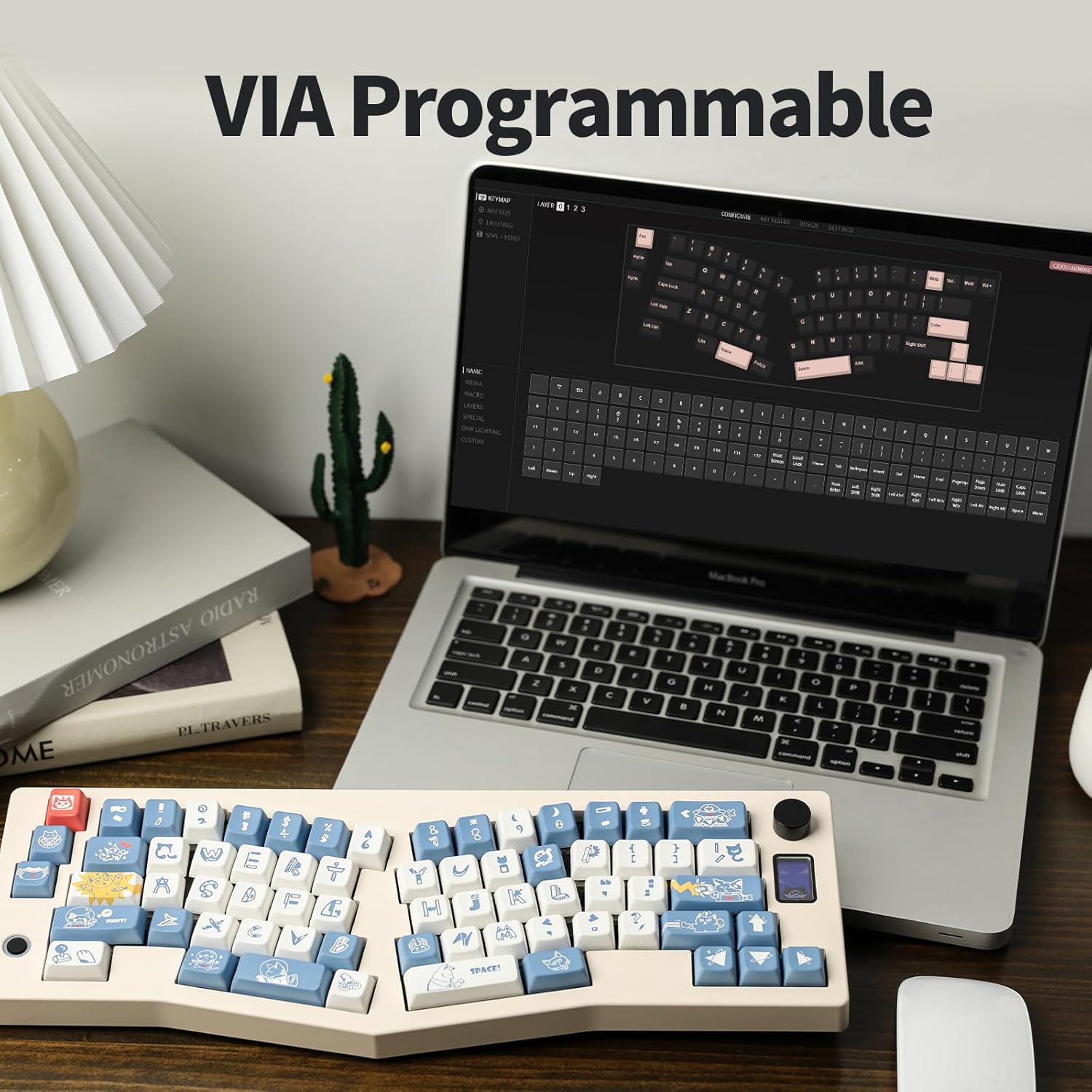
Image: The VIA programming interface shown on a laptop, demonstrating the software's capability to customize the CIDOO ABM066 keyboard.
To use VIA:
- Ensure your keyboard is connected to your computer (wired mode is recommended for initial setup).
- Download and install the official VIA software from the VIA website.
- Launch the VIA application. The software should automatically detect your ABM066 keyboard.
- Use the intuitive interface to remap keys, create macros, and adjust RGB lighting to your preference. Changes are applied in real-time.
Hot-Swappable PCB
The hot-swappable PCB allows you to change mechanical switches without soldering, offering flexibility for customization and repair.
Image: The hot-swappable PCB board of the ABM066, alongside examples of its dye-sub PBT keycaps and south-facing RGB lighting.
To change switches:
- Carefully remove the keycap using the provided keycap puller.
- Use the switch puller to gently grip the switch from its top and bottom clips.
- Pull the switch straight up to remove it from the PCB.
- Align the pins of the new switch with the holes on the PCB. Ensure the pins are straight to avoid bending.
- Gently push the new switch down until it clicks into place. Do not force it.
- Replace the keycap.
RGB Backlight and Switches
The ABM066 features south-facing LED RGB backlights, offering various lighting effects. The keyboard comes with custom CIDOO Silent Blue switches, which are pre-lubed for a smooth typing experience. These linear switches have an operating force of 37g and a bottom force of 45g, designed for easy pressing and optimal light transmission from the RGB LEDs.

Image: Detailed specifications of the CIDOO Silent Blue switches, highlighting their linear type, housing, stem, lubrication, and force requirements.
Dye-sub PBT Keycaps
The keyboard is equipped with dye-sublimated PBT keycaps. PBT material is known for its durability and resistance to shine and wear over time, unlike ABS keycaps. The dye-sublimation process ensures that the legends on the keycaps will not fade, providing long-lasting clarity and aesthetic appeal.
Maintenance
Cleaning the Keyboard
Regular cleaning helps maintain the keyboard's appearance and functionality.
- General Cleaning: Use a soft, lint-free cloth slightly dampened with water or a mild cleaning solution to wipe down the keycaps and case. Avoid excessive moisture.
- Dust Removal: Use compressed air to remove dust and debris from between the keycaps and under the switches.
- Deep Cleaning (Keycaps): For thorough cleaning, remove the keycaps using the keycap puller and wash them with mild soap and water. Ensure they are completely dry before reattaching.
Battery Care
To prolong the life of the 3000mAh battery:
- Avoid fully discharging the battery frequently.
- Store the keyboard in a cool, dry place when not in use for extended periods.
- If storing for a long time, charge the battery to about 50% before storage.
Troubleshooting
If you encounter issues with your CIDOO ABM066 keyboard, refer to the following common problems and solutions:
| Problem | Possible Cause | Solution |
|---|---|---|
| Keyboard not responding in wireless mode. | Low battery, incorrect mode, receiver not connected, pairing issue. | Charge the keyboard. Ensure correct mode (2.4GHz or BT) is selected. Re-insert 2.4GHz receiver or re-pair Bluetooth. |
| Keys not registering or double-typing. | Loose switch, debris under switch, faulty switch. | Ensure switches are fully seated. Use compressed air to clear debris. Replace the affected switch if necessary (hot-swappable feature). |
| RGB lighting not working or inconsistent. | Software setting, power saving mode, faulty LED. | Check VIA software settings. Ensure keyboard is not in a low-power state. Contact support if an individual LED is faulty. |
| TFT-LCD screen is blank or frozen. | Screen turned off, software glitch. | Press Fn + X to toggle the screen. Restart the keyboard by turning it off and on. |
| VIA software not detecting keyboard. | Keyboard not in wired mode, software issue. | Ensure keyboard is connected via USB-C cable. Restart VIA software and/or computer. Verify VIA firmware is up to date. |
Specifications
Below are the technical specifications for the CIDOO ABM066 Mechanical Keyboard:
- Model: ABM066
- Layout: Alice-Layout (67 keys)
- Dimensions: 14.61 x 4.76 x 1.57 inches (37.11 x 12.09 x 3.99 cm)
- Item Weight: 2.4 pounds (1.09 kg)
- Connectivity: Triple Mode (USB Type-C Wired, 2.4GHz Wireless, Bluetooth 5.0)
- Battery: 3000mAh
- Switches: Hot-swappable, Custom CIDOO Silent Blue (Linear, 37g operating force)
- Keycaps: Dye-sub PBT
- Backlight: South-facing RGB LED
- Special Features: TFT-LCD Screen, Rotary Knob, VIA-programmable, Gasket mounted with Flex-cut PC Mounting Plate, NKRO
- Compatible Devices: PC (Windows, Mac OS)

Image: An exploded view illustrating the internal components and layered structure of the CIDOO ABM066 keyboard.
Warranty and Support
KiiBoom products are manufactured to high-quality standards. For information regarding warranty coverage, technical support, or service inquiries, please refer to the warranty card included with your product or visit the official KiiBoom website. Please retain your proof of purchase for warranty claims.