
1. Introduction
Thank you for choosing the XTRONS Portable Car Stereo. This manual provides detailed instructions for the installation, operation, and maintenance of your device. Please read this manual thoroughly before use to ensure proper functionality and to maximize your user experience. Keep this manual for future reference.
2. Package Contents
Please verify that all items listed below are included in your package. If any items are missing or damaged, please contact XTRONS customer support.
- XTRONS Portable Car Stereo Unit (9.3-inch display with integrated 2K front dash cam)
- 2-in-1 Rear Camera & DVR (1080P)
- Suction Cup Bracket
- Sticker Bracket
- Cigarette Lighter Power Cable
- Aux Audio Output Cable
- User Manual (this document)
- Mounting Screws

Image: All accessories included in the XTRONS Portable Car Stereo package, such as the main unit, cameras, mounting brackets, and cables.
3. Product Overview
3.1 Key Features
- 9.3-inch IPS HD Touchscreen Display: Provides a clear and responsive interface.
- 2K Front Dash Cam: Captures high-resolution video with a 140°-160° viewing angle.
- 1080P Rear Backup Camera: Offers real-time FHD reversing images and rear DVR recording.
- Wireless CarPlay & Android Auto: Seamless integration with your smartphone for navigation, music, and calls.
- Screen Mirroring: Cast content from your phone to the stereo display via Wi-Fi.
- Built-in 2A USB Charging Port: Fast charging for your mobile devices.
- Loop Recording & G-Sensor: Automatic video management and emergency recording.
- Universal Compatibility: Suitable for 12V-24V vehicles including cars, vans, trucks, and campers.
3.2 Device Components
The main unit features a large touchscreen, an integrated front camera, and various ports for connectivity.

Image: The XTRONS Portable Car Stereo main unit, showing the 9.3-inch display, integrated front camera, and the separate rear camera with mounting accessories.
- Front Panel: 9.3-inch IPS HD Touchscreen.
- Top/Rear Panel: Integrated 2K Front Dash Cam, USB Charging Port, Power Input, AUX Audio Out, Rear Camera IN, TF Card Slot, GPS Antenna Port (antenna not included).
- Rear Camera: External 1080P camera for backup and rear recording.
4. Setup & Installation
4.1 Mounting the Device
The XTRONS Portable Car Stereo offers two primary installation methods:
- Suction Cup Bracket Mounting: Attach the suction cup bracket to your vehicle's windshield or a smooth dash panel. Ensure the surface is clean and dry for a secure fit. Adjust the multi-dimensional bracket for optimal viewing angle.
- Sticker Bracket Mounting: For a more permanent installation, use the sticker bracket to firmly adhere the device to your dash panel. This method provides enhanced stability during driving.

Image: Visual representation of the suction cup bracket mounting and the sticker bracket mounting options for the car stereo, along with the adjustable bracket design.
4.2 Power Connection
Connect the provided cigarette lighter power cable to the power input port on the stereo unit and then plug it into your vehicle's 12V-24V cigarette lighter socket. The device will power on automatically with the vehicle's ignition.
4.3 Camera Installation
- Front Dash Cam: The 2K front dash cam is integrated into the main unit. Ensure its lens is clear and unobstructed for optimal recording. The viewing angle is vertically adjustable.
- Rear Backup Camera: Install the 1080P rear camera at the back of your vehicle. Connect its cable to the 'Rear Camera IN' port on the main unit. This camera provides real-time video for reversing and acts as a rear DVR.
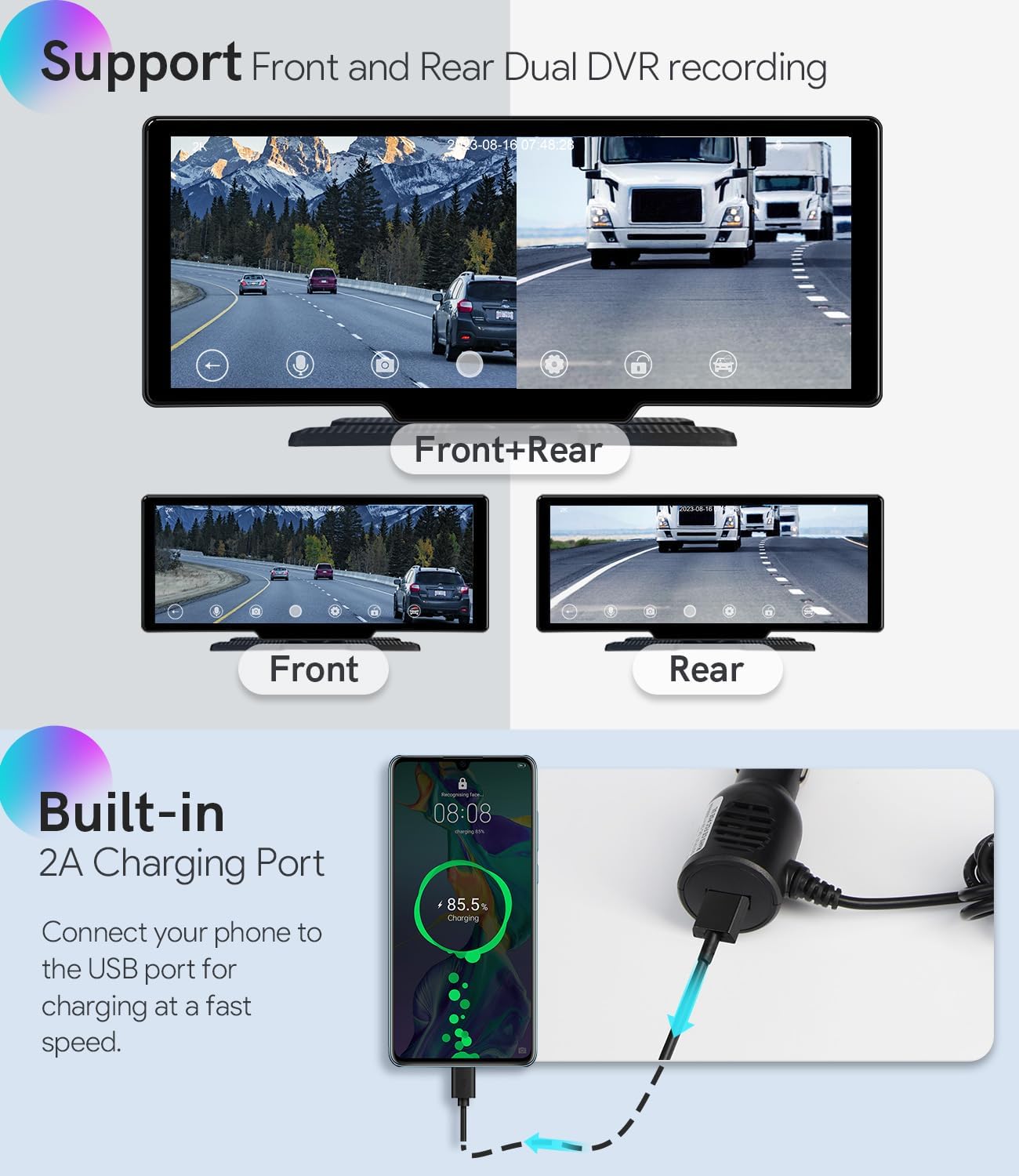
Image: Display showing simultaneous front and rear camera recordings, and a close-up of the 2A USB charging port in use.
5. Operating Instructions
5.1 Wireless CarPlay & Android Auto
Connect your smartphone for seamless access to navigation, music, and communication apps.
- For iPhone (Wireless CarPlay): Enable Bluetooth on your iPhone and the car stereo. Pair the devices. Once connected, CarPlay will launch automatically.
- For Android Phone (Wireless or USB Android Auto): Enable Bluetooth on your Android phone and the car stereo, then pair. Alternatively, connect your Android phone via a USB cable to the charging port. Android Auto will then activate.
You can use voice commands (Siri for CarPlay, Google Assistant for Android Auto) for hands-free operation.

Image: Demonstrates the wireless connectivity options for Apple CarPlay (via Bluetooth), Android Auto (via Bluetooth or USB), and Screen Mirroring (via WiFi).
5.2 Screen Mirroring
To cast content from your phone to the stereo display:
- Ensure both your phone and the car stereo are connected to the same Wi-Fi network (or the stereo creates a hotspot).
- Select the 'Screen Mirroring' option on the stereo's interface.
- Follow the on-screen instructions to connect your phone. This allows you to display videos, images, or other apps from your phone.
5.3 DVR Functionality (Front & Rear Cameras)
The device continuously records video from both the front and rear cameras.
- Loop Recording: Older files are automatically overwritten by new recordings when the storage card is full.
- G-Sensor: In the event of a sudden impact or collision, the G-sensor automatically locks the current video file to prevent it from being overwritten, ensuring critical evidence is preserved.
- Storage: Supports TF/Micro SD cards up to 64GB (not included). Insert the card into the designated slot.

Image: Details on the 2K front camera's 140°-160° viewing angle and vertical adjustability, along with explanations of clear voice pickup, loop recording, and the built-in G-sensor for emergency video locking.
5.4 GPS Navigation
Utilize the GPS navigation features through CarPlay or Android Auto. Compatible navigation apps installed on your smartphone will be displayed on the stereo screen, providing real-time directions and traffic information.
5.5 Audio Output
The stereo supports multiple audio output methods:
- Bluetooth: Stream audio wirelessly to your vehicle's sound system if it supports Bluetooth input.
- AUX: Connect the provided AUX audio output cable from the stereo to your vehicle's AUX input port.
- FM Transmitter: Transmit audio to your vehicle's FM radio by tuning both devices to the same FM frequency.
5.6 USB Charging Port
The built-in 2A USB charging port allows you to quickly charge your smartphone or other USB-powered devices while driving.
6. Maintenance
- Cleaning: Use a soft, dry cloth to clean the screen and device exterior. Avoid abrasive cleaners or solvents.
- SD Card: Periodically format your TF/Micro SD card to maintain optimal recording performance. Back up important video files before formatting.
- Temperature: Avoid exposing the device to extreme temperatures, direct sunlight for prolonged periods, or high humidity.
7. Troubleshooting
If you encounter issues with your XTRONS Portable Car Stereo, please refer to the following common problems and solutions:
- Device not powering on:
Ensure the cigarette lighter power cable is securely connected to both the device and the vehicle's power socket. Check if the vehicle's power socket is functional. - CarPlay/Android Auto not connecting:
Verify Bluetooth is enabled on both the stereo and your phone. For Android Auto, try connecting with a USB cable. Ensure your phone's operating system is up to date. - No video from rear camera:
Check that the rear camera cable is securely plugged into the 'Rear Camera IN' port on the main unit. Ensure the camera itself is properly installed and powered. - Poor audio quality:
If using FM transmission, try a different, clear FM frequency. If using AUX, ensure the cable is fully inserted and not damaged. For Bluetooth, ensure your phone's volume is up and the connection is stable. - Touchscreen unresponsive:
Restart the device by disconnecting and reconnecting the power. Ensure the screen is clean and free of debris. - DVR not recording:
Ensure a compatible TF/Micro SD card (up to 64GB) is inserted correctly. Format the card if it's new or has issues. Check recording settings in the device menu.
If these steps do not resolve your issue, please contact XTRONS customer support for further assistance.
8. Specifications
| Model Name | XTRONS Portable Car Stereo |
| ASIN | B0CHVG1M37 |
| Display Size | 9.3 inches |
| Front Camera Resolution | 2K |
| Rear Camera Resolution | 1080P |
| Connectivity Technologies | Bluetooth, Wi-Fi |
| Special Features | Wireless Apple CarPlay, Android Auto, Screen Mirroring, 2A USB Charging Port, Loop Recording, G-Sensor |
| Vehicle Service Type | Car, RV, Tractor, Truck (12V~24V) |
| Mounting Type | Suction Mount, Sticker Mount |
| Control Method | Touch, Voice |
| Item Weight | 5 pounds |
| Package Dimensions | 11 x 7 x 2 inches |

Image: Diagram showing the physical dimensions of the XTRONS Portable Car Stereo unit.
9. Warranty & Support
XTRONS products are designed for reliability and performance. For information regarding warranty coverage, please refer to the warranty card included with your product or visit the official XTRONS website. For technical support, troubleshooting assistance, or any questions not covered in this manual, please contact XTRONS customer service. Contact details can typically be found on the XTRONS website or on your purchase documentation.
Online Resources: For additional support and product updates, visit the XTRONS Store on Amazon.