
BoxWave SlimKeys Bluetooth Keyboard with Trackpad
BoxWave SlimKeys Bluetooth Keyboard with Trackpad User Manual
Brand: BoxWave | Model: SlimKeys Bluetooth Keyboard with Trackpad (ASIN: B0CHTRR3RR)
1. Introduction
The BoxWave SlimKeys Bluetooth Keyboard with Trackpad is designed to transform your compatible device, such as the Oppo A58, into a fully functional laptop workstation. This portable keyboard combines responsive chiclet-style keys with a full-functioning trackpad, offering a seamless typing and navigation experience.
Its ultra-slim and lightweight design makes it an ideal companion for productivity on the go, allowing for tactile touch-typing similar to a full-sized keyboard, while remaining highly portable.
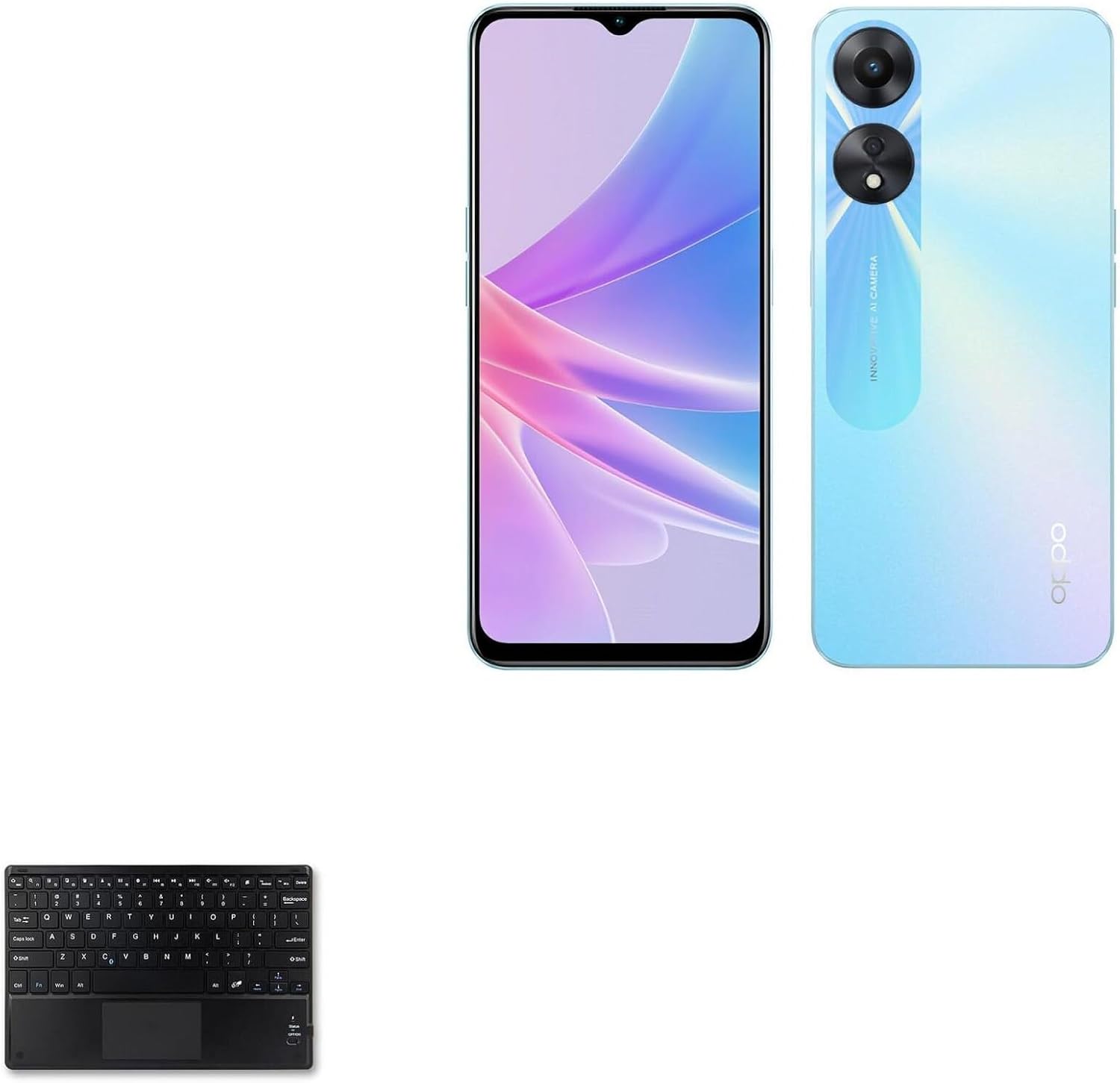
Figure 1.1: The SlimKeys Bluetooth Keyboard with Trackpad, designed for use with devices like the Oppo A58.
This manual provides detailed instructions for setting up, operating, and maintaining your SlimKeys Bluetooth Keyboard with Trackpad.
2. Package Contents
Please check the package for the following items:
- BoxWave SlimKeys Bluetooth Keyboard with Trackpad
- Charging Cable (specific type not provided, typically USB-A to Micro-USB or USB-C)
- User Manual (this document)
Note: The Oppo A58 device or any other smartphone/tablet is not included with this product.
3. Product Overview
Familiarize yourself with the layout and features of your SlimKeys Bluetooth Keyboard with Trackpad.

Figure 3.1: Top-down view of the SlimKeys Bluetooth Keyboard, showing the full QWERTY layout and integrated trackpad below the spacebar.

Figure 3.2: Detailed view highlighting key features such as the power switch (Status ON/OFF) and indicator lights (e.g., Bluetooth pairing, battery status) located on the right side of the keyboard.
Key Components:
- QWERTY Keyboard Layout: Standard keyboard layout for efficient typing.
- Integrated Trackpad: Multi-touch trackpad for precise cursor control.
- Function Keys (Fn): Access to multimedia controls and system functions (e.g., volume, brightness, home, search).
- Power Switch: Located on the right side, used to turn the keyboard On or Off.
- Status/Indicator Lights: Lights indicating Bluetooth connection status, battery level, and charging status.
- Charging Port: (Specific type and location not provided, typically on the side or back edge).
4. Setup
4.1 Charging the Keyboard
Before first use, ensure the keyboard is fully charged to optimize battery performance.
- Locate the charging port on the keyboard.
- Connect the provided charging cable to the keyboard's charging port.
- Connect the other end of the charging cable to a standard USB power source (e.g., computer USB port, USB wall adapter).
- The charging indicator light will illuminate (specific color/behavior not detailed, typically red or amber) during charging and will change or turn off when charging is complete.
- A full charge typically takes approximately 2-3 hours.
4.2 Bluetooth Pairing
The SlimKeys Bluetooth Keyboard utilizes Bluetooth Version 3.0 for efficient and stable wireless connection.
- Ensure the keyboard is sufficiently charged.
- Slide the power switch on the keyboard to the "ON" position. The status indicator light should briefly illuminate, possibly blinking to indicate pairing mode.
- On your compatible device (e.g., Oppo A58), navigate to the Bluetooth settings menu.
- Activate Bluetooth on your device if it is not already enabled.
- Your device will scan for available Bluetooth devices. Locate and select "BoxWave Keyboard" or a similar identifier from the list.
- If prompted, enter the pairing code displayed on your device's screen using the SlimKeys keyboard, then press the Enter key.
- Upon successful pairing, the keyboard's Bluetooth indicator light will typically become solid, and your device will confirm the connection.
The keyboard is designed for broad compatibility, supporting devices running Android, Windows, and Apple operating systems.

Figure 4.1: Visual representation of the keyboard's compatibility with Android, Windows, and Apple devices.
5. Operating Instructions
5.1 Basic Typing
Once successfully paired, the SlimKeys Bluetooth Keyboard functions as a standard input device. Open any application that requires text input on your device (e.g., word processor, email client, web browser) and begin typing directly on the keyboard.

Figure 5.1: An example of the SlimKeys keyboard in use, demonstrating its role in creating a portable workstation with a tablet.
5.2 Trackpad Usage
The integrated trackpad provides intuitive cursor control and supports common multi-touch gestures:
- Single Finger Tap: Functions as a left-click.
- Two Finger Tap: Functions as a right-click, typically opening a context menu.
- Single Finger Drag: Moves the cursor across the screen.
- Two Finger Scroll: Allows for vertical and horizontal scrolling within documents or web pages.
- Additional gestures may be supported depending on your device's operating system and application.
5.3 Power Management
To conserve battery life, slide the power switch to the "OFF" position when the keyboard is not in active use. To resume operation, simply turn the keyboard back "ON" and press any key; it will automatically attempt to reconnect to the last paired device, thanks to its advanced Bluetooth Version 3.0 technology designed to avoid constant battery drain.
6. Maintenance
6.1 Cleaning
- Always turn off the keyboard before cleaning.
- Use a soft, lint-free cloth lightly dampened with water or a mild, non-abrasive cleaning solution to wipe the exterior surfaces.
- Avoid introducing moisture into the charging port, indicator lights, or between the keys.
- For removing dust and debris from between the keys, a can of compressed air is recommended.
6.2 Storage
- Store the keyboard in a cool, dry environment, away from direct sunlight, excessive heat, or extreme cold.
- If the keyboard will not be used for an extended period, ensure it is fully charged before storage. It is advisable to recharge the battery every few months to prevent deep discharge and maintain overall battery health.
7. Troubleshooting
If you encounter issues with your SlimKeys Bluetooth Keyboard, refer to the table below for common problems and their solutions.
| Problem | Possible Cause | Solution |
|---|---|---|
| Keyboard does not power on. | Battery is depleted. | Connect the keyboard to a power source and charge it fully. |
| Unable to pair with my device. | Bluetooth is disabled on the device; keyboard is not in pairing mode; device is out of range. | Ensure Bluetooth is enabled on your device. Turn the keyboard off and then on again to activate pairing mode. Move the keyboard closer to your device. |
| Keys are not responding or typing incorrectly. | Keyboard has disconnected from the device; low battery; software conflict. | Verify the Bluetooth connection status. Recharge the keyboard. Restart both the keyboard and your device. |
| Trackpad is unresponsive or erratic. | Temporary software glitch; trackpad settings on device. | Turn the keyboard off and on. Restart your device. Check your device's accessibility or mouse/trackpad settings. |
| Connection is intermittent or drops frequently. | Wireless interference; low battery; device's Bluetooth module issue. | Move the keyboard away from other wireless devices (e.g., Wi-Fi routers, other Bluetooth devices). Recharge the keyboard. Restart your device's Bluetooth function or the device itself. |
8. Specifications
- Product Name: SlimKeys Bluetooth Keyboard with Trackpad
- Model Identifier: B0CHTRR3RR (ASIN)
- Brand: BoxWave
- Connectivity Technology: Bluetooth Version 3.0
- Dimensions (L x W x H): Approximately 257mm x 172mm x 5mm (10.12 inches x 6.77 inches x 0.20 inches)
- Weight: 10.9 ounces (approximately 309 grams)
- Compatible Devices: Oppo A58, and other smartphones/tablets/computers supporting Bluetooth keyboard profiles (Android, Windows, Apple iOS/macOS).
- Power Source: Integrated rechargeable lithium-ion battery
- Country of Origin: China
Figure 8.1: Detailed dimensions of the SlimKeys Bluetooth Keyboard, illustrating its compact and thin design.
9. Warranty and Support
This BoxWave product comes with limited third-party technical support for your Oppo A58 device, which includes up to 3 inquiries via electronic messaging. Please be aware that this support is provided independently and is not affiliated with or endorsed by Oppo.
For any product-specific questions, technical assistance, or warranty claims related to your BoxWave SlimKeys Bluetooth Keyboard with Trackpad, please refer to the contact information provided by BoxWave Corporation at the time of purchase. You may also visit the official BoxWave website for additional support resources, FAQs, and contact details.
When seeking support, please have your product model (SlimKeys Bluetooth Keyboard with Trackpad) and ASIN (B0CHTRR3RR) readily available to facilitate quicker assistance.
Ask a question about this manual
Ask about setup, troubleshooting, compatibility, parts, safety, or missing instructions. Manuals+ will review the question and use this page’s manual context to help answer it.