
1. Introduction
Welcome to the user manual for your HEANTTV X6 Computer Speakers. This guide provides detailed instructions on setting up, operating, and maintaining your speakers to ensure optimal performance and an enhanced audio experience. Please read this manual thoroughly before using the product.
2. Product Overview
2.1 Key Features
- HiFi Audio: Equipped with 5W*2 dual drive units and dual-channel output for clear, immersive sound.
- Dynamic RGB Lighting: Features multiple colorful lighting modes, with an option to turn off the illumination.
- Intuitive Controls: Includes a rotary knob for volume adjustment and touch-sensitive buttons for managing lighting effects and switching connection modes.
- Flexible Connectivity: Supports both wired (3.5mm AUX) and wireless (Bluetooth 5.0) connections, along with a microphone connector for communication.
- Broad Compatibility: Compatible with a wide range of devices including laptops, desktop computers, smartphones, tablets, projectors, and gaming consoles.
2.2 Package Contents
- HEANTTV X6 Main Speaker Unit (with controls)
- HEANTTV X6 Secondary Speaker Unit
- USB Power Cable
- 3.5mm Audio Cable
- User Manual (this document)
2.3 Component Identification
Familiarize yourself with the various parts of your HEANTTV X6 speakers:

- Volume Knob: Located on the main speaker unit, used to adjust the audio volume and power the speakers on/off.
- Touch Control Button: Positioned near the volume knob, used to toggle RGB lighting effects and switch between connection modes (Bluetooth/AUX).
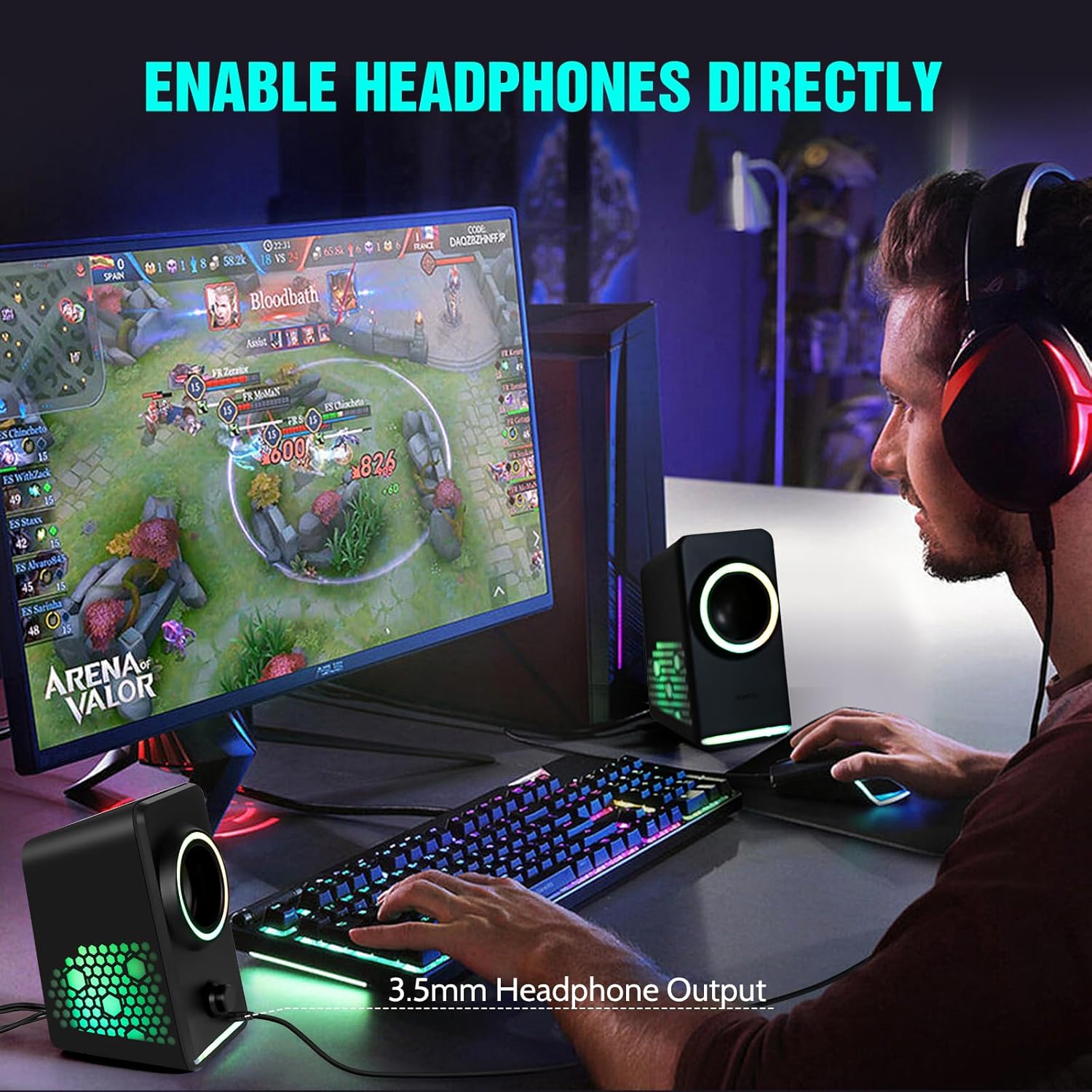
- 3.5mm Headphone Jack: Allows direct connection of headphones for private listening.
- USB Power Input: Connects to a USB power source for speaker operation.
- 3.5mm Audio Input: For wired audio connection to devices.
3. Setup Instructions
Follow these steps to set up your HEANTTV X6 Computer Speakers:
3.1 Connecting the Speakers
- Connect Secondary Speaker: Connect the cable from the secondary speaker unit to the designated port on the main speaker unit.
- Power Connection: Insert the USB power cable into the USB power input port on the main speaker unit, then connect the other end to a USB power source (e.g., computer USB port, USB wall adapter).
- Audio Connection (Wired): For a wired connection, plug the 3.5mm audio cable into the 3.5mm audio input port on the main speaker unit and the audio output jack of your device (e.g., computer, laptop, smartphone).
- Audio Connection (Bluetooth): To use Bluetooth, ensure the speakers are powered on. Press the touch control button to switch to Bluetooth mode (indicated by a specific light pattern or audio cue). On your device, search for "HEANTTV X6" in the Bluetooth settings and pair.

4. Operating Instructions
4.1 Power On/Off and Volume Control
- Power On: Rotate the volume knob clockwise until you hear a click and the speakers power on.
- Power Off: Rotate the volume knob counter-clockwise until you hear a click and the speakers power off.
- Adjust Volume: Rotate the volume knob clockwise to increase volume and counter-clockwise to decrease volume.
4.2 Switching Connection Modes
Press the touch control button on the main speaker unit to cycle between available input modes (Bluetooth and 3.5mm AUX). The speakers will provide an audio cue or a change in lighting to indicate the active mode.
4.3 RGB Lighting Control
Press and hold the touch control button to change the RGB lighting effects. A quick tap may also cycle through different static colors or turn the lights off, depending on the current mode.
4.4 Using the Headphone Output
To use headphones, plug your 3.5mm headphones into the headphone jack located on the main speaker unit. This will typically mute the speakers and route audio to your headphones.
5. Maintenance
To ensure the longevity and optimal performance of your HEANTTV X6 speakers, follow these maintenance guidelines:
- Cleaning: Use a soft, dry cloth to wipe the speaker surfaces. Avoid using abrasive cleaners, solvents, or sprays that could damage the finish or internal components.
- Storage: When not in use for extended periods, store the speakers in a cool, dry place away from direct sunlight and extreme temperatures.
- Handling: Handle the speakers with care. Avoid dropping them or subjecting them to strong impacts.
- Ventilation: Ensure the speakers have adequate ventilation and do not block any vents, if present, to prevent overheating.
6. Troubleshooting
If you encounter issues with your HEANTTV X6 speakers, refer to the following common problems and solutions:
| Problem | Possible Cause | Solution |
|---|---|---|
| No sound from speakers | Speakers not powered on; Volume too low; Incorrect input mode; Loose cable connection; Device volume low. | Ensure speakers are powered on and volume is up. Check that the correct input mode (Bluetooth/AUX) is selected. Verify all cables are securely connected. Increase volume on your connected device. |
| Bluetooth connection fails | Speakers not in pairing mode; Device Bluetooth off; Speakers too far from device; Interference. | Ensure speakers are in Bluetooth pairing mode. Turn Bluetooth on your device. Move speakers closer to the device. Restart both speakers and device. |
| RGB lights not working | Lights turned off; Malfunction. | Press the touch control button to cycle through lighting modes or turn them on. If the issue persists, contact support. |
| Sound distortion | Volume too high; Poor audio source quality; Loose connection. | Reduce the volume. Test with a different audio source. Check cable connections. |
7. Specifications
The following are the technical specifications for the HEANTTV X6 Computer Speakers:
| Feature | Specification |
|---|---|
| Model Name | X6 |
| Brand | HEANTTV |
| Speaker Type | Multimedia Speakers with Subwoofer (2.0 Channel) |
| Power Output | 5W x 2 |
| Connectivity Technology | Bluetooth 5.0, 3.5mm AUX, USB (for power) |
| Control Method | Touch, Rotary Knob |
| Product Dimensions | 7.98 x 15.49 x 9.3 cm |
| Item Weight | 750 g |
| Compatible Devices | Desktop, Laptop, Personal, Smartphone, Tablet |
| Special Feature | USB Port, RGB Lighting |
8. Warranty and Support
For warranty information and customer support, please refer to the documentation provided at the time of purchase or contact HEANTTV customer service directly. Keep your proof of purchase for any warranty claims.

