
1. Introduction
This manual provides essential information for the safe and efficient use of your Epson PowerLite 970 3LCD Projector. Please read it thoroughly before operating the projector and keep it for future reference.
1.1 Product Overview
The Epson PowerLite 970 is a versatile 3LCD projector designed for clear and bright presentations. It features 4,000 ANSI lumens brightness, XGA (1024x768) native resolution with support for up to 1080p, and a 15,000:1 contrast ratio. Connectivity options include HDMI (one MHL-compatible), VGA, composite video, USB, LAN, and RS232, making it suitable for various source devices.
1.2 Safety Information
- Electrical Hazard: Never open any covers on the projector except as specifically explained in this manual. Dangerous electrical voltages inside the projector can cause severe injury.
- Hot Surface: The projector's lamp and surrounding areas can become extremely hot during operation and immediately after shutdown. Avoid touching these surfaces to prevent burns.
- Lamp Replacement: Always turn off the projector and allow the lamp to cool completely before attempting replacement. Use only genuine Epson replacement lamps.
- Ventilation: Ensure adequate ventilation around the projector. Do not block ventilation openings, as this can lead to overheating and damage.
- Power Source: Connect the projector only to a power outlet that matches the voltage and current specifications indicated on the projector's label.
2. Setup
2.1 Unpacking and Contents
Carefully remove the projector and all accessories from the packaging. Verify that all items are present:
- Epson PowerLite 970 Projector
- Power Cable
- VGA Cable
- IR Remote Control
- User Manual (this document)
2.2 Projector Placement
Place the projector on a stable, level surface or mount it securely. Ensure there is sufficient space around the projector for proper ventilation. Adjust the projector's distance from the screen to achieve the desired image size. The projector features adjustable feet for minor angle corrections.
2.3 Connecting Devices
The PowerLite 970 offers a variety of input and output ports for connecting different devices. Refer to the image below for port identification.

Image: Rear panel of the Epson PowerLite 970 projector, displaying connectivity options including HDMI 1, HDMI 2/MHL, Computer 1 (VGA), Computer 2 (VGA), Video (RCA), Audio 1, Audio 2, Mic, Monitor Out, Audio Out, RS-232C, USB-B, USB-A, and LAN.
- HDMI (HDMI 1, HDMI 2/MHL): Connect digital video and audio sources such as Blu-ray players, laptops, or streaming devices. HDMI 2 is MHL-compatible for direct connection to compatible smart devices.
- VGA (Computer 1, Computer 2): Connect computers or laptops using the provided VGA cable.
- Composite Video (Video): Connect older video devices using RCA cables (yellow for video, red/white for audio).
- Audio In (Audio 1, Audio 2, Mic): Connect external audio sources or a microphone.
- Audio Out: Connect to external speakers or an audio system.
- USB-A: For connecting USB storage devices or optional wireless adapters.
- USB-B: For projector control or USB display functions.
- LAN (RJ-45): For network connectivity and control.
- RS-232C: For serial control from a computer or control system.
2.4 Power Connection
Connect the power cable to the projector's AC inlet and then to a grounded electrical outlet. The projector is designed for 100-240V~, 50/60Hz power input.
3. Operating the Projector
3.1 Powering On/Off
Press the Power button on the projector's control panel or the remote control to turn the projector on. The status light will indicate the projector's state. To turn off, press the Power button again and confirm shutdown if prompted.

Image: Top panel of the Epson PowerLite 970 projector, showing the control buttons including Power, Menu, Home, Source Search, A/V Mute, and navigation keys, along with focus and zoom rings.
3.2 Input Source Selection
Press the Source Search button on the control panel or remote control to cycle through available input sources (HDMI 1, HDMI 2, Computer 1, Video, etc.). Alternatively, use the dedicated input buttons on the remote control if available.
3.3 Image Adjustment
- Focus Ring: Rotate the focus ring located near the lens to sharpen the image.
- Zoom Ring: Rotate the zoom ring to adjust the image size without moving the projector.
- Keystone Correction: If the image appears trapezoidal, use the keystone correction feature (often found in the projector's menu or via dedicated buttons) to square the image.
- Adjustable Feet: Use the adjustable feet on the bottom of the projector to fine-tune the projection angle and level the image.
3.4 Menu Navigation
Press the Menu button on the projector or remote to access the on-screen display (OSD) menu. Use the arrow buttons to navigate and the Enter button to select options. Press Esc to go back or exit the menu.
4. Maintenance
Regular maintenance ensures optimal performance and extends the life of your projector.
4.1 Lamp Replacement
The projector lamp has a limited lifespan. When the lamp life is nearing its end, a warning message may appear, or the lamp indicator light may illuminate. Always replace the lamp with a genuine Epson replacement lamp unit (ELPLP96).

Image: Side view of the Epson PowerLite 970 projector, highlighting the lamp access cover, which can be removed for lamp replacement.
- Turn off the projector and unplug the power cable.
- Allow the projector to cool for at least one hour to prevent burns.
- Locate the lamp cover (as shown in the image above) and remove the screw(s) securing it.
- Carefully remove the lamp cover.
- Loosen the screws holding the lamp unit in place and gently pull out the old lamp.
- Insert the new lamp unit, ensuring it is seated correctly. Tighten the screws.
- Replace the lamp cover and secure it with the screw(s).
- Plug in the power cable and reset the lamp timer in the projector's menu.
4.2 Air Filter Cleaning/Replacement
The air filter prevents dust from entering the projector. Clean the filter regularly (e.g., every 100 hours of use) or replace it if it becomes clogged.
- Turn off the projector and unplug the power cable.
- Locate the air filter cover (refer to the manual for exact location).
- Remove the cover and carefully take out the filter.
- Clean the filter using a small vacuum cleaner or compressed air. If heavily soiled or damaged, replace it with a new one.
- Reinsert the clean/new filter and replace the cover.
4.3 General Cleaning
- Wipe the projector casing with a soft, dry, lint-free cloth.
- For stubborn dirt, dampen the cloth slightly with water, but avoid harsh chemicals or abrasive cleaners.
- Gently clean the projector lens with a lens cleaning cloth or lens paper. Do not use abrasive materials.
5. Troubleshooting
This section addresses common issues you might encounter with your projector.
| Problem | Possible Cause | Solution |
|---|---|---|
| No image on screen |
|
|
| Image is blurry |
|
|
| Image is trapezoidal |
|
|
| Projector does not power on |
|
|
| Remote control not working |
|
|
6. Specifications
Detailed technical specifications for the Epson PowerLite 970 Projector.
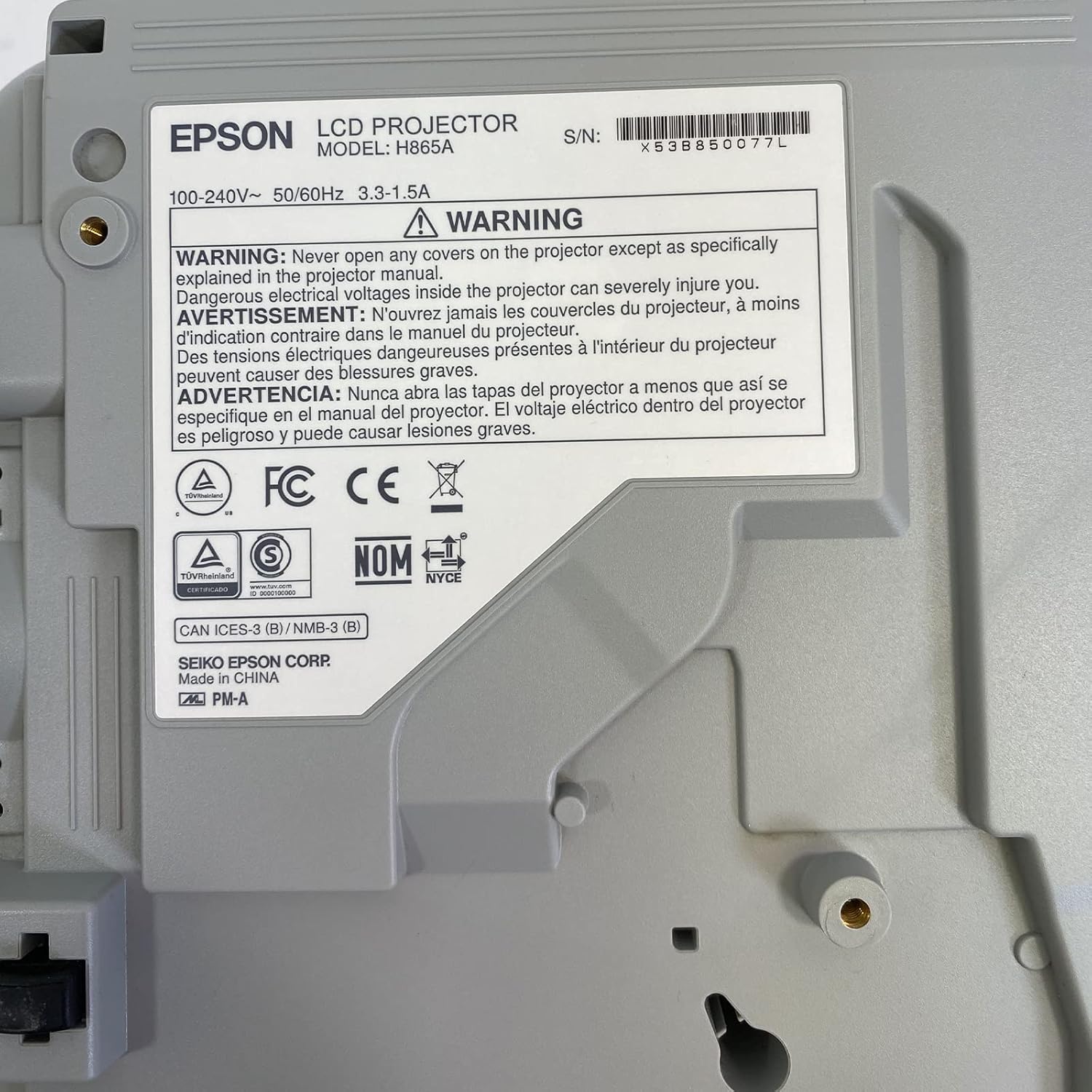
Image: Bottom label of the Epson PowerLite 970 projector, indicating model H865A and serial number X53B850077L, along with electrical ratings and safety certifications.
| Feature | Specification |
|---|---|
| Model Number | PowerLite 970 (H865A) |
| Display Technology | 3LCD |
| Brightness | 4,000 ANSI Lumens |
| Native Resolution | 1024 x 768 (XGA) |
| Maximum Resolution | 1920 x 1080 (1080p) |
| Aspect Ratio | 4:3 |
| Contrast Ratio | 15,000:1 |
| Connectivity | HDMI (x2, one MHL), VGA (x2), Composite Video (RCA), Network (RJ-45), RS232 (DB-9pin), USB A, USB B, Audio In (Mini Jack, RCA x2), Audio Out (Mini Jack), VGA Out |
| Video Modes Supported | 720p, 1080i, 1080p/60, 576i, 576p, 480p, 480i |
| Product Dimensions | 12 x 12.2 x 3.93 inches |
| Special Features | Portable |
7. Warranty & Support
7.1 Warranty Information
This Epson PowerLite 970 projector is offered with a 60-day replacement warranty provided by the seller, Good-DeAlZ-Online. This warranty covers functional defects and ensures a replacement if the product does not perform as expected within the specified period. Please retain your proof of purchase for warranty claims.
7.2 Customer Support
For technical assistance, troubleshooting, or warranty inquiries, please contact the seller, Good-DeAlZ-Online. Customer service typically responds within 24 hours.
For general product information or support related to Epson products, you may visit the official Epson support website.


