
pTron Fusion
pTron Fusion Party v2 40W Karaoke Bluetooth Party Speaker User Manual
Brand: pTron | Model: Fusion
Introduction
The pTron Fusion Party v2 is a 40W Karaoke Bluetooth Party Speaker designed to deliver powerful stereo sound with rich bass, tight mids, and clear highs. It features dynamic dual tweeters and 4-inch speakers, making it suitable for various environments. This portable speaker includes a 3-meter wired microphone for karaoke, RGB lights for ambiance, and multiple playback options including Bluetooth 5.0, TWS pairing, TF Card, and USB Pendrive playback. A remote control is also provided for convenient operation. This manual provides detailed instructions for setup, operation, maintenance, and troubleshooting to ensure optimal performance of your device.
What's in the Box
- 1 x pTron Fusion Party v2 Speaker
- 1 x Wired Microphone (3-meter cord)
- 1 x Remote Control
- 1 x User Guide
- 1 x Micro USB Charging Cable
Product Overview
The pTron Fusion Party v2 speaker is designed for portability and powerful audio output. It features a robust casing, dual speakers with RGB lighting, and an integrated control panel. The package includes a wired microphone and a remote control for comprehensive functionality.

Image: The pTron Fusion Party v2 speaker shown with its included wired microphone and remote control, highlighting its complete karaoke setup.
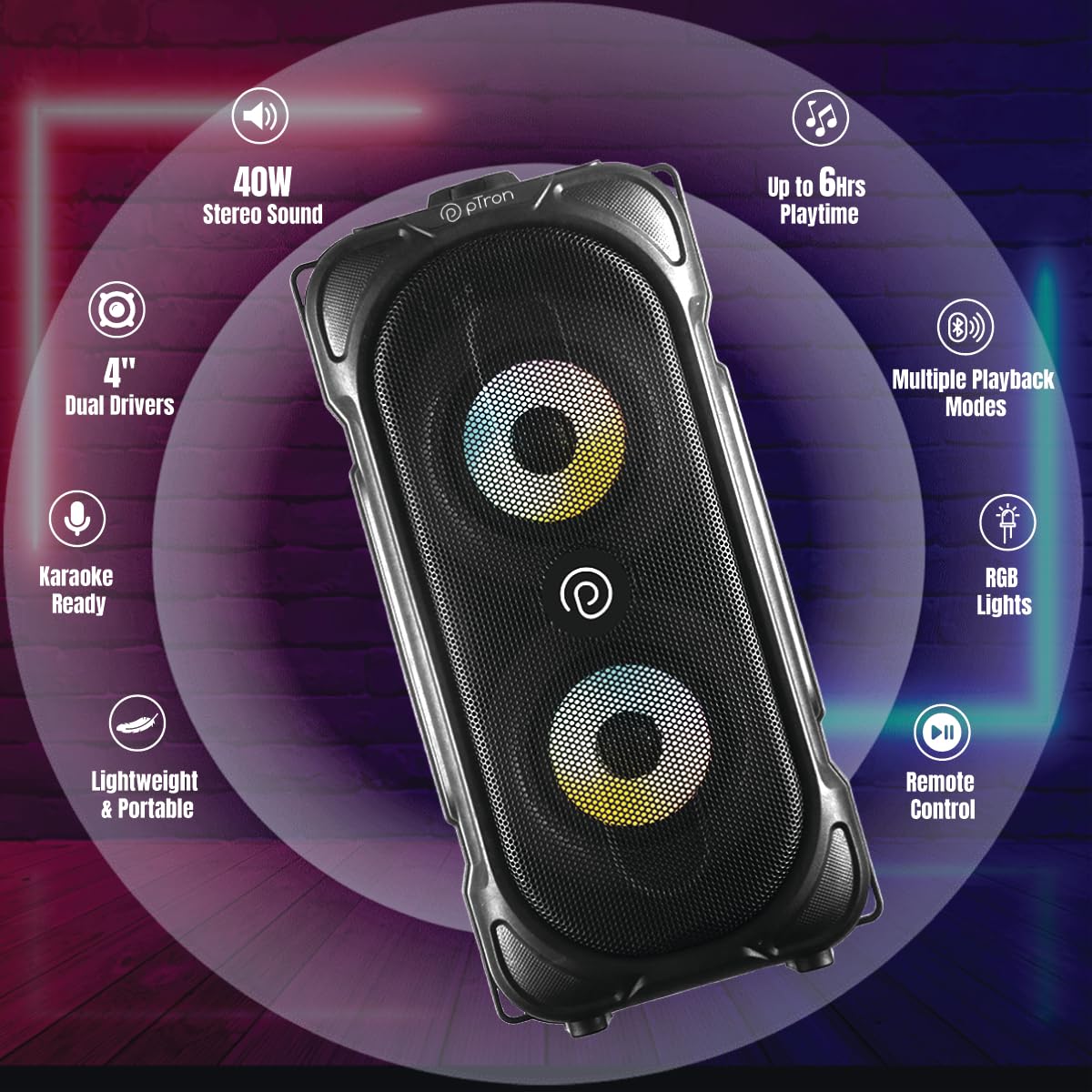
Image: An overview of the speaker's key features, including 40W stereo sound, 6 hours playtime, dual drivers, karaoke readiness, RGB lights, remote control, lightweight design, and multiple playback modes.
Setup
1. Charging the Speaker
Before first use, fully charge the speaker. Connect the provided Micro USB charging cable to the speaker's charging port and the other end to a compatible USB power adapter (not included). The charging indicator will illuminate. A full charge typically takes 1-2 hours. The speaker features a built-in large rechargeable Li-battery, offering up to 6 hours of music playtime at 60% volume.
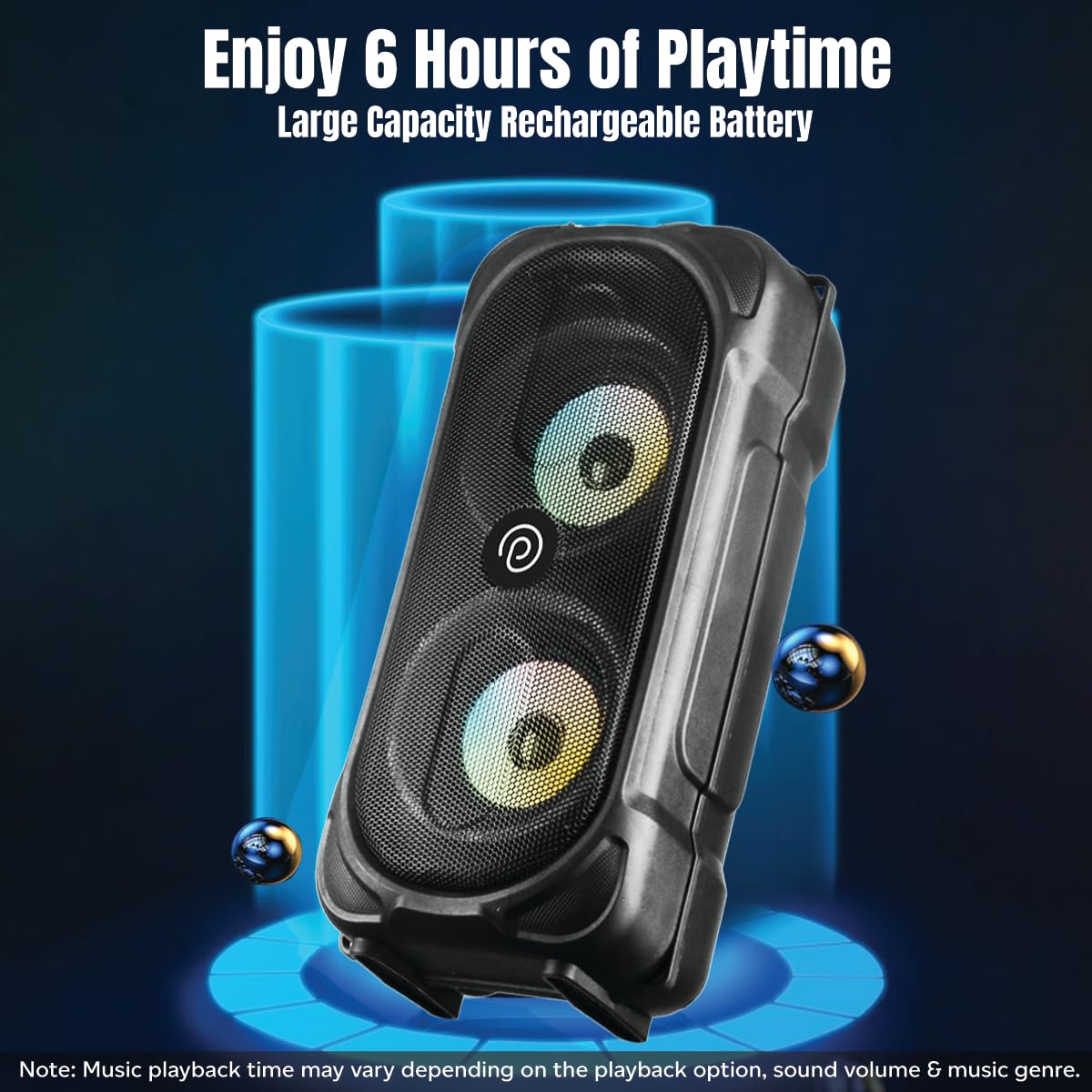
Image: The pTron Fusion Party v2 speaker illustrating its large capacity rechargeable battery, providing up to 6 hours of playtime.
2. Power On/Off
- To power on: Press and hold the Power button located on the control panel until the indicator light turns on.
- To power off: Press and hold the Power button again until the indicator light turns off.
Operating Instructions
1. Bluetooth Pairing
The speaker is equipped with Bluetooth 5.0 technology for wireless connectivity up to 10 meters.
- Ensure the speaker is powered on and in Bluetooth mode. The speaker will typically announce "Bluetooth mode" and the Bluetooth indicator light will flash, indicating it's ready for pairing.
- On your mobile device, enable Bluetooth and search for available devices.
- Select "pTron Fusion Party v2" from the list of devices.
- Once paired, the speaker will confirm with an audio prompt, and the Bluetooth indicator light will become solid.
2. TWS (True Wireless Stereo) Function
The Auto-TWS function allows you to connect two pTron Fusion Party v2 speakers for an enhanced stereo sound experience.
- Ensure both speakers are powered on and in Bluetooth mode, but not yet paired with any device.
- On one of the speakers (this will be the primary speaker), press and hold the TWS button (if available) or a designated pairing button. The speaker will enter TWS pairing mode.
- The primary speaker will automatically search for and connect to the secondary speaker.
- Once connected, both speakers will emit an audio prompt, indicating successful TWS pairing.
- Now, pair your mobile device with the primary speaker via Bluetooth as described in the "Bluetooth Pairing" section. Audio will play simultaneously through both speakers.

Image: Two pTron Fusion Party v2 speakers demonstrating the TWS feature for connecting two speakers, alongside icons for Bluetooth, USB, SD Card, and Aux connectivity options.
3. Microphone Usage
The speaker comes with a 3-meter wired microphone for karaoke and public speaking.
- Locate the microphone input port on the speaker.
- Insert the microphone's 6.5mm jack firmly into the microphone input port.
- Adjust the microphone volume using the dedicated knob or buttons on the speaker's control panel or remote control.
- Begin speaking or singing into the microphone.
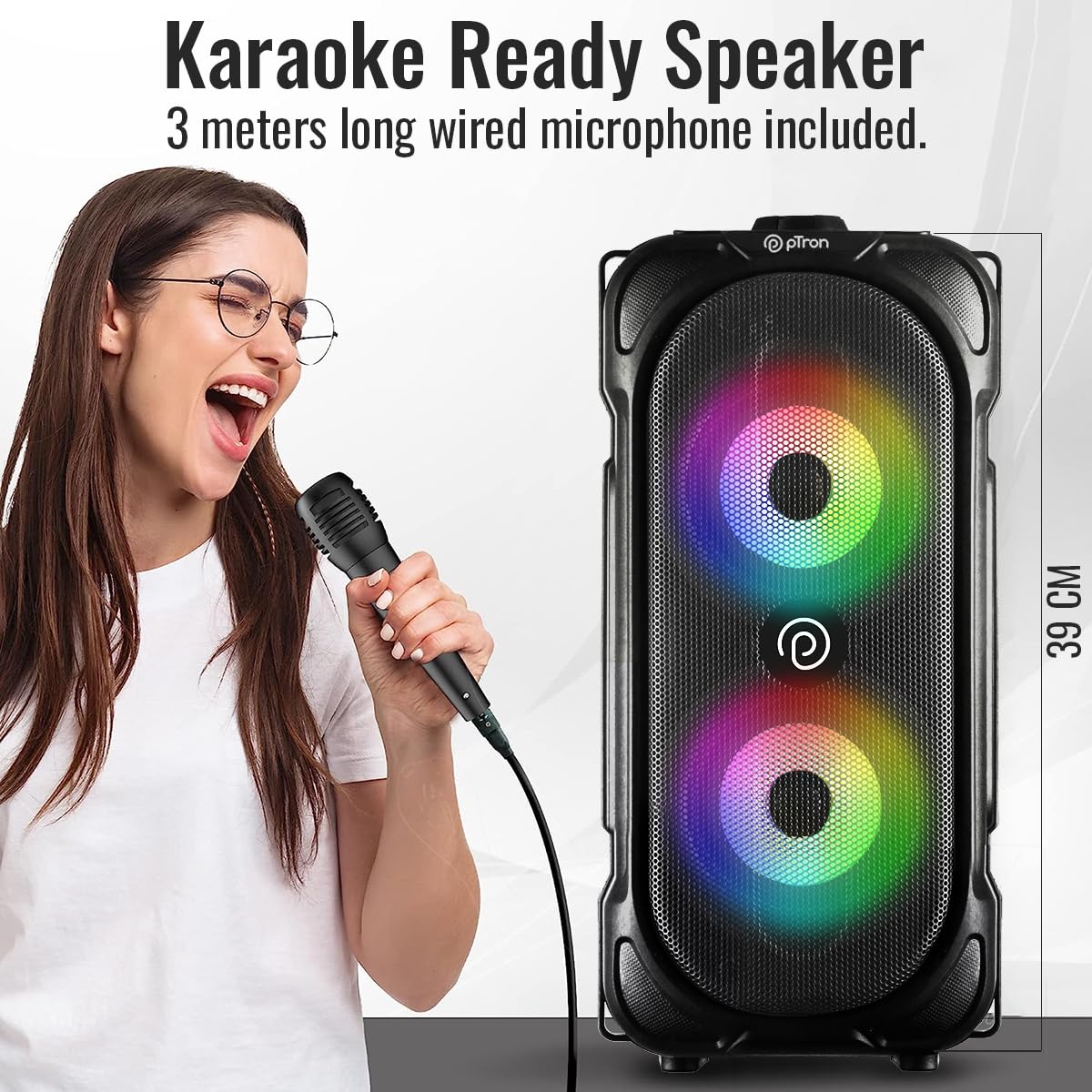
Image: A person using the 3-meter long wired microphone with the pTron Fusion Party v2 speaker, illustrating its karaoke readiness.
4. USB/SD Card Playback
The speaker supports music playback from USB pendrives and TF (Micro SD) cards.
- Insert a USB pendrive or TF card (formatted as FAT32) into the respective port on the speaker.
- The speaker will automatically detect the storage device and switch to USB/SD card mode, beginning playback of supported audio files.
- Use the control buttons on the speaker or the remote control to play/pause, skip tracks, and adjust volume.
5. RGB Lights Control
The speaker features RGB LED lights to enhance the party atmosphere.
- To turn the RGB lights on or off, press the dedicated LED light button on the speaker's control panel or the remote control.
- Note: The light pattern cannot be changed.

Image: A front view of the pTron Fusion Party v2 speaker with its vibrant RGB lights illuminated, showcasing its party mood feature.
6. Remote Control Usage
The included remote control provides convenient access to various functions from a distance.
- Power: Turn the speaker on/off.
- Mode: Switch between Bluetooth, USB, SD Card, and Aux modes.
- Play/Pause: Control media playback.
- Previous/Next: Skip tracks.
- Volume +/-: Adjust the master volume.
- EQ: Select equalizer presets (if available).
- LED: Turn RGB lights on/off.
Specifications
| Feature | Specification |
|---|---|
| Model Name | Fusion |
| Speaker Output Power | 40 Watts |
| Speaker Type | Portable Bluetooth Party Speaker |
| Drivers | Dual 4-inch speakers |
| Bluetooth Version | 5.0 |
| Wireless Range | Up to 10 meters |
| Battery Type | Lithium Polymer (included) |
| Battery Life | Up to 6 hours (at 60% volume) |
| Charging Time | 1-2 hours |
| Charging Port | Micro USB (DC 5V, 0.5A) |
| Audio Input | Bluetooth, USB, SD Card, Wired Microphone |
| Microphone | 3-meter wired microphone (6.5mm jack) |
| Special Features | RGB LED Lights, Auto-TWS Function, Remote Control, Hi-Res Audio, Lightweight |
| Product Dimensions (LxWxH) | 17.4 x 20.8 x 42.9 cm |
| Item Weight | 1.6 kg |
| Material | Acrylonitrile Butadiene Styrene (ABS) |
Maintenance
- Cleaning: Use a soft, dry cloth to clean the speaker's exterior. Do not use abrasive cleaners or solvents.
- Storage: Store the speaker in a cool, dry place away from direct sunlight and extreme temperatures when not in use for extended periods.
- Battery Care: To prolong battery life, avoid fully discharging the battery frequently. Charge the speaker regularly, even if not in active use.
- Water Exposure: This speaker is not waterproof. Avoid exposure to water or excessive moisture.
Troubleshooting
- No Power:
• Ensure the speaker is fully charged. Connect it to a power source using the Micro USB cable.
• Press and hold the Power button for a few seconds to ensure it's properly turned on. - No Sound:
• Check the volume level on both the speaker and your connected device. Increase if necessary.
• Ensure the correct input mode (Bluetooth, USB, SD) is selected.
• If using Bluetooth, ensure the device is properly paired and within range.
• If using USB/SD card, ensure the files are in a supported format and the storage device is formatted as FAT32. - Bluetooth Disconnection/Cannot Pair:
• Ensure the speaker is within the 10-meter Bluetooth range of your device.
• Turn off Bluetooth on your device and the speaker, then turn them back on and try pairing again.
• Clear the speaker from your device's Bluetooth history and re-pair.
• Ensure no other devices are actively connected to the speaker. - Microphone Not Working:
• Ensure the microphone is securely plugged into the correct port.
• Check the microphone volume level on the speaker.
• Test the microphone in a quiet environment to ensure it picks up sound. - Remote Control Not Responding:
• Ensure there are no obstructions between the remote and the speaker.
• Check if the remote control's battery needs replacement.
Warranty and Support
The pTron Fusion Party v2 speaker comes with a 1-Year Manufacturer Warranty from the date of purchase, covering manufacturing defects only.
For customer support, service, or warranty claims, please contact:
- Phone: 040-67138888
- Email: support@ptron.in
Manufacturer Address:
PALRED ELECTRONICS PVT. LTD., SY.NO. 56, 1ST FLOOR, GUNDLAPOCHAMPALLY VILLAGE, TECH PARK MTP, TSIIC-IALA NACHARAM, HYDERABAD - 500076, TELANGANA, INDIA
Related documentsFusion


Ask a question about this manual
Ask about setup, troubleshooting, compatibility, parts, safety, or missing instructions. Manuals+ will review the question and use this page’s manual context to help answer it.