
1. Introduction
The HARFO Fingerprint Door Lock Model DK2 provides advanced security and convenience for your home or office. This smart lock offers multiple access methods, including fingerprint, IC cards, passcodes, and traditional backup keys. Designed for easy installation and user-friendly operation, it features an OLED display with an English voice guide to assist you through the setup and daily use.
Key features include:
- Multiple Unlock Methods: Fingerprint, IC Cards, Passcode, Backup Keys.
- User Capacity: Supports over 300 users.
- Automatic Locking: Auto-lock and one-touch lock functions.
- Intuitive Interface: OLED display and English voice guide.
- Security Features: Anti-peeping password, 2000 unlock records.
- Emergency Power: USB power supply port.
- Durability: Waterproof design.
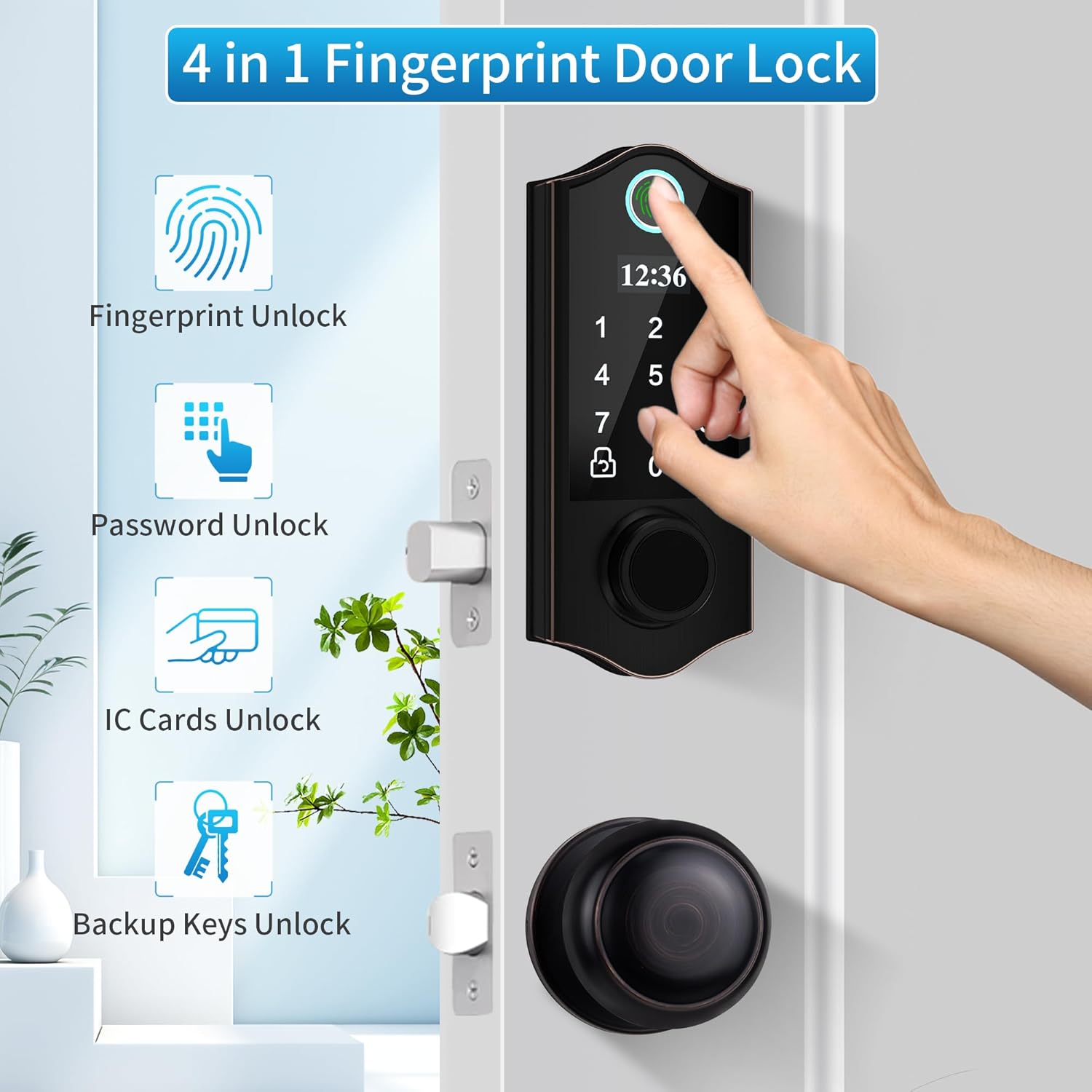
Figure 1: Overview of the HARFO Fingerprint Door Lock's 4-in-1 unlock capabilities.
2. Setup and Installation
The HARFO DK2 lock is designed for easy installation and can replace existing hardware without requiring additional drilling in most standard doors. It is suitable for both left and right-opening doors.
2.1 Included Components
Before beginning installation, ensure all components are present:
- Smart Deadbolt Lock
- Door Lock with Knob
- 3 IC Cards
- 2 Backup Keys
- Accessories Package (screws, spindle, etc.)
- User Manual (this document)
2.2 Door Compatibility and Dimensions
Verify your door's dimensions match the lock's requirements. The lock fits standard door preparations.

Figure 2: Door compatibility and measurement guide for HARFO DK2 installation.
2.3 Installation Steps
Follow the detailed instructions provided in the included printed user manual for step-by-step installation. A screwdriver is typically the only tool required.
- Prepare the door: Ensure existing hardware is removed and the door is clean.
- Install the latch: Insert the latch into the door edge.
- Install the exterior assembly: Mount the exterior keypad unit.
- Install the interior assembly: Connect the interior unit, ensuring cables are properly routed.
- Install batteries: Insert 4 AA batteries (not included) into the battery compartment.
- Test the lock: Verify mechanical and electronic functions.

Figure 3: The HARFO DK2 lock is designed for straightforward installation.
3. Operating Instructions
The HARFO DK2 lock offers multiple convenient ways to unlock and manage access. The OLED display and English voice guide will assist you through all settings.
3.1 Initial Setup and Administrator Registration
Upon first power-up, you will be prompted to register an administrator fingerprint or passcode. This administrator has full control over user management and system settings. Follow the voice prompts and on-screen instructions.

Figure 4: The OLED display and voice guide simplify programming and settings.
3.2 Unlocking Methods
- Fingerprint Unlock: Place your registered finger firmly and completely on the fingerprint sensor. The lock will unlock if the fingerprint is recognized.
- Passcode Unlock: Enter your registered passcode on the keypad, followed by the '#' key.
- IC Card Unlock: Present a registered IC card to the card reader area on the lock.
- Backup Key Unlock: In case of emergency or battery depletion, use the physical backup key to unlock the door.
3.3 User Management
The lock supports over 300 users. As an administrator, you can add or delete users (fingerprints, passcodes, IC cards) through the system settings menu.
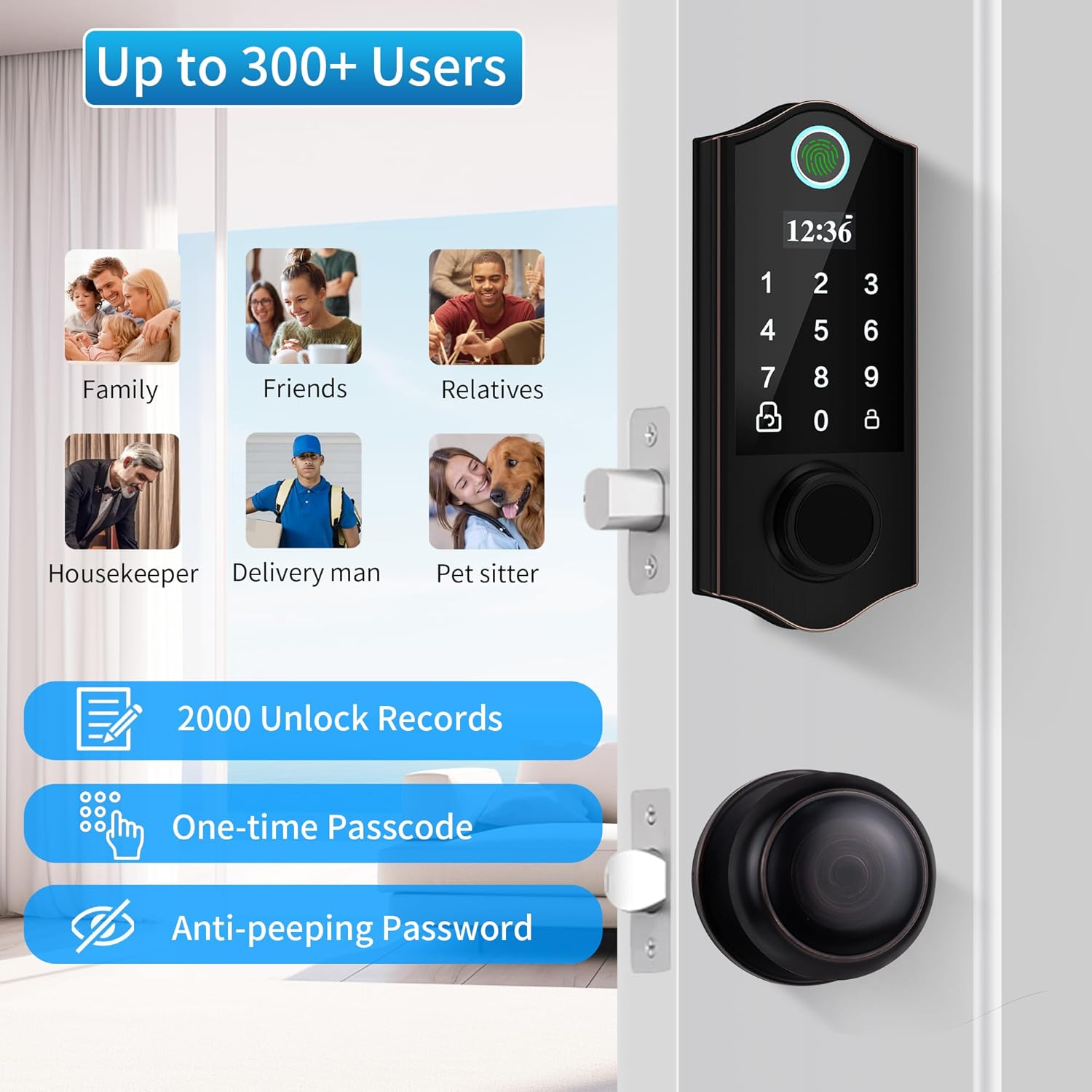
Figure 5: The lock supports a large number of users and advanced security features.
3.4 Auto-Lock and One-Touch Lock
- Auto-Lock: The lock can be configured to automatically lock after a set period once the door is closed.
- One-Touch Lock: From the outside, simply press the '#' key to engage the lock. From the inside, turn the rotary knob or press the lock/unlock button.
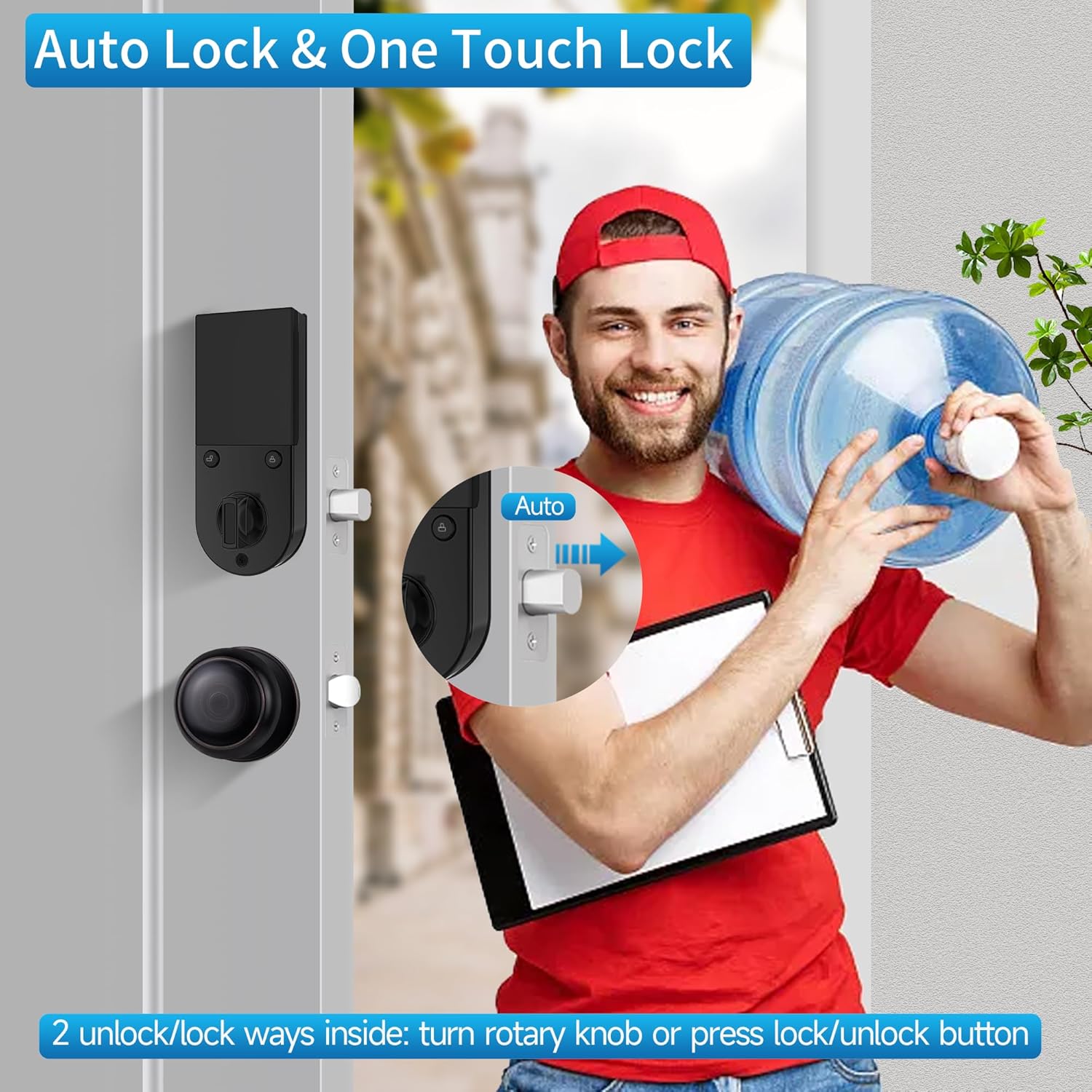
Figure 6: Auto-lock and one-touch lock features for convenience.
3.5 One-Time Passcode
Generate temporary one-time passcodes for guests or service providers. These passcodes expire after a single use, providing secure temporary access.

Figure 7: Securely grant temporary access using one-time passcodes.
3.6 Anti-Peeping Password
To prevent others from guessing your passcode, you can enter random digits before or after your actual passcode. The lock will still recognize the correct sequence within the longer string of numbers.
4. Maintenance
4.1 Battery Replacement
The HARFO DK2 lock is powered by 4 AA batteries, providing approximately 1 year of battery life under normal usage. When the battery level is low, the lock will provide an audible or visual alert. Replace all four batteries promptly with new, non-rechargeable AA alkaline batteries.
Note: Do not use rechargeable batteries as they may not provide consistent power or may damage the lock.
4.2 Emergency Power Supply
In the event of complete battery depletion, the lock features an emergency USB power supply port. Connect a power bank or a USB power source to this port to temporarily power the lock and gain entry using your registered fingerprint, passcode, or IC card.
4.3 Cleaning
Clean the lock's exterior with a soft, dry cloth. Avoid using abrasive cleaners, solvents, or harsh chemicals, as these can damage the finish and electronic components. Ensure the fingerprint sensor and keypad are kept clean for optimal performance.
5. Troubleshooting
- Lock does not respond or power on:
- Check if batteries are correctly installed and have sufficient charge. Replace all four AA batteries if necessary.
- Use the emergency USB power supply port with a power bank to temporarily power the lock.
- Use the physical backup key for immediate access.
- Fingerprint scanner not recognizing:
- Ensure your finger is clean and dry.
- Place your finger firmly and completely on the sensor.
- Try re-registering your fingerprint if issues persist.
- After multiple failed attempts, the lock may temporarily disable the fingerprint scanner for security. Wait for the lockout period to expire.
- Keypad not responding or incorrect entry:
- Ensure you are entering the correct passcode.
- Clean the keypad surface.
- If using the anti-peeping feature, ensure the correct passcode sequence is embedded within the random digits.
- Extreme temperatures might affect keypad responsiveness. Allow the lock to return to a moderate temperature.
- Auto-lock not engaging:
- Check system settings to ensure the auto-lock feature is enabled and the delay time is set correctly.
- Ensure the door is fully closed and the latch is properly aligned.
- Lock is making unusual noises or movements:
- Check for any obstructions in the door frame or latch mechanism.
- Ensure all mounting screws are tightened.
- If the issue persists, contact customer support.
6. Specifications
| Feature | Detail |
|---|---|
| Brand | HARFO |
| Model Number | DK2 |
| Lock Type | Biometric (Fingerprint) / Keypad / IC Card / Key |
| Material | Zinc |
| Color | Aged Bronze |
| Item Dimensions (L x W x H) | 33 x 20.3 x 7.6 Centimeters |
| Power Source | 4 x AA Batteries (approx. 1 year life) |
| Emergency Power | USB Port |
| User Capacity | 300+ |
| Unlock Records | 2000 |
| Special Features | Keyless, Auto Lock, One-Touch Lock, Anti-Peeping Password, OLED Display, English Voice Guide, Waterproof |
| Recommended Uses | Residential door lock, Commercial door lock |
7. Warranty and Support
7.1 Warranty Information
Specific warranty details for the HARFO Fingerprint Door Lock Model DK2 are typically provided with the product packaging or on the manufacturer's official website. Please refer to these sources for the most accurate and up-to-date warranty terms and conditions.
7.2 Customer Support
For technical assistance, troubleshooting beyond this manual, or warranty claims, please contact HARFO customer support. Contact information can usually be found on the product packaging, the manufacturer's website, or your purchase documentation.
When contacting support, please have your product model number (DK2) and purchase details readily available.

