
Introduction
The BJNAAL Alpha Gear Tank S3 is a rugged smartwatch designed for durability and comprehensive health and fitness tracking. This manual provides essential instructions for setting up, operating, and maintaining your device to ensure optimal performance.
What's in the Box
Your Alpha Gear Tank S3 package includes the following items:
- Smartwatch (1 unit)
- Smartwatch Band (1 unit)
- Gift Box (1 unit)
Please ensure all components are present before proceeding with setup.
Setup
1. Charging the Smartwatch
Before initial use, fully charge your smartwatch. The device features a magnetic charging cable.
- Connect the USB end of the charging cable to a power source (e.g., USB wall adapter, computer USB port).
- Align the magnetic end of the charging cable with the charging contacts on the back of your smartwatch. The charger will snap into place magnetically.
- The watch screen will display a charging indicator. A full charge typically takes approximately 3 hours and provides up to 30 days of typical use or over 100 days of standby time.
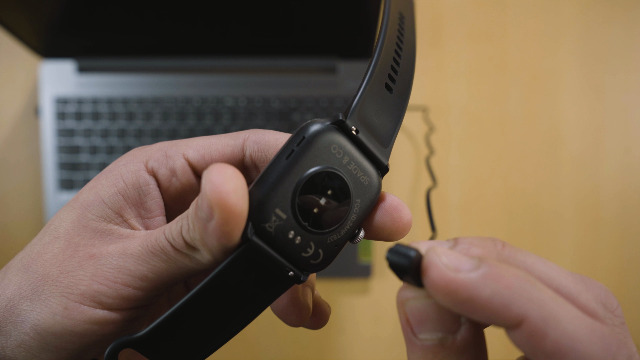
Image: Smartwatch connected to its magnetic charging cable.
2. App Installation (FitCloudPro)
To unlock the full functionality of your smartwatch, download and install the companion app, FitCloudPro.
- Scan the QR code provided in the user manual or on the watch screen using your smartphone's camera or a QR code scanner app. This will direct you to the app download page.
- Alternatively, search for "FitCloudPro" in your smartphone's App Store (iOS) or Google Play Store (Android).
- Download and install the app. The app supports iOS 8.0+ and Android 4.4+ versions.
Video: Instructions on how to download and use the FitCloudPro app for the smartwatch.
For direct download, visit: http://plus.crrepa.com/app-download/dafit
3. Bluetooth Pairing
After installing the app, pair your smartwatch with your smartphone via Bluetooth:
- Ensure Bluetooth is enabled on your smartphone.
- Open the FitCloudPro app. Grant any necessary permissions requested by the app.
- In the app, navigate to the "Device" section and tap "+ Bind Device" or "Search Now".
- Select your smartwatch (e.g., "K65" or "ST19") from the list of discovered devices.
- Confirm the pairing request on both your smartphone and the smartwatch.
- Once successfully paired, the app will display a connected status.
Video: Demonstrates the pairing process between the smartwatch and a smartphone.
4. Band Installation and Adjustment
Your smartwatch comes with interchangeable bands. The main image shows a black silicone band and a brown leather-like band. Some models may include a steel band.

Image: The smartwatch displayed with two different band options.
- Silicone Band: Align the pins on the band with the holes on the watch casing. Push the pin inwards and slide the band into place, then release the pin to secure it. Repeat for the other side.
- Steel Band (if included): Use the provided link remover tool to adjust the length of the steel band. Look for small arrows on the inside of the links indicating the direction to push the pins out. Carefully push out the pins to remove links as needed, then reinsert the pins to secure the adjusted band.
Video: Demonstrates the unboxing and band installation process for the smartwatch.
Operating Instructions
1. Basic Navigation
- Touchscreen: Swipe left, right, up, or down to navigate through menus and features.
- Side Buttons: Use the physical buttons on the side for power, menu access, or specific functions as indicated on the watch.
2. Watch Face Customization
Personalize your smartwatch by changing the watch face:
- On the Watch: Long press the main screen to enter watch face selection. Swipe left or right to browse pre-installed watch faces and tap to select.
- Via App: Open the FitCloudPro app, go to "Dial library" or "Dial Center" to explore a wider range of watch faces. Select your preferred face and synchronize it to your watch. You can also customize watch faces with your own pictures.
Video: Demonstrates how to change watch faces on the device and through the app.
3. Bluetooth Calling and Message Notifications
Stay connected directly from your wrist:
- Making Calls: Access the phone function on your watch, use the keypad to dial a number, or select from quick contacts added via the app.
- Receiving Calls: When a call comes in, you can answer or reject it directly from the watch screen. The watch has a built-in HI-FI speaker and microphone.
- Message Alerts: The watch can receive notifications from various apps like WhatsApp, Facebook, LINE, etc. Swipe up on the watch face to browse messages. Ensure message notifications are enabled in the FitCloudPro app.
Video: Shows how to make and receive calls, and view messages on the smartwatch.
4. Quick Apps and Control Center
- Accessing Features: Swipe left from the main watch face to access the menu with various features like voice assistant, data, workout, sleep, blood pressure, blood oxygen, messages, weather, music, stopwatch, timer, calculator, and settings.
- Status Bar/Control Center: Swipe down from the main watch face to view the status bar, which includes quick settings for brightness, do not disturb mode, battery saver, flashlight, and phone connectivity status.

Image: Overview of the smartwatch's various features and functions.
Health and Fitness Monitoring
The Alpha Gear Tank S3 smartwatch is equipped with advanced sensors for comprehensive health and fitness tracking.
1. Activity Tracking
The watch continuously tracks your daily activity:
- Steps: Counts your daily steps.
- Calories Burned: Estimates calorie expenditure based on activity.
- Distance: Records the distance covered.

Image: Daily activity and sleep tracking data displayed on the smartwatch.
2. Heart Rate Monitor
Monitor your heart rate throughout the day:
- Access the Heart Rate feature on the watch or through the app to get real-time readings.
- The watch uses high-precision sensors for accurate measurements.
3. Blood Oxygen (SpO2) Monitor
Check your blood oxygen levels:
- Navigate to the Blood Oxygen feature on the watch or in the app to initiate a measurement.
4. Blood Pressure Monitor
Track your blood pressure:
- Use the Blood Pressure feature on the watch or in the app to take a reading.

Image: Real-time heart rate, blood pressure, and blood oxygen monitoring on the smartwatch.
5. Sleep Tracker
Understand your sleep patterns:
- The watch automatically tracks your sleep, recording deep sleep, light sleep, and REM sleep duration.
- View your sleep data and quality scores in the FitCloudPro app.
6. Sports Modes
The smartwatch offers over 100 sports modes to track your workouts:
- Select a sport mode (e.g., running, walking, cycling, yoga, swimming) from the workout menu on the watch.
- The watch will record relevant data such as heart rate, steps, calories burned, and distance during your exercise.

Image: The smartwatch interface showing a selection of over 100 sports modes.
Video: Demonstrates how to select and start a sport mode on the smartwatch.
Maintenance
1. Water Resistance
The Alpha Gear Tank S3 is IP69 waterproof, making it suitable for various water activities.
- It can be worn during outdoor activities, in rainy conditions, and for swimming in pools or the sea.
- Avoid immersing the watch in hot water.

Image: The smartwatch is shown being used underwater, demonstrating its 5ATM waterproof capability.
2. General Care
- Clean the watch regularly with a soft, dry cloth.
- Avoid exposing the watch to extreme temperatures or harsh chemicals.
Troubleshooting
1. Connectivity Issues
- Ensure Bluetooth is enabled on your phone and the watch is within range.
- Restart both your phone and the smartwatch.
- If issues persist, unpair the device from your phone's Bluetooth settings and re-pair through the FitCloudPro app.
2. Inaccurate Health Data
- Ensure the watch is worn snugly on your wrist, not too tight or too loose.
- Keep the sensor on the back of the watch clean.
- Note that smartwatch health data is for reference and should not be used for medical diagnosis.
3. Short Battery Life
- Reduce screen brightness and screen-on time.
- Disable unnecessary notifications or features.
- Ensure the watch is fully charged using the provided magnetic charger.
Specifications
| Feature | Specification |
|---|---|
| Brand | BJNAAL |
| Model Number | Alpha Gear TANK S3 |
| Product Dimensions | 1.5 x 1 x 0.2 inches |
| Item Weight | 3.1 ounces (88 Grams) |
| Screen Size | 1.96 inches (AMOLED Round Screen) |
| Battery Capacity | 680 mAh |
| Waterproof Rating | IP69 |
| Operating System | Android (compatible with iOS) |
| Connectivity Technology | Bluetooth |
| Special Features | Activity Tracker, Heart Rate Monitor, Blood Oxygen Monitor, Blood Pressure Monitor, Sleep Monitor, 123 Sports Modes, Bluetooth Call, Message Reminder |
Warranty and Support
Your BJNAAL Alpha Gear Tank S3 smartwatch comes with a 1-year quality protection warranty.
If you encounter any quality problems during the usage period, please contact us via email. We are committed to providing a resolution to your issues within 24 hours.