
1. Product Overview
The DTEN D7X 75IN Android Edition is an advanced interactive display designed for collaborative environments, offering a seamless experience for video conferencing, digital whiteboarding, and content sharing. This manual provides essential information for setting up, operating, maintaining, and troubleshooting your DTEN D7X device.
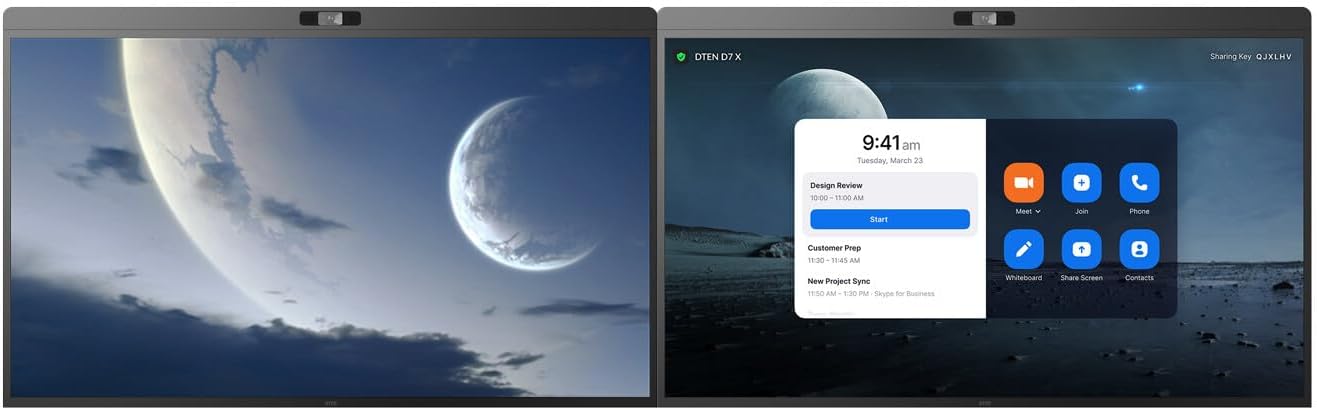
Figure 1.1: Front view of the DTEN D7X 75IN Android Edition interactive display.
This image shows the sleek design of the DTEN D7X 75IN Android Edition, highlighting its large display area suitable for various professional applications.
2. Setup and Installation
Follow these steps to properly set up your DTEN D7X device. Ensure all components are present before beginning installation.
2.1 Unboxing and Component Check
- Carefully remove the DTEN D7X from its packaging. It is recommended to have at least two people for safe handling due to its size and weight.
- Verify that all accessories are included: power cable, stylus pens, and any mounting hardware (if applicable to your package).
- Inspect the display for any signs of physical damage. If damage is found, contact customer support immediately.
2.2 Connecting Power and Peripherals
Connect the power cable and any necessary peripherals to the device.
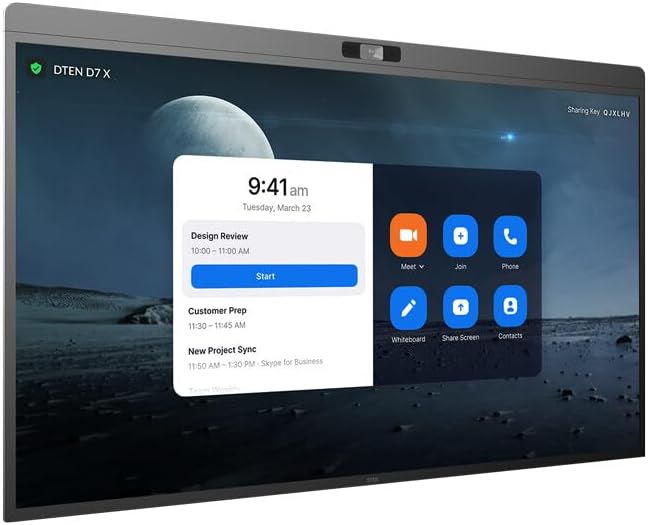
Figure 2.1: Rear view of the DTEN D7X with port locations.
This image illustrates the various input and output ports located on the rear of the DTEN D7X, including power input, HDMI, USB, and Ethernet ports.
- Connect the power cable to the power input port on the rear of the display and then to a grounded electrical outlet.
- For network connectivity, connect an Ethernet cable to the LAN port, or configure Wi-Fi after initial boot-up.
- If connecting external devices, use the appropriate HDMI or USB ports.
2.3 Initial Power On and Configuration
- Press the power button, usually located on the side or bottom of the display.
- Follow the on-screen prompts to complete the initial setup, including language selection, network configuration, and time zone settings.
- Register your device if prompted to ensure access to all features and support.
3. Operating the DTEN D7X
The DTEN D7X is designed for intuitive operation. This section covers basic functions and common use cases.
3.1 User Interface Navigation
The Android-based interface is touch-enabled. Navigate by tapping, swiping, and pinching as you would on a tablet.
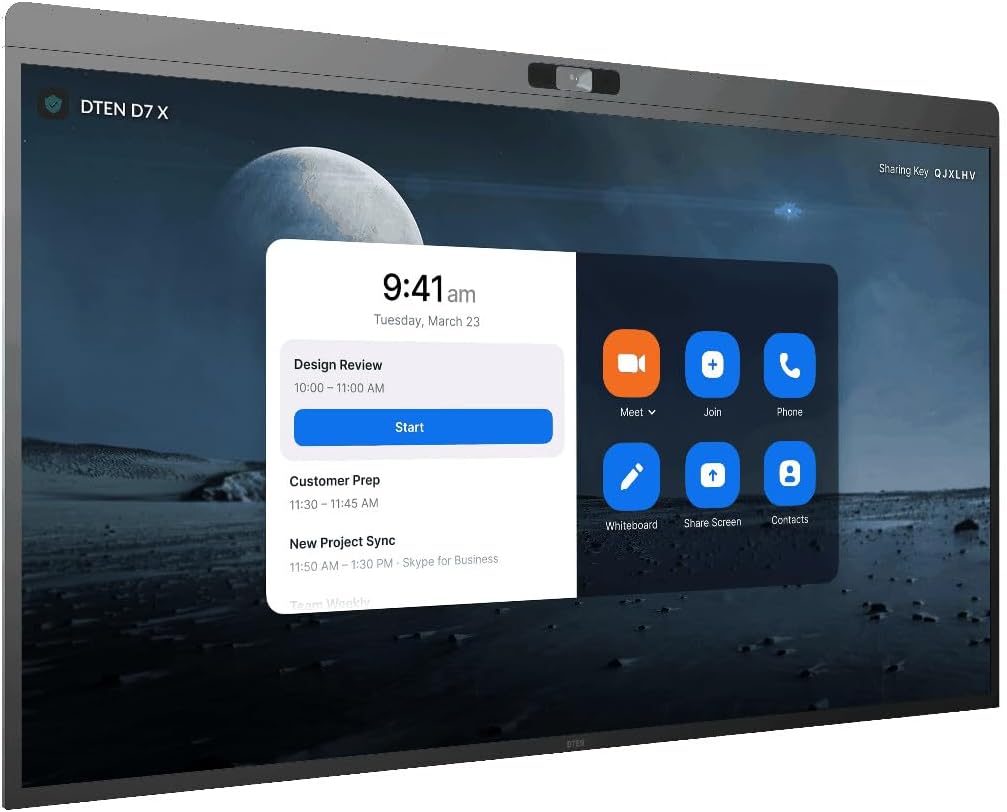
Figure 3.1: DTEN D7X user interface with meeting options.
This image displays the main user interface of the DTEN D7X, showing options for joining or starting meetings, whiteboarding, and screen sharing.
- Home Screen: Provides quick access to common applications like video conferencing, whiteboard, and screen sharing.
- Settings: Access system settings, network configurations, and display preferences.
- Applications: View and launch all installed applications.
3.2 Video Conferencing
The DTEN D7X is optimized for video conferencing. Ensure your network connection is stable for optimal performance.
- Tap the "Meet" or "Join" icon on the home screen.
- Enter the meeting ID or personal link.
- Adjust camera, microphone, and speaker settings as needed during the call.
3.3 Whiteboarding and Annotation
Utilize the built-in digital whiteboard for collaborative sessions.

Figure 3.2: DTEN D7X displaying a whiteboard session alongside a video conference.
This image demonstrates the DTEN D7X's capability to simultaneously display a collaborative whiteboard session and a multi-participant video conference, enhancing productivity.
- Tap the "Whiteboard" icon to start a new session.
- Use the provided stylus pens for writing and drawing.
- Access tools like different pen colors, erasers, and shapes from the toolbar.
- Save or share your whiteboard sessions as needed.
4. Maintenance and Care
Proper maintenance ensures the longevity and optimal performance of your DTEN D7X.
4.1 Cleaning the Display
- Always power off and unplug the device before cleaning.
- Use a soft, lint-free cloth slightly dampened with water or a non-abrasive screen cleaner.
- Do not use harsh chemicals, abrasive cleaners, or aerosol sprays directly on the screen.
- Gently wipe the screen and frame to remove dust and fingerprints.
4.2 Software Updates
Regularly check for and install software updates to ensure your device has the latest features and security patches.
- Navigate to Settings > System > About Device > Software Update.
- Follow the on-screen instructions to download and install any available updates.
- Ensure the device remains powered on and connected to the internet during the update process.
5. Troubleshooting
This section addresses common issues you might encounter with your DTEN D7X.
| Problem | Possible Cause | Solution |
|---|---|---|
| Device does not power on. | Power cable not connected; power outlet issue. | Ensure power cable is securely connected. Test the outlet with another device. |
| No network connection. | Ethernet cable loose; Wi-Fi not configured; router issue. | Check Ethernet cable connection. Reconfigure Wi-Fi settings. Restart your router. |
| Touchscreen unresponsive. | Temporary software glitch; screen calibration needed. | Restart the device. If issue persists, check for software updates or contact support. |
| Poor video/audio quality during calls. | Low bandwidth; microphone/camera settings. | Check internet speed. Adjust microphone and camera settings within the conferencing application. |
If you encounter issues not listed here or if the suggested solutions do not resolve the problem, please refer to the "Warranty and Support" section for further assistance.
6. Specifications
Detailed technical specifications for the DTEN D7X 75IN Android Edition.
| Feature | Detail |
|---|---|
| Product Dimensions | 73.5 x 7.3 x 46.3 inches |
| Item Weight | 120 pounds |
| Model Number | D7X |
| ASIN | B0CHK4QRKL |
| Manufacturer | DTEN |
| Visible Screen Diagonal | 75" / 191 cm |
| Operating System | Android Edition |
7. Warranty and Support
DTEN is committed to providing high-quality products and support.
7.1 Return Policy
This product is eligible for a 30-day return policy from the date of purchase. Please refer to your retailer's specific return guidelines for detailed instructions.
7.2 Protection Plans
Extended protection plans are available for purchase to cover your device beyond the standard warranty period. Options include:
- 3-Year Protection Plan
- 4-Year Protection Plan
For details on coverage and pricing, please contact your authorized DTEN reseller or visit the official DTEN website.
7.3 Customer Support
For technical assistance, troubleshooting, or warranty claims, please contact DTEN Customer Support. Have your product model number (D7X) and ASIN (B0CHK4QRKL) ready when contacting support.
Online Support: Visit the official DTEN support portal for FAQs, knowledge base articles, and support ticket submission.
Phone Support: Refer to the DTEN website for regional contact numbers.


