
1. Product Overview
The Omikamo Wireless Keyboard offers versatile connectivity and enhanced typing experience with its multi-device support and customizable backlighting. It is designed for compatibility with various operating systems and devices.
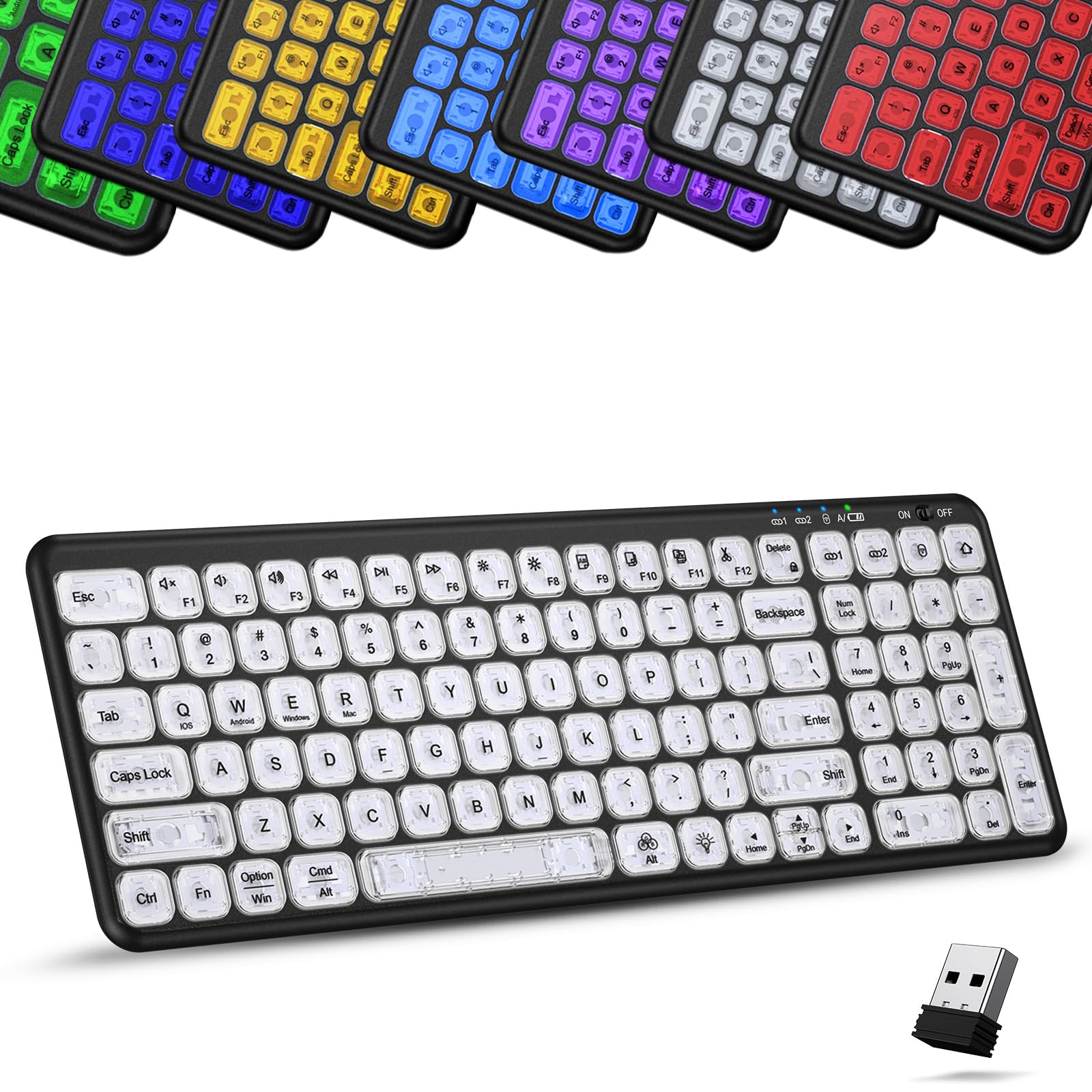
Image: The Omikamo Wireless Keyboard showcasing its 7-color backlit keys.
2. Package Contents
- Omikamo Wireless Keyboard
- USB-C Charging Cable
- 2.4G USB Receiver (located in the keyboard's battery compartment or a dedicated slot)
- User Manual (this document)
3. Setup and Connection
3.1 Powering On/Off
Locate the power switch on the keyboard (usually on the top right edge). Slide it to the 'ON' position to power on the keyboard. Slide it to 'OFF' when not in use to conserve battery.
3.2 Charging the Keyboard
Connect the supplied USB-C charging cable to the keyboard's charging port and the other end to a USB power source (e.g., computer USB port, USB wall adapter). The charging indicator light will illuminate during charging and turn off when fully charged. A full charge typically takes approximately 2 hours.

Image: The Omikamo Wireless Keyboard connected to a charging cable.
3.3 Connecting to Devices (Multi-Device Support)
The keyboard supports connection to up to three devices simultaneously via 2.4G wireless and dual Bluetooth 5.0 channels (BT1, BT2).

Image: The keyboard demonstrating its ability to connect to three devices (laptop, phone, tablet) across Windows, Android, Mac, and iOS systems.
3.3.1 2.4G Wireless Connection
- Locate the 2.4G USB receiver. It is typically stored in a slot on the keyboard itself, often near the battery compartment.
- Plug the 2.4G USB receiver into an available USB port on your computer or device.
- Turn on the keyboard.
- Press the 2.4G button (often labeled with a wireless icon) located above the number keys. The corresponding indicator light will blink and then become solid, indicating a successful connection.

Image: A close-up of the USB receiver, indicating its location for connection.
3.3.2 Bluetooth Connection (BT1 / BT2)
- Turn on the keyboard.
- Press and hold either the BT1 or BT2 button (located above the number keys) for 3-5 seconds until the corresponding indicator light starts blinking rapidly. This indicates the keyboard is in pairing mode.
- On your device (computer, tablet, smartphone), enable Bluetooth and search for new devices.
- Select "Omikamo Keyboard" (or similar name) from the list of available devices.
- Follow any on-screen prompts to complete the pairing process. The indicator light on the keyboard will become solid when successfully paired.
- Repeat these steps for a second Bluetooth device using the other Bluetooth channel (BT1 or BT2).
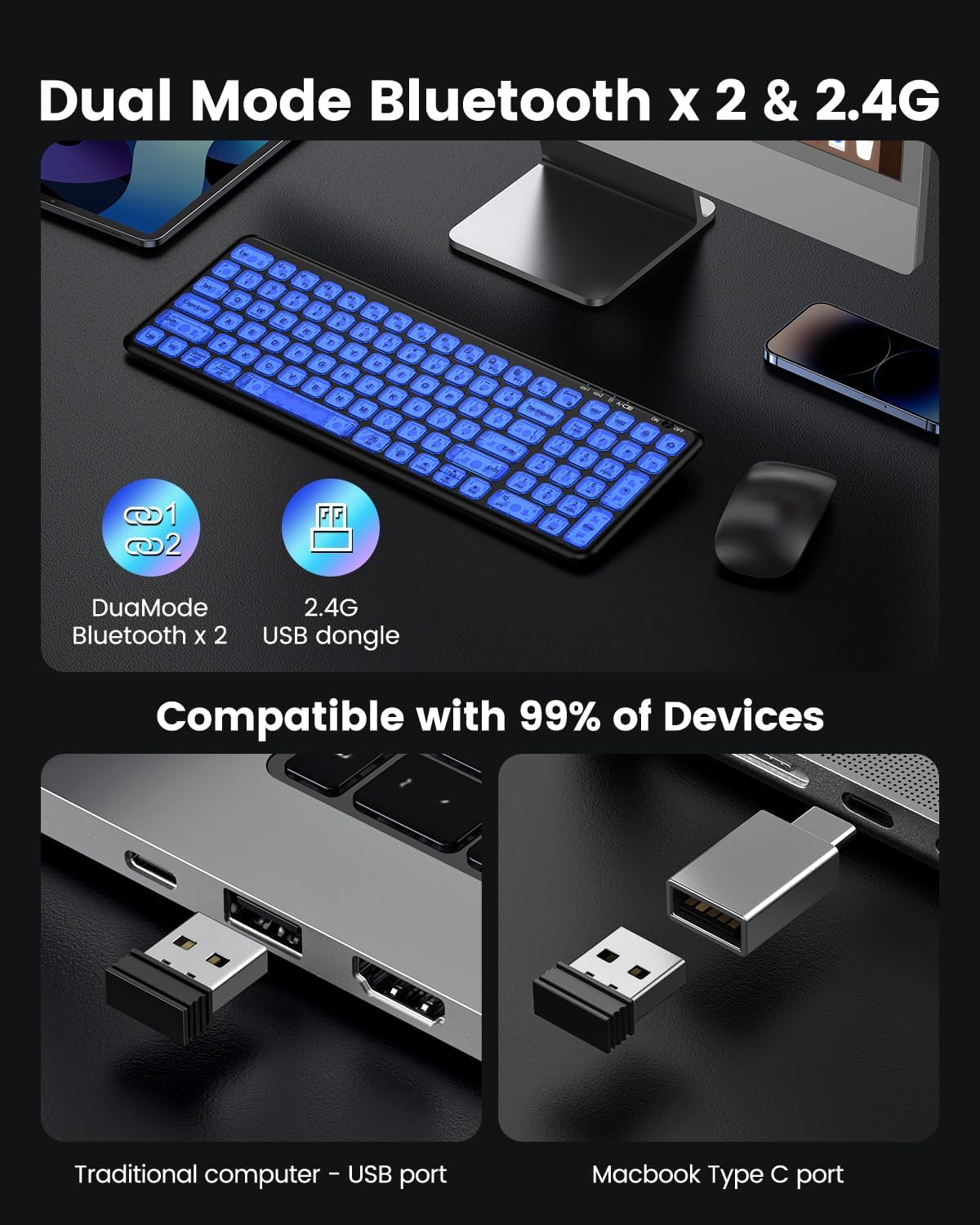
Image: Visual representation of the keyboard's dual Bluetooth and 2.4G connectivity options.
4. Operating Instructions
4.1 Switching Between Connected Devices
To switch between your connected devices, simply press the corresponding connection button: 2.4G, BT1, or BT2. The keyboard will automatically connect to the selected device.
4.2 Backlight Control
The keyboard features 7 color backlights and 5 brightness levels.

Image: The keyboard displaying different backlight colors and icons for brightness and color switching.
- Change Backlight Color: Press Fn + RGB key (usually located near the right Shift key) to cycle through the 7 available backlight colors.
- Adjust Brightness: Press Fn + Lightbulb key (usually F7 or F8) to cycle through the 5 brightness levels or to turn the backlight off.
4.3 Multimedia and Function Keys
The top row of keys (F1-F12) serves dual functions: standard F-keys and multimedia controls. To activate the multimedia functions, press the Fn key simultaneously with the desired F-key.

Image: A detailed layout of the keyboard, highlighting the function keys and their associated multimedia controls (e.g., volume, playback, brightness).
| Key Combination | Function |
|---|---|
| Fn + F1 | Mute |
| Fn + F2 | Decrease Volume |
| Fn + F3 | Increase Volume |
| Fn + F4 | Previous Track |
| Fn + F5 | Play/Pause |
| Fn + F6 | Next Track |
| Fn + F7 | Decrease Brightness |
| Fn + F8 | Increase Brightness |
| Fn + F9 | Select All |
| Fn + F10 | Copy |
| Fn + F11 | Paste |
| Fn + F12 | Cut |
Note: Multimedia keys may not be fully compatible with all Mac OS systems.
5. Maintenance
5.1 Cleaning
To clean the keyboard, gently wipe the surface with a soft, damp cloth. Avoid using harsh chemicals or abrasive materials. Ensure the keyboard is powered off before cleaning.
5.2 Battery Management and Power Saving
The keyboard is equipped with an 800mAh rechargeable battery. To maximize battery life:
- Turn off the keyboard when not in use for extended periods.
- The keyboard features a smart auto-sleep function. If left idle for 30 seconds, the backlight will turn off. Press any key to wake it up.
- A single charge can provide up to 45 days of standby time. With backlighting, continuous use is approximately 8 hours; without backlighting, it can last up to 500 hours.
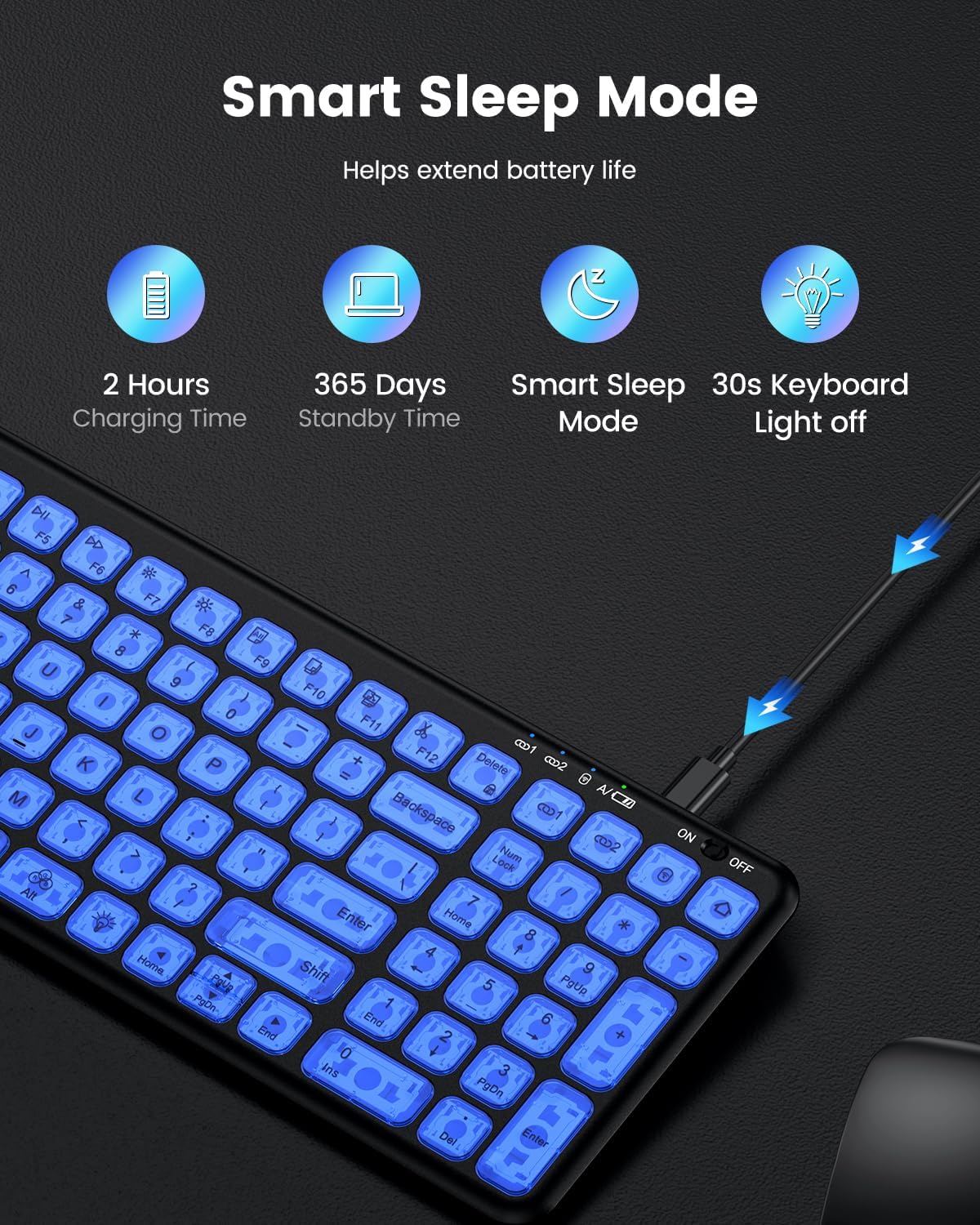
Image: An illustration detailing the keyboard's smart sleep mode, charging time, and standby duration.
6. Troubleshooting
If you encounter issues with your Omikamo Wireless Keyboard, please refer to the following common solutions:
- Keyboard Not Connecting:
- Ensure the keyboard is powered on and fully charged.
- For 2.4G connection, ensure the USB receiver is securely plugged into a working USB port and the keyboard is set to 2.4G mode. Try a different USB port.
- For Bluetooth connection, ensure Bluetooth is enabled on your device. Delete any previous pairings of the keyboard from your device's Bluetooth settings and attempt to re-pair. Make sure the keyboard is in pairing mode (indicator light blinking rapidly).
- Try restarting both the keyboard and your device.
- Keys Not Responding or Delayed Input:
- Check the battery level and charge the keyboard if necessary. Low battery can affect performance.
- Ensure the keyboard is within the effective range of your device (typically up to 10 meters for Bluetooth/2.4G).
- Interference from other wireless devices can affect connectivity. Try moving closer to your device or away from potential sources of interference.
- Clean any debris or dust from around the keys.
- Backlight Issues (e.g., blinking, not turning on):
- Ensure the keyboard is sufficiently charged.
- Press Fn + Lightbulb key to cycle through brightness levels and ensure the backlight is not turned off.
- If the backlight is blinking erratically, it might indicate a low battery. Charge the keyboard.
- Multimedia Keys Not Working on Mac OS:
- As noted, some multimedia keys may have limited or no functionality on Mac OS due to system-specific configurations. This is expected behavior for certain functions.
7. Specifications
| Feature | Description |
|---|---|
| Brand | Omikamo |
| Model Name | Omikamo Wireless Keyboard |
| Connectivity Technology | Bluetooth 5.0, 2.4G Wireless |
| Compatible Devices | Laptop, PC, Desktop, Mac, iOS, Android |
| Keyboard Description | Multi Functional |
| Special Features | Backlit (7 colors, 5 brightness levels), Rechargeable, Silent Scissor-Switch Mechanism, Ergonomic Tilt |
| Color | Elegant Black |
| Number of Keys | 111 |
| Power Source | Rechargeable Battery (800mAh) |
| Keyboard Layout | QWERTY |
| Material | Acrylonitrile Butadiene Styrene, Polycarbonate |
| Dimensions (Approx.) | Length: 15 inches, Width: 5.4 inches, Thickness: 0.55 inches (rear), 0.2 inches (front) |
| Charging Time | Approx. 2 hours |
| Standby Time | Up to 45 days |
| Working Time (Backlit) | Up to 8 hours |
| Working Time (No Backlit) | Up to 500 hours |

Image: A visual representation of the keyboard's ultra-slim profile and key dimensions.
8. Warranty and Support
Omikamo provides an after-sales guarantee for this product. If you have any questions or require assistance with your wireless keyboard, please contact our customer support team. We aim to resolve inquiries within 24 hours.
How to Contact Support:
- Visit the Omikamo store page on Amazon.
- Click the "Ask a question" button to send a message to our support team.