
1. Overview
The HAMTYSAN 7-inch HDMI Monitor (Model HCTG070V.P02) is a compact, non-touch LCD display designed for a wide range of applications. Featuring an 800x480 resolution, tempered glass, and dual built-in speakers, this monitor offers clear visuals and audio. It is compatible with various devices, including Raspberry Pi boards, Windows PCs, and select gaming consoles, making it suitable for DIY projects, extended desktop use, or portable entertainment.
2. Package Contents
Verify that all items listed below are included in your package:
- 1 x HAMTYSAN 7-inch Non-Touchscreen Monitor
- 1 x HDMI Cable
- 1 x Micro USB Cable (for power)
- 1 x Adjustable Bracket
- 1 x User Manual

Image: Package contents of the HAMTYSAN 7-inch HDMI Monitor.
3. Product Diagram and Interface Introduction
Familiarize yourself with the monitor's ports and control buttons:

Image: Labeled diagram of the monitor's rear panel, showing ports and control buttons.
- HDMI In: For video signal input.
- Type-C Power 5V/2A In: For power supply to the monitor.
- Turn On/Off: Power button for the monitor.
- System Menu Enter or Exit Current Menu Key: Used to confirm selections or enter sub-menus.
- System Menu Adjustment (Up/Right Key): Navigates up in menus or increases values.
- System Menu Adjustment (Down/Left Key): Navigates down in menus or decreases values.
- System Menu Exit or Back to the Previous Menu Key: Exits the current menu or goes back.
- Supports max 2x3W x 4Ω Speaker: Built-in stereo speakers.
- Fixed dedicated holes for Raspberry Pi: Mounting points for Raspberry Pi boards.
4. Setup and Connections
Follow these steps to set up your HAMTYSAN 7-inch HDMI Monitor:
4.1. Power Connection
Connect the provided Micro USB cable to the monitor's Type-C Power 5V/2A In port. Connect the other end to a suitable 5V/2A power adapter (not included) or a USB port on your host device. Ensure the power source provides adequate power for stable operation.
4.2. HDMI Video Connection
- For Raspberry Pi (excluding Pi 4): Use the provided HDMI cable to connect your Raspberry Pi's HDMI output to the monitor's HDMI In port.
- For Raspberry Pi 4: An additional Micro HDMI to HDMI cable (not included) is required. Connect it from the Raspberry Pi 4's Micro HDMI output to the monitor's HDMI In port.
- For PC/Laptop/Gaming Console: Use the provided HDMI cable to connect your device's HDMI output to the monitor's HDMI In port.
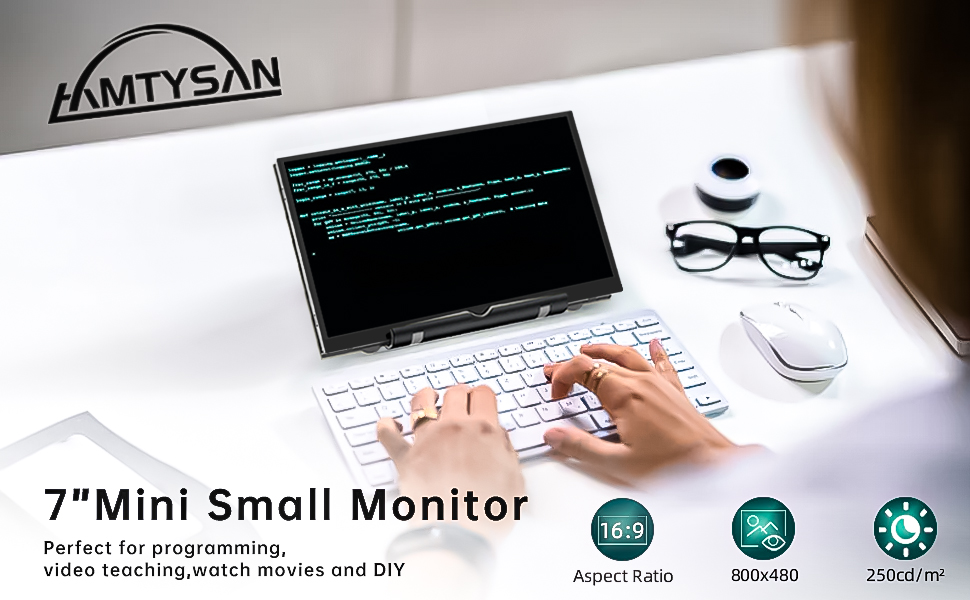
Image: Example setup showing the monitor connected to a Raspberry Pi.
4.3. Mounting
Attach the multi-angle adjustable bracket to the monitor for stable positioning on a desk. The monitor also features four fixed dedicated holes on the back for mounting to Raspberry Pi boards or integrating into custom DIY projects.
4.4. Unboxing and Setup Video
Video: An unboxing and initial setup guide for the HAMTYSAN 7-inch HDMI Monitor, demonstrating connections and basic functionality.
5. Operating Instructions
5.1. Power On/Off
Press the POWER button located on the back of the monitor to turn the device on or off.
5.2. Menu Navigation and Adjustments
Use the control buttons on the back of the monitor to access and navigate the On-Screen Display (OSD) menu:
- Press MENU to open the OSD menu.
- Use UP and DOWN buttons to scroll through menu options.
- Press MENU again to select an option or enter a sub-menu.
- Use UP and DOWN to adjust values (e.g., brightness, contrast, volume).
- Press EXIT to return to the previous menu or close the OSD.

Image: Monitor displaying the OSD menu for brightness and volume adjustments.
5.3. Display Modes (for PC/Laptop)
When connected to a PC or laptop, the monitor supports various display modes, configurable through your computer's operating system display settings:
- Extended Mode: Extends your desktop across both screens, providing more workspace.
- Duplicated Mode: Mirrors your primary display, showing the same content on both screens.
- Second Screen Mode: Uses only the external monitor as the primary display.

Image: Visual representation of Extended, Duplicated, and Second Screen display modes.
5.4. Audio
The monitor is equipped with dual built-in speakers. Audio is transmitted via the HDMI connection. Adjust the volume using the OSD menu or your connected device's audio settings.
6. Compatibility
The HAMTYSAN 7-inch HDMI Monitor offers broad compatibility:
- Raspberry Pi: Supports Raspberry Pi 4/3/2/1/Zero/B/B+. (Note: Raspberry Pi 4 requires a Micro HDMI to HDMI cable).
- Operating Systems: Compatible with Windows 7/8/10/11, Retro Pi, NOOBS, Banana Pi, Debian, Ubuntu, and Kodi.
- Gaming Consoles: Works with Nintendo Switch (NS), Xbox, and PlayStation 4 (PS4).
- Other Devices: Laptops, Desktop PCs, and other devices with HDMI output.
Important Note: This monitor is NOT compatible with Mac systems or PlayStation 5 (PS5).

Image: Overview of compatible devices and operating systems.
7. Maintenance
To ensure the longevity and optimal performance of your monitor, follow these maintenance guidelines:
- Cleaning: Use a soft, lint-free cloth to gently wipe the screen and exterior. For stubborn smudges, slightly dampen the cloth with water or a screen-safe cleaning solution. Avoid harsh chemicals or abrasive materials.
- Handling: Handle the monitor with care. As it does not include a back cover, avoid touching the exposed circuit board to prevent damage.
- Storage: When not in use, store the monitor in a cool, dry place away from direct sunlight and extreme temperatures.
8. Troubleshooting
If you encounter issues with your monitor, refer to the following common problems and solutions:
- No Display / "No Signal" Message:
- Ensure both the power cable and HDMI cable are securely connected to the monitor and the host device.
- Verify that the power source is providing the correct 5V/2A power.
- If connecting to a Raspberry Pi 4, confirm you are using a Micro HDMI to HDMI cable.
- Check your host device's display settings to ensure the external monitor is detected and enabled.
- No Audio:
- Ensure the volume is not muted or set too low in both the monitor's OSD menu and your host device's audio settings.
- Verify the HDMI connection is secure, as audio is transmitted via HDMI.
- Incompatibility Issues:
- This monitor is specifically noted as NOT working with Mac systems or PlayStation 5 (PS5).
- Screen Flickering or Instability:
- Ensure the power supply is stable and meets the 5V/2A requirement.
- Try a different HDMI cable or power cable.
9. Specifications

Image: Dimensions of the HAMTYSAN 7-inch HDMI Monitor.
| Feature | Specification |
|---|---|
| Brand | HAMTYSAN |
| Model Number | HCTG070V.P02 |
| Screen Size | 7 Inches |
| Resolution | 800 x 480 |
| Display Resolution Maximum | 800x480 |
| Aspect Ratio | 1.66:1 |
| Screen Surface Description | Glossy |
| Screen Finish | Glossy |
| Refresh Rate | 60 Hz |
| Display Type | LCD |
| Display Technology | LCD |
| Viewing Angle | 178 Degrees |
| Has Color Screen | Yes |
| Item Dimensions D x W x H | 0.39"D x 6.5"W x 4.09"H |
| Voltage | 5 Volts |
| Connectivity Technology | HDMI |
| Hardware Connectivity | HDMI |
| Additional Features | Built-In Speakers |
| Specific Uses For Product | Multimedia/Personal/Gaming/Business |
| Color | Black |
| Mounting Type | Desk Mount |
| Compatible Devices | Raspberry Pi 4/3/2/1, Windows 7/8/10/11 PC, Video Game Console like NS/XBOX/PS4, Retro Pi, NOOBS, Banana Pi, Debian, Ubuntu, Kodi |
| Shape | Rectangular |
| Response Time | 3 Milliseconds |
| Total Number of HDMI Ports | 1 |
| Number of Component Outputs | 1 |
For detailed product information and energy efficiency, please refer to the EPREL database: https://eprel.ec.europa.eu/qr/2103633
10. Warranty and Support
All HAMTYSAN monitors undergo thorough testing and are carefully packaged before shipment. Should you encounter any quality-related issues with your product, please contact HAMTYSAN customer service for assistance. We are dedicated to providing high-quality products and reliable support to our customers.