
BENPAL K2
BENPAL K2 Karaoke Machine User Manual
Model: K2 | Brand: BENPAL
1. Product Overview
The BENPAL K2 Karaoke Machine is a portable Bluetooth speaker system designed for home entertainment, parties, and various events. It features wireless connectivity, dual microphones for duets, and a built-in high-quality speaker system for clear sound. Its compact and lightweight design ensures easy portability.

Image: Overview of the BENPAL Karaoke Machine highlighting its various input options including Bluetooth, TF card, USB, audio input, and guitar/instrument input.
Key features include:
- Wireless Connectivity: Bluetooth technology for seamless connection to smartphones, tablets, and other compatible devices.
- Dual Microphones: Two wireless microphones allowing for amazing duets and group performances.
- Portable Design: Compact and lightweight construction makes it perfect for moving between rooms or taking to parties and events.
- Speaker System: Built-in high-quality speakers deliver clear, room-filling sound with balanced music and voice output.
- Versatile Use: Perfect for home entertainment, parties, family gatherings, and events with easy setup and operation.
2. Package Contents
Please check the package carefully to ensure all items are present and in good condition:
- 1 x BENPAL K2 Karaoke Machine (Main Unit)
- 2 x Wireless Microphones
- 1 x USB Charging Cable
- 1 x Power Adapter
- 1 x Remote Control
- 1 x User Manual (This document)

Image: All components included in the BENPAL K2 Karaoke Machine package.

Image: Visual representation of the package contents and key dimensions.
3. Setup Guide
3.1 Charging the Unit
Before first use, fully charge the karaoke machine. Connect the provided USB charging cable to the DC 15V input port on the back of the unit and plug the other end into a suitable power adapter (included) or USB power source. The charging indicator light will show charging status.
3.2 Powering On/Off
Locate the ON/OFF switch on the control panel. Flip the switch to the "ON" position to power on the unit. Flip it to "OFF" to power off.
3.3 Microphone Pairing
The wireless microphones are pre-paired with the main unit. Simply insert 2x AA batteries (not included) into each microphone and power them on. They should automatically connect to the karaoke machine. If pairing issues occur, refer to the troubleshooting section.
3.4 Control Panel Overview

Image: Detailed view of the control panel, showing various inputs and controls.
Familiarize yourself with the control panel:
- MIC.VOL: Microphone Volume control.
- GT.VOL: Guitar/Instrument Volume control.
- 5V MIC: 5V Microphone input port.
- USB: USB input port for media playback.
- TF: TF (MicroSD) card slot for media playback.
- DC5V OUT: 5V DC output for charging external devices.
- PHONES: Headphone output jack.
- ACC.IN: Auxiliary input jack.
- DC.15V: DC 15V power input.
- ON/OFF: Power switch.
- EFFECT: Knobs and buttons for sound effects (e.g., ECHO, DELAY).
- KARAOKE ADJUST: Controls for BASS, TREBLE, and overall VOLUME.
- MP3/BT/REC MULTIFUNCTIONAL SELECTION: Buttons for mode selection (Bluetooth, USB, TF, AUX), playback control (PLAY/PAUSE, PREV, NEXT), and recording (REC).
- Liquid Crystal Display: Shows current mode and status.
4. Operating Instructions
4.1 Bluetooth Mode
- Power on the karaoke machine. The unit will automatically enter Bluetooth pairing mode, indicated by "BLUE" on the display.
- On your smartphone, tablet, or other Bluetooth device, enable Bluetooth and search for "BENPAL K2".
- Select "BENPAL K2" to connect. Once connected, you will hear an audible confirmation.
- Play music from your device. Adjust volume using the main VOLUME knob on the unit or your device.

Image: Demonstrates Bluetooth connectivity with various devices.
4.2 USB/TF Card Playback
- Insert a USB flash drive or TF (MicroSD) card containing MP3 audio files into the respective port.
- The unit will automatically switch to USB or TF mode and begin playing music. If not, press the "MODE" button to select the correct input.
- Use the "PREV", "PLAY/PAUSE", and "NEXT" buttons to control playback.
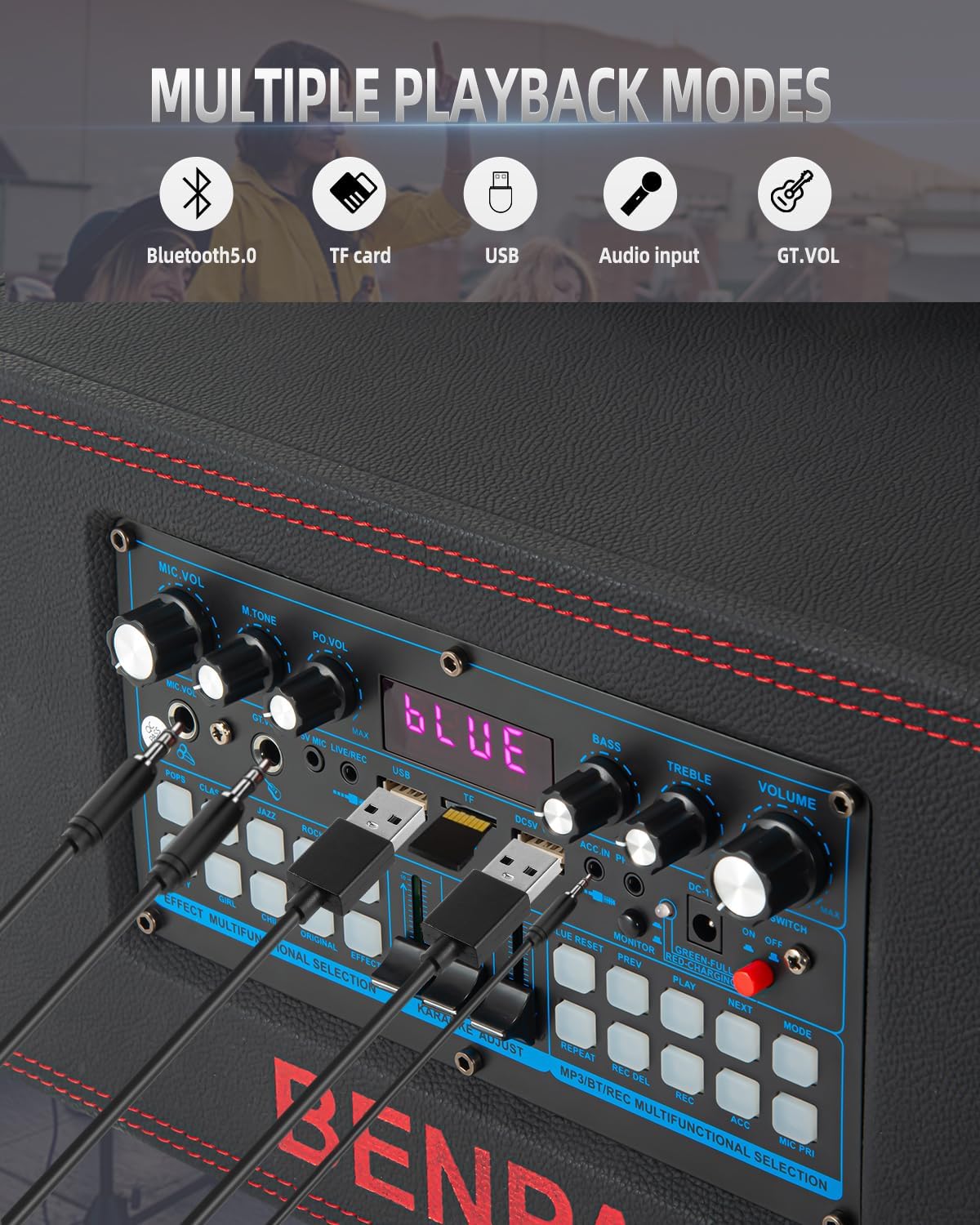
Image: Shows the various input ports for different playback modes.
4.3 AUX Input
- Connect an external audio device (e.g., TV, computer) to the "ACC.IN" port using a 3.5mm audio cable (not included).
- Press the "MODE" button until "AUX" is displayed.
- Play audio from your connected device.
4.4 Microphone Usage
- Ensure microphones are powered on and paired.
- Adjust microphone volume using the "MIC.VOL" knob.
- Experiment with the "EFFECT" controls (e.g., ECHO, DELAY) to enhance vocal performance.
- For guitar or other instruments, connect to the "GT.VOL" input and adjust its volume.
4.5 Recording Function
To record your karaoke performance:
- Ensure a USB flash drive or TF card is inserted.
- Press the "REC" button. The unit will begin recording audio from the microphones and the playing music.
- Press "REC" again to stop recording. The recorded file will be saved to the USB drive or TF card.
5. Maintenance
- Cleaning: Use a soft, dry cloth to clean the exterior of the unit. Do not use abrasive cleaners or solvents.
- Storage: Store the unit in a cool, dry place away from direct sunlight and extreme temperatures.
- Battery Care: If not used for extended periods, charge the unit periodically to maintain battery health.
- Microphones: Remove batteries from microphones if not used for a long time to prevent leakage.
6. Troubleshooting
| Problem | Possible Cause | Solution |
|---|---|---|
| No power | Battery drained; Power switch off; Power adapter not connected. | Charge the unit; Turn on the power switch; Ensure power adapter is securely connected. |
| No sound from speaker | Volume too low; Incorrect mode selected; Device not connected properly. | Increase main volume; Press MODE button to select correct input (BT, USB, TF, AUX); Reconnect device. |
| Microphone not working | Microphone batteries low/dead; Microphone not powered on; Microphone not paired. | Replace microphone batteries; Power on microphone; Power cycle both unit and microphones to re-pair. |
| Bluetooth connection unstable | Device too far; Obstructions; Interference. | Move device closer to the unit (within 10m); Remove obstructions; Avoid other strong wireless signals. |
| Cannot read USB/TF card | Unsupported file format; Corrupted card/drive; Card/drive not inserted correctly. | Ensure files are MP3 format; Try a different USB/TF card; Reinsert card/drive firmly. |
7. Specifications
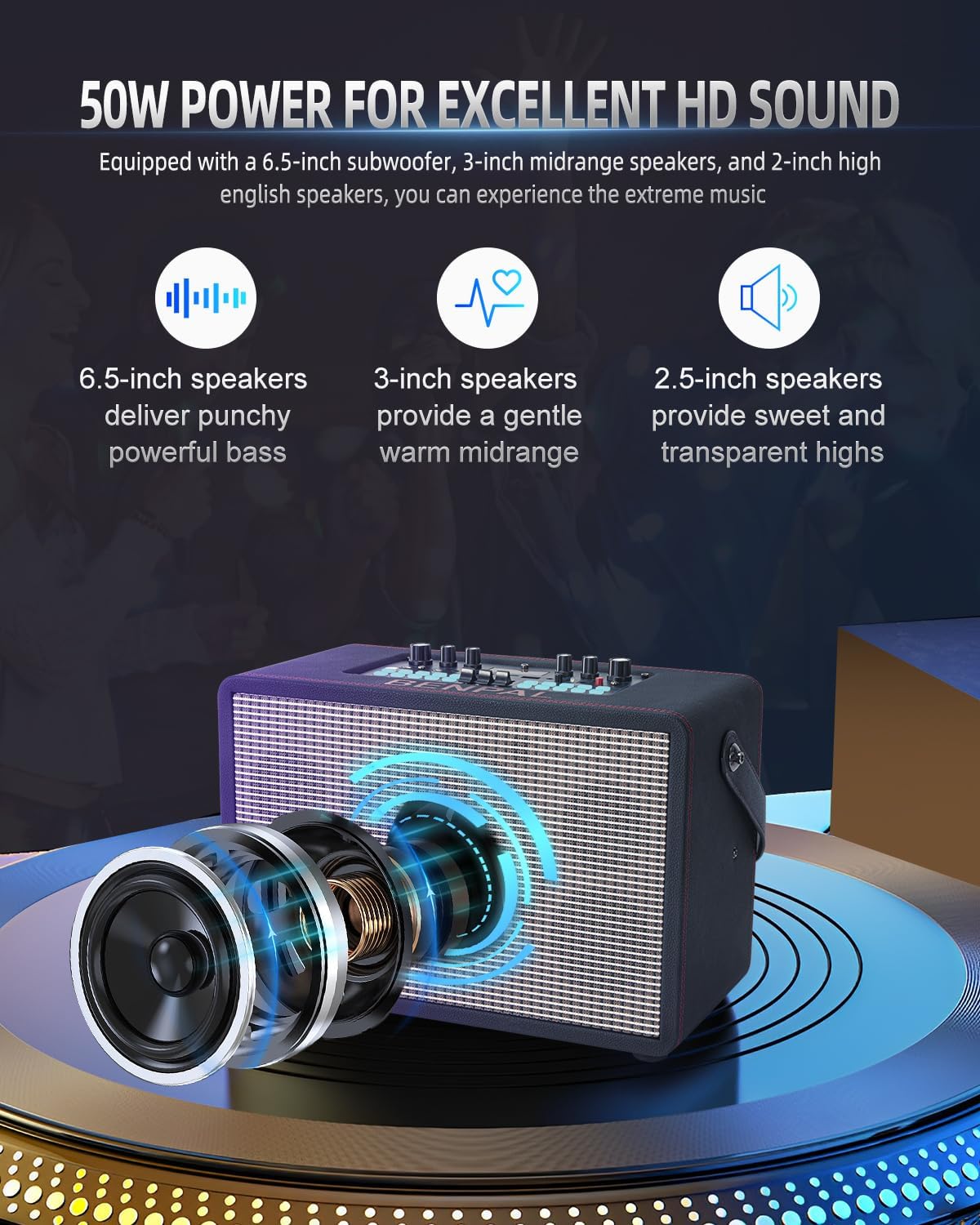
Image: Internal speaker configuration and power output details.

Image: Battery capacity and estimated usage time.
| Feature | Detail |
|---|---|
| Brand | BENPAL |
| Model Number | K2 |
| Mounting Type | Tabletop |
| Power Source | Corded Electric |
| Connector Type | HDMI (for display output, if applicable) |
| Item Weight | 5.5 Pounds (approx. 2.5 kg) |
| Number of Channels | 2 |
| Audio Input | Musical Instruments, TF Card, USB, AUX, Bluetooth |
| Product Dimensions (L x W x H) | 9 x 16.22 x 13.5 inches (approx. 22.86 x 41.20 x 34.29 cm) |
| Color | Black |
| Speaker Count | 3 (6.5-inch subwoofer, 3-inch midrange, 2-inch high English speakers) |
| Voltage | 5 Volts (USB charging) / 15 Volts (DC input) |
| Connectivity Technology | AUX, Bluetooth, USB |
| Compatible Devices | Laptop, Smartphone, Tablet, Television |
| Battery Capacity | 4500 mAh (approx. 4-6 hours playback) |
8. Warranty and Support
BENPAL products are manufactured to the highest quality standards. For warranty information, technical support, or customer service inquiries, please refer to the contact information provided on the product packaging or the official BENPAL website. Please retain your proof of purchase for warranty claims.
Ask a question about this manual
Ask about setup, troubleshooting, compatibility, parts, safety, or missing instructions. Manuals+ will review the question and use this page’s manual context to help answer it.