
Cuifati Cuifatibgqxp7ifdo
Mini Body Camera Video Recorder User Manual
Model: Cuifatibgqxp7ifdo | Brand: Cuifati
1. Product Overview
The Cuifati Mini Body Camera is a compact and versatile video recorder designed for various personal and professional applications. It features high-definition video recording, a rotatable lens, and advanced functionalities like night vision and motion detection.

Figure 1.1: Front and back view of the Mini Body Camera, highlighting its compact design and various buttons and ports.

Figure 1.2: The camera's 180-degree rotatable lens, allowing for flexible recording angles including self-portraits, meeting recordings, and work documentation.
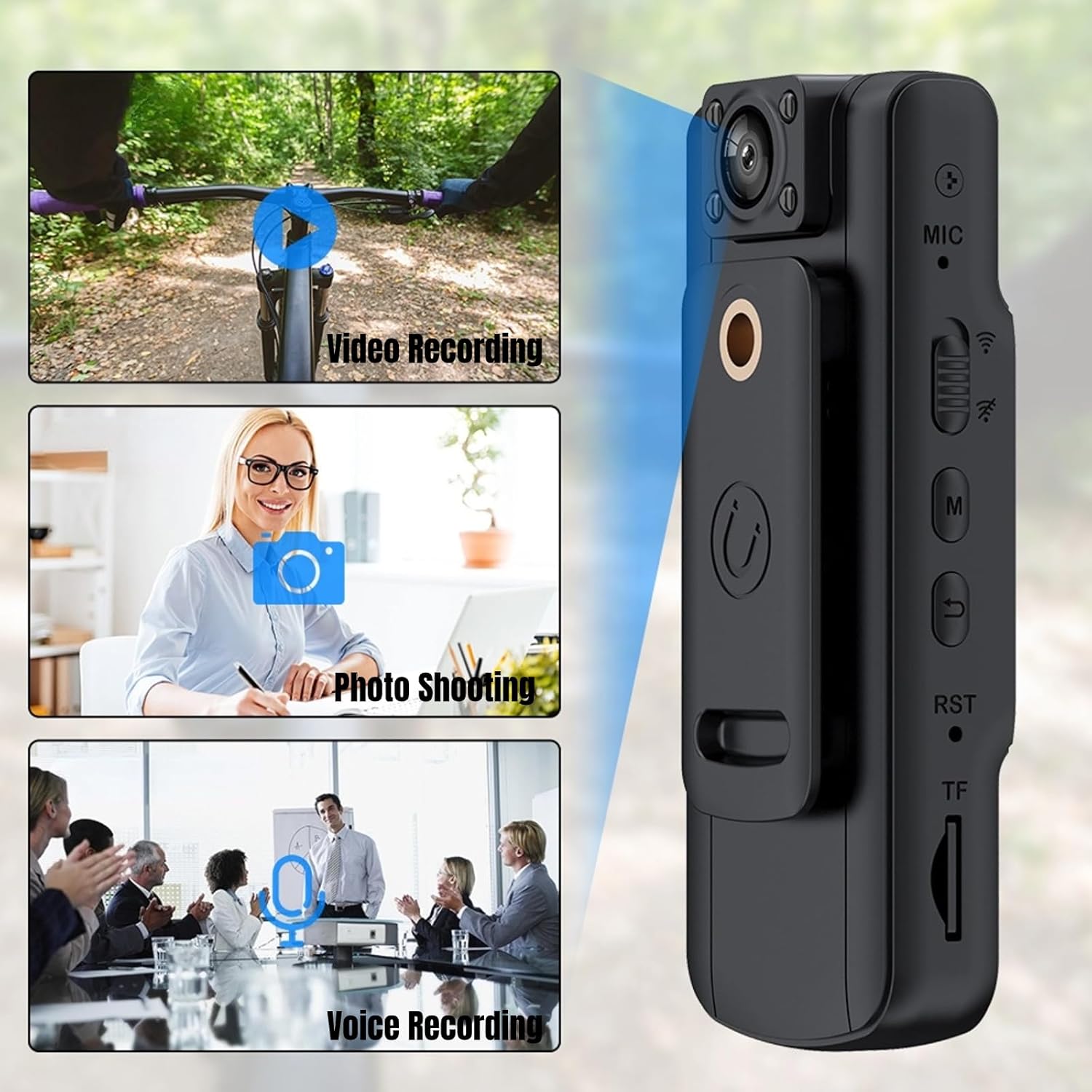
Figure 1.3: Core functionalities of the device: video recording, photo shooting, and voice recording, suitable for diverse situations.

Figure 1.4: The 1.54-inch display, providing live preview, playback, self-timer options, and battery status.
2. Setup
2.1 Charging the Device
Before first use, fully charge the body camera. Connect the camera to a USB power adapter (not included) or a computer using the provided USB cable. The charging indicator light will typically show red while charging and turn off or change color when fully charged.
2.2 Inserting a Memory Card
This device supports external TF (MicroSD) cards for storage. Locate the TF card slot on the side of the camera. Gently insert the TF card with the gold contacts facing down until it clicks into place. Ensure the card is inserted correctly to avoid damage.
2.3 Initial Power On
Press and hold the Power button for a few seconds until the screen illuminates and the device powers on. Follow any on-screen prompts for initial setup, such as setting the date and time.
3. Operating Instructions
3.1 Video Recording
From the main interface, press the Video Record button (usually marked with a camera icon or 'REC') to start recording. A red indicator or 'REC' icon on the screen will confirm recording is active. Press the button again to stop recording.
3.2 Photo Shooting
Switch to Photo mode (if applicable) or press the Photo button (often a separate button or a short press of the Video Record button in photo mode) to capture still images. The screen will briefly flash to indicate a photo has been taken.
3.3 Voice Recording
To record audio only, switch to Voice Recording mode. Press the dedicated Voice Record button or the appropriate menu option to start and stop audio recording.
3.4 Lens Rotation
The camera's lens can be manually rotated 180 degrees. Adjust the lens to capture footage from different angles, whether for self-recording or capturing events in front of you.
3.5 Infrared Night Vision
The camera is equipped with four infrared night vision lights. To activate night vision, navigate to the settings menu or press the designated Night Vision button. This feature enhances clarity and image quality in low-light or dark conditions.

Figure 3.1: The camera's infrared night vision in action, showing clear recording even in dark environments.
3.6 Motion Detection
Enable the motion detection feature through the camera's settings. When activated, the camera will automatically begin recording when it detects movement within its field of view, conserving battery and storage space.
3.7 Playback and File Management
Use the 1.54-inch display to review recorded videos and photos. Navigate through files using the control buttons. To transfer files to a computer, connect the camera via the USB cable. The camera will appear as a removable disk drive.
4. Maintenance
4.1 Cleaning
Use a soft, dry cloth to clean the camera body and lens. Avoid using liquid cleaners or abrasive materials that could damage the device. For the lens, use a specialized lens cleaning cloth.
4.2 Storage
Store the camera in a cool, dry place away from direct sunlight, extreme temperatures, and high humidity. When storing for extended periods, ensure the battery is partially charged (around 50%) to prolong its lifespan.
4.3 Battery Care
To maximize battery life, avoid fully discharging the battery frequently. Charge the camera regularly, even if not in constant use. The built-in 1000mAh lithium battery provides up to 7 hours of continuous video recording.

Figure 4.1: The 1000mAh battery provides extended recording time, up to 7 hours continuously.
5. Troubleshooting
- Camera not turning on: Ensure the battery is charged. Connect to a power source and try again. If still unresponsive, perform a soft reset by pressing the reset button (if available) or holding the power button for an extended period.
- Cannot record video/photo: Check if a memory card is inserted and has sufficient free space. Ensure the card is formatted correctly (FAT32 is usually recommended).
- Poor image/video quality: Clean the lens. Ensure there is adequate lighting (activate night vision if in low light). Check resolution settings.
- Device freezes or becomes unresponsive: Press the reset button (if available) or hold the power button until the device powers off, then restart.
- Files not transferring to computer: Ensure the USB cable is securely connected to both the camera and the computer. Try a different USB port or cable. Check if the camera is in the correct USB mode (e.g., Mass Storage).
6. Specifications
| Feature | Specification |
|---|---|
| Model | Cuifatibgqxp7ifdo |
| Video Resolution | 1080p |
| Still Image Resolution | 2 Megapixels |
| Display Size | 1.54 inches |
| Lens Rotation | 180 degrees |
| Wide Angle Lens | 155 degrees |
| Battery Capacity | 1000mAh Lithium Battery |
| Continuous Recording Time | Up to 7 hours |
| Special Features | Infrared Night Vision (4 lights), Motion Detection, HD Resolution |
| Connectivity | USB, HDMI |
| Supported Memory | External TF (MicroSD) Card (slot available) |
| Dimensions (Package) | 12.6 x 8.1 x 5.7 cm |
| Weight (Package) | 150 grams |
| Included Components | 1 Body Camera, 1 Instruction Manual, 1 USB Cable |
7. Warranty and Support
7.1 Warranty Information
This product comes with a 1 Year Warranty Against Manufacturer Defects. Please retain your proof of purchase for warranty claims. The warranty covers defects in materials and workmanship under normal use. It does not cover damage caused by misuse, accidents, unauthorized modifications, or natural disasters.
7.2 Customer Support
For technical assistance, troubleshooting, or warranty inquiries, please contact the seller or manufacturer directly through the platform where the product was purchased. Provide your product model number (Cuifatibgqxp7ifdo) and ASIN (B0CHFXC6WM) for faster service.
Related documentsCuifatibgqxp7ifdo

Ask a question about this manual
Ask about setup, troubleshooting, compatibility, parts, safety, or missing instructions. Manuals+ will review the question and use this page’s manual context to help answer it.