
1. Introduction
Thank you for choosing the Mafiti X6 Mini Portable Photo Printer. This compact, inkless thermal printer allows you to print black and white photos, notes, lists, and more directly from your mobile device via Bluetooth. Its high 200 DPI resolution ensures clear prints for various applications, from personal use to educational activities.

Image: The Mafiti X6 Mini Portable Photo Printer, showcasing its inkless thermal printing capability with a black and white image of two dogs.
2. Package Contents
Please check the box for the following items:
- 1 x Mafiti X6 Mini Portable Photo Printer
- 1 x Roll of Adhesive Thermal Paper (pre-installed in printer)
- 1 x USB Charging Cable
- 1 x User Manual
3. Getting Started
3.1 Charging the Printer
Before first use, fully charge the printer using the provided USB cable. Connect the USB cable to the printer's charging port and a standard USB power adapter (not included) or a computer's USB port. The indicator light will show charging status.
3.2 Loading Thermal Paper
- Open the printer cover by gently sliding it open or pressing the release button (if available).
- Insert the thermal paper roll into the compartment, ensuring the printing side faces the print head.
- Pull a small length of paper out of the printer and close the cover firmly until it clicks into place.
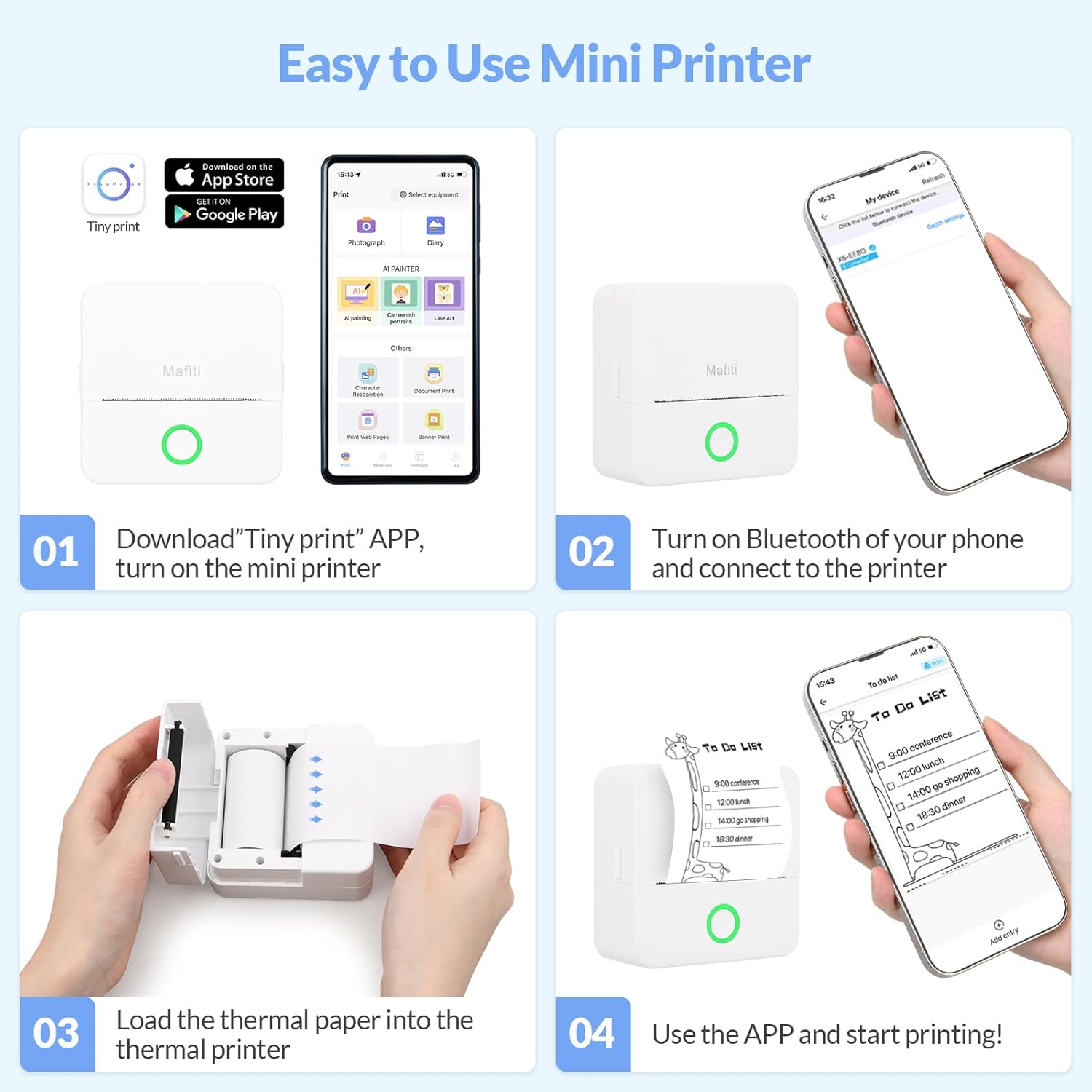
Image: A visual guide demonstrating the steps to use the printer, including loading thermal paper (Step 3).
3.3 App Installation: "Tiny Print"
The Mafiti X6 printer operates with the "Tiny Print" application. This app is compatible with both iOS and Android devices.
- For iOS devices: Search for "Tiny Print" in the Apple App Store and download.
- For Android devices: Search for "Tiny Print" in the Google Play Store and download.

Image: Instructions to download the "Tiny Print" app from the App Store or Google Play, shown alongside the printer.
3.4 Bluetooth Connection
- Ensure the printer is turned on. The green indicator light should be blinking.
- Enable Bluetooth on your mobile phone.
- Open the "Tiny Print" application.
- Within the app, tap the "Connect" option. The app will search for available devices.
- Select "X6" from the list of devices to establish the connection.
4. Operating Instructions
Once connected, you can utilize the various features of the "Tiny Print" app to create and print content.
- Photo Printing: Select a photo from your gallery to print in black and white.
- Text Printing: Create notes, shopping lists, or study materials.
- Templates: Utilize pre-designed templates for various purposes like to-do lists, labels, or banners.
- AI Painting & Cartoonish Portraits: Explore creative features within the app for unique prints.
- Document & Web Print: Print documents or content directly from web pages.
The app offers a one-click printing function to streamline your workflow.

Image: Various applications of the printer, including printing study notes, photos, to-do lists, and for creative activities with children.
5. Maintenance
To ensure optimal performance and longevity of your Mafiti X6 printer, follow these maintenance guidelines:
- Cleaning the Print Head: Periodically clean the thermal print head with a soft, lint-free cloth lightly dampened with isopropyl alcohol. Ensure the printer is turned off and cool before cleaning.
- Paper Storage: Store thermal paper in a cool, dry place away from direct sunlight and heat to prevent premature fading or damage.
- Battery Care: Avoid completely draining the battery frequently. Charge the printer regularly, even if not in constant use, to maintain battery health.
- General Cleaning: Wipe the exterior of the printer with a soft, dry cloth to remove dust and smudges. Do not use harsh chemicals or abrasive materials.
6. Troubleshooting
If you encounter issues with your Mafiti X6 printer, refer to the following common problems and solutions:
| Problem | Possible Cause | Solution |
|---|---|---|
| Printer does not turn on. | Low battery or power issue. | Charge the printer using the USB cable. Ensure the charging cable and adapter are working correctly. |
| Cannot connect via Bluetooth. | Bluetooth is off on phone, printer is off, or app issue. | Ensure printer is on and green light is blinking. Turn on Bluetooth on your phone. Restart the "Tiny Print" app. Try unpairing and re-pairing the device. |
| Prints are faint or blank. | Paper loaded incorrectly, low battery, or dirty print head. | Check if the thermal paper is loaded with the correct side facing up. Recharge the printer. Clean the print head as described in the Maintenance section. |
| Paper jam. | Paper not loaded correctly or foreign object. | Turn off the printer. Open the cover and carefully remove any jammed paper. Reload the paper correctly. |
| App is unresponsive. | Software glitch or outdated app version. | Close and restart the "Tiny Print" app. Check for app updates in your device's app store. Restart your mobile device. |
7. Specifications

Image: Detailed dimensions of the Mafiti X6 printer (85x85x45mm) and its thermal paper roll (57x25mm).
| Feature | Detail |
|---|---|
| Model Name | X6 |
| Brand | Mafiti |
| Printing Technology | Thermal |
| Connectivity | Bluetooth, USB |
| Print Resolution | 200 x 200 DPI (monochrome) |
| Max Print Speed (Monochrome) | 10 Pages per minute |
| Paper Format | 57 mm width (e.g., 57 x 25 mm rolls) |
| Max Sheet Capacity | 20 sheets (for roll capacity) |
| Control Method | Application (Tiny Print) |
| Color | White |
| Special Feature | Portable, Inkless |
8. Warranty and Support Information
Specific warranty details for the Mafiti X6 Mini Portable Photo Printer are not provided in the available product information. For warranty claims, technical support, or further assistance, please refer to the retailer's return policy or contact Mafiti customer service directly through their official channels, if available.