
1. Introduction and Overview
The NovaStar TB10 is a high-performance LED screen control box designed for various commercial display applications. It offers robust features for managing LED screens efficiently and reliably.
Key Features:
- Supports 650,000 pixel point load capacity.
- Maximum width of 1920 pixels, maximum height of 1080 pixels.
- Gigabit wired network support.
- Stereo audio output.
- U disk program import and play functionality.
- On-board luminance sensor interface for automatic and timed intelligent luminance adjustment.
- Overall power consumption: 15W.
- Net Weight: 0.6Kg.
- Gross Weight: 1.5Kg.
Application Scenarios: Taurus series products, including the TB10, are widely used in LED commercial display fields such as lamp pole screens, chain store screens, advertising machines, mirror screens, retail store screens, door screens, and car screens, offering a PC-free solution.
2. Product Components and Interfaces
Familiarize yourself with the physical components and connection interfaces of the TB10 control box.
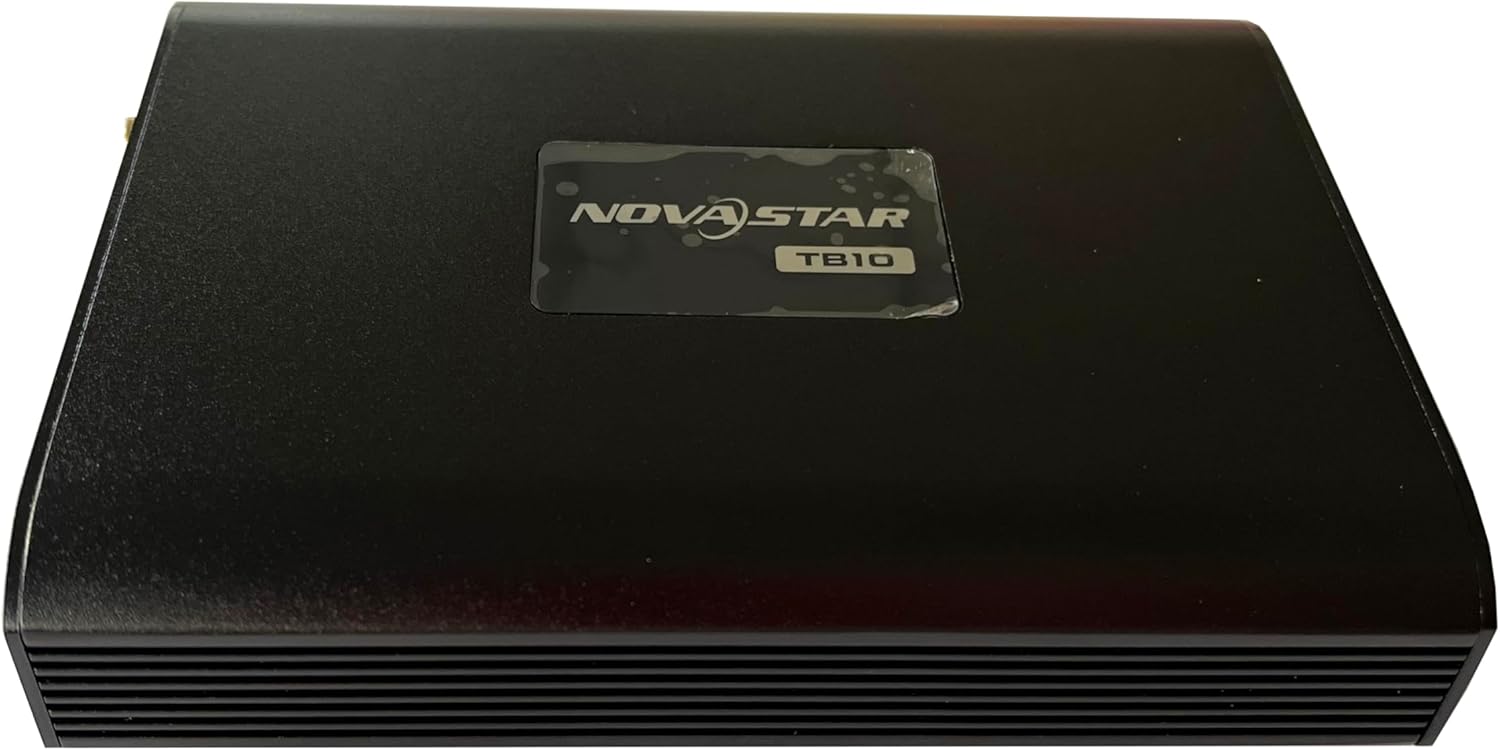
Figure 2.1: Top view of the NovaStar TB10 control box, showing the NovaStar logo and TB10 model designation.

Figure 2.2: Side view of the TB10 showing the input interfaces. From left to right: WiFi antenna connector, Reset button, USB port (Type-C), USB 3.0 port (Type-A), Ethernet port (RJ45), and DC 12V power input.

Figure 2.3: Other side view of the TB10 showing output interfaces and indicators. From left to right: COM 2 port, Audio Out jack, Power (PWR) and System (SYS) LED indicators, LED Out port (RJ45), COM 1 port, and SIM Card slot.
3. Setup and Installation
- Power Connection: Connect the provided DC 12V power adapter to the power input port on the TB10. Ensure the power source is stable.
- Network Connection: Connect an Ethernet cable from your network switch or router to the Ethernet port on the TB10 for network communication.
- LED Screen Connection: Connect the LED screen's receiving card to the LED Out port on the TB10 using an Ethernet cable.
- Audio Output (Optional): If audio is required, connect external speakers or an audio system to the Audio Out jack.
- USB Devices (Optional): For program import via U disk or other USB peripherals, use the USB or USB 3.0 ports.
- SIM Card (Optional): If 4G functionality is enabled (note: 4G is an optional feature and not included by default), insert a compatible SIM card into the SIM card slot.
- Power On: Once all connections are secure, power on the device. Observe the PWR and SYS LED indicators for operational status.
4. Operating Instructions
The TB10 operates primarily through network control via NovaStar's software (e.g., NovaLCT, ViPlex Express). Refer to the respective software manuals for detailed operation.
- Program Management: Use the dedicated software to create, edit, and upload display programs to the TB10. Programs can also be imported via U disk.
- Luminance Adjustment: The on-board luminance sensor allows for automatic brightness adjustment based on ambient light. This can also be configured for timed adjustments through software.
- Network Configuration: Configure network settings (IP address, subnet mask, gateway) for the TB10 via the control software to ensure proper communication.
- System Reset: The Reset button can be used to restart the device or restore factory settings if necessary. Consult the software manual for specific reset procedures.
5. Maintenance
- Cleaning: Regularly clean the exterior of the device with a soft, dry cloth. Avoid using liquid cleaners or abrasive materials.
- Ventilation: Ensure proper ventilation around the device to prevent overheating. Do not block the ventilation slots.
- Firmware Updates: Periodically check for firmware updates from NovaStar's official website to ensure optimal performance and access to new features. Follow update instructions carefully.
- Environmental Conditions: Operate the device within recommended temperature and humidity ranges to prolong its lifespan.
6. Troubleshooting
| Problem | Possible Cause | Solution |
|---|---|---|
| Device does not power on. | No power supply; faulty power adapter; loose connection. | Check power cable and adapter. Ensure power outlet is functional. |
| LED screen shows no display. | Incorrect network configuration; faulty Ethernet cable; software issue. | Verify network settings in software. Check Ethernet cable connection to LED Out port. Restart TB10 and software. |
| Cannot connect to TB10 via network. | Incorrect IP address; firewall blocking connection; network cable issue. | Ensure TB10 and control PC are on the same network segment. Disable firewall temporarily. Check network cable. |
| Display brightness is inconsistent. | Luminance sensor interference; incorrect software settings. | Ensure luminance sensor is not obstructed. Adjust brightness settings in the control software. |
If problems persist, please contact NovaStar technical support or your local distributor.
7. Specifications
| Attribute | Value |
|---|---|
| Manufacturer | NovaStar |
| Model | TB10 |
| Power Source Type | DC |
| Product Dimensions | 20 x 11.5 x 3.5 cm |
| Net Weight | 0.4 kg (400 g) |
| Overall Consumption | 15W |
| First Available Date | Sept. 5 2023 |
| 4G Feature | Optional (not included by default) |
8. Warranty and Support
For warranty information, please refer to the terms and conditions provided at the time of purchase or contact your vendor. NovaStar provides technical support for its products.
Contact Information: Please visit the official NovaStar website for the latest support resources, FAQs, and contact details for technical assistance.


