
1. Introduction
The Genmitsu 3030-PROVer Ultra CNC Router Machine is a high-precision, all-metal CNC engraver designed for both DIY enthusiasts and professionals. Featuring a powerful 710W spindle, dual linear guides, and ball screws, it delivers exceptional accuracy of ±0.03mm for engraving materials like aluminum and acrylic. This manual provides essential information for the safe and effective operation, setup, and maintenance of your machine.

Figure 1.1: The Genmitsu 3030-PROVer Ultra CNC Router Machine, showcasing its robust design and compact footprint.
2. Safety Information
Always prioritize safety when operating the CNC router. Failure to follow safety guidelines can result in serious injury or damage to the machine.
- Eye Protection: Always wear safety glasses or goggles to protect your eyes from flying debris.
- Hand Protection: Avoid wearing loose gloves that can get caught in moving parts. Use appropriate hand protection when handling sharp tools or materials.
- Hearing Protection: Wear hearing protection during operation, especially when working with loud materials or high spindle speeds.
- Clear Workspace: Keep your work area clean and free of clutter. Ensure adequate lighting.
- Emergency Stop: Familiarize yourself with the location and operation of the emergency stop button. In case of any malfunction or emergency, press the E-stop immediately.
- Ventilation: Ensure proper ventilation to dissipate dust and fumes generated during machining.
- Secure Workpiece: Always securely clamp your workpiece to the workbed to prevent movement during operation.
- Power Disconnection: Disconnect power before performing any maintenance, cleaning, or tool changes.

Figure 2.1: The Genmitsu 3030-PROVer Ultra highlighting the emergency stop button for immediate shutdown.
3. Product Overview
The Genmitsu 3030-PROVer Ultra is engineered for superior performance and ease of use. Key features include:
- 710W Digital Spindle: Offers 2.4× stronger power than older 300W spindles. A real-time digital display helps prevent overheating and underpowering, ensuring longer tool life and consistent cuts.
- Rock-Solid Precision & Smooth Finish: Constructed with a thick all-metal chassis and high-torque stepper motors to minimize wobble and vibration. Achieves ±0.03mm precision for sharp details and smooth finishes.
- Industrial-Grade Rails & Ball Screws: Equipped with HG15 dual linear rails and 1204 ball screws on every axis for enhanced rigidity and accuracy. Dust-protected X/Y axes and hidden cables maintain a clean workspace.
- Smart App Control & Software-Friendly: Control, adjust, and troubleshoot projects remotely using the Genmitsu APP. Compatible with popular software like Candle, UGS, and Easel.
- Quick Assembly: Ships as two pre-assembled modules, reducing assembly time by 80%. Features simple Y-axis alignment and requires no complex tools.
3.1 Core Components
- Spindle: The primary cutting tool, powered by a 710W motor.
- Stepper Motors: High-torque motors driving precise movement along X, Y, and Z axes.
- Linear Rails & Ball Screws: Provide smooth and accurate motion for the gantry and spindle.
- Workbed: The surface where materials are clamped for machining.
- Control Box: Houses the electronics and connections for power and data.

Figure 3.1: Illustration of the all-metal structure, HG15 dual linear rails, and 1204 ball screws on all axes, ensuring stability and precision.
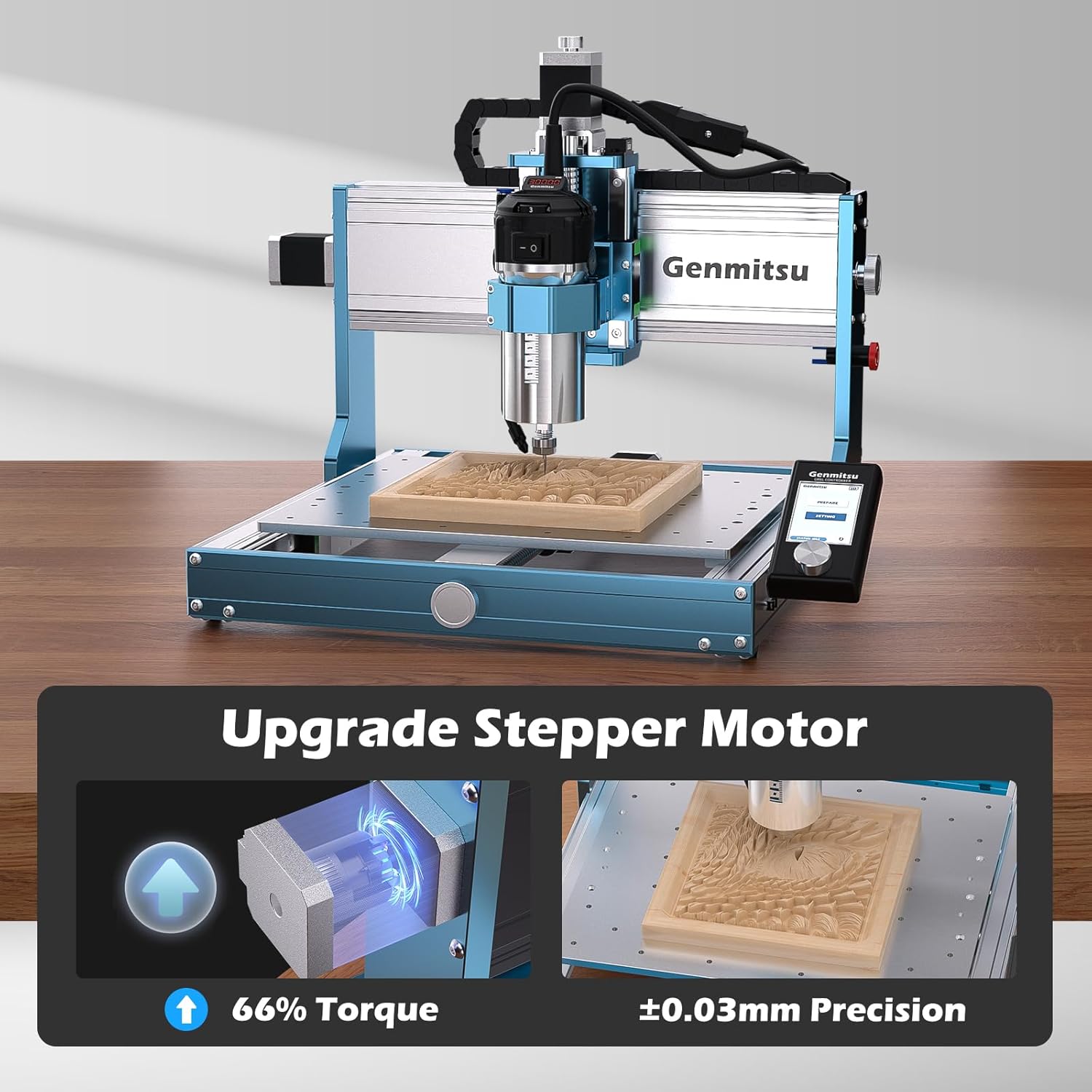
Figure 3.2: Close-up of the upgraded stepper motor, providing 66% more torque for enhanced precision.

Figure 3.3: Comparison illustrating the increased speed and maximum depth per pass of the 710W spindle compared to a 300W spindle.
4. Setup
4.1 Assembly
The Genmitsu 3030-PROVer Ultra is designed for quick assembly, arriving in two pre-assembled modules. Follow the included quick start guide for detailed steps.
- Connect the two main modules.
- Perform Y-axis alignment as instructed.
- Ensure all cables are securely connected.

Figure 4.1: The machine's modular design allows for assembly in less than 10 minutes with simple drop-in X/Y alignment.
4.2 Driver and Software Installation
Before operating the machine, install the necessary drivers and control software on your computer.
- Connect the CNC machine to your computer via USB.
- Turn the E-stop button clockwise to release it.
- Plug in the power cord and turn on the power switch.
- Open your PC's Device Manager to identify the COM port (e.g., COM4).
- Install the CH340SER driver from the provided software folder.
- Open the GRBLcontrol (Candle) software.
- In Candle, go to Service > Settings, refresh the port, and select a Baud rate of 115200.
Video 4.1: Demonstrates connecting the machine, installing drivers, and configuring Candle software for first use.
4.3 Bit Installation
Proper installation of the CNC bit is crucial for accurate and safe operation.
- Unscrew the collet nut.
- Push the collet into the collet nut toward the arrow until a click is heard.
- Insert the desired CNC bit into the collet.
- Tighten the collet nut securely using the provided wrenches.
Video 4.2: Guide on how to replace the spindle and install a CNC bit.
5. Operating Instructions
5.1 Preparing the Workpiece
Securely attach your material to the workbed using clamps. Ensure the material is flat and stable to prevent shifting during engraving.
5.2 Setting the Work Origin
The work origin defines the starting point for your engraving project.
- In Candle software, use the jog controls (blue arrows for X/Y, white arrows for Z) to move the bit to the desired starting point on your workpiece.
- Adjust the Z-axis height so the bit is just above the material, about the thickness of a piece of paper.
- Click the Zero XY button to set the X and Y origin.
- Click the Zero Z button to set the Z origin.
Video 5.1: Tutorial on using Candle software, including adjusting axes, setting the work origin, and loading G-code.
5.3 Loading and Starting G-Code
Once the origin is set, you can load your G-code file and begin engraving.
- In Candle, click File > Open and select your G-code file (e.g., .nc, .ngc).
- Observe the origin position in the G-code preview to ensure it aligns with your physical setup.
- Adjust the trimmer router's gear to the desired speed and turn on its power switch.
- Click the Send button in Candle to start the engraving process.
5.4 Using the Genmitsu APP
The Genmitsu APP allows for remote control and monitoring of your CNC machine.
- Download and install the Genmitsu APP on your smartphone or tablet.
- Connect the machine to your device via Wi-Fi (if equipped with a Wi-Fi module).
- Use the app interface to control movements, adjust settings, and monitor job progress.
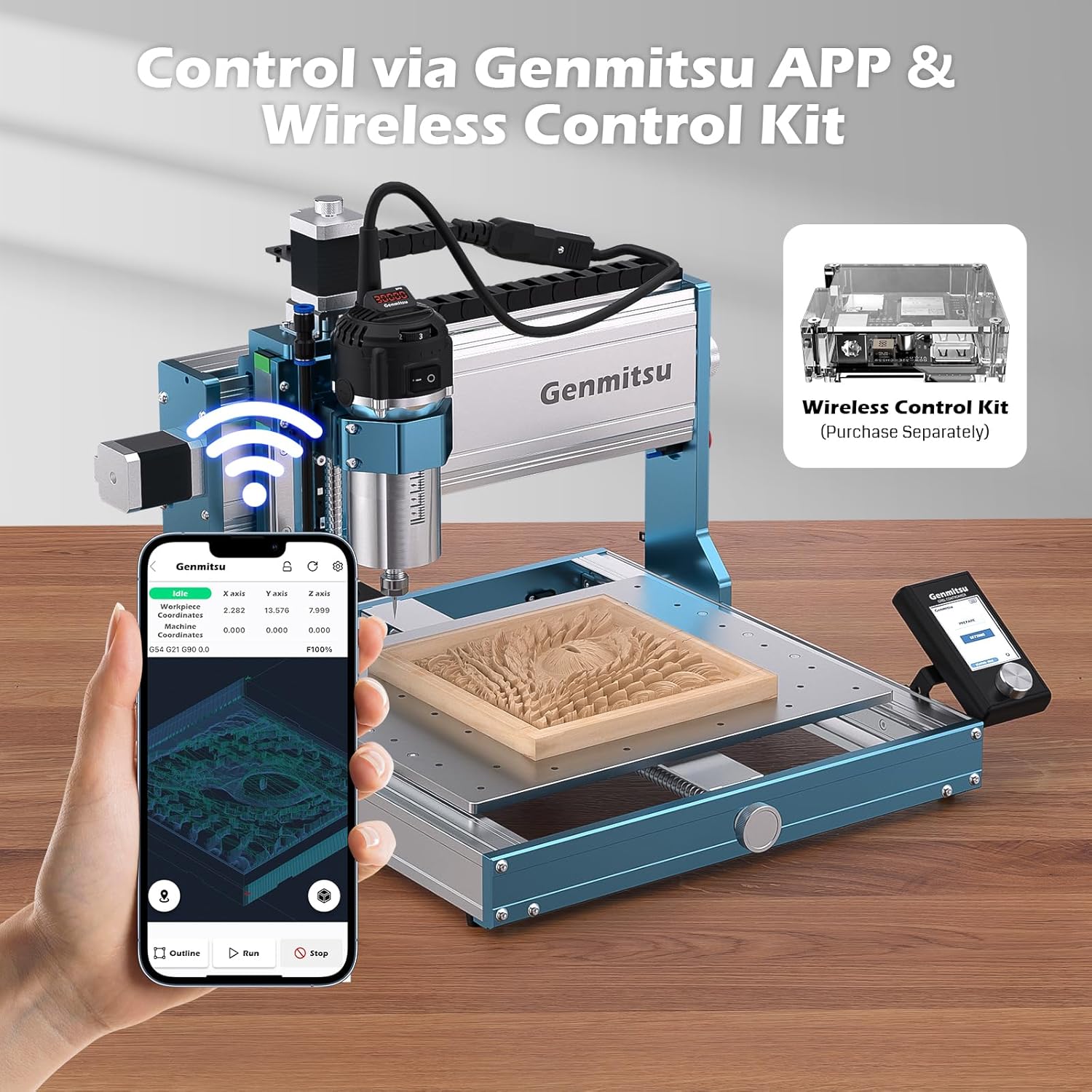
Figure 5.2: The Genmitsu APP provides smart control and monitoring capabilities for the CNC router.

Figure 5.3: The machine is compatible with various control software including Genmitsu APP, Candle, UGS, Easel, Fusion360, and Lightburn.
6. Maintenance
Regular maintenance ensures the longevity and optimal performance of your Genmitsu 3030-PROVer Ultra.
- Cleaning: After each use, clean the workbed, linear rails, and ball screws to remove dust and debris. Use a soft brush or vacuum.
- Lubrication: Periodically apply a thin layer of lubricant to the linear rails and ball screws to ensure smooth movement. Refer to the detailed maintenance guide for recommended lubricants and frequency.
- Tool Inspection: Regularly inspect your CNC bits for wear or damage. Replace dull or chipped bits to maintain cut quality and prevent machine strain.
- Cable Management: Ensure all cables are properly routed and secured to prevent them from interfering with moving parts or getting damaged.
- Spindle Care: Keep the spindle clean and free of obstructions. Monitor for unusual noises or vibrations during operation.
7. Troubleshooting
This section addresses common issues you might encounter with your CNC router.
| Problem | Possible Cause | Solution |
|---|---|---|
| Machine not connecting to PC | Incorrect driver, wrong COM port, loose USB cable. | Verify driver installation, check Device Manager for correct COM port, ensure USB cable is secure. |
| Spindle not rotating | Power switch off, loose wiring, E-stop engaged. | Check spindle power switch, inspect wiring connections, release E-stop button. |
| Inaccurate cuts or poor finish | Dull bit, loose workpiece, incorrect feed/speed settings, worn linear components. | Replace bit, re-clamp workpiece, adjust cutting parameters, inspect and lubricate linear rails/ball screws. |
| Machine stops mid-job | USB communication error, power interruption, software crash. | Ensure stable USB connection, check power supply, restart software and machine. |
For further assistance, refer to the official Genmitsu support resources or contact customer service.
8. Specifications
Detailed technical specifications for the Genmitsu 3030-PROVer Ultra CNC Router Machine:
- Brand: Genmitsu
- Model Number: 3030-PROVer MAX
- Material: Aluminum
- Power Source: Corded Electric
- Voltage: 230 Volts
- Item Weight: 24 Kilograms
- Product Dimensions (W x H): 52.3W x 41.2H Centimetres
- Spindle: 710W Digital Spindle
- Precision: ±0.03mm
- Linear Components: HG15 Dual Linear Rails & 1204 Ball Screws
- Control: Smart App Control, Compatible with Candle, UGS, Easel
- UPC: 816550027240

Figure 8.1: Dimensional overview of the Genmitsu 3030-PROVer Ultra CNC Router Machine.
9. Warranty & Support
Genmitsu products are designed for reliability and performance. This product is eligible for return, refund, or replacement within 30 days of receipt. For specific warranty details, technical support, or service inquiries, please refer to the official Genmitsu website or contact their customer support team.
Online Resources:
- Visit the Genmitsu Store on Amazon for product information and accessories.
- Check the SainSmart Tech CA Seller Profile for customer service contact.


