
1. Introduction
This manual provides essential information for the safe and efficient use of your Haier 43-inch 4K Ultra HD Smart LED Google TV, model L43FG. Please read these instructions carefully before operating the television and retain them for future reference.

Image 1.1: Front view of the Haier 43-inch 4K Ultra HD Smart LED Google TV.
Video 1.1: Product overview of the Haier 43-inch 4K Ultra HD Smart LED Google TV.
2. What's in the Box
Carefully unpack the box and ensure all items are present and undamaged. If any items are missing or damaged, contact your retailer.
- 1 x Haier 43-inch LED TV
- 2 x Table Stand Base
- 1 x Remote Control
- 1 x AV IN Adapter
- 1 x AC Power Cord
- 2 x AAA Batteries
- 1 x User Manual (this document)
- 1 x Warranty Card
3. Setup Guide
3.1 Mounting the TV
Your television can be set up using the included table stand or mounted on a wall. Ensure the TV is placed on a stable, level surface or securely mounted to a wall according to VESA standards.
3.1.1 Table Stand Installation
- Carefully place the TV face down on a soft, clean surface to prevent screen damage.
- Attach the two table stand bases to the designated slots on the bottom of the TV.
- Secure the bases with the provided screws.
- Carefully lift the TV to an upright position on a stable surface.
3.1.2 Wall Mount Installation
For wall mounting, use a VESA-compatible wall mount (200 x 200 mm) that can support the weight of the television. Follow the instructions provided with your wall mount kit. Professional installation is recommended.
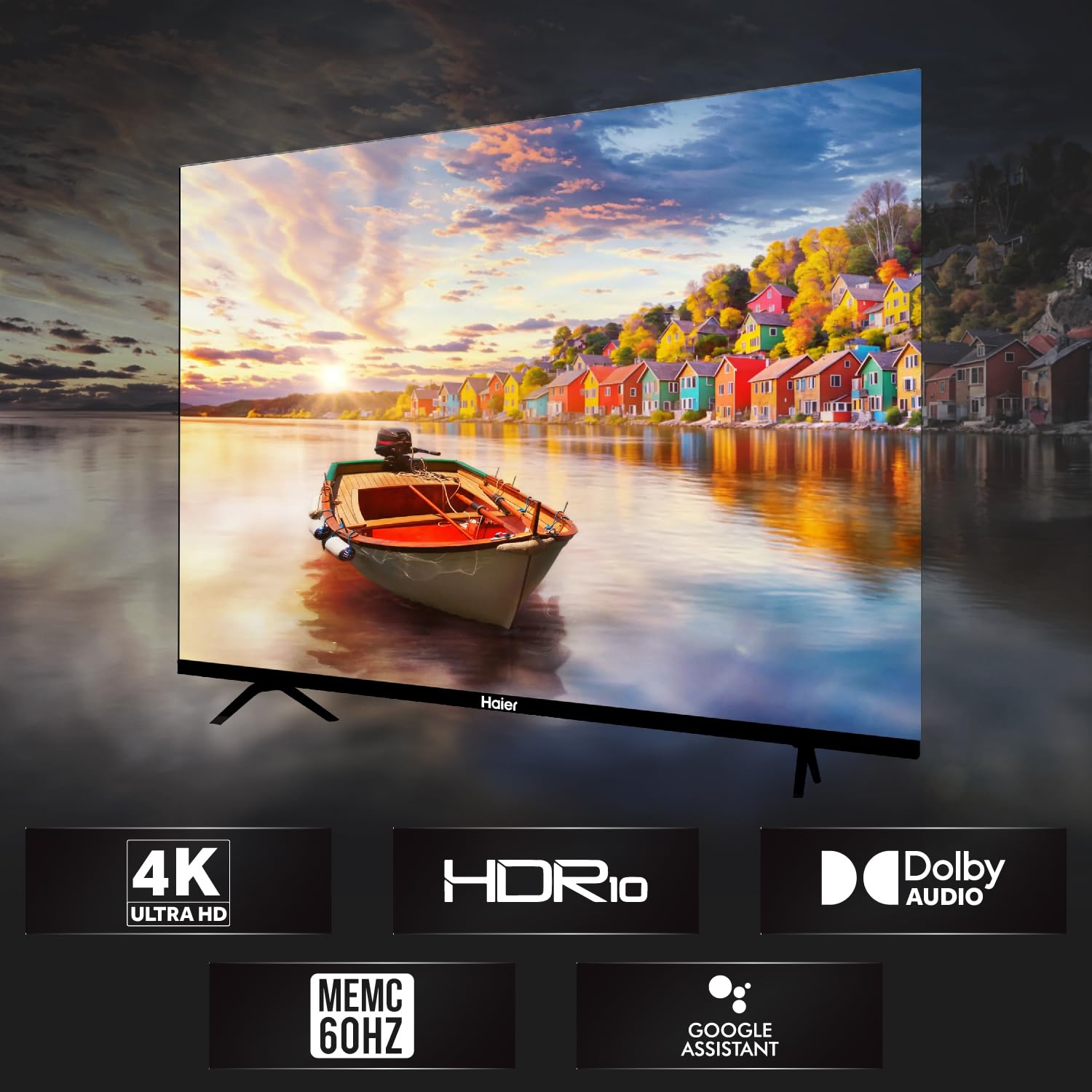
Image 3.1: Front view of the TV with table stand.
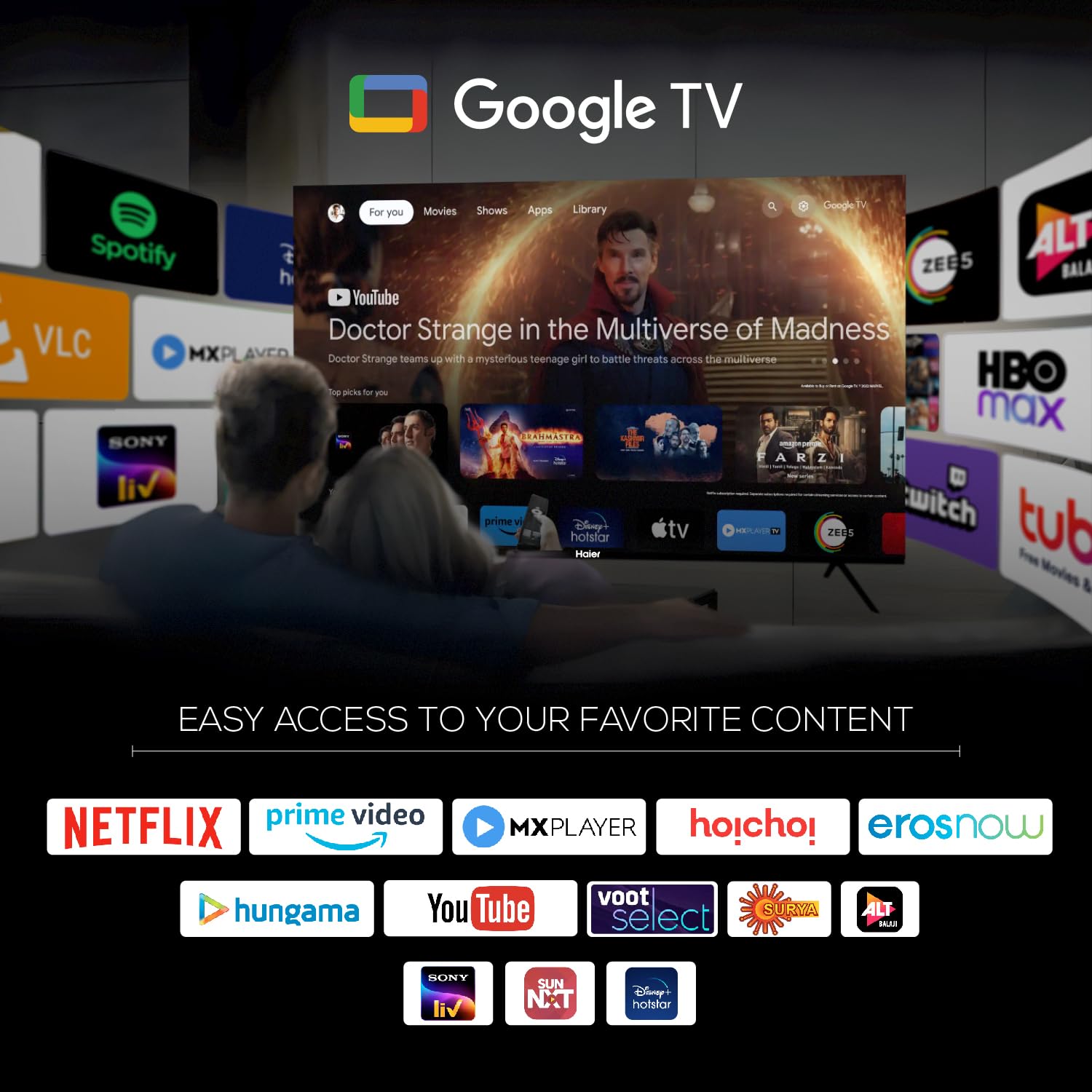
Image 3.2: Back view of the TV, highlighting VESA mounting points.
3.2 Connecting Devices
The TV offers various ports for connecting external devices.
- HDMI Ports: Connect set-top boxes, Blu-ray players, gaming consoles, and other HDMI-enabled devices to the 4 HDMI ports.
- USB Ports: Connect USB storage devices (hard drives, flash drives) to the 2 USB ports for media playback.
- AV IN: Use the provided AV IN adapter to connect older devices with composite video and stereo audio outputs.
- Ethernet: Connect an Ethernet cable for a wired internet connection.
- Wi-Fi: Connect to your wireless network for internet access.
- Bluetooth: Connect compatible Bluetooth devices such as headphones or soundbars.
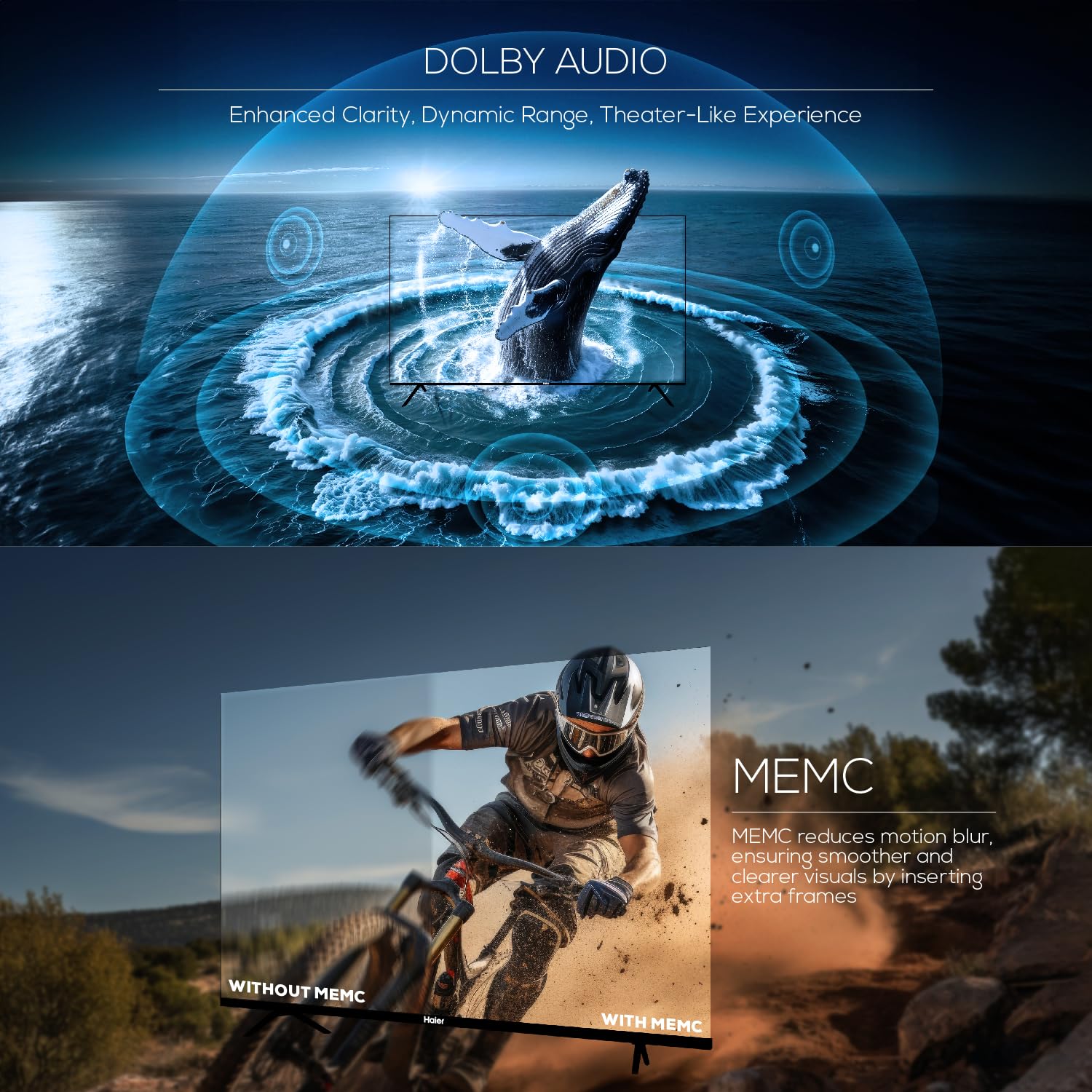
Image 3.3: Side view of the TV, illustrating various connectivity ports.
3.3 Power Connection
After connecting all necessary devices, plug the AC power cord into the TV's power inlet and then into a wall outlet. The TV will enter standby mode.
4. Operating Instructions
4.1 Remote Control
The remote control allows you to navigate the TV's features. Insert the two AAA batteries into the remote control, observing the correct polarity.
- Power Button: Turns the TV on or off (standby mode).
- Navigation Buttons: Use the directional pad and OK button to navigate menus.
- Volume Buttons: Adjust the audio volume.
- Channel Buttons: Change TV channels.
- Google Assistant Button: Activate voice commands for Google Assistant.
- Quick Launch Buttons: Dedicated buttons for popular streaming services like Netflix and YouTube.

Image 4.1: Haier Smart TV remote control.
4.2 Smart TV Features (Google TV)
Your Haier TV runs on Google TV, providing access to a wide range of content and smart features.
- Google Assistant: Use voice commands to search for content, control smart home devices, and get information.
- Google Play: Download and install additional applications from the Google Play Store.
- Chromecast Built-in: Cast content from your compatible mobile devices or computer directly to the TV.
- Pre-installed Apps: Access popular streaming services such as Netflix, Amazon Prime Video, Sony Liv, Disney+Hotstar, Zee5, YouTube, Eros Now, Hungama, JioCinema, and Oxygen Play.
- Watchlist: Organize and track movies and shows you want to watch.

Image 4.2: Google TV interface with accessible applications.
4.3 Display Settings
The TV features a 4K Ultra HD display with advanced picture technologies.
- 4K Ultra HD (3840 x 2160): Provides high-resolution images with enhanced detail and clarity.
- HDR10: Supports High Dynamic Range content for a wider range of colors and deeper contrast.
- MEMC (Motion Estimation, Motion Compensation): Reduces motion blur in fast-moving scenes by inserting extra frames, resulting in smoother visuals at 60Hz.
- 178-Degree Wide Viewing Angle: Ensures consistent picture quality from various viewing positions.

Image 4.3: Illustration of Ultra High Definition display.

Image 4.4: Explanation of MEMC 60Hz technology.
4.4 Audio Settings
The TV is equipped with a powerful audio system for an immersive sound experience.
- 24 Watts Output: Provides clear and robust sound.
- Dolby Audio: Enhances sound clarity, dynamic range, and delivers a theater-like audio experience.
- Built-in Box Speakers: Designed to produce powerful stereo sound.

Image 4.5: Illustration of Dolby Audio capabilities.
5. Specifications
Detailed technical specifications for the Haier 43-inch 4K Ultra HD Smart LED Google TV L43FG.
| Feature | Specification |
|---|---|
| Screen Size | 43 Inches (108 cm) |
| Display Technology | LED |
| Resolution | 4K Ultra HD (3840 x 2160) |
| Refresh Rate | 60 Hz |
| Viewing Angle | 178 Degrees |
| HDR Format Supported | HDR10 |
| Motion Enhancement Technology | MEMC |
| Sound Output | 24 Watts |
| Audio Technology | Dolby Audio, Dolby Atmos |
| Operating System | Google TV |
| Processor | ARM Multicore Cortex Processor |
| Memory (RAM) | 2 GB |
| Storage (ROM) | 32 GB |
| HDMI Ports | 4 |
| USB Ports | 2 |
| Connectivity | Wi-Fi, Bluetooth, Ethernet |
| Screen Mirroring | Google Cast |
| Product Dimensions (D x W x H) | 23.3D x 95.7W x 62H Centimeters (with stand) |
| Net Weight | 7.3 Kilograms |
| VESA Mount Standard | 200 x 200 mm |

Image 5.1: Diagram illustrating TV dimensions and weight.

Image 5.2: Information on TV's RAM and ROM.
6. Troubleshooting
If you encounter issues with your TV, refer to the following common problems and solutions.
- No Power:
Ensure the power cord is securely connected to both the TV and the wall outlet. Check if the outlet is functioning by plugging in another device. - No Picture, But Sound is Present:
Verify the correct input source is selected. Check all cable connections (HDMI, AV) for looseness or damage. Try connecting a different device to the same input. - No Sound, But Picture is Present:
Check the TV's volume level and ensure it is not muted. Verify audio cable connections. If using external audio devices, ensure they are powered on and correctly configured. - Remote Control Not Working:
Replace the batteries in the remote control. Ensure there are no obstructions between the remote and the TV's IR sensor. - Network Connection Issues:
For Wi-Fi, ensure your router is on and within range. For Ethernet, check the cable connection. Try restarting your router and the TV. - Picture Quality Issues (Blurry, Distorted):
Check the resolution settings of your input source. Ensure the cables are high-quality and properly connected. Adjust picture settings (brightness, contrast, sharpness) in the TV menu.
For persistent issues, contact Haier customer support.
7. Maintenance
Proper maintenance helps prolong the life of your television.
- Cleaning the Screen: Use a soft, lint-free cloth specifically designed for electronics. Do not use abrasive cleaners or solvents. Lightly dampen the cloth with water if necessary, and wipe gently.
- Cleaning the Cabinet: Wipe the TV cabinet with a soft, dry cloth.
- Software Updates: Periodically check for and install software updates to ensure optimal performance and access to the latest features. These can usually be found in the TV's settings menu under System or About.
- Ventilation: Ensure adequate ventilation around the TV. Do not block ventilation openings.
8. Warranty and Support
Your Haier 43-inch 4K Ultra HD Smart LED Google TV L43FG comes with a standard warranty.
- Warranty Period: 1 year comprehensive warranty on the product and an additional 1 year on the panel from the date of purchase.
- Claiming Warranty: The brand warranty can be availed using your Amazon invoice.
- Customer Support: For assistance, contact Haier toll-free numbers: 18001028471 or 18001020777. Please provide the product's model name (L43FG) and seller's details from your invoice. The service center will schedule a convenient service slot.
For further information regarding EMI options or replacement policies, please refer to the product detail page on the retailer's website.