
1. Product Overview
The GONLEN KL-942WPIR-DB is a versatile outdoor PIR (Passive Infrared) motion sensor designed for security and convenience. It integrates WiFi connectivity, allowing for remote alerts via a smartphone application. The device features a built-in strobe light and siren for local alarms, and can also function as a doorbell chime. Its robust design is suitable for outdoor environments, providing reliable motion detection.

Image 1.1: Front view of the GONLEN Tuya WiFi PIR Motion Sensor.

Image 1.2: The motion sensor detecting movement and sending an app alert, alongside a local chime.
2. Package Contents
Please verify that all items listed below are included in your package:
- One (1) GONLEN WiFi Outdoor PIR Detector
- One (1) Type-C USB Cable
- One (1) Instruction Manual
- Mounting Screws and Wall Plugs

Image 2.1: The motion sensor, Type-C USB cable, instruction manual, and mounting hardware.
3. Specifications
| Feature | Specification |
|---|---|
| Brand | GONLEN |
| Model Number | KL-942WPIR-DB |
| Color | White |
| Power Source | Battery Powered (Rechargeable Lithium Polymer) |
| Battery Life | Approximately 120 days |
| Maximum Detection Range | 8 Meters |
| Mounting Type | Wall Mount |
| Operating Temperature | Up to 50 Degrees Celsius |
| Compatible Devices | Smartphone (via Tuya Smart Life App) |
| Product Dimensions | 2.36 x 2.68 x 5.12 inches (60 x 68 x 130 mm) |
| Item Weight | 9.1 ounces |
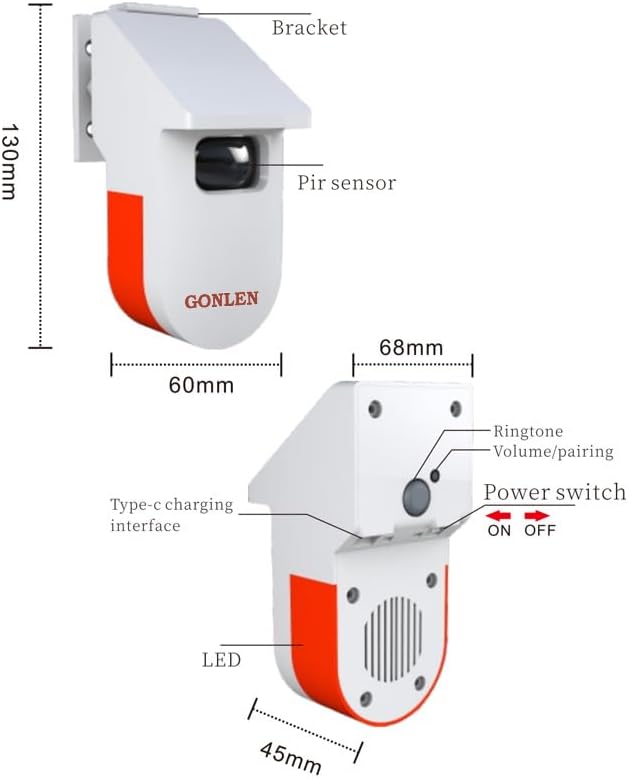
Image 3.1: Detailed view of the sensor with dimensions and component labels (Bracket, PIR sensor, Type-C charging interface, LED, Ringtone/Volume/Pairing button, Power switch, Siren/Speaker).

Image 3.2: Another view of the sensor with dimensions and component labels.
4. Setup
4.1 Physical Installation
- Choose a Location: Select an outdoor location where the sensor can effectively detect motion within its 8-meter range. Ensure it is protected from direct heavy rain if possible, although it is designed for outdoor use.
- Attach the Bracket: Use the provided screws and wall plugs to securely mount the installation bracket to a wall or suitable surface.
- Mount the Sensor: Slide the PIR motion sensor onto the installed bracket until it clicks into place. Adjust the angle of the sensor to cover the desired detection area.
Video 4.1: This video demonstrates the physical installation of the sensor, including attaching the bracket and mounting the device. It also shows the location of the Type-C power interface, ON/OFF switch, and ringtone selection button.
4.2 App Installation and Pairing
- Download the App: Download the "Tuya Smart" or "Smart Life" app from your smartphone's app store (available on iOS and Android).
- Register/Log In: Open the app and register for a new account or log in with an existing one.
- Add Device: Turn on the PIR motion sensor using the ON/OFF switch. In the app, tap the "+" icon to add a new device. Select "Security & Video Surveillance" > "PIR Detector" or search for "PIR Motion Sensor".
- Connect to WiFi: Follow the on-screen instructions to connect the sensor to your 2.4GHz WiFi network. You may need to put the device into pairing mode (refer to the app's instructions or the device's LED indicator for specific pairing steps).
- Name the Device: Once successfully paired, you can rename the device for easy identification (e.g., "Front Yard Sensor").
5. Operating Instructions
5.1 Modes of Operation
The sensor can operate in various modes, providing alerts for different scenarios:
- Anti-Theft Alarm: When motion is detected, the sensor will activate its loud siren and strobe light, and send an immediate push notification to your smartphone. This mode is ideal for securing restricted areas or detecting intruders.
- Dangerous Area Alarm: Similar to the anti-theft alarm, this mode triggers a siren and notification when motion is detected in a designated dangerous zone, such as near flammable materials or machinery.
- Visitor Chime/Doorbell: In this mode, when motion is detected, the sensor plays a selected chime sound (like a doorbell) and sends a notification, indicating a visitor's arrival. This is suitable for entrances to homes or shops.

Image 5.1: Illustration of the 8-meter motion detection range, showing how the sensor triggers an alarm upon detecting an intruder.

Image 5.2: The sensor triggering a siren and sending an app reminder when motion is detected in an outdoor area.

Image 5.3: The sensor acting as a doorbell or chime for a shop, playing a "Ding Dong" sound upon detecting a customer.
Video 5.4: This video demonstrates the sensor's functionality in different scenarios: anti-theft alarm, dangerous area alarm, and visitor chime, including app push notifications.
5.2 Adjusting Settings (Ringtones, Volume)
The sensor offers customizable ringtones and volume levels:
- Ringtone Selection: Press the "Ringtones switchable key" (Set Button) on the back of the device to cycle through the available 30 ringtones.
- Volume Adjustment: The device supports 4 levels of volume. Adjust this via the app settings or by pressing the volume button on the device if available.

Image 5.5: Information on the sensor's 30 ringtones, 4 volume levels, low power consumption, and large capacity rechargeable battery.
Video 5.6: This video demonstrates how to select different ringtones using the switchable key on the device.
6. Maintenance
- Charging the Battery: The sensor is equipped with a rechargeable Lithium Polymer battery. When the battery level is low, connect the device to a power source using the provided Type-C USB cable.
- Cleaning: Periodically clean the PIR sensor lens with a soft, dry cloth to ensure optimal detection performance. Avoid using abrasive cleaners or solvents.
- Firmware Updates: Check the Tuya Smart Life app regularly for any available firmware updates for your device. Updates can improve performance and add new features.
7. Troubleshooting
- Device Not Pairing:
- Ensure your WiFi network is 2.4GHz. The sensor does not support 5GHz networks.
- Verify the device is in pairing mode (usually indicated by a blinking LED).
- Move the sensor closer to your WiFi router during the pairing process.
- Restart your router and the sensor, then try pairing again.
- No Motion Detection:
- Check if the sensor lens is clean and unobstructed.
- Ensure the sensor is powered on and the battery is charged.
- Verify the detection range and angle are appropriate for the area you wish to monitor.
- Avoid placing the sensor near heat sources or direct sunlight, which can cause false triggers or reduce sensitivity.
- No App Notifications:
- Check your smartphone's notification settings to ensure the Tuya Smart Life app has permission to send notifications.
- Verify your phone has an active internet connection.
- Ensure the sensor is connected to WiFi and online in the app.
8. Warranty and Support
For warranty information or technical support, please refer to the contact details provided with your purchase or visit the official GONLEN website. Keep your purchase receipt as proof of purchase for warranty claims.