
1. Product Overview
The Digi International TX54-A152 is a robust 5G cellular router designed for demanding enterprise and industrial applications. It features 5G connectivity with LTE fallback, ensuring reliable network access. The device also includes dual Wi-Fi capabilities for flexible local network deployment. This manual provides essential information for the proper installation, operation, and maintenance of your TX54-A152 router.
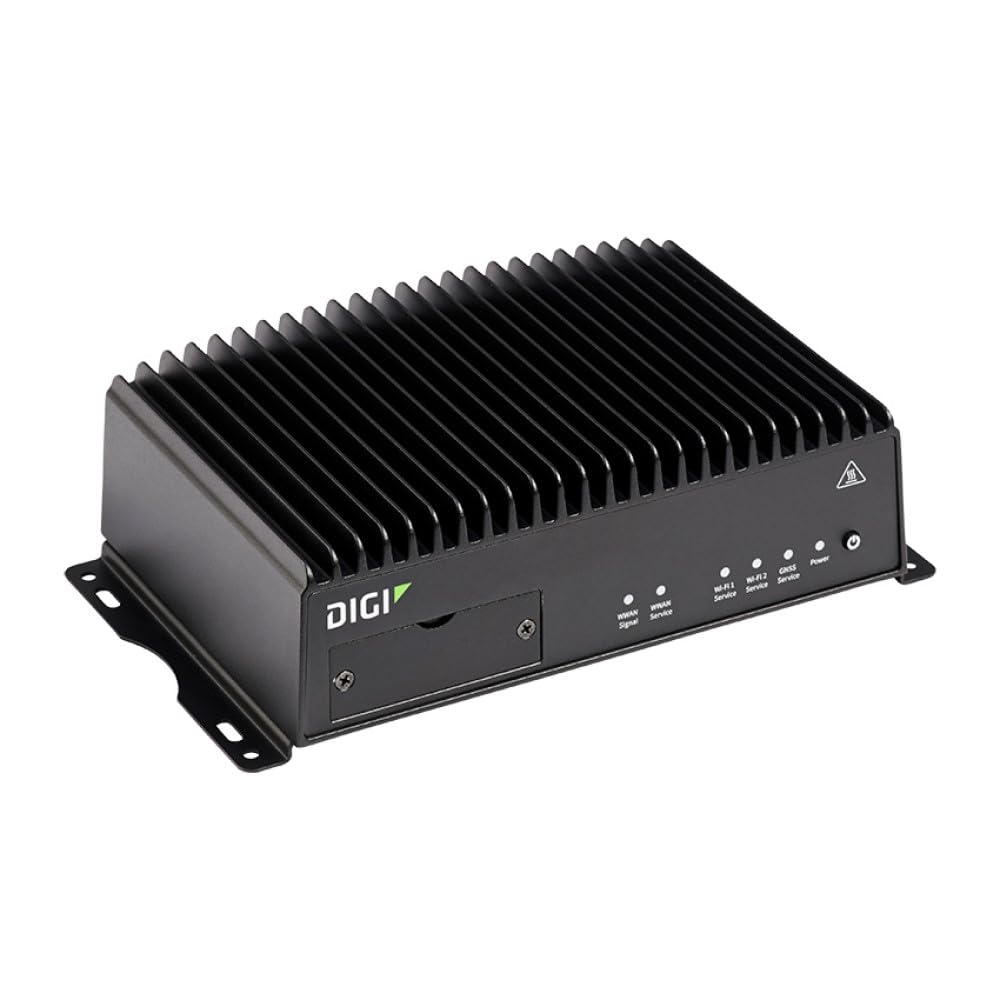
Figure 1: Digi International TX54-A152 5G Router. This image displays the front view of the TX54-A152 device, highlighting its compact design and typical industrial router appearance.
2. Setup and Installation
2.1 Package Contents
Verify that your package contains the Digi TX54-A152 router. Please note that accessories such as power adapters, antennas, and mounting hardware are typically sold separately and are not included with the base unit.
2.2 Physical Installation
- Mounting: Choose a suitable location for the router, ensuring adequate ventilation and proximity to power and network connections. The device can be mounted on a DIN rail or wall using appropriate mounting kits (sold separately).
- Antenna Connection: Connect the required 5G/LTE and Wi-Fi antennas to their respective ports on the router. Ensure all connections are secure.
- Power Connection: Connect the power adapter (sold separately) to the router's power input and then to a suitable power source. The router will begin its boot-up sequence.
2.3 SIM Card Installation
The TX54-A152 requires a 5G/LTE SIM card for cellular connectivity. Locate the SIM card slot(s) on the device. Insert the activated SIM card(s) into the slot(s) with the gold contacts facing down and the notched corner oriented correctly. Ensure the SIM card clicks into place.
2.4 Initial Configuration
After powering on, the router will attempt to establish a cellular connection. You can access the router's web interface for detailed configuration:
- Connect a computer to one of the router's Ethernet LAN ports.
- Open a web browser and navigate to the router's default IP address (e.g., http://192.168.1.1 or as specified in the quick start guide).
- Enter the default username and password (refer to the device label or quick start guide for credentials).
- Follow the on-screen prompts to configure your network settings, including cellular APN, Wi-Fi SSIDs, and security.
3. Operating the Router
3.1 Connecting Devices
Devices can connect to the TX54-A152 via Ethernet or Wi-Fi.
- Ethernet: Connect devices directly to the router's LAN ports using standard Ethernet cables.
- Wi-Fi: Search for the Wi-Fi network name (SSID) broadcast by the router on your device. Select the network and enter the Wi-Fi password (WPA2/WPA3 key) as configured during setup.
3.2 5G and LTE Fallback
The TX54-A152 prioritizes 5G connectivity for high-speed data transfer. In areas where 5G coverage is unavailable or weak, the router will automatically fall back to LTE (4G) to maintain a stable internet connection. This transition is typically seamless and managed by the router's internal software.
3.3 Dual Wi-Fi Operation
The dual Wi-Fi feature allows the router to operate on both 2.4 GHz and 5 GHz frequency bands simultaneously, or to create multiple isolated Wi-Fi networks. This provides flexibility for different device types and network segmentation. Configuration of Wi-Fi bands and SSIDs is performed through the web interface.
4. Maintenance
4.1 Firmware Updates
Regular firmware updates are crucial for security, performance, and new features. Check the Digi International support website periodically for the latest firmware versions for your TX54-A152. Firmware updates are typically applied via the router's web interface.
4.2 Cleaning
Keep the router clean and free from dust. Use a soft, dry cloth for cleaning. Do not use liquid cleaners or aerosols directly on the device.
4.3 Environmental Considerations
Ensure the router operates within its specified temperature and humidity ranges. Avoid placing the device in direct sunlight, near heat sources, or in excessively dusty or moist environments.
5. Troubleshooting
5.1 No Internet Connection
- Check SIM Card: Ensure the SIM card is correctly inserted and activated with your cellular provider.
- Antennas: Verify that all cellular antennas are securely connected.
- Signal Strength: Check the cellular signal strength indicator in the router's web interface. If signal is weak, try repositioning the router or antennas.
- APN Settings: Confirm that the Access Point Name (APN) settings in the router's configuration match those provided by your cellular carrier.
5.2 Slow Network Speed
- Signal Strength: Weak cellular signal can lead to slow speeds.
- Network Congestion: Cellular network performance can vary based on local congestion.
- Wi-Fi Interference: If using Wi-Fi, check for interference from other devices or networks. Try changing Wi-Fi channels.
5.3 Device Reset
If the router is unresponsive or experiencing persistent issues, a factory reset may be necessary. Locate the reset button (often recessed) on the device. Use a paperclip to press and hold the button for approximately 10-15 seconds until the device restarts. Warning: A factory reset will erase all custom configurations and restore the router to its default settings.
6. Specifications
| Feature | Detail |
|---|---|
| Model | TX54-A152 |
| Connectivity | 5G, LTE Fallback, Dual Wi-Fi |
| Product Dimensions | 8.5 x 5.5 x 5.75 inches |
| Item Weight | 5.1 pounds |
| Manufacturer | DIGI INTERNATIONAL |
| ASIN | B0CH7B3WTR |
| UPC | 663072966485 |
| Control Method | Touch (Note: Refers to web interface interaction, not physical touch screen) |
7. Warranty Information
For detailed warranty information regarding your Digi International TX54-A152 router, please refer to the official Digi International website or the warranty documentation included with your purchase. Warranty terms and conditions may vary by region and reseller.
8. Technical Support
Should you encounter issues not covered in this manual or require further assistance, please contact Digi International technical support. Visit the official Digi International website for support resources, FAQs, and contact information.


