Introduction
This manual provides essential information for the safe and efficient operation of your JVC LT-32VH3101 32-inch HD Smart LED TV. Please read these instructions thoroughly before using your television and retain them for future reference. Adhering to these guidelines will ensure optimal performance and longevity of your device.
Safety Information: Always disconnect the power cord from the wall outlet before cleaning or performing any maintenance. Do not expose the TV to rain or moisture. Ensure proper ventilation and avoid blocking ventilation openings. Refer to the full safety instructions provided in the packaging for detailed warnings.
Setup
1. Unpacking the TV
- Carefully remove the TV from its packaging.
- Check that all accessories are present: remote control, batteries, power cord, and stand components.
- Retain the packaging materials for potential future transport or service.
2. Attaching the Stand or Wall Mounting
Your JVC LT-32VH3101 TV supports both table-top stand installation and wall mounting.
- For Table-top Stand: Place the TV face down on a soft, flat surface. Align the stand feet with the corresponding slots on the bottom of the TV and secure them with the provided screws. Ensure the stand is stable before placing the TV upright.
- For Wall Mounting: This TV is compatible with VESA wall mounts. Consult a professional for wall mounting installation to ensure safety and proper attachment. Refer to the wall mount manufacturer's instructions for specific details.
3. Connecting Power
Connect the power cord to the TV's power input, then plug the other end into a suitable wall outlet. Do not power on the TV until all other connections are made.
4. Connecting External Devices
Your TV features various ports for connecting external devices:
- HDMI Ports: For high-definition devices like Blu-ray players, game consoles, or set-top boxes.
- USB Port: For connecting USB storage devices to play media files.
- Antenna/Cable Input: For connecting an antenna or cable TV signal.
- Ethernet Port: For a wired internet connection.
5. Initial Setup
Upon first power-on, the TV will guide you through the initial setup process:
- Language Selection: Choose your preferred language.
- Network Connection: Connect to your home Wi-Fi network or use a wired Ethernet connection.
- Channel Scan: Scan for available digital and analog channels.
- Time Zone and Date: Set the correct time and date.
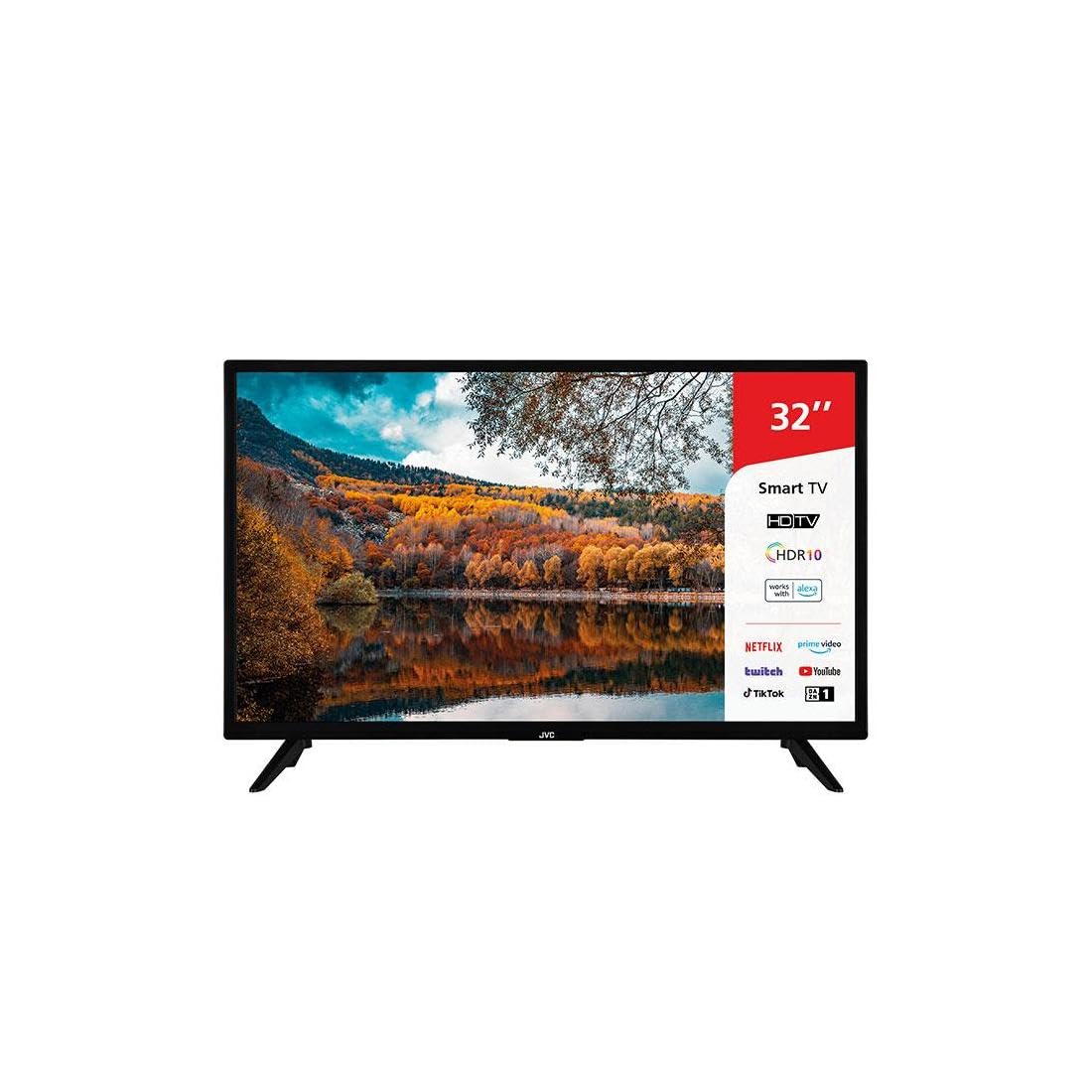
This image shows the JVC LT-32VH3101 32-inch Smart LED TV from the front, featuring a slim black bezel and two V-shaped stand feet. The screen displays a colorful autumn landscape with a lake reflecting the trees and sky. On the right side of the screen, a red and white overlay highlights key features such as '32"', 'Smart TV', 'HDTV', 'HDR10', 'works with alexa', and logos for streaming services like Netflix, Prime Video, Twitch, YouTube, TikTok, and DAZN.
Operating the TV
1. Remote Control Overview
Familiarize yourself with the remote control buttons for easy navigation. Key functions include Power, Volume Up/Down, Channel Up/Down, Input Source, Menu, Navigation (Up/Down/Left/Right/OK), Back, Exit, and dedicated app buttons.
2. Basic TV Functions
- Power On/Off: Press the Power button on the remote or TV.
- Volume Adjustment: Use the Volume Up/Down buttons.
- Channel Selection: Use the Channel Up/Down buttons or numeric keypad.
- Input Source: Press the Input button to switch between connected devices (HDMI 1, HDMI 2, USB, TV, etc.).
3. Smart TV Features
Your JVC LT-32VH3101 is a Smart TV, offering access to various online services and applications.
- Accessing Apps: Use the dedicated app buttons on your remote (e.g., Netflix, Prime Video) or navigate to the Smart TV home screen to find and launch other applications like YouTube, Twitch, TikTok, and DAZN.
- Network Connectivity: Ensure your TV is connected to the internet via Wi-Fi or Ethernet to access Smart TV features.
- Web Browser: Use the integrated web browser to surf the internet.
4. Picture and Sound Settings
Access the TV's menu to adjust picture and sound settings to your preference.
- Picture Modes: Select from various preset modes (e.g., Standard, Dynamic, Movie, User) or customize brightness, contrast, color, and sharpness.
- Sound Modes: Choose from sound presets (e.g., Standard, Music, Movie, User) or adjust bass, treble, and balance.
Maintenance
1. Cleaning the TV
- Screen: Gently wipe the screen with a soft, dry, lint-free cloth. For stubborn marks, lightly dampen the cloth with water or a specialized screen cleaner. Never spray liquid directly onto the screen.
- TV Body: Use a soft, dry cloth to wipe dust and dirt from the TV's frame and stand.
- Important: Always unplug the TV from the power outlet before cleaning.
2. Software Updates
Your TV may receive software updates to improve performance and add new features. Ensure your TV is connected to the internet. You can usually check for updates manually through the TV's settings menu (e.g., Settings > System > Software Update).
3. Storage Recommendations
If storing the TV for an extended period, ensure it is kept in a dry, dust-free environment, preferably in its original packaging, and away from extreme temperatures.
Troubleshooting
This section addresses common issues you might encounter. If the problem persists, contact customer support.
| Problem | Possible Solution |
|---|---|
| No power | Check if the power cord is securely plugged into both the TV and the wall outlet. Ensure the wall outlet is functional. Try pressing the power button on the TV itself. |
| No picture, but sound is present | Check the input source. Ensure the external device (e.g., cable box) is powered on and connected correctly. |
| No sound, but picture is present | Check the volume level and ensure the TV is not muted. Verify audio cables for external devices. Check sound settings in the TV menu. |
| Remote control not working | Replace the batteries. Ensure there are no obstructions between the remote and the TV's IR sensor. |
| Cannot connect to Wi-Fi | Ensure your Wi-Fi router is on and working. Re-enter the Wi-Fi password carefully. Try restarting both the TV and your router. |
| Smart TV apps not loading | Check your internet connection. Try restarting the TV. Ensure the app is updated to the latest version. |
Specifications
Key technical specifications for the JVC LT-32VH3101 TV:
| Feature | Detail |
|---|---|
| Brand | JVC |
| Model Name | LT-32VH3101 |
| Model Year | 2018 |
| Screen Size | 32 Inches (80 cm) |
| Display Technology | LED |
| Aspect Ratio | 16:9 |
| Connectivity Technology | Ethernet, Wi-Fi |
| USB Ports | 1 |
| Speaker Surround Sound Configuration | 2.0 |
| Mounting Compatibility | Wall Mount, Table Stand |
| Special Feature | Flat Screen |
| Supported Internet Services | Amazon Prime Video, LG ThinQ, Web Browser, Netflix, Twitch, YouTube, TikTok, DAZN |
Warranty and Support
For warranty information, please refer to the warranty card included with your product or visit the official JVC website. For technical support or service inquiries, please contact JVC customer service through the channels provided on their official website.


