
NALsa M200S 8core 2+32G
NALsa Android 12 System Car Stereo User Manual
Model: M200S 8core 2+32G | Brand: NALsa
Introduction
This manual provides comprehensive instructions for the installation, operation, and maintenance of your new NALsa Android 12 System Car Stereo. Please read this manual thoroughly before using the product to ensure proper function and to prevent damage.

Image: The NALsa Android Car Stereo Unit, showcasing its large touch screen display with navigation and application icons, along with a rearview camera module.
Safety Information
Always observe the following safety precautions to avoid injury or damage to the product:
- Do not attempt to disassemble or modify the unit.
- Ensure proper ventilation around the unit to prevent overheating.
- Installation should be performed by a qualified professional or with careful adherence to instructions to avoid electrical hazards.
- Do not operate the device in extreme temperatures or humidity.
- Keep the screen clean and free from obstructions.
Package Contents
Verify that all items listed below are included in your package:
- Android host (screen)
- All necessary accessories and cable adapters
- AHD 720P reversing camera (gift)
- Microphone (gift)
- GPS antenna
- USB cables (2)
- RCA cables
- Audio out cable (for M200S-700S models)
- 4G Antenna (for M200S-700S models)
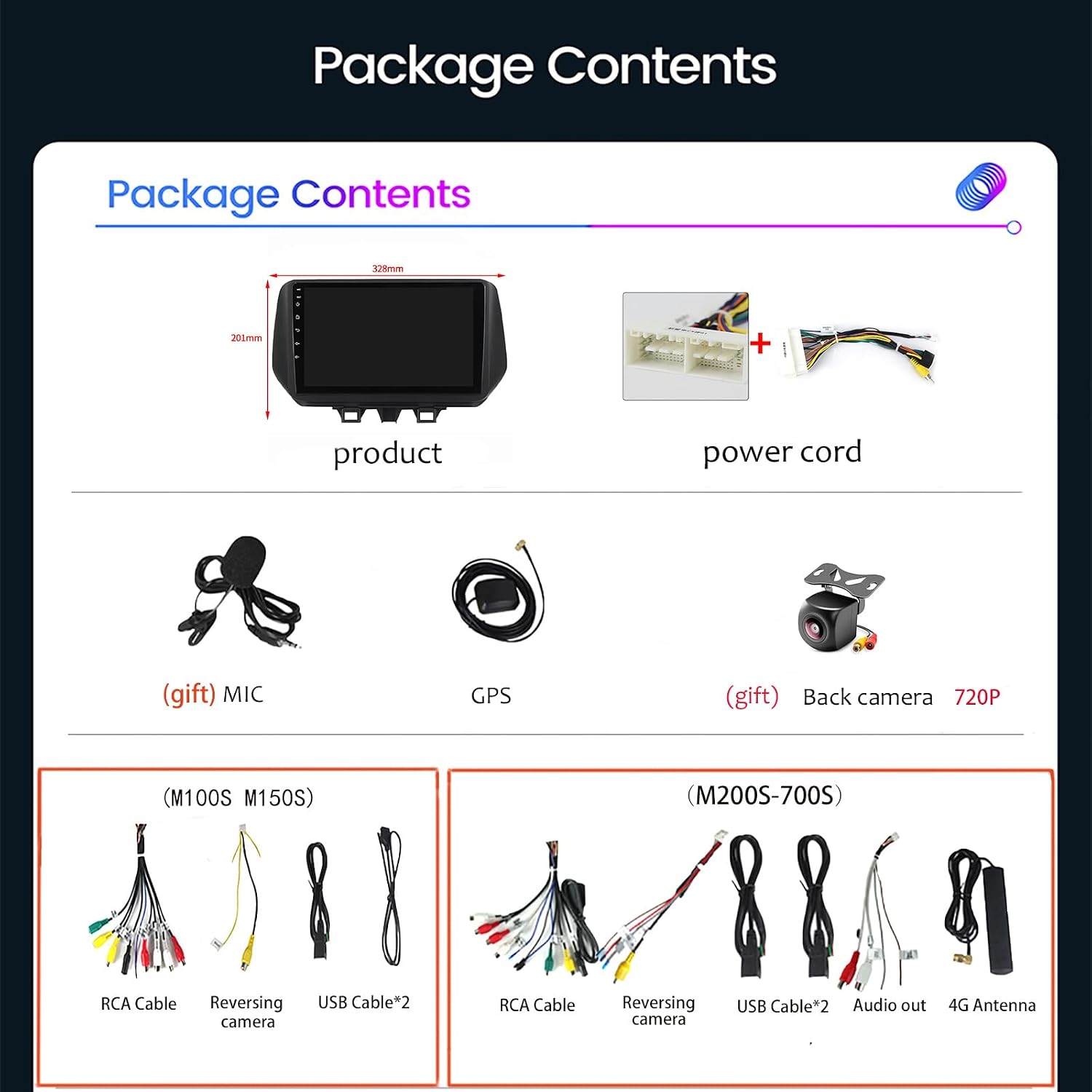
Image: A visual representation of the package contents, including the main product unit, power cord, microphone, GPS antenna, rearview camera, and various cable sets for different model configurations.
Setup and Installation
This car stereo is specifically designed for Hyundai Tucson NX4E NX4A models from 2018, 2019, 2020, and 2021 that do not have an existing screen in the original car. Professional installation is highly recommended due to the complexity of car audio systems.
Compatibility Check:
- Ensure your vehicle is a Hyundai Tucson NX4E NX4A (2018-2021) without a factory screen.
- If unsure, consult a professional or contact customer support with a picture of your original center console.
Installation Steps (General Guide):
- Preparation: Disconnect the car battery's negative terminal before starting any electrical work.
- Remove Original Unit: Carefully remove the existing car stereo or dashboard panel to access the wiring harness.
- Connect Wiring: Connect the provided power cord and other cable adapters to the car's wiring harness. Ensure all connections are secure.
- GPS Antenna: Mount the GPS antenna in a location with a clear view of the sky, typically on the dashboard or under the windshield.
- Rearview Camera: Install the rearview camera at the rear of the vehicle and route its cable to the main unit. Connect the camera's power to the reverse light circuit.
- Microphone: Connect the external microphone and position it for optimal voice pickup.
- Test Connections: Before fully reassembling the dashboard, reconnect the car battery and power on the unit to test basic functions (power, audio, touch screen, GPS signal, camera display).
- Secure Unit: Once tested, securely mount the new Android stereo unit into the dashboard.
- Reassemble: Carefully reassemble all removed dashboard panels.

Image: A comparison showing the original Hyundai Tucson dashboard without a screen and the same dashboard after the NALsa Android Car Stereo has been professionally installed.

Image: The NALsa Android Car Stereo unit fully installed and integrated into the center console of a Hyundai Tucson, demonstrating its fit and appearance.
Operating Instructions
Basic Operation:
- Power On/Off: The unit typically powers on with the vehicle's ignition. Press and hold the power button (if available) for manual power control.
- Touch Screen: Navigate the interface using the capacitive multi-touch screen. Swipe, tap, and pinch-to-zoom as you would on a smartphone.
- Volume Control: Adjust volume using the physical buttons on the unit or steering wheel controls.
- Home Screen: The main screen displays time, date, navigation, and quick access to applications.
GPS Navigation:
- Access the navigation application from the home screen or app drawer.
- Supports both online and offline maps. Ensure maps are downloaded for offline use.
- Enter destinations via voice command or on-screen keyboard.
Bluetooth Connectivity:
- Go to Bluetooth settings on the unit.
- Enable Bluetooth on your mobile device and search for the car stereo.
- Pair the devices. Once connected, you can make/receive calls hands-free and stream audio.
- Supports Bluetooth 4.0/5.0 depending on the model.
Image: The user interface for the Bluetooth function, illustrating options for call history, contact synchronization, and music streaming from a connected mobile device.
CarPlay / Android Auto:
- For M200S-700S models, wired and wireless CarPlay/Android Auto are supported.
- Connect your iPhone via USB for wired CarPlay or wirelessly via Wi-Fi/Bluetooth.
- Connect your Android phone via USB for wired Android Auto or wirelessly via Wi-Fi/Bluetooth.
- Follow on-screen prompts to complete the connection.
Multimedia Playback:
- Supports various digital media formats including mp3, mp4, mp5, wma, jpeg.
- Play media from USB drives, internal storage, or streaming apps.
- 1080P video decoding and 4K video playback are supported.

Image: A screenshot of the 1080P video playback interface, highlighting the clarity and detail of the video display on the unit.
Steering Wheel Control (SWC):
- The unit supports steering wheel operation for convenience and safety.
- Configuration may be required in the system settings to map your vehicle's SWC buttons to the unit's functions.
Image: The user interface for configuring Steering Wheel Controls, demonstrating how to assign functions to the vehicle's steering wheel buttons.
Advanced Features
Digital Sound Processor (DSP):
- Available on M200S, M300S, M400S, M500S, M600S, M700S models.
- Built-in DSP supports surround sound adjustment, bass adjustment, and treble filtering for enhanced audio quality.
Image: The DSP (Digital Sound Processor) interface, displaying various sound equalization and adjustment options for customizing audio output.

Image: Detailed views of sound adjustment options within the DSP, including controls for surround space, bass enhancement, sound field, and bass filter settings.
Cooling Fan:
- Available on M200S, M300S, M400S, M500S, M600S, M700S models.
- An aluminum heat sink and powerful cooling fan at the rear help dissipate heat, preventing performance issues due to high temperatures.
Image: A visual comparison illustrating the temperature difference between a unit without a cooling fan (high temperature) and one with a cooling fan (normal temperature), highlighting the fan's effectiveness.
IPS Screen:
- High-resolution capacitive multi-touch 2.5D IPS screen.
- IPS technology provides wider viewing angles, better color reproduction, and more realistic picture quality compared to TFT screens.
Image: A visual demonstration comparing the display quality of an IPS screen versus a TFT screen, emphasizing the superior viewing angles, color accuracy, and sharpness of the IPS display.
4G LTE & 5GHz WiFi:
- M200S-700S models support 4G LTE connectivity via a SIM card slot.
- 5GHz WiFi (802.11 b/g/n) provides faster and more stable wireless internet connection for streaming and online services.
Image: Illustrations detailing the support for 4G LTE connectivity, including a SIM card slot, and the benefits of 5GHz WiFi for faster and more stable internet access.
Maintenance
- Screen Cleaning: Use a soft, lint-free cloth to gently wipe the screen. For stubborn smudges, slightly dampen the cloth with water or a screen-safe cleaner. Avoid harsh chemicals.
- Software Updates: Periodically check for system updates through the unit's settings to ensure optimal performance and access to new features.
- General Care: Keep the unit free from dust and debris. Avoid spilling liquids on the device.
Troubleshooting
| Problem | Possible Cause | Solution |
|---|---|---|
| Unit does not power on. | Loose power connection, blown fuse, car battery issue. | Check all power cable connections. Inspect vehicle fuses. Ensure car battery is charged. |
| No sound from speakers. | Speaker wires disconnected, volume too low, mute enabled, incorrect audio output settings. | Verify speaker wire connections. Increase volume. Check if unit is muted. Adjust audio output settings. |
| GPS signal weak or lost. | GPS antenna obstructed or improperly installed, unit in an area with poor satellite reception. | Ensure GPS antenna has a clear view of the sky. Check antenna connection. Move to an open area. |
| Bluetooth not connecting. | Bluetooth not enabled on unit or phone, incorrect pairing process, interference. | Ensure Bluetooth is enabled on both devices. Delete previous pairings and re-pair. Move closer to the unit. |
| Touch screen unresponsive. | Temporary software glitch, screen dirty, physical damage. | Restart the unit. Clean the screen. If problem persists, contact support. |
Specifications
The following table outlines the key specifications for various models of the NALsa Android Car Stereo:

Image: A detailed parameter table comparing different models (M100S to M700S) of the car multimedia player, listing specifications such as OS, RAM/ROM, Carplay/Android Auto support, BT module, resolution, screen type, and cooling fan presence.
| Feature | Description |
|---|---|
| Operating System | Android 10.0 or Android 12.0 API29 |
| Configuration Options | 1GB/2GB/3GB/4GB/6GB/8GB RAM, 16GB/32GB/64/128GB ROM |
| Resolution | 1024*600 / 1280*720 |
| Screen Type | High-resolution capacitive multi-touch, 2.5D IPS |
| Internet Connection | 4G LTE / 5GWIFI / USB / Hotspot |
| Bluetooth | Built-in Bluetooth 4.0 / 5.0 |
| CarPlay / Android Auto | Wired and Wireless support (M200S-700S) |
| DSP | Built-in, supports surround sound, bass, treble filtering |
| Cooling Fan | Aluminum heat sink, powerful cooling fan (M200S-700S) |
| Amplifier IC | Toshiba 7851/7850/7838 (M300S 500S 600S 700S), TDA7388 (M200S 400S) |
| Receiver IC | 7708 (M200S-700S) |
| Special Features | Built-in speaker/microphone, WiFi, steering wheel operation, 3G/4G network support, optical/coaxial output (M500S M600S M700S) |
| Included Components | GPS Navigation System, HD 720P Reversing Camera |
| Item Weight | 5.5 pounds |
| Package Dimensions | 15.75 x 11.81 x 3.94 inches |
Warranty and Support
For any technical assistance or inquiries regarding your NALsa product, please contact our customer service. We provide ongoing technical support to ensure your satisfaction.
- Online Technical Service: Available for troubleshooting and guidance.
- Professional Installation Support: Assistance for installation-related queries.
- Contact: Reach out via chat or Amazon mail for prompt assistance.
If you are unsure about compatibility, please send a photo of your car's model, year of manufacture, and dashboard center console to our support team for verification.
Ask a question about this manual
Ask about setup, troubleshooting, compatibility, parts, safety, or missing instructions. Manuals+ will review the question and use this page’s manual context to help answer it.